1. Introduction
This manual provides detailed instructions for the setup, operation, and maintenance of your MSI Forge GK600 TKL Wireless Mechanical Keyboard. Please read this manual thoroughly before using the product to ensure proper functionality and longevity.
2. Package Contents
Verify that all items listed below are present in your package:
- MSI Forge GK600 TKL Wireless Mechanical Keyboard
- USB Type-C to Type-A Cable
- 2.4GHz Wireless Dongle
- Keycap Puller
- Switch Puller
- User Manual (this document)
3. Product Overview
The MSI Forge GK600 TKL is a tenkeyless mechanical keyboard designed for versatility and performance. It features multiple connectivity options, hot-swappable switches, and a customizable RGB lighting system.

Image: Top-down view of the MSI Forge GK600 TKL Wireless Mechanical Keyboard, showcasing its compact layout and keycap design.
Key Features:
- Tenkeyless (TKL) Design: Compact layout without a number pad.
- Mechanical Linear Switches: Provides a smooth and consistent keystroke.
- Hot-Swappable Switches: Allows for easy replacement of switches without soldering.
- Triple Connectivity: Supports 2.4GHz wireless, Bluetooth, and wired USB Type-C.
- 1.06-inch Display: Shows battery status, RGB settings, and other information.
- Dye-Sublimated PBT Keycaps: Durable keycaps with legends that resist fading.
- RGB LED Lighting: Customizable per-key RGB illumination.
- Sound-Dampening Gaskets: Enhances typing acoustics and reduces noise.
4. Setup
4.1. Wired Connection
- Connect the provided USB Type-C cable to the Type-C port on the keyboard.
- Connect the other end of the USB Type-C cable (Type-A) to an available USB port on your computer.
- The keyboard will automatically be detected and ready for use.
4.2. 2.4GHz Wireless Connection
- Locate the 2.4GHz wireless dongle.
- Plug the 2.4GHz dongle into an available USB port on your computer.
- On the keyboard, switch to 2.4GHz wireless mode using the dedicated switch or function key combination (refer to Section 5.1).
- The keyboard should automatically connect to the dongle.
4.3. Bluetooth Connection
- On the keyboard, switch to Bluetooth mode using the dedicated switch or function key combination (refer to Section 5.1).
- The keyboard's display will indicate Bluetooth pairing mode.
- On your computer or device, navigate to Bluetooth settings and search for new devices.
- Select "MSI GK600 TKL" from the list of available devices to pair.
- Follow any on-screen prompts to complete the pairing process.
4.4. Charging the Keyboard
The keyboard features a built-in 4000mAh battery. To charge:
- Connect the keyboard to your computer using the USB Type-C cable.
- The display will show the charging status.
- A full charge provides approximately 20 days of usage without RGB lighting or 6 hours with RGB lighting enabled (usage may vary).

Image: Illustration showing the battery life of the MSI Forge GK600 TKL keyboard: 20 days without RGB, 6 hours with RGB.
5. Operating Instructions
5.1. Function Key Combinations (Fn Keys)
The keyboard utilizes the Fn key for various secondary functions. Press and hold Fn, then press the corresponding key:
| Key Combination | Function |
|---|---|
| Fn + F1-F12 | Multimedia controls (Play/Pause, Volume, etc.) |
| Fn + 1/2/3 | Switch between Bluetooth profiles |
| Fn + 4 | Switch to 2.4GHz Wireless mode |
| Fn + 5 | Switch to Wired mode |
| Fn + Arrow Keys | Adjust RGB lighting effects/brightness |
| Fn + INS/HOME/PGUP/PGDN/DEL/END | Additional lighting controls or display functions |
5.2. RGB Lighting Control
The keyboard features customizable RGB lighting. Use the Fn key combinations or the integrated display to cycle through lighting modes, adjust brightness, and change colors.

Image: The MSI Forge GK600 TKL keyboard displaying various RGB lighting effects across its keys.
5.3. Display Functions
The 1.06-inch display provides real-time information. It can show:
- Battery level
- Current connection mode (Wired, 2.4GHz, Bluetooth)
- RGB lighting settings
- Other system indicators

Image: Close-up of the MSI Forge GK600 TKL's 1.06-inch display, showing its integration with function keys for control.
6. Maintenance
6.1. Cleaning the Keyboard
- Disconnect the keyboard from all power sources before cleaning.
- Use a soft, lint-free cloth lightly dampened with water or a mild cleaning solution to wipe the keycaps and chassis.
- For dust and debris between keycaps, use compressed air.
- Avoid spraying liquids directly onto the keyboard.
6.2. Keycap and Switch Replacement
The MSI Forge GK600 TKL features hot-swappable mechanical switches, allowing for easy customization and replacement.
- Removing Keycaps: Use the provided keycap puller to gently grasp the keycap and pull upwards.
- Removing Switches: After removing the keycap, use the provided switch puller to carefully grip the top and bottom clips of the switch and pull it straight out.
- Installing Switches: Align the new switch with the holes on the PCB, ensuring the pins are straight. Gently push the switch down until it clicks into place. Do not force it.
- Installing Keycaps: Place the keycap over the switch stem and press down firmly until it is seated.

Image: A keycap and switch puller tool shown next to the MSI Forge GK600 TKL keyboard, illustrating the process of removing a mechanical switch.
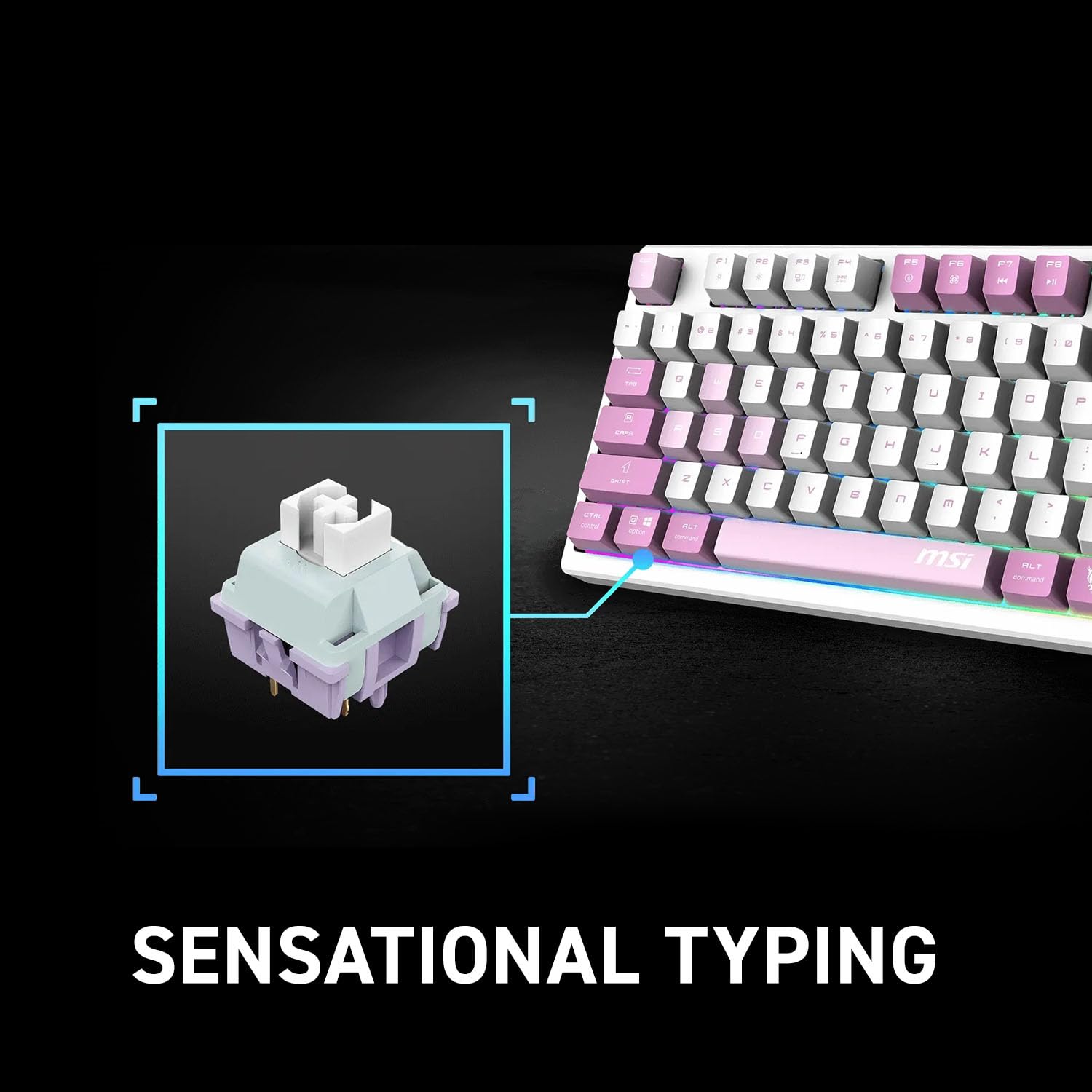
Image: Close-up view of a mechanical linear switch, highlighting its internal structure and how it connects to the keyboard.
7. Troubleshooting
7.1. Keyboard Not Responding
- Wired Mode: Ensure the USB cable is securely connected to both the keyboard and the computer. Try a different USB port or cable.
- 2.4GHz Wireless Mode: Ensure the dongle is plugged in and the keyboard is in 2.4GHz mode. Try re-pairing by pressing the designated Fn key combination (refer to Section 5.1).
- Bluetooth Mode: Ensure Bluetooth is enabled on your device and the keyboard is in Bluetooth pairing mode. Re-pair the device if necessary.
- Battery: Check the battery level on the keyboard's display. If low, connect the keyboard to a power source to charge.
7.2. RGB Lighting Not Working
- Check if RGB lighting is enabled via the Fn key combinations or the display settings.
- Ensure the keyboard battery has sufficient charge, as RGB lighting consumes power.
7.3. Keys Not Registering or Double-Typing
- This could indicate a faulty switch. Utilize the hot-swappable feature to replace the affected switch (refer to Section 6.2).
- Ensure no debris is lodged under the keycap or switch.
8. Specifications
| Feature | Detail |
|---|---|
| Model Name | MSI Forge GK600 TKL Wireless |
| Model Number | FORGEGK600V |
| Connectivity | USB Type-C (Wired), 2.4GHz Wireless, Bluetooth |
| Switch Type | Mechanical Linear (Hot-swappable) |
| Keycaps | Dye-Sublimated PBT |
| Layout | Tenkeyless (TKL) |
| Display | 1.06-inch Integrated Display |
| Battery Capacity | 4000mAh |
| Dimensions | 2.3 x 15.5 x 7.8 inches |
| Weight | 2.6 pounds |
9. Warranty and Support
MSI products are covered by a limited warranty. For detailed warranty information, including terms and conditions, please refer to the warranty card included with your product or visit the official MSI website.
For technical support, driver downloads, or further assistance, please visit the MSI support page:


