
EVERSECU LBC2-4
EVERSECU 1080P Wireless Light Bulb Security Camera User Manual
Model: LBC2-4
1. Introduction
This manual provides detailed instructions for the installation, operation, and maintenance of your EVERSECU 1080P Wireless Light Bulb Security Camera. Please read this manual thoroughly before using the product to ensure proper setup and functionality. This camera is designed for both indoor and outdoor surveillance, offering features such as 1080P HD video, dual-band Wi-Fi connectivity, motion detection with auto-tracking, two-way audio, and smart night vision.

Image 1.1: Overview of the EVERSECU E27 Camera highlighting its key features including 2MP Ultra HD resolution, waterproof design, AI detection, two-way audio, night vision, and 4x digital zoom. The camera supports 355-degree pan and 110-degree tilt.
2. What's in the Box
Verify that all components are present in the package:
- 1 x EVERSECU Light Bulb Security Camera
- 1 x Light Socket with US Plug (E26/E27 compatible)
- 1 x User Manual
3. Setup and Installation
3.1 Physical Installation
The EVERSECU Light Bulb Security Camera is designed for easy installation into standard E26/E27 light sockets (110V-240V). No drilling, wiring, or complex power cable setup is required.
- Ensure the power to the light socket is turned off before installation.
- Carefully screw the camera into an E26/E27 light socket.
- Turn on the power to the light socket. The camera will power on and initiate its startup sequence.
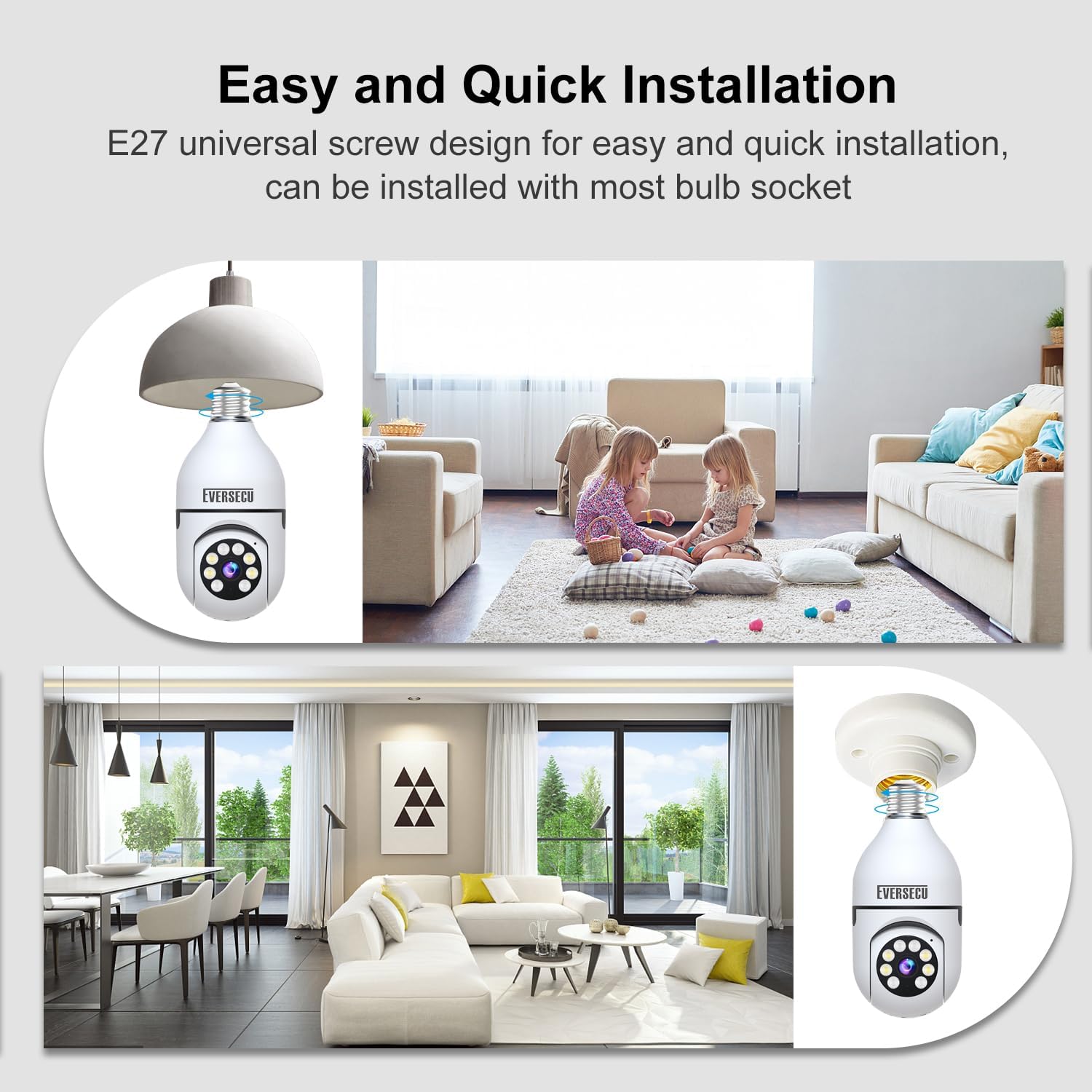
Image 3.1: The camera features an E27 universal screw design for quick and easy installation into most standard bulb sockets. The image shows the camera being screwed into a ceiling light fixture and a wall-mounted fixture.
3.2 App Installation and Wi-Fi Connection
The camera operates with the 'O-Kam Pro' application, available for both iOS and Android devices. It supports both 2.4GHz and 5GHz Wi-Fi networks.
- Download the 'O-Kam Pro' app from your device's app store (App Store for iOS, Google Play Store for Android).
- Register for an account and log in.
- Follow the in-app instructions to add your new camera. This typically involves scanning a QR code on the camera or manually entering device details.
- Connect the camera to your Wi-Fi network. Ensure your mobile device is connected to the same Wi-Fi network during the setup process. The camera supports both 2.4GHz and 5GHz bands for flexible connectivity.
3.3 ONVIF Configuration
The camera is ONVIF compliant, allowing integration with third-party software like Blue Iris, ZoneMinder, Security Spy, VLC, and most NVR systems. To enable ONVIF:
- In the 'O-Kam Pro' app, navigate to the camera's settings.
- Set a password for the camera within the app to enable the ONVIF feature.
- Search for the camera's IP address on your NVR system via the ONVIF protocol.
- Add the camera to the NVR using its username (default: admin) and the password you set in the app.
The RTSP address format is: rtsp://[username]:[password]@[ip]:10554/tcp/av0_0
Video 3.1: This video demonstrates the process of adding EVERSECU cameras to an NVR system. It shows how to set a password in the O-Kam Pro app to enable ONVIF, search for the camera's IP address on the NVR, and finally add the camera using its credentials.
4. Operating Instructions
4.1 Video Resolution and Night Vision
The camera provides 1080P 2MP HD video resolution. It features 4 IR LEDs and 4 white LEDs for enhanced night vision capabilities:
- White/Black Night Vision: Up to 31 feet using IR LEDs.
- Full-Color Night Vision: Up to 65.6 feet using white LEDs, providing clear, colored images even in low-light conditions.

Image 4.1: Comparison of the camera's night vision capabilities, showing both IR (infrared) mode for black and white viewing and Color mode for full-color viewing in low light.
4.2 Pan, Tilt, and Zoom (PTZ) Control
Control the camera's viewing angle remotely via the 'O-Kam Pro' app:
- Pan: 355 degrees horizontal rotation.
- Tilt: 110 degrees vertical rotation.
- Digital Zoom: 4x digital zoom to focus on specific details.
4.3 Motion Detection, Auto Tracking, and Real-time Alerts
The camera is equipped with a sensitive motion sensor and AI human detection filter to minimize false alarms.
- When motion is detected, the camera automatically tracks the movement of individuals.
- Real-time alerts are sent to your mobile device via the 'O-Kam Pro' app.
- An optional voice alert can be triggered to deter intruders.

Image 4.2: This image illustrates the camera's motion detection and real-time alert capabilities. When an unauthorized person is detected, the camera's spotlight activates, and an alarm notification is pushed to the user's phone.
4.4 Two-Way Audio
Communicate directly through the camera using the built-in microphone and speaker.
- Use the 'O-Kam Pro' app to speak to visitors or deter unwanted individuals.
- Listen to audio from the camera's environment.

Image 4.3: The two-way audio feature enables users to communicate through the camera. The image shows a person speaking into their phone, and the audio being transmitted to the camera, allowing interaction with people near the camera.
4.5 Multi-User Sharing
Share access to your camera's live feed and recordings with family and friends through the 'O-Kam Pro' app for collaborative monitoring.

Image 4.4: The camera supports multiple devices, allowing several users to view the camera feed simultaneously via the O-Kam Pro app on smartphones, tablets, or desktop computers.
4.6 Storage Options
The camera offers flexible storage solutions for your video recordings:
- Local Storage: Supports a micro SD card up to 128GB (not included).
- Cloud Storage: Subscription-based cloud storage is available for secure off-site backup.

Image 4.5: The camera supports both local storage via a maximum 128GB TF (micro SD) card and cloud storage, ensuring intelligent loop recording and playback access anytime, anywhere, with privacy protections.
4.7 Alexa Compatibility
The camera is compatible with Amazon Alexa, allowing for seamless integration into your smart home system. Use voice commands to view your camera feed on compatible Alexa-enabled devices.
5. Maintenance
- Cleaning: Gently wipe the camera lens and body with a soft, dry cloth. Avoid using harsh chemicals or abrasive cleaners.
- Firmware Updates: Regularly check the 'O-Kam Pro' app for available firmware updates to ensure optimal performance and security.
- Environmental Conditions: While rated IP55 for international protection, extreme weather conditions (e.g., heavy rain, snow, extreme temperatures) may affect clarity and performance. Operate within the recommended temperature range of 30°F to 100°F.
- SD Card Management: If using an SD card, periodically check its status and format it through the app to maintain recording efficiency.
6. Troubleshooting
| Problem | Possible Cause | Solution |
|---|---|---|
| Camera fails to connect to Wi-Fi | Incorrect Wi-Fi password; camera too far from router; 2.4GHz/5GHz band mismatch. | Verify Wi-Fi password. Move camera closer to router. Ensure your router supports the selected band (2.4GHz or 5GHz) and that your phone is connected to the same band during setup. |
| No video feed in app | Camera offline; network issue; app glitch. | Check camera's power and Wi-Fi connection. Restart the camera and the 'O-Kam Pro' app. Verify internet connectivity. |
| Motion detection alerts are too frequent or not working | Sensitivity settings too high/low; detection zone not configured. | Adjust motion detection sensitivity in the app. Configure specific detection zones to reduce unwanted alerts. Ensure AI human detection is enabled. |
| Poor night vision clarity | Obstruction near lens; environmental factors (fog, heavy rain). | Clean the camera lens. Ensure no objects are blocking the IR/white LEDs. Note that extreme weather can impact night vision performance. |
| SD card not recording | SD card full or corrupted; incorrect recording settings. | Check SD card status in the app. Format the SD card. Verify recording settings (e.g., continuous, event-triggered). Replace SD card if corrupted. |
7. Specifications
| Feature | Detail |
|---|---|
| Model Name | O-KAM Lightbulb Security Camera |
| Model Number | LBC2-4 |
| Video Resolution | 1080P (2MP) |
| Connectivity | 2.4GHz & 5GHz Wi-Fi |
| Pan/Tilt Range | 355° Pan, 110° Tilt |
| Night Vision | IR (31ft B/W), Full-Color (65.6ft) |
| Audio | Two-Way Audio |
| Storage Options | Micro SD Card (up to 128GB), Cloud Storage (subscription) |
| App Compatibility | 'O-Kam Pro' |
| Smart Home Integration | Amazon Alexa |
| Protocol Support | ONVIF, RTSP |
| Power Source | Corded Electric (E26/E27 socket, 110V-240V) |
| Operating Temperature | 30°F to 100°F |
| Dimensions (L x W x H) | 1.2 x 1.2 x 2.8 inches (Bulb camera size: 2.76 x 2.76 x 6.10 inches) |
| Weight | 2.55 pounds |
| International Protection Rating | IP55 |
8. Warranty and Support
For warranty information and technical support, please refer to the official EVERSECU website or contact their customer service directly. Details regarding warranty periods and support channels are typically provided with your purchase documentation or on the manufacturer's product page.
Ask a question about this manual
Ask about setup, troubleshooting, compatibility, parts, safety, or missing instructions. Manuals+ will review the question and use this page’s manual context to help answer it.