
ONIKUMA GAMING G69
ONIKUMA GAMING G69 Magnetic Mechanical Gaming Keyboard User Manual
Model: G69
Brand: ONIKUMA GAMING
1. Introduction
Welcome to the ONIKUMA GAMING G69 Magnetic Mechanical Gaming Keyboard user manual. This guide provides detailed instructions for setting up, operating, customizing, and maintaining your new keyboard. Designed for competitive gaming, the G69 features rapid trigger magnetic switches, adjustable actuation, and an 8000Hz polling rate for superior performance.
2. Package Contents
Verify that all items are present in your package:
- ONIKUMA GAMING G69 Magnetic Mechanical Gaming Keyboard
- USB-C to USB-A Cable
- Keycap Puller / Switch Puller Tool
- Wrist Rest
- Instruction Manual (this document)

Image showing the packing list: Packaging box, Instruction manual, Keyboard, Ribbon, USB C Cable.
3. Product Overview
The ONIKUMA GAMING G69 is a compact 68-key mechanical gaming keyboard engineered for precision and speed.

ONIKUMA GAMING G69 Magnetic Mechanical Keyboard highlighting features like Gasket Structure, Custom Web Driver, Mac/Win compatibility, Rapid Trigger, DKS support, Hot-Swappable, 0.125ms Latency, 8000Hz Polling Rate, USB-C Wired, and Hall Effect Switch.
Key Features:
- Competition-Level Response Speed: 0.125ms ultra-low latency and 8000Hz polling rate for near-zero input signal transmission delay.
- 0.02mm Magnetic Axis Accuracy: Customized magnetic axis solution with ±0.02mm triggering accuracy and a 0.01ms anti-shake algorithm, reducing key signal recognition error rate by 60%. Switch lifespan exceeds 150 million strikes.
- 68-Key Minimalist Layout: Compact 65% layout, retaining independent direction keys and function layer switching keys (Fn+ combinations), balancing gaming efficiency with multitasking needs. Ideal for laptops or small gaming setups.
- Immersive Lighting System: 16.8M color lower light position RGB solution with 1200 nits backlight brightness. Keycaps made with two-color injection molding (85% PBT content) for superior light transmission uniformity.
- Full-Key Hot-Swappable Structure: Compatible with three-pin/five-pin magnetic shafts (only Magnetic Jade Pro and Magneto Shafts supported), allowing welding-free switch replacement. Shock-absorbing metal positioning plate and silicone rubber core cotton ensure stable performance and reduce resonance noise.

Comparison image showing G69's 0.125ms latency and 8000Hz polling rate versus other gaming keyboards.

Detailed view of the magnetic switch mechanism with adjustable actuation range from 0.1mm to 3.4mm.

Detailed view of the Hall Effect Switch specifications: 50 million times key life, 3.4±0.1MM operating route, 37±5gf operating load, 5±0.5V working voltage.

Exploded view diagram of the keyboard's internal structure, showing layers like Keycap, Switch, ABS frame, Positioning plate, PO sandwich cotton, Printed Circuit Board, Noise-reducing cotton, Bottom shell, and Ribbon.
4. Setup
Connecting the Keyboard
- Connect the provided USB-C to USB-A cable to the USB-C port on the back of the G69 keyboard.
- Connect the USB-A end of the cable to an available USB port on your computer (PC or Mac).
- The keyboard will automatically be recognized by your operating system.
Adjusting Keyboard Angle
The G69 keyboard features two-stage adjustable feet on the underside. Flip out the feet to your preferred angle for ergonomic comfort.
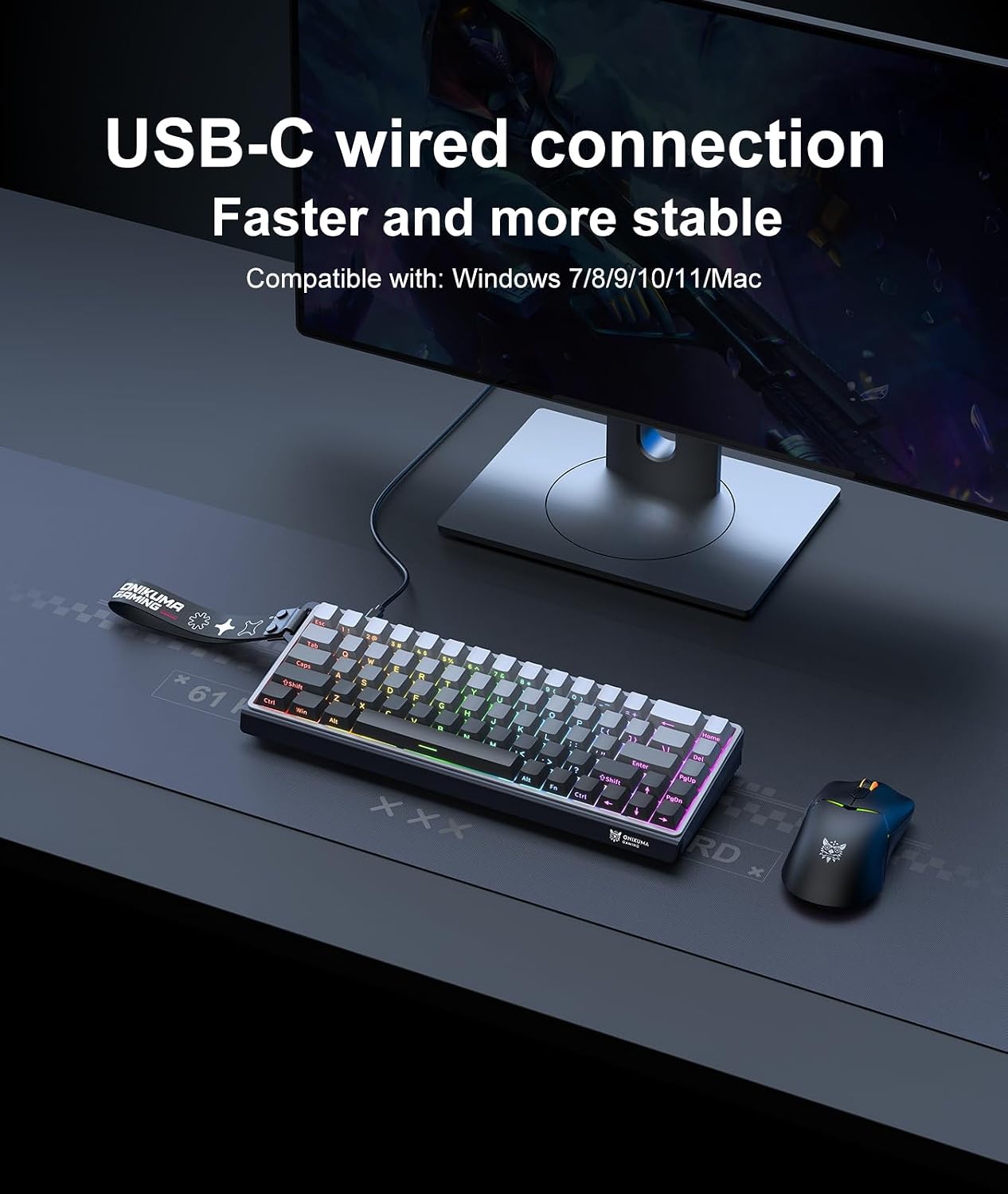
Image showing the USB-C wired connection of the keyboard to a computer setup.

Image showing the USB-C port on the side of the keyboard and the two-stage adjustable stands on the underside.
5. Operating Instructions
Basic Functions
- Typing: Use the standard QWERTY layout for typing.
- Function Keys (Fn): The Fn key (located near the right Alt key) is used in combination with other keys to access secondary functions.
RGB Lighting Control
The G69 keyboard offers 16.8 million RGB colors and 19 lighting effects. Use the Fn key combinations to control the lighting:

Image showing the keyboard with vibrant RGB backlighting and a diagram of Fn key combinations for lighting control.
| Function | Key Combination |
|---|---|
| Backlight Color Switching | Fn + \ | |
| Backlight Effect Switching | Fn + Enter |
| Win Mode | Fn + S |
| Mac Mode | Fn + A |
| Backlight On/Off Switch | Fn + T |
| Lighting Speed Faster | Fn + → |
| Lighting Speed Slower | Fn + ← |
| Lighting Brightness + | Fn + ↑ |
| Lighting Brightness - | Fn + ↓ |
| Win Lock | Fn + Win |
N-Key Rollover
The G69 supports N-Key Rollover, allowing multiple keys to be pressed simultaneously without delay or input errors, enhancing gameplay responsiveness.

Illustration demonstrating N-Key Rollover functionality, where multiple key presses are registered simultaneously.
6. Customization
Web Driver Software
The ONIKUMA GAMING G69 keyboard supports a custom web driver for advanced customization. This software allows you to:
- Adjust stroke settings.
- Customize key settings.
- Utilize DKS (Dynamic Key Stroke) functions.
- And more advanced features.
The web driver is compatible with Windows and Mac OS.

Screenshot of the Web Driver interface showing options for Stroke Setting, Key Setting, and DKS.
Hot-Swappable Switches
The G69 features a full-key hot-swappable structure, allowing you to replace switches without soldering. It is compatible with three-pin/five-pin magnetic shafts, specifically Magnetic Jade Pro and Magneto Shafts. This enables users to mix and match section shafts/linear shafts for a personalized typing and gaming feel.

Diagram illustrating the hot-swappable design for south-facing magnetic switches, including pre-lubed linear switch, hot-swap socket, lubed & tuned plate mounted stabilizer, and south-facing per-key LEDs.
Operating System Compatibility
The keyboard is designed for easy switching between Windows and Mac systems:
- Windows Mode: Press Fn + S
- Mac Mode: Press Fn + A

Image showing the keyboard's compatibility with Windows (Fn+S) and Mac (Fn+A) operating systems.
7. Maintenance
Cleaning
- Disconnect the keyboard from your computer before cleaning.
- Use a soft, damp cloth to wipe the surface of the keyboard.
- For deeper cleaning, use the provided keycap puller to remove keycaps and clean underneath with compressed air or a soft brush.
- Avoid using harsh chemicals or abrasive materials.
Switch Replacement
To replace a switch:
- Gently remove the keycap using the keycap puller tool.
- Use the switch puller tool to carefully extract the magnetic switch from its socket.
- Align the pins of the new compatible magnetic switch (Magnetic Jade Pro or Magneto Shaft) with the socket and press firmly until it clicks into place.
- Reattach the keycap.
8. Troubleshooting
Keyboard Not Responding
- Ensure the USB-C cable is securely connected to both the keyboard and your computer.
- Try connecting the keyboard to a different USB port on your computer.
- Test the keyboard on another computer to rule out system-specific issues.
- Reset the Keyboard: Long press Fn + Backspace for 3 seconds to reset the keyboard to factory settings.

Image illustrating how to reset the keyboard by long pressing Fn + Backspace for 3 seconds.
Lighting Issues
- Use the Fn key combinations (Fn + \ |, Fn + Enter, Fn + ↑/↓) to adjust lighting effects, colors, and brightness.
- Ensure the backlight is not turned off (Fn + T).
- If issues persist, try resetting the keyboard.
Keys Not Registering Correctly
- Check for any debris under the keycap or switch. Clean as described in the Maintenance section.
- If using custom switches, ensure they are correctly seated and compatible (Magnetic Jade Pro or Magneto Shafts).
- Update the keyboard's firmware using the web driver software if available.
9. Specifications
| Feature | Detail |
|---|---|
| Model | G69 |
| Brand | ONIKUMA GAMING |
| Layout | 68-Key (60% Compact) |
| Switch Type | Magnetic Switches (Hot-Swappable) |
| Actuation Accuracy | ±0.02mm |
| Latency | 0.125ms |
| Polling Rate | 8000Hz |
| Backlighting | RGB (16.8M colors, 19 effects, 1200 nits brightness) |
| Keycap Material | PBT (85% content) |
| Connectivity | Wired (USB-C) |
| Compatible OS | Windows 7/8/9/10/11, Mac OS |
| Dimensions | Approximately 13 x 4.6 x 1.3 inches (33 x 11.7 x 3.3 cm) |
| Weight | 1.19 lbs (0.54 kg) |
| Included Components | USB Cable, Wrist Rest |
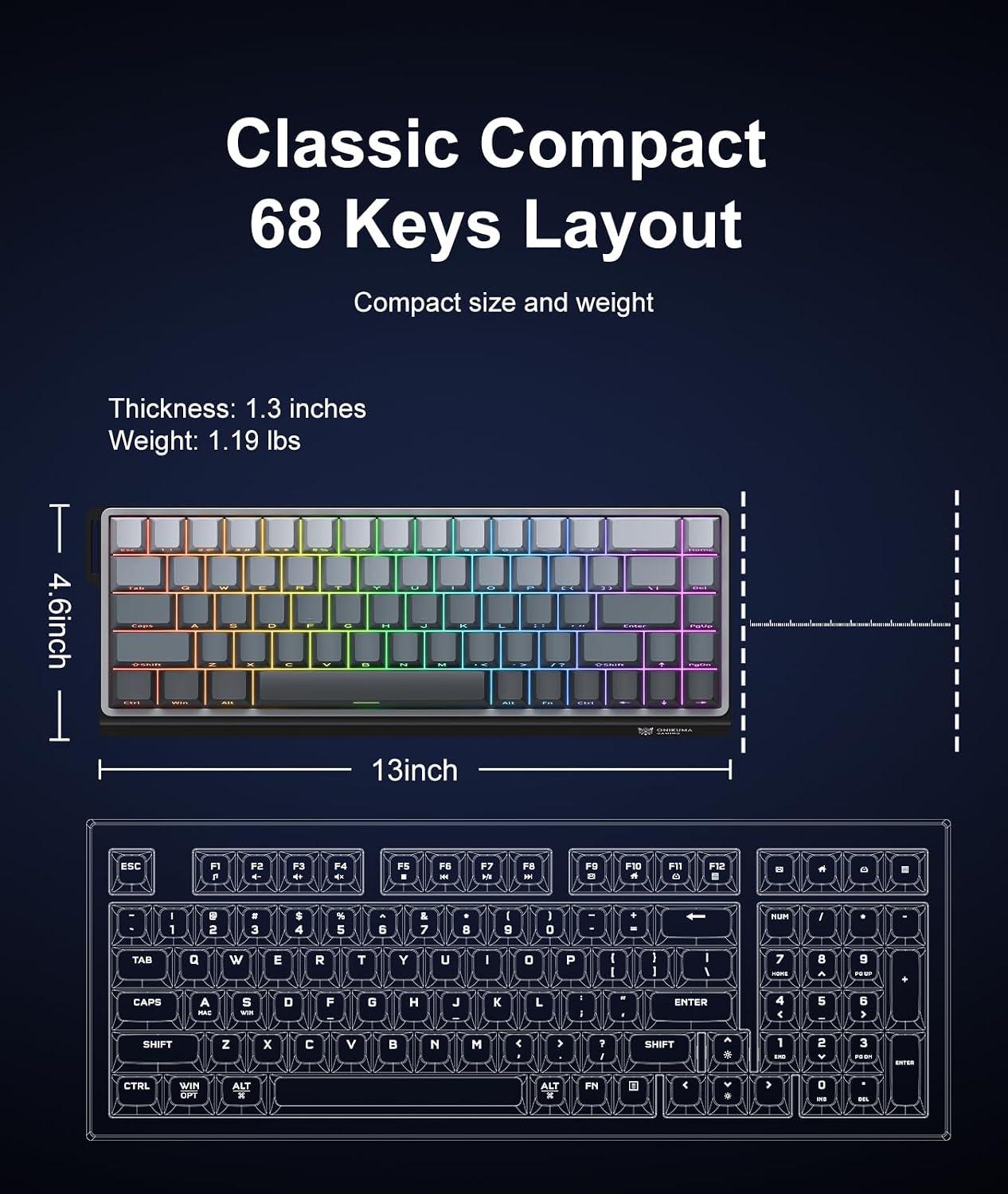
Diagram showing the dimensions of the 68-key compact layout keyboard: 13 inches length, 4.6 inches width, 1.3 inches thickness, and 1.19 lbs weight.
10. Warranty and Support
For warranty information and technical support, please refer to the official ONIKUMA GAMING website or contact their customer service directly.
Email: support@onikumagaming.vip
Please retain your proof of purchase for warranty claims.
Related documentsG69

Ask a question about this manual
Ask about setup, troubleshooting, compatibility, parts, safety, or missing instructions. Manuals+ will review the question and use this page’s manual context to help answer it.