
1. Introduction
This manual provides detailed instructions for the installation, operation, and maintenance of your Tlyard 8.9-inch Heads Up Display for Tesla Model 3 Highland (2024-2025). Please read this manual thoroughly before use to ensure proper functionality and safety.
2. What's in the Box
Verify that all components are present in the package:
- 1 Car Dash Display Unit
- Necessary Wiring Harnesses
- Installation Tools (e.g., pry tool, screwdriver)
- Mounting Bracket
3. Setup and Installation
Professional installation is recommended for this product. Ensure the vehicle is powered off before beginning installation. Refer to the included wiring diagram for specific connections.
3.1 Physical Installation
- Carefully remove the necessary trim panels from your Tesla dashboard to access the installation area.
- Connect the provided wiring harness to the vehicle's existing electrical system. Ensure all connections are secure.
- Mount the 8.9-inch Heads Up Display unit in the designated position on the dashboard, ensuring it does not obstruct the driver's view or vehicle controls.
- Secure the display using the provided mounting bracket and fasteners.
- Reinstall any removed trim panels.
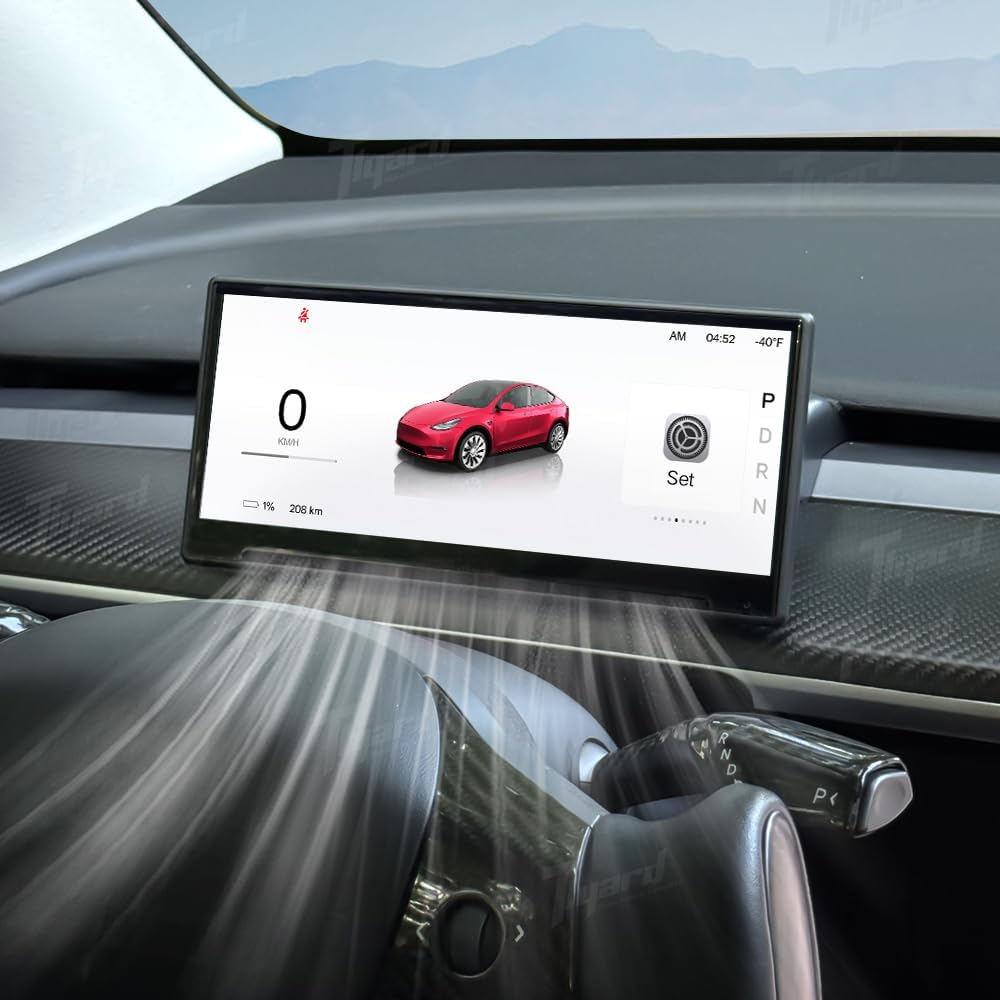
Image: The Tlyard 8.9-inch Heads Up Display seamlessly integrated into the dashboard of a Tesla Model 3 Highland, displaying essential vehicle data and a visual representation of the car. The display is positioned to avoid obstructing the air vents.

Image: A close-up view of the Tlyard 8.9-inch Heads Up Display installed in a Tesla Model 3 Highland, demonstrating that the air vent remains unobstructed, allowing for proper airflow.
3.2 Initial Power-On and Connectivity
- After installation, power on your vehicle. The display should automatically power on.
- Navigate to the display's settings menu to configure Wi-Fi and Bluetooth connections.
- For CarPlay or Android Auto, ensure Bluetooth is enabled on your smartphone and the display. Follow the on-screen prompts to pair your device.
Video: An official Tlyard video demonstrating the installation process and various features of the 8.9-inch Heads Up Display for Tesla Model Y and Model 3. This includes views of the display in operation, UI themes, and connectivity options.
4. Operating Instructions
The Tlyard Heads Up Display offers a range of features designed to enhance your driving experience. The 8.9-inch HD touchscreen provides a clear and responsive interface.
4.1 Display Features and Driving Data
- High-Definition Touchscreen: The 8.9-inch display features a 1920x720 resolution with 2.5D curved glass for anti-fingerprint protection and a wider viewing angle.
- Real-Time Driving Data: View essential information such as speed, current gear, battery level, and turn signals directly on the display.
- Unobstructed View: The design ensures the driver's view remains clear, and the vehicle's air outlet functionality is maintained.

Image: The Tlyard 8.9-inch Heads Up Display showcasing its wide viewing angle and crisp 1920x720 resolution, displaying a car graphic and driving information.
4.2 Smartphone Integration
- Wireless CarPlay & Android Auto: Seamlessly integrate your iOS or Android smartphone for navigation, calls, messages, and media playback.
- HUAWEI HiCar Support: Also supports HUAWEI HiCar for compatible devices.

Image: The Tlyard Heads Up Display demonstrating its support for multiple smartphone connections, including Apple CarPlay, Android Auto, Miracast, and Huawei HiCar, with a smartphone mirroring its display.
4.3 Safety and Assistance Features
- Front Camera System: (Excluding Juniper models) Enhances parking and low-visibility safety by providing a real-time front-view camera display.
- Blind Spot Detection: Receive alerts for vehicles in your blind spots, detected via original vehicle protocol information.
- Autopilot Warnings: Integrates with the vehicle's autopilot system to provide relevant warnings.

Image: The Tlyard Heads Up Display showcasing its ultra-wide HD front camera view, providing real-time transmission for enhanced driving safety and protection.

Image: The Tlyard Heads Up Display illustrating left and right blind spot alerts, detected through the vehicle's original protocol information, to enhance driving awareness.
4.4 Customization and Software
- 3D Visual UI: Customize your display with various themes, including day and night modes, and true 3D modeling.
- Multi-Language Support: The display supports multiple languages for global users.
- OTA Wireless Updates: Receive over-the-air firmware updates for continuous improvement and new features.
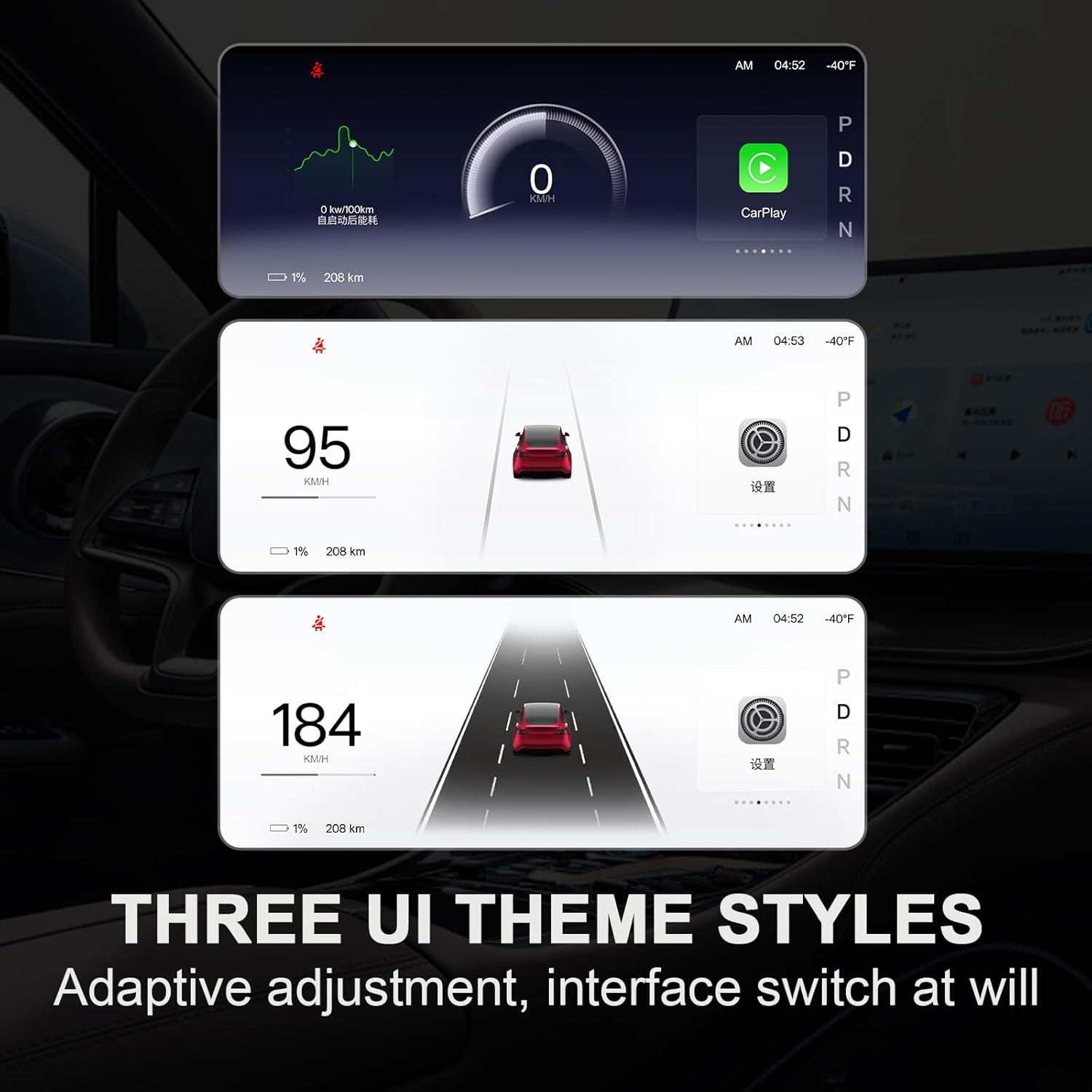
Image: The Tlyard Heads Up Display showcasing three distinct UI theme styles, allowing users to adapt the display to their preference with adaptive adjustments and interface switching.

Image: The Tlyard Heads Up Display highlighting its OTA (Over-The-Air) wireless upgrade capability, allowing for convenient and hassle-free firmware updates.
5. Maintenance
To ensure the longevity and optimal performance of your Tlyard Heads Up Display, follow these maintenance guidelines:
- Cleaning: Use a soft, lint-free cloth to gently wipe the screen. Avoid abrasive cleaners or solvents that could damage the display surface.
- Software Updates: Regularly check for and install OTA (Over-The-Air) updates to ensure you have the latest features and performance enhancements.
- Environmental Conditions: Avoid exposing the display to extreme temperatures or direct sunlight for prolonged periods, as this may affect its lifespan.
6. Troubleshooting
If you encounter issues with your Tlyard Heads Up Display, refer to the following common troubleshooting steps:
- Display Not Powering On: Check all power connections to ensure they are securely fastened. Verify the vehicle's power supply is active.
- No Signal/Blank Screen: Ensure all data cables are properly connected between the display and the vehicle's system.
- CarPlay/Android Auto Connectivity Issues: Confirm Bluetooth and Wi-Fi are enabled on both the display and your smartphone. Try restarting both devices and re-pairing.
- Unresponsive Touchscreen: Gently clean the screen for any debris. If the issue persists, try restarting the display unit.
- Incorrect Data Display: Ensure the display's software is up to date. If the problem continues, consult the manufacturer's support.
For persistent issues not resolved by these steps, please contact Tlyard customer support.
7. Specifications
| Feature | Specification |
|---|---|
| Model Number | Highland 23+ |
| Screen Size | 8.9 Inches |
| Display Type | LED |
| Resolution | 1920x720 |
| RAM | 256MB |
| ROM | 8GB |
| Media Type Support | Android Auto, CarPlay (iOS), HUAWEI HiCar |
| Color | Black |
| Item Weight | 7.1 ounces |
| Package Dimensions | 7.87 x 5.91 x 1.97 inches |
8. Warranty and Support
For warranty information and customer support, please refer to the documentation included with your purchase or visit the official Tlyard brand store. Warranty terms and conditions may vary.
Tlyard Brand Store: Visit Tlyard Store on Amazon