1. Introduction
Thank you for choosing the UCMDA TY190 Smart Fingerprint Door Lock. This manual provides detailed instructions for installation, operation, and maintenance to ensure optimal performance and security. Please read this manual thoroughly before installation and use, and keep it for future reference.
2. Product Features
- Multiple Unlocking Methods: Fingerprint, Passcode, Mechanical Key, and Tuya APP.
- Smart Connectivity: Remote control via Tuya APP, real-time unlock/lock records, temporary password generation for guests.
- Enhanced Security: Durable aluminum alloy construction, anti-peeping password function, low battery reminder, and emergency USB power interface.
- Convenience: One-touch unlocking, free passage mode, automatic locking with adjustable delay.
- Easy Installation: Designed for quick installation on standard doors (1.49-1.97 inches thick, 2-1/8 inches diameter hole, adjustable latch 2-3/8" or 2-3/4").
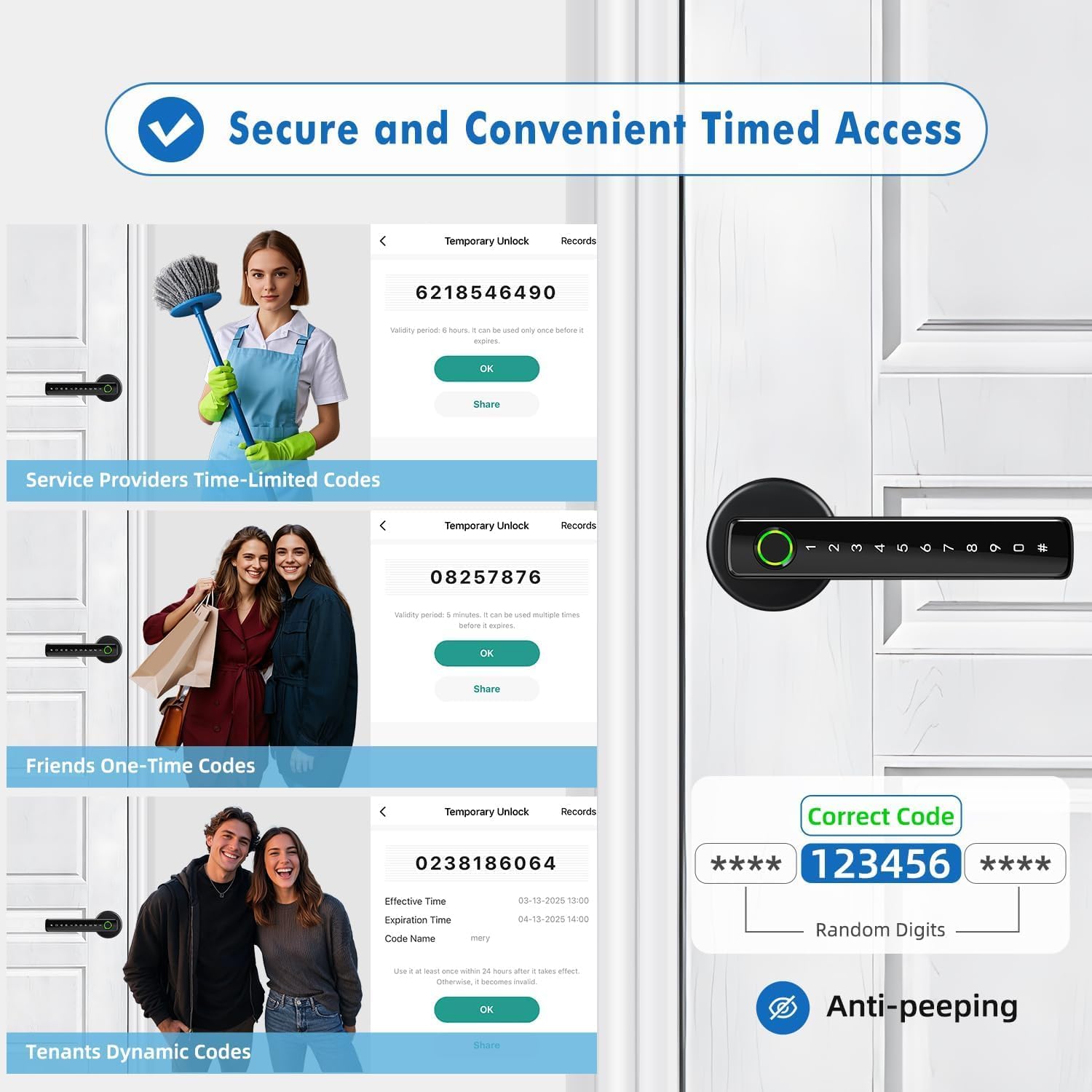
Image: Close-up of the UCMDA TY190 Smart Lock showcasing fingerprint biometrics with 0.2s recognition speed and 99% accuracy.

Image: The UCMDA TY190 Smart Lock highlighting its keyless entry capabilities.
3. Package Contents
Please verify that all components are present and in good condition before beginning installation.
- 1 x Front Door Lock Panel
- 1 x Back Door Lock Panel
- 1 x Latch and Strike Plate
- 2 x Mechanical Keys
- 1 x Screwdriver and Screws Kit
- 1 x Instruction Manual (This document)
4. Specifications
| Model Number | TY190 |
| Brand | UCMDA |
| Material | Aluminum Alloy |
| Color | Matte Black |
| Door Thickness Compatibility | 1.49 - 1.97 inches (38-50mm) |
| Door Hole Diameter | 2-1/8 inches (54mm) |
| Adjustable Latch | 2-3/8 inches (60mm) or 2-3/4 inches (70mm) |
| Power Source | 4 x AAA Alkaline Batteries (not included) |
| Emergency Power | USB Interface |
| Special Features | Auto-Lock, Fingerprint, Passcode Unlock, Bluetooth Control |

Image: Diagram illustrating door thickness and latch adjustment for the UCMDA TY190 Smart Lock.
5. Installation Guide
This section provides step-by-step instructions for installing your UCMDA TY190 Smart Fingerprint Door Lock. A screwdriver and drill bit are required for installation.
5.1 Prepare the Door
- Ensure your door meets the specifications: thickness between 1.49-1.97 inches (38-50mm) and a door hole diameter of 2-1/8 inches (54mm).
- Adjust the latch to 2-3/8 inches (60mm) or 2-3/4 inches (70mm) as needed. The latch's square hole should be horizontal.

Image: Overview of emergency unlock methods including fingerprint, smartphone app, mechanical key, and emergency USB power.
5.2 Install the Latch
- Insert the latch into the door edge and secure it with screws.
5.3 Install the Front Handle
- Insert the screw bolts into the front handle.
- Thread the wire through the square pole.
- Insert the front handle into the door, ensuring the wire passes through the square hole.
5.4 Install the Rear Handle
- Remove the battery cover fixing screw from the rear handle.
- Install the spring into the square hole.
- Connect the wire from the front handle to the rear handle's circuit board.
- Install 4 AAA alkaline batteries (not included) into the rear handle.
- Carefully place the battery cover back and secure it with the fixing screw.
5.5 Installation Video
For a visual guide, please refer to the installation video below. This video demonstrates the complete installation process.
Video: Step-by-step installation guide for the UCMDA TY190 Smart Fingerprint Door Lock. This video covers preparing the door, installing the latch, and assembling the front and rear handles.

Image: The UCMDA TY190 Smart Lock automatically adjusts for left or right-handed doors during installation.
6. Operating Instructions
The UCMDA TY190 Smart Lock offers multiple ways to unlock and manage access.
6.1 Tuya Smart App Control
- Download the Tuya Smart app from your smartphone's app store.
- Register an account and log in.
- Add the UCMDA TY190 Smart Lock device by following the in-app instructions. Ensure Bluetooth is enabled on your phone.
- From the app, you can unlock the door, view unlock/lock records, manage users, and set various lock parameters.

Image: Features of the Tuya Smart App for the UCMDA TY190 Smart Lock, including one-touch unlocking, unlock record checking, remote control (with gateway), door lock alarm, authorized member management, and dynamic/temporary passwords.

Image: A user unlocking the UCMDA TY190 Smart Lock using the mobile application.
6.2 Fingerprint Unlocking
- To register a fingerprint, follow the instructions in the Tuya Smart app under user management.
- Place your finger on the fingerprint sensor. The lock will unlock if the fingerprint is recognized.
- The lock supports up to 255 fingerprints.

Image: A hand using the fingerprint sensor on the UCMDA TY190 Smart Lock for unlocking.
6.3 Passcode Unlocking
- To set a passcode, use the Tuya Smart app. The lock supports up to 100 different passcodes.
- Enter your passcode on the keypad.
- The lock features an anti-peeping function: you can enter random digits before or after your actual passcode to prevent others from guessing it. For example, XXX + Passcode + XXX.

Image: A hand entering a passcode on the UCMDA TY190 Smart Lock keypad.

Image: Illustration of the anti-peeping password feature, allowing random digits before and after the correct code.
6.4 Mechanical Key Unlocking
In case of battery depletion or electronic malfunction, use the provided mechanical keys to unlock the door. Insert the key into the keyhole on the front handle and turn to unlock.

Image: A mechanical key being used to unlock the UCMDA TY190 Smart Lock.
6.5 Auto-Lock and Passage Mode
- Auto-Lock: The lock can be configured to automatically lock after a set period (e.g., 5 seconds) after being unlocked. This feature can be adjusted or disabled via the Tuya Smart app.
- Passage Mode: Enable this mode via the app to keep the door unlocked for extended periods, convenient for high-traffic situations or when you want free entry/exit.

Image: Illustration of the auto-lock feature and passage mode, showing children entering a home freely.

Image: A person leaving a home, with an icon indicating the auto-lock feature is active on the UCMDA TY190 Smart Lock.
6.6 Temporary and Dynamic Codes
The Tuya Smart app allows you to generate various types of temporary access codes for different needs:
- Time-Limited Codes: For service providers or short-term guests, valid for a specific duration.
- One-Time Codes: For single use, expiring after the first entry.
- Dynamic Codes: For tenants or recurring visitors, with customizable validity periods.

Image: Examples of temporary and dynamic codes for service providers, friends, and tenants, managed through the app.
7. Maintenance
- Battery Replacement: The lock will provide a low battery alert. Replace all four AAA alkaline batteries promptly to avoid being locked out.
- Cleaning: Wipe the lock surface with a soft, dry cloth. Avoid abrasive cleaners or solvents that could damage the finish or electronic components.
- Fingerprint Sensor: Keep the fingerprint sensor clean and dry for optimal performance.
- Mechanical Key: Store the mechanical keys in a safe, accessible location outside the locked area for emergency use.

Image: Indicators for low battery alert, emergency USB power supply, and backlit keypad on the UCMDA TY190 Smart Lock.
8. Troubleshooting
| Problem | Possible Cause | Solution |
|---|---|---|
| Lock not responding | Dead batteries. | Replace with new AAA alkaline batteries. Use the emergency USB power interface or mechanical key if unable to open. |
| Fingerprint not recognized | Finger is wet/dirty, sensor is dirty, or fingerprint not properly registered. | Ensure finger and sensor are clean and dry. Try re-registering the fingerprint in the app. Try different registered fingers. |
| Passcode not working | Incorrect passcode entered, or passcode expired. | Verify the passcode. Check the passcode validity in the Tuya Smart app. Ensure anti-peeping digits are used correctly if enabled. |
| App connection issues | Bluetooth off, app not updated, or lock too far from phone. | Ensure Bluetooth is on. Update the Tuya Smart app. Move closer to the lock. Restart the app or phone. |
| Lock is loose after installation | Screws not tightened sufficiently. | Re-tighten all installation screws. Ensure the handles are flush against the door. |
9. Warranty and Support
UCMDA provides a 30-day refund and replacement service for this product. If you encounter any issues with your UCMDA TY190 Smart Fingerprint Door Lock, including missing accessories or operational problems, please contact our customer service team. We are available 24 hours a day to assist you and aim to provide a satisfactory resolution within 24 hours.
For support, please refer to the contact information provided with your purchase or visit the official UCMDA website.

