Redragon Wireless Gaming Keyboard and Mouse Combo
Model: S155 Pro
Introduction
This manual provides detailed instructions for the Redragon S155 Pro Wireless Gaming Keyboard and Mouse Combo. This combo offers versatile connectivity options including Bluetooth 5.0, 2.4GHz wireless, and USB-C wired modes, along with customizable RGB backlighting, programmable macro keys, and a high-precision mouse. Please read this manual thoroughly to ensure proper setup and operation of your device.

Image: The Redragon S155 Pro wireless gaming keyboard and mouse combo, showcasing the RGB backlighting on both devices.
Setup
Package Contents
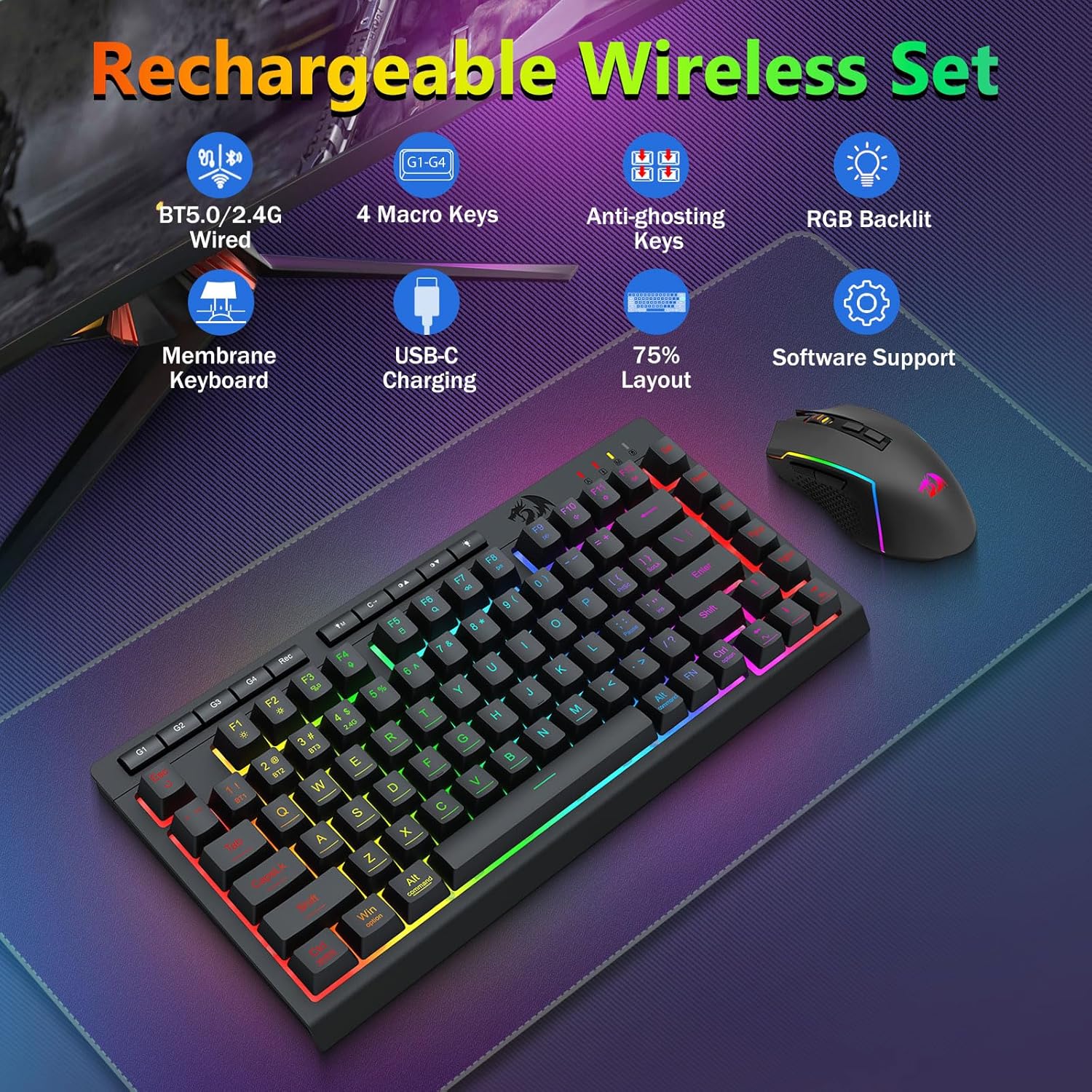
Image: Components of the Redragon S155 Pro wireless gaming set, including the keyboard, mouse, USB receiver, and USB-C cable.
Before use, please verify that all items are present:
- Redragon S155 Pro Wireless Keyboard x 1
- Redragon S155 Pro Wireless Mouse x 1
- USB Receiver (2.4G) x 1
- USB-C Charging Cable x 1
- User Manual x 1
Charging the Devices
The keyboard features a 4,000mAh battery, and the mouse has a 700mAh battery. Both devices are rechargeable via the included USB-C cable. Connect the USB-C cable to the device and a 5V DC power source (e.g., a computer USB port or a USB wall adapter). The charging indicator will illuminate during charging and change when fully charged.

Image: Visual representation of the keyboard's 4000mAh and mouse's 700mAh battery capacities, indicating long battery life.
Connectivity Modes
The S155 Pro combo supports three connection modes: 2.4GHz wireless, Bluetooth 5.0, and USB-C wired.

Image: Illustration of the tri-mode connection (Bluetooth, 2.4G, USB-C Wired) for the keyboard and mouse, showing compatibility with laptops, tablets, and Macs.
- 2.4GHz Wireless Mode:
- Locate the USB receiver. It is often stored in a compartment on the mouse or keyboard.
- Plug the USB receiver into an available USB port on your computer.
- Ensure the keyboard and mouse are switched to 2.4G mode (usually via a switch on the device). The devices should connect automatically.
- Bluetooth 5.0 Mode:
- Switch the keyboard and mouse to Bluetooth mode (BT1, BT2, or BT3 for the keyboard; a dedicated Bluetooth switch for the mouse).
- On your device (PC, Mac, tablet, phone), open Bluetooth settings and search for new devices.
- Select the Redragon keyboard or mouse from the list to pair. The keyboard supports pairing with up to three Bluetooth devices, switchable via shortcut keys.
- USB-C Wired Mode:
- Connect the USB-C cable directly from the keyboard or mouse to your computer's USB port.
- The devices will function immediately and charge simultaneously.
Software Installation
For advanced customization of macros, RGB lighting, and other functions, install the dedicated software.
- Keyboard Software: bit.ly/S155keyboard
- Mouse Software: bit.ly/S155mouse
Operating Instructions
Keyboard Functions
- Macro Keys (G1-G4): The keyboard features 4 onboard macro keys. These can be programmed instantly without software in wired mode.
- Press the [Rec] button to start macro recording.
- Press [G1]~[G4] to select a profile. The LED indicator will flash quickly.
- Press the keys you wish to record (up to 25 keys).
- Press [Rec] again to save the macro.
Note: Macro recording is supported in wired mode. In 2.4G mode, only macro output is supported. Macros are unavailable in Bluetooth mode.

Image: Visual guide on how to record macros on the Redragon S155 Pro keyboard in wired mode, highlighting the Rec and G1-G4 keys.
- RGB Lighting: The keyboard offers 16.8 million RGB colors with 8 preset modes and 6 DIY profiles. Adjust brightness using dedicated quick access buttons.
- Anti-Ghosting: The keyboard features anti-ghosting for 26 keys, allowing simultaneous key presses for accurate game responses.
- Quick Access Buttons: Dedicated buttons allow quick adjustment of brightness, lighting modes, and activation of game mode.
- Mac/Win Switch: A switch on the side of the keyboard allows for easy toggling between Mac and Windows layouts for correct key mapping.

Image: Close-up of the side of the Redragon S155 Pro keyboard, showing the 2.4G/Off/BT switch and the Mac/Win toggle switch, along with the USB-C port and USB receiver.
Mouse Functions
- DPI Adjustment: The mouse has 5 on-board DPI levels, adjustable via buttons behind the scroll wheel. These levels can be customized further using the software, allowing swift switching in games. Maximum DPI is 12800.
- Programmable Buttons: The mouse features 7 programmable buttons. These can be customized via the software for various functions and macros.
- RGB Lighting: The mouse also features immersive RGB lighting with 16.8 million colors.

Image: Diagram illustrating the location and numbering of the 7 programmable buttons on the Redragon S155 Pro gaming mouse, alongside a software interface for keybinding.
Maintenance
- Battery Management: Regularly charge the keyboard and mouse to maintain optimal performance. The keyboard provides 50 hours of RGB runtime on a full charge, and both devices offer 30+ days of standby time.
- Cleaning: Use a soft, dry cloth to clean the surfaces of the keyboard and mouse. For deeper cleaning, use a cotton swab lightly dampened with isopropyl alcohol for hard-to-reach areas. Avoid excessive moisture.
- Auto Power Saving: To conserve battery, the backlight of the keyboard will turn off after 3 minutes of inactivity, and the mouse backlight after 2 minutes. Press any button to wake the devices.

Image: Illustration of the auto power-saving feature, showing the keyboard backlight turning off after 3 minutes and the mouse backlight after 2 minutes of inactivity.
Troubleshooting
- Mouse Pointer is Slow/Unresponsive:
- Adjust the DPI settings using the buttons behind the scroll wheel on the mouse. Increase DPI for faster pointer movement.
- Ensure the mouse is on a suitable surface. Some surfaces may affect tracking performance.
- Check battery level and recharge if necessary.
- Connectivity Issues (2.4G/Bluetooth):
- Ensure the keyboard/mouse is switched to the correct mode (2.4G or BT).
- For 2.4G, ensure the USB receiver is securely plugged in and close to the devices.
- For Bluetooth, ensure your host device's Bluetooth is enabled and the devices are paired correctly. Try re-pairing if issues persist.
- Move devices closer to the receiver/host device to reduce interference.
- Keyboard/Mouse Not Waking Up:
- Press any key or click a mouse button to wake the device from auto power-saving mode.
- Check battery level and recharge if necessary.
- Software Not Recognizing Device:
- Ensure the correct software version is installed for your specific model (S155 Pro).
- Connect the device via USB-C wired mode when attempting to use the software, as some features may require a wired connection for configuration.
Specifications
| Feature | Specification |
|---|---|
| Model Number | S155 Pro |
| Connectivity Technology | 2.4Ghz Wireless, Bluetooth 5.0, USB-C Wired |
| Keyboard Layout | 75% (82+10 Keys) |
| Keyboard Battery | 4000mAh (Rechargeable) |
| Mouse Battery | 700mAh (Rechargeable) |
| Mouse DPI | Max 12800 DPI (5 adjustable levels) |
| Special Features | RGB Backlit, Macro Keys, Anti-Ghosting, Ergonomic, Hotkeys, Integrated Stand, Spillproof |
| Compatible Devices | PC, Laptop, Gaming Console, Smartphone, Tablet |
| Keyboard Dimensions | Approx. 12.83 x 6.1 x 1.35 inches |
| Mouse Dimensions | Approx. 4.9 x 2.56 x 1.57 inches |
| Item Weight | Keyboard: 1.16 lbs, Mouse: 0.2 lbs |

Image: Detailed dimensions of the Redragon S155 Pro keyboard and mouse, showing length, width, and height measurements.
Warranty and Support
Redragon products are designed for durability and performance. For warranty information and technical support, please refer to the official Redragon website or contact their customer service directly. Keep your purchase receipt for warranty claims.
For software downloads and further assistance, please visit:
- Keyboard Software: bit.ly/S155keyboard
- Mouse Software: bit.ly/S155mouse

Image: Screenshot of the Redragon S155 Pro keyboard's custom software interface, showing options for RGB lighting, custom shortcut keys, and macro editing.

Image: Screenshot of the Redragon S155 Pro mouse's custom software interface, displaying options for DPI, macro settings, report rate, RGB adjustments, and profile management.


