
1. Introduction
The GMKtec Nucbox G10 is a compact and powerful mini PC designed for a wide range of applications, from office productivity and home entertainment to light gaming and industrial IoT. Equipped with an AMD Ryzen 5 3500U processor, ample memory, and fast storage, it offers robust performance in a small form factor. This manual provides essential information for setting up, operating, maintaining, and troubleshooting your Nucbox G10 Mini PC.

Image: The GMKtec Nucbox G10 Mini PC, showcasing its compact design and various connectivity ports on the front and rear.
2. What's in the Box
Upon unboxing your GMKtec Nucbox G10, please verify that all the following items are included:
- GMKtec Nucbox G10 AMD Ryzen 5 3500U Mini PC Computer
- Power Supply & Cable
- HDMI Cable
- VESA Mount and Screws
- User Manual
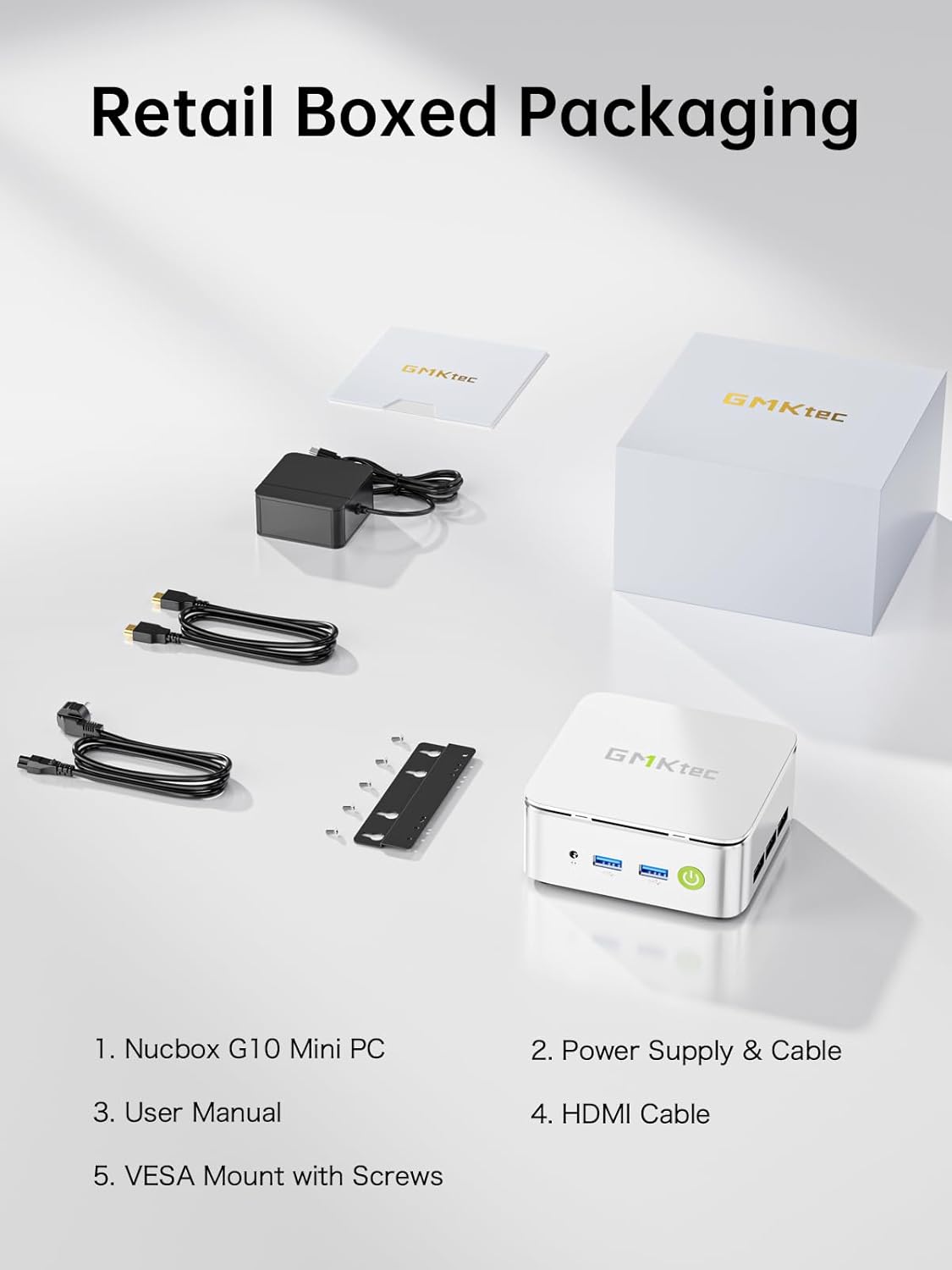
Image: A visual representation of all items included in the GMKtec Nucbox G10 retail packaging, including the mini PC, power adapter, cables, VESA mount, and user manual.
3. Product Features and Specifications
3.1 Key Features
- Powerful Processor: Equipped with the AMD Ryzen 5 3500U, a 64-bit quad-core processor with 8 threads and a turbo boost up to 3.7 GHz, offering excellent performance for daily computing tasks.
- Expandable Memory & Storage: Comes with 16GB Dual Channel DDR4 RAM (expandable up to 64GB) and a 1TB M.2 2280 NVMe SSD. Features dual M.2 2280 PCIe 3.0 slots for storage expansion up to 16TB (2x 8TB).
- High-Speed Networking: Includes two 2.5GbE Ethernet ports for ultra-fast wired network speeds, alongside WiFi 5 and Bluetooth 5.0 for wireless connectivity.
- Triple Display Support: Integrated AMD Radeon Vega 8 Graphics (1200 MHz) supports simultaneous connection to three 4K displays via HDMI 2.1 TMDS, DisplayPort 1.4, and a full-function USB-C port.
- Rich Connectivity: Features dual USB 3.2, USB 2.0, HDMI 2.1, DisplayPort, full-function USB-C (PD/DP/Data), and a 3.5mm audio jack.
- Efficient Cooling: Designed with a silent turbo cooling fan system to maintain optimal performance and quiet operation.
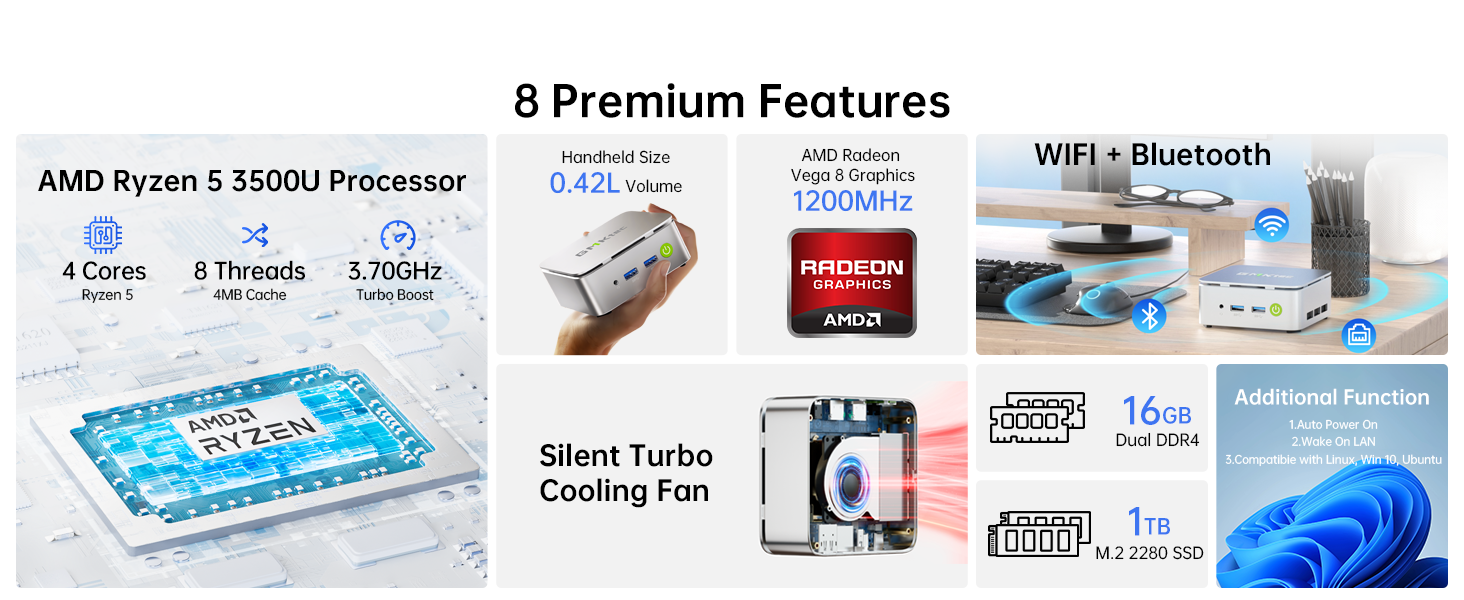
Image: An overview highlighting eight premium features of the Nucbox G10, including its processor, compact size, graphics, connectivity, cooling, and memory/storage.
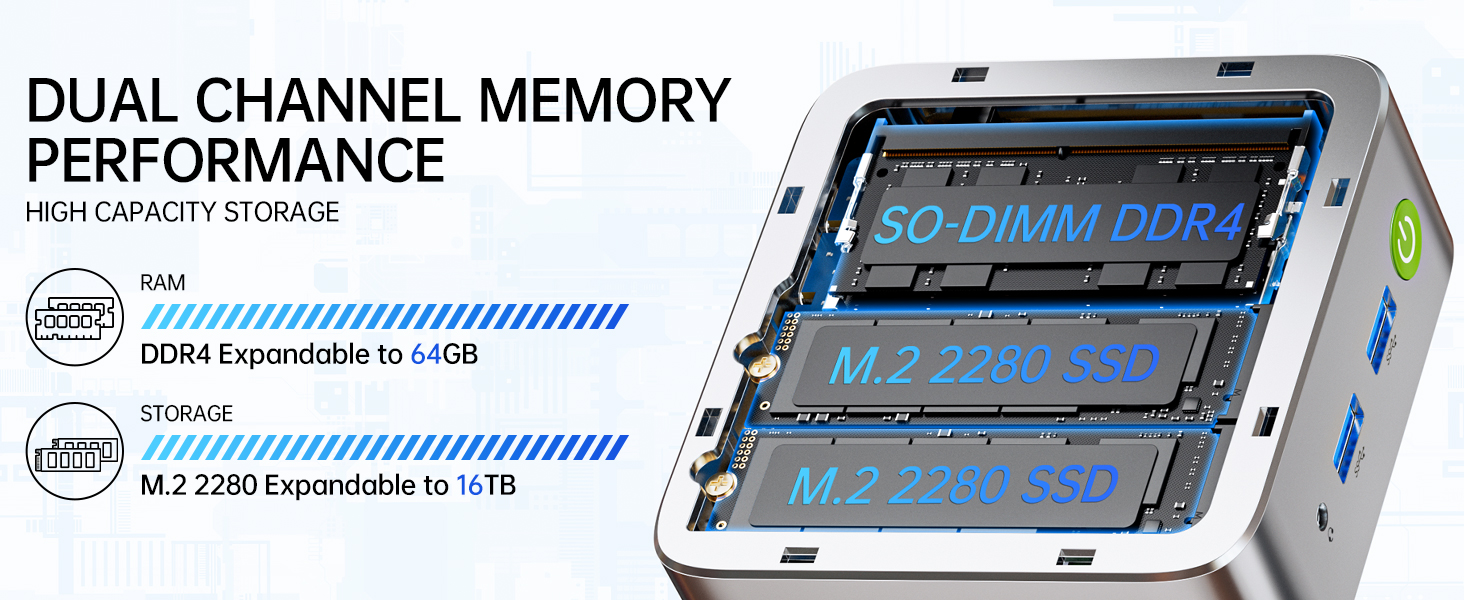
Image: An internal view of the Nucbox G10, illustrating its dual-channel DDR4 SO-DIMM RAM slots and two M.2 2280 SSD slots for memory and storage expansion.
3.2 Technical Specifications
| Specification | Detail |
|---|---|
| Processor | AMD Ryzen 5 3500U (4 Cores, 8 Threads, 2.1 GHz Base, 3.7 GHz Boost) |
| Graphics | AMD Radeon Vega 8 Graphics (1200 MHz) |
| RAM | 16GB DDR4 SO-DIMM (2x8GB), expandable up to 64GB |
| Storage | 1TB M.2 2280 NVMe SSD, dual slot support up to 16TB (2x8TB) |
| Operating System | Windows 11 Pro (pre-installed) |
| Video Output | 1x HDMI 2.1 (4K@60Hz), 1x DisplayPort 1.4 (4K@60Hz), 1x USB-C (DP/Data/PD) |
| USB Ports | 2x USB 3.2 (5Gbps), 2x USB 2.0, 1x Full-Function USB-C |
| Network | 2x 2.5GbE LAN, WiFi 5, Bluetooth 5.0 |
| Audio | 1x 3.5mm CTIA Audio Jack |
| Dimensions | Approx. 6.5 x 6 x 4.25 inches (Package Dimensions) |
| Weight | Approx. 2.29 pounds |
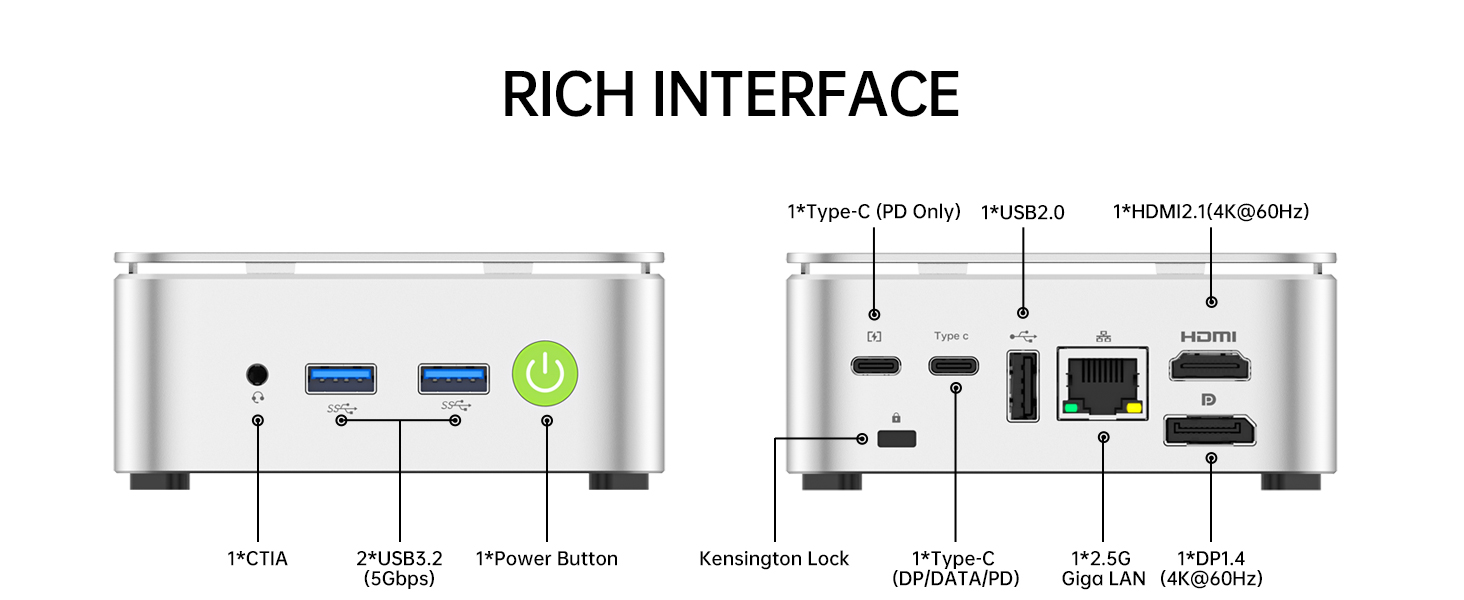
Image: A detailed diagram illustrating the various input/output ports and interfaces available on the front and rear of the GMKtec Nucbox G10 Mini PC.
4. Setup Guide
Follow these steps to set up your GMKtec Nucbox G10 Mini PC:
- Connect to Display: Connect your monitor(s) to the Mini PC using the HDMI, DisplayPort, or USB-C video output ports. The Nucbox G10 supports up to three 4K displays simultaneously.
- Connect Peripherals: Plug in your keyboard, mouse, and any other USB devices into the available USB 3.2 or USB 2.0 ports.
- Connect to Network (Optional): For wired internet, connect an Ethernet cable from your router or modem to one of the 2.5GbE LAN ports. For wireless internet, the device will prompt you to connect to a Wi-Fi network during initial setup.
- Connect Power: Plug the power adapter into the DC-in port on the Mini PC, then plug the power cable into a wall outlet.
- Power On: Press the power button located on the front of the Mini PC. The power indicator light will illuminate.
- Initial Windows Setup: Follow the on-screen instructions to complete the Windows 11 Pro setup, including language, region, network connection, and user account creation.
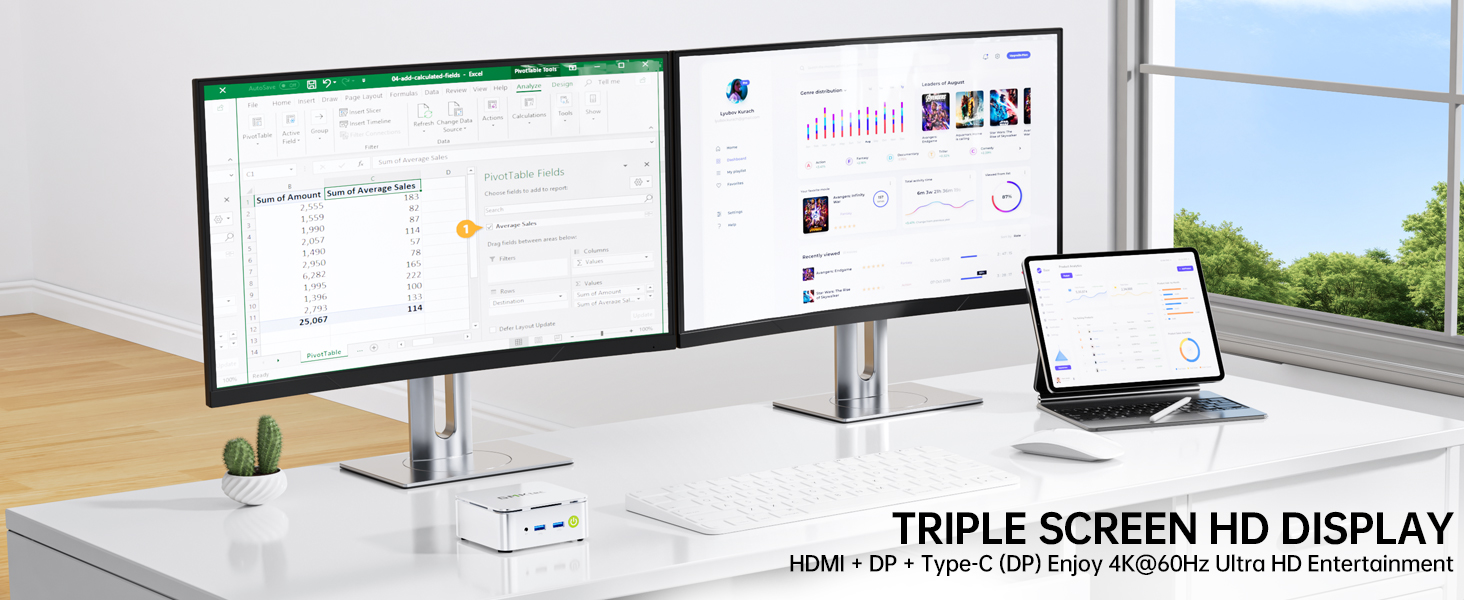
Image: The GMKtec Nucbox G10 Mini PC connected to a triple monitor setup, demonstrating its multi-display capability for enhanced productivity or entertainment.
5. Operating Instructions
5.1 Basic Operation
- Power On/Off: Press the power button once to turn on the PC. To turn off, use the Windows Shut Down option or press and hold the power button for 5 seconds.
- Restart: Use the Windows Restart option.
- Sleep Mode: Use the Windows Sleep option or briefly press the power button when the PC is on. Press any key or move the mouse to wake it up.
5.2 Connecting to a Network
- Wired Connection: Ensure an Ethernet cable is securely connected to one of the 2.5GbE LAN ports and your router/modem. The system should automatically detect the connection.
- Wireless Connection: In Windows, click the Wi-Fi icon in the taskbar, select your desired network, enter the password, and click Connect.
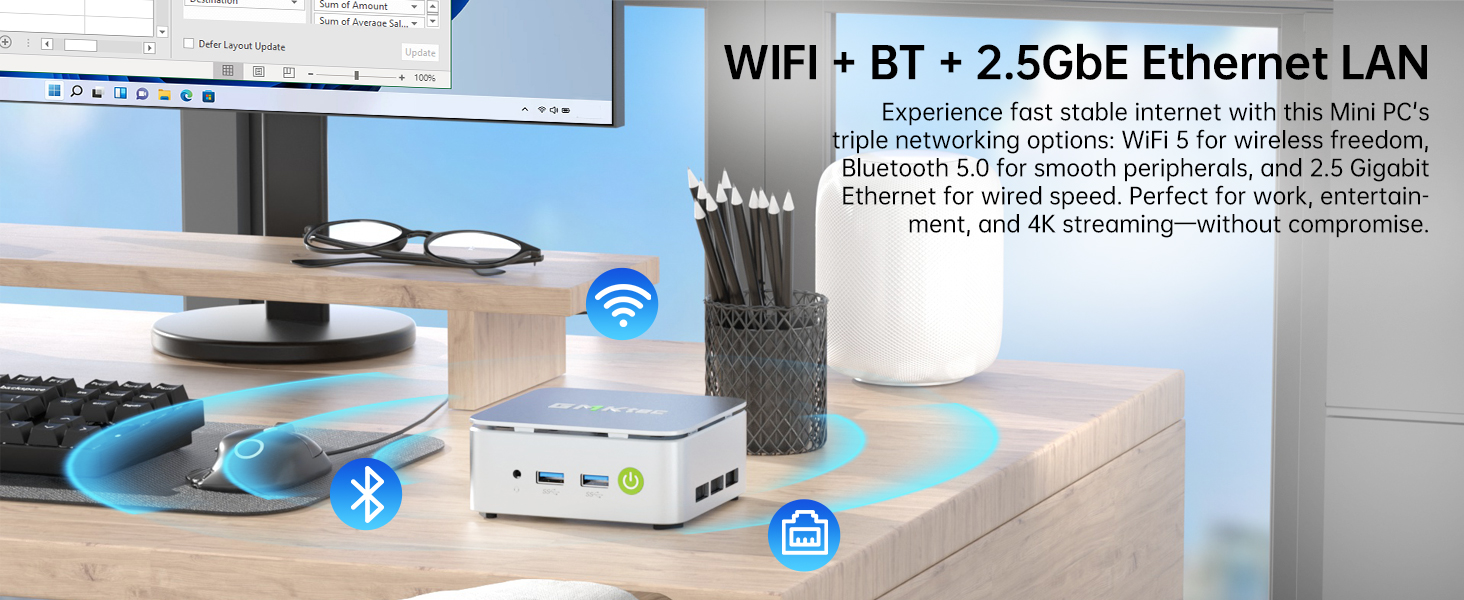
Image: The GMKtec Nucbox G10 Mini PC positioned on a desk, with visual indicators for WiFi and Bluetooth connectivity, emphasizing its wireless capabilities.
5.3 Multi-Display Setup
The Nucbox G10 supports connecting up to three independent displays. After connecting your monitors, Windows should automatically detect them. You can configure display settings by right-clicking on the desktop and selecting 'Display settings' to extend, duplicate, or show only on specific displays.
6. Maintenance
Proper maintenance ensures the longevity and optimal performance of your Mini PC:
- Cleaning: Regularly clean the exterior of the Mini PC with a soft, dry cloth. Use compressed air to gently clear dust from the ventilation openings to prevent overheating. Ensure the device is powered off and unplugged before cleaning.
- Software Updates: Keep your Windows operating system and drivers updated to ensure system stability, security, and performance. Check for updates regularly through Windows Update.
- Storage Management: Periodically clean up unnecessary files and applications to free up disk space and maintain system speed.
- Environmental Conditions: Operate the Mini PC in a well-ventilated area, away from direct sunlight, heat sources, and excessive dust or humidity.
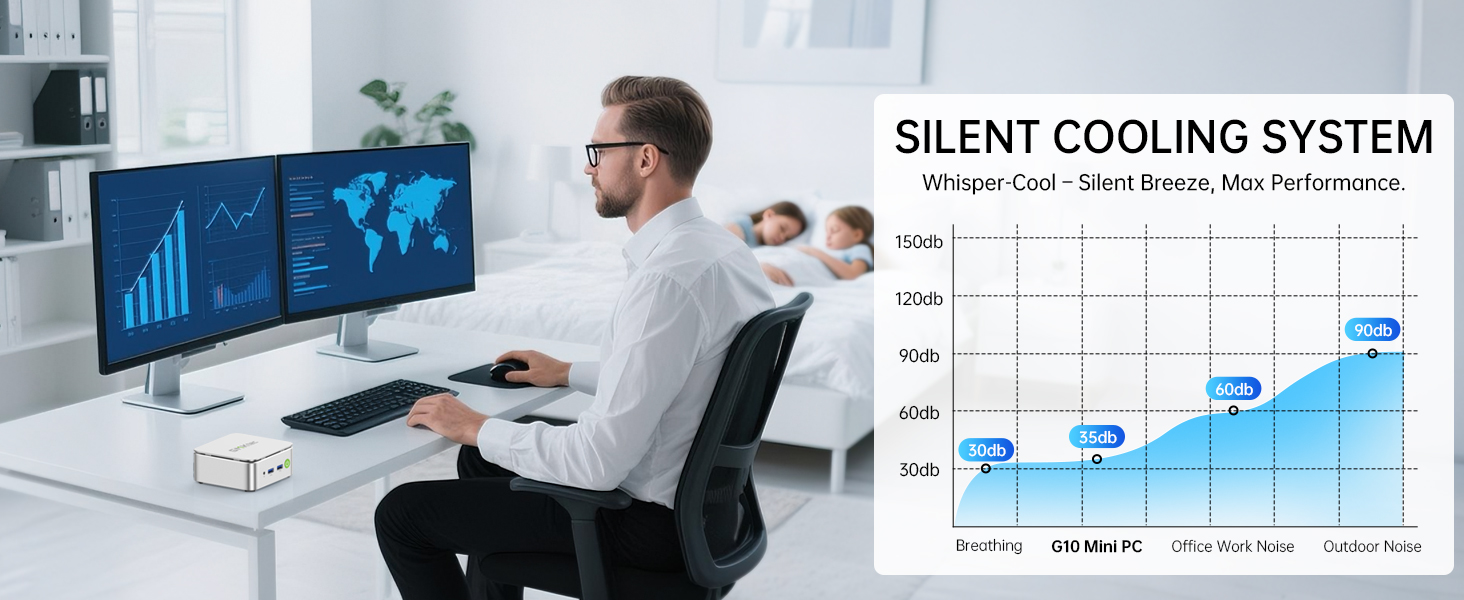
Image: A graph illustrating the low noise levels of the GMKtec G10's silent cooling system compared to typical office and outdoor noise, highlighting its quiet operation.
7. Troubleshooting
If you encounter issues with your GMKtec Nucbox G10, refer to the following common problems and solutions:
| Problem | Possible Cause | Solution |
|---|---|---|
| No power/PC won't turn on | Power cable loose, power adapter faulty, power outlet issue | Check all power connections. Try a different power outlet. Ensure the power adapter is correctly connected. |
| No display on monitor | Monitor off, video cable loose/faulty, incorrect input source on monitor | Ensure monitor is on and set to the correct input. Check video cable connections. Try a different video cable or port. |
| No internet connection | Ethernet cable loose, Wi-Fi disabled, router issue, incorrect network settings | For wired: Check Ethernet cable. For Wi-Fi: Ensure Wi-Fi is enabled in Windows. Restart your router/modem. Check network settings in Windows. |
| System is slow/unresponsive | Too many programs running, low disk space, outdated drivers, overheating | Close unnecessary applications. Free up disk space. Update drivers. Ensure proper ventilation and clean dust. |
| Peripherals (keyboard/mouse) not working | Loose connection, faulty device, driver issue | Try connecting to a different USB port. Test the peripheral on another computer. Update USB drivers. |
If the problem persists after trying these solutions, please contact GMKtec customer support for further assistance.
8. Warranty and Support
GMKtec is committed to providing high-quality products and excellent customer service. Your GMKtec Nucbox G10 Mini PC comes with a 1-year limited warranty from the date of purchase, covering defects due to design and workmanship.
8.1 How to Obtain Support
- Amazon Support: For issues related to your purchase or initial setup, you can contact Amazon support through your order history.
- GMKtec After-Sales Support: For technical assistance, warranty claims, or product-specific inquiries, please contact the GMKtec after-sales team directly.
GMKtec Customer Service Email: support@gmktec.com
Our professional after-sales team is ready to assist you with any needs regarding your Mini PC.

Image: Information on how to contact GMKtec for warranty and after-sales support, including their dedicated support email address.


