
1. Introduction
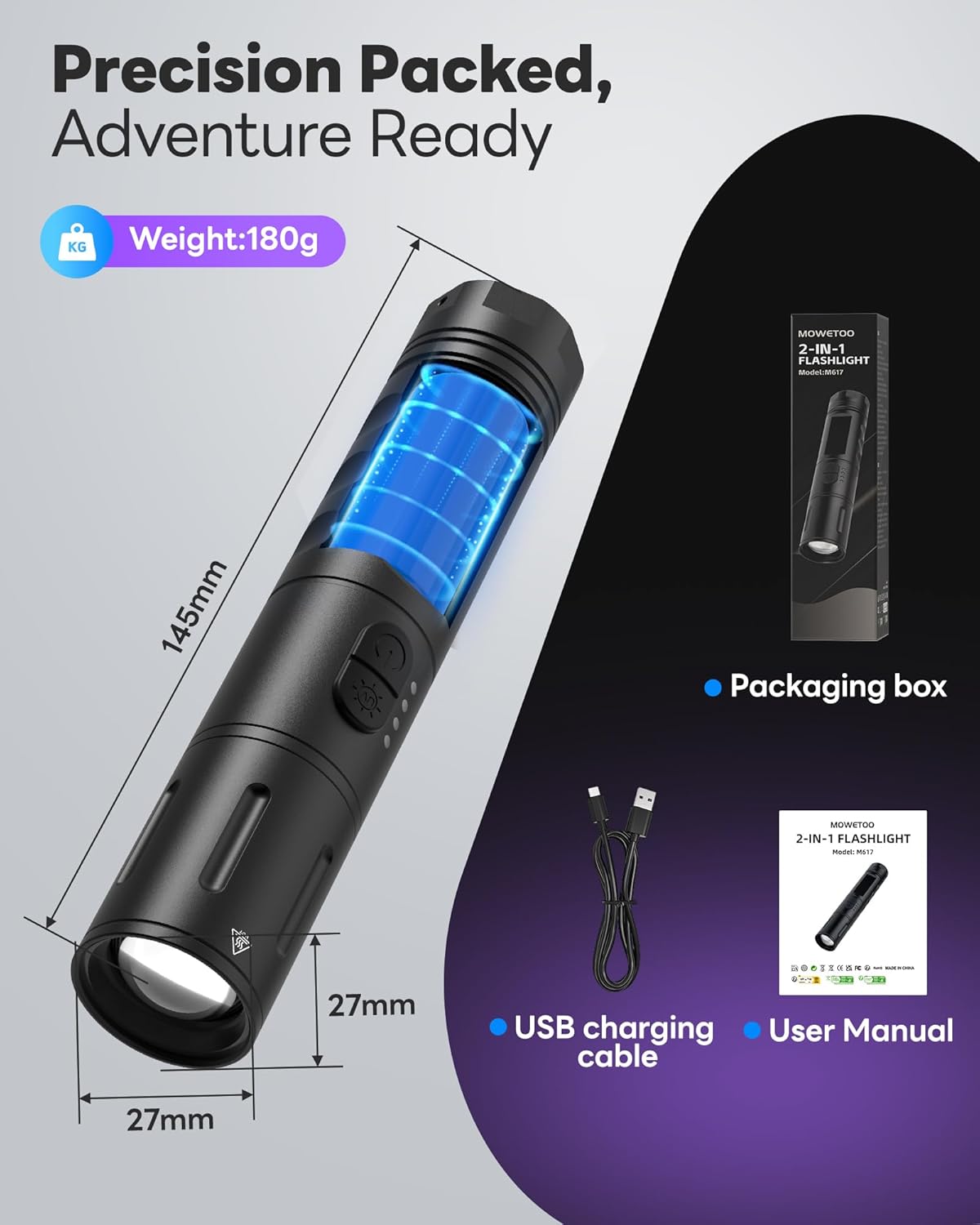
Thank you for choosing the MOWETOO M617 2-in-1 UV Black Light and White Light Flashlight. This versatile device combines a powerful 395nm UV black light for detection purposes with a bright 300-lumen white LED flashlight for general illumination. Its compact, waterproof, and rechargeable design makes it an ideal tool for various indoor and outdoor applications.
2. What's in the Box
- MOWETOO M617 2-in-1 Flashlight
- USB-C Charging Cable
- User Manual
3. Features
- 2-in-1 UV & White Light: Seamlessly switch between 395nm UV black light for detecting pet stains, scorpions, and currency, and a powerful 300-lumen white LED beam for general illumination.
- 6 Intelligent Lighting Modes: Adapt to various scenarios with UV detection, High, Medium, Low, SOS, and Strobe modes for the white light. The white light offers up to 300m beam distance.
- Waterproof & Adjustable Focus: Designed to withstand splashes and rain (IPX4 rating). The beam focus can be adjusted from a wide-angle floodlight to a long-distance spotlight.
- Type-C Rechargeable: Conveniently charge using any standard Type-C cable.
- Compact & Portable Design: Measures approximately 27x27x145mm and weighs 180g, making it easy to carry in pockets or bags. Includes a wrist strap for secure handling.
- Dual-Switch Separate Control: Independent buttons for UV and white light modes allow instant activation of the desired function without cycling through modes, preventing accidental activation and saving power.


4. Setup
4.1 Initial Charging
- Locate the USB-C charging port on the flashlight.
- Connect the provided USB-C cable to the flashlight and a compatible USB power source (e.g., wall adapter, computer, power bank).
- The battery indicator lights will illuminate to show charging progress. All lights will be solid when fully charged.
4.2 Attaching the Wrist Strap
Thread the thin loop of the wrist strap through the small hole at the tail cap of the flashlight. Secure the strap by passing the larger end through the looped end and pulling it tight.
5. Operation
5.1 White Light Operation
- Press the Power Button (usually marked with a power symbol) once to turn on the white light in High mode. The battery indicator lights will briefly show the current charge level.
- Subsequent presses of the Power Button will cycle through the white light modes: High → Medium → Low → Strobe → SOS → Off.
- To turn off the white light directly from any mode, press and hold the Power Button for approximately 2 seconds.
5.2 UV Light Operation
- Press the UV Light Button (usually marked with a light bulb or UV symbol) once to turn on the UV black light.
- Press the UV Light Button again to turn off the UV light.
5.3 Adjustable Focus (Zoom Function)
To adjust the beam focus, gently slide the head of the flashlight forward or backward. Sliding it forward will narrow the beam for a focused spotlight, while sliding it backward will widen the beam for a broader floodlight.

5.4 Battery Indicator
The blue LED lights on the side of the flashlight indicate the battery charge level. Typically, four lights indicate a full charge, and the number of illuminated lights decreases as the battery drains.

6. Maintenance
6.1 Cleaning
Wipe the flashlight body with a soft, damp cloth. Do not use abrasive cleaners or solvents. Keep the lens clean for optimal light output.
6.2 Storage
Store the flashlight in a cool, dry place away from direct sunlight and extreme temperatures. If storing for extended periods, charge the battery periodically to maintain its health.
6.3 Battery Care
To prolong battery life, avoid fully discharging the flashlight frequently. Charge the battery when the indicator shows low power.
7. Troubleshooting
- Flashlight not turning on: Ensure the battery is charged. If the battery is charged, check if the buttons are pressed correctly.
- Flashlight not charging: Verify the USB-C cable is securely connected to both the flashlight and the power source. Try a different USB-C cable or power adapter.
- Light is dim: The battery may be low. Recharge the flashlight.
8. Specifications
| Feature | Specification |
|---|---|
| Model Number | M617 |
| Brand | MOWETOO |
| Light Source Type | UV, LED |
| UV Wavelength | 395nm |
| White Brightness | 300 Lumens |
| Power Source | Battery Powered (Lithium Ion) |
| Rechargeable | Yes, Type-C |
| Material | Aluminum |
| Water Resistance Level | Water Resistant (IPX4) |
| Item Dimensions (L x W x H) | 3.62" x 0.87" x 0.87" (9.19cm x 2.21cm x 2.21cm) |
| Weight | 180g (approx.) |
9. Safety Information
- Do not shine the UV light directly into eyes or at others. UV light can be harmful to vision.
- Keep out of reach of children.
- Do not disassemble the flashlight. This may void the warranty and cause damage.
- Avoid exposing the flashlight to extreme heat or fire.
10. Warranty and Support
MOWETOO provides a manufacturer's warranty for this product. For specific warranty details, claims, or technical support, please refer to the contact information provided with your purchase or visit the official MOWETOO website.
