
1. Introduction
The TopDiag T300PRO is a versatile 2-in-1 automotive diagnostic tool designed to provide accurate insights into your vehicle's battery health and engine performance. This device combines a 12V/24V battery tester with an OBD2 scanner, making it an essential tool for mechanics, retailers, and DIY enthusiasts. It supports a wide range of battery types and vehicle models, offering precise diagnostics and the ability to read and clear engine trouble codes.

Image: The TopDiag T300PRO device showcasing its dual functionality as a battery diagnostic tool and an OBD II scanner.
2. What's in the Box
Upon opening your TopDiag T300PRO package, you will find the following components:
- 1 x TopDiag T300PRO Car Scanner and Battery Tester Unit
- 1 x OBDII Cable (integrated)
- 1 x Battery Clamp Cable (for direct battery testing)
- 1 x User Manual

Image: The TopDiag T300PRO unit displayed with its included battery clamp cables and OBDII connector.
3. Key Features
- Accurate Testing: Equipped with intelligent chips for precise diagnostics, delivering 99.8% accuracy for reliable battery condition insights. Ensure correct battery type, standard, CCA/AH value, and in-vehicle/out-of-vehicle conditions are selected for optimal results.
- Wide Compatibility: Supports various battery types (flooded, AGM, GEL, EFB) for cars, trucks, hybrids, SUVs, boats, RVs, and motorcycles. Complies with multiple standards including JIS, EN, DIN, SAE, CCA, BCI, GB, CA, MCA, and IEC. (Note: Not compatible with 6V batteries or lithium batteries).
- Check Engine Code Reader: Easily determines the cause of the check engine light, reads and clears Diagnostic Trouble Codes (DTCs), views live data, hard memory data, freeze frames, I/M monitor readiness, and collects vehicle information.
- Accurate, Fast, and Easy to Use: Provides exceptionally accurate and fast results, reading and clearing engine trouble codes in seconds. No batteries or charger needed; it powers directly from the vehicle's OBDII Data Link Connector.
- Multi-Language Support: Supports 13 languages for effortless understanding of battery diagnostics and code definitions.
- Cloud Printing: Allows for cloud printing of diagnostic reports.

Image: The T300PRO displaying its multi-language interface and a map indicating vehicle compatibility by region (US after 1996, EU after 2002, Asia after 2008).
4. Setup
4.1 Powering the Device
The T300PRO does not require internal batteries or a charger. It powers on automatically when connected to a vehicle's OBDII port or directly to a 12V/24V car battery using the provided clamp cables. The USB port is for software updates only, not for charging.
4.2 Connecting for Battery Test (Out-of-Vehicle)
- Ensure the engine is off.
- Connect the red (positive) clamp to the positive (+) terminal of the battery.
- Connect the black (negative) clamp to the negative (-) terminal of the battery.
- The device will power on automatically.
4.3 Connecting for OBD2 Scan (In-Vehicle)
- Locate the vehicle's OBDII Data Link Connector (DLC), usually under the dashboard on the driver's side.
- Ensure the vehicle's ignition is in the 'ON' position (engine can be off or running, depending on the test).
- Plug the T300PRO's OBDII cable into the vehicle's DLC.
- The device will power on automatically.

Image: Visual guide for connecting the T300PRO: 1st stop the engine, 2nd plug OBD into DLC, 3rd start the engine. Also shows connection via battery clamps.
5. Operating - Battery Test
The T300PRO offers comprehensive battery testing capabilities. Use the navigation buttons (Up/Down/Left/Right) and the 'OK' button to select options on the screen.
5.1 Performing a Standard Battery Test
- From the main menu, select 'Battery' and press 'OK'.
- Choose 'Standard Test' and press 'OK'.
- Select the battery type (e.g., Normal Battery, AGM Flat Battery, GEL, EFB) and press 'OK'.
- Select the input standard (e.g., CCA, SAE, JIS, EN, DIN, BCI, GB, CA, MCA, IEC) and press 'OK'.
- Enter the rated CCA/AH value of your battery using the Up/Down buttons and press 'OK'.
- Follow on-screen prompts (e.g., 'Turn off the engine and all automotive electrical components').
- The tester will display the battery's State of Health (SOH), Voltage, Rated Value, CCA, Impedance, and Battery Power.
5.2 Startup Test
This test evaluates the battery's ability to start the engine.
- From the 'Battery Test' menu, select 'Startup Test' and press 'OK'.
- Follow the on-screen instructions to start the vehicle.
- The device will display the minimum and maximum voltage during startup, indicating battery performance.

Image: The T300PRO performing a Startup Test, displaying current, minimum, and maximum voltage, with results indicating 'Normal' or 'Abnormal' based on voltage thresholds.
5.3 Charging Test
This test assesses the vehicle's charging system (alternator).
- From the 'Battery Test' menu, select 'Charging Test' and press 'OK'.
- Follow the on-screen instructions, which may include increasing engine RPM.
- The device will display load voltage, no-load voltage, and voltage fluctuation, indicating the charging system's status.

Image: The T300PRO conducting a Charging Test, showing load voltage, no-load voltage, and voltage fluctuation, along with a ripple test indicating 'Normal' or 'Abnormal'.
5.4 Load Test
The load test checks the battery's performance under simulated load conditions.
- From the 'Battery Test' menu, select 'Load Test' and press 'OK'.
- Follow the on-screen instructions to apply a load (e.g., turn on headlights).
- The device will display battery voltage and minimum voltage under load.

Image: The T300PRO performing a Load Test, displaying battery voltage and minimum voltage, with a graph indicating 'Normal' performance.
5.5 Voltage Waveform Monitoring
This feature allows real-time monitoring of battery voltage fluctuations.
- From the 'Battery Test' menu, select 'Voltage Waveform Monitoring' and press 'OK'.
- Observe the real-time voltage graph.
- Interpret the results based on the displayed minimum and maximum voltage values, and the provided guidelines for 'Before Engine Starting' and 'After Engine Starting' conditions.

Image: The T300PRO displaying a Voltage Waveform Monitoring graph, showing minimum and maximum voltage, with interpretations for voltage levels before and after engine starting.
6. Operating - OBD2 Scan
The T300PRO provides comprehensive OBD2 diagnostic functions. Ensure the device is connected to the vehicle's DLC and the ignition is 'ON'.
6.1 Reading and Clearing DTCs
- From the main menu, select 'OBD' and press 'OK'.
- To read codes, select 'Read DTC' and press 'OK'. The device will display current, pending, and permanent codes with descriptions.
- To clear codes, select 'Clear DTC' and press 'OK'. Confirm your action when prompted. This will turn off the Check Engine Light.

Image: The T300PRO displaying its Check Engine Code Reader functions, including Read DTC, Clear DTC, I/M Status, ECU Info, Live Data, Mode 6, O2 Sensor, Mode 8, and Freeze Frame.
6.2 DTC Lookup
The built-in DTC lookup function helps you understand the meaning of diagnostic trouble codes.
- From the main menu, select 'DTC Lookup' and press 'OK'.
- Enter the DTC code using the navigation buttons.
- The device will display the definition of the code.

Image: The T300PRO demonstrating its DTC Lookup feature, allowing users to input a code and view its definition. A relevant external link for DTC lookup is here.
6.3 Live Data Stream
Monitor real-time data from the vehicle's sensors and components.
- From the 'OBD' menu, select 'Live Data' and press 'OK'.
- You can choose to view a complete data set or a custom data set.
- Scroll through the various parameters such as engine RPM, vehicle speed, coolant temperature, fuel system status, and O2 sensor output voltage.

Image: The T300PRO displaying a Live Data Stream Graph, showing various engine parameters in real-time, which can be customized for viewing.
6.4 I/M Readiness Status
Check the readiness status of various emission-related systems to ensure the vehicle is ready for an inspection/maintenance (smog) check.
- From the 'OBD' menu, select 'I/M Status' and press 'OK'.
- The device will display the status of monitors (e.g., Misfire, Fuel System, O2 Sensor, EVAP) as 'OK', 'INC' (Incomplete), or 'N/A' (Not Available).
6.5 Cloud Print / PDF Report
Generate and print diagnostic reports for record-keeping or sharing.
- From the main menu, select 'Cloud Print' and press 'OK'.
- Follow the on-screen instructions to connect to a compatible device (e.g., smartphone via Bluetooth) and print or generate a PDF report.
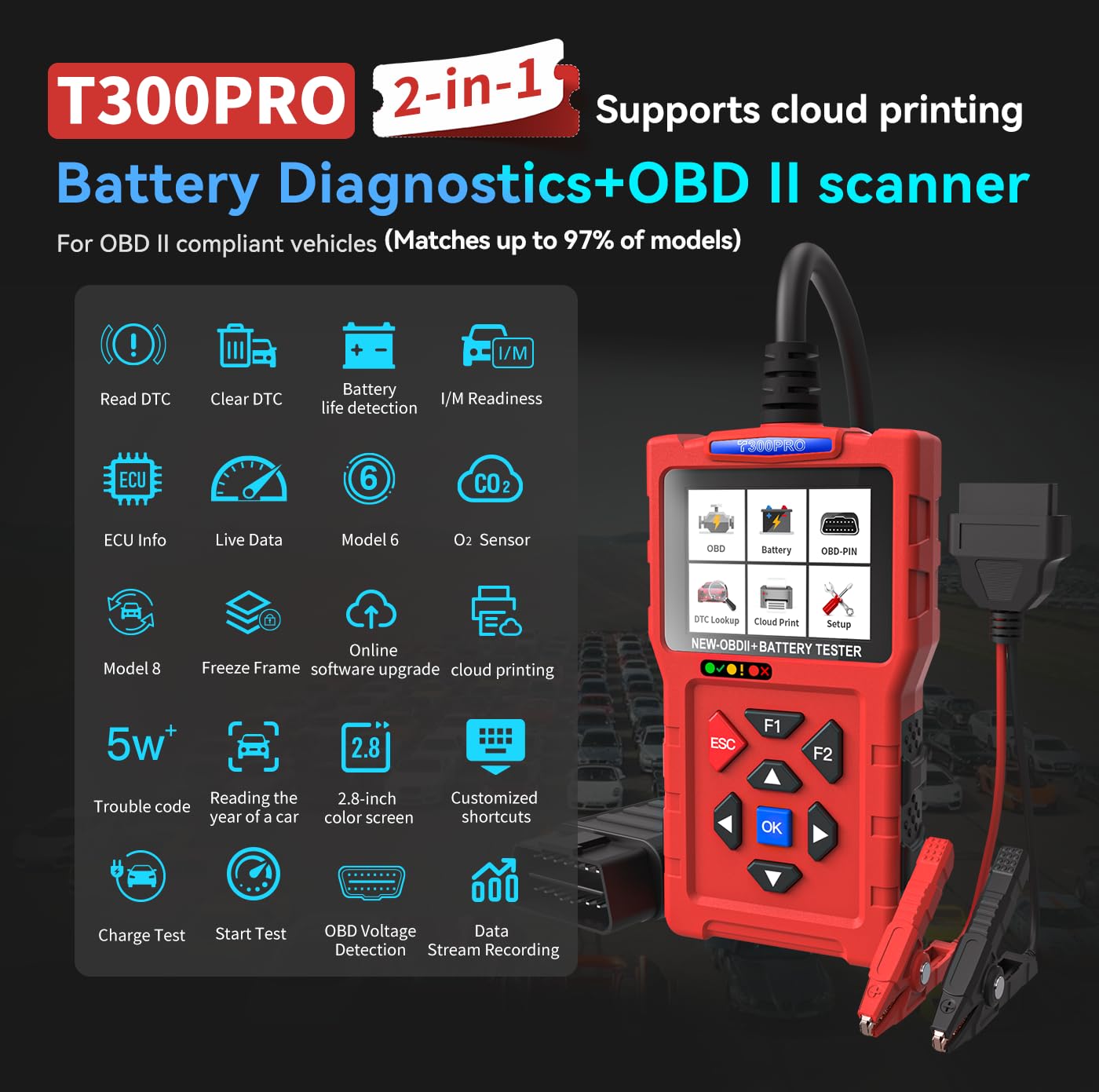
Image: The T300PRO displaying its 'Scan QR Code Get PDF Report' feature, allowing users to generate and access diagnostic reports.
7. Maintenance
7.1 Software Updates
To ensure optimal performance and compatibility with new vehicle models, regularly update the device's software.
- Visit the official TopDiag website to download the latest update software.
- Connect the T300PRO to your computer using a USB cable.
- Follow the instructions provided with the update software to complete the process.
7.2 General Care
- Keep the device clean and free from dust, dirt, and moisture.
- Store the device in a cool, dry place when not in use.
- Avoid dropping the device or subjecting it to strong impacts.
8. Troubleshooting
- Device Does Not Power On: Ensure the OBDII cable is securely connected to the vehicle's DLC or the battery clamps are correctly attached to the battery terminals. Check the vehicle's ignition status.
- Inaccurate Battery Test Results: Verify that the correct battery type, standard (e.g., CCA, SAE), and rated value have been accurately entered into the device. Ensure the battery is clean and connections are secure.
- Cannot Read DTCs: Confirm the device is properly connected to the vehicle's DLC and the ignition is 'ON'. Ensure the vehicle is OBDII compliant.
- Check Engine Light Remains On After Clearing Codes: Some fault conditions may require multiple drive cycles or specific repair actions before the Check Engine Light permanently turns off. If the underlying issue is not resolved, the code may reappear.
9. Specifications
| Brand | TopDiag |
| Model | T300PRO |
| Power Source | Corded Electric (via OBDII or Battery) |
| Color | Red |
| Item Weight | 0.51 Kilograms |
| Minimum Operating Voltage | 12 Volts |
| Measurement Type | Voltmeter |
| Compatible Devices | Cars, Trucks, Hybrids, SUVs, Boats, RVs, Motorcycles |
| Specification Met | JIS, EN, DIN, SAE, CCA, BCI, GB, CA, MCA, IEC |
| Included Components | 2 in 1 Battery Tester and Code Reader |
| UPC | 794969059314 |
10. Warranty and Support
The TopDiag T300PRO is designed for durability and reliable performance. For specific warranty details, technical support, or service inquiries, please refer to the warranty card included in your product packaging or visit the official TopDiag website. Our customer support team is available to assist you with any questions or issues you may encounter.


