1. Introduction
This manual provides detailed instructions for the installation, operation, and maintenance of your Rimoody 10.4 inch Single Din Car Stereo. Please read this manual thoroughly before using the product to ensure proper function and safety. Keep this manual for future reference.

Image 1.1: The Rimoody 10.4 inch Single Din Car Stereo with included accessories like the backup camera and microphone.
2. Product Overview and Key Features
The Rimoody 10.4 inch Single Din Car Stereo is designed to enhance your in-car entertainment and connectivity. Key features include:
- Wireless CarPlay & Android Auto: Seamless integration with your smartphone for navigation, music, calls, and more.
- Mirror Link Functionality: Display your smartphone screen directly on the car stereo.
- 10.4-inch 2.5D Touch Screen: High-resolution (1280x800) display with adjustable brightness and contrast.
- Manual Rotational Screen: Adjust the screen orientation between vertical and horizontal modes.
- Bluetooth 4.2: Hands-free calling, music streaming, and synchronous address book access.
- FM/RDS Radio: High-quality stereo radio with automatic and manual channel search.
- EQ Sound Processing: Multiple equalizer modes for customized audio output.
- Rear View Camera Input: Automatic display of the reverse image when shifting into reverse.
- Steering Wheel Control (SWC): Compatible with existing steering wheel buttons for convenient control.
- Multiple Connectivity Options: USB, AUX, TF card slot.

Image 2.1: Visual representation of the main features of the car stereo.
3. Setup and Installation
3.1. Installation Size
The installation size of the main unit is 178mm x 50mm (7 inches x 2 inches), suitable for most single DIN car models. Ensure your vehicle's dashboard opening matches these dimensions for proper fitment.
3.2. Screen Rotation
The 10.4-inch screen supports manual rotation. You can adjust the screen by hand to switch between vertical and horizontal display modes to suit your viewing preference and dashboard layout.

Image 3.1: Illustration of the screen's manual rotation feature, allowing for both vertical and horizontal orientations.
3.3. Wiring Connections
Refer to the wiring diagram provided in the package for specific connections. Key connections typically include:
- Power Cable: Connect to your vehicle's power supply (constant 12V, accessory 12V, ground).
- Horn Cable: For specific vehicle models.
- Radio Antenna: Connect your vehicle's radio antenna.
- Audio Output: Connect to vehicle speakers.
- Video Output: For external displays (if applicable).
- Reversing Video Input: Connect the included backup camera.
- Steering Wheel Control (SWC) Wires: Connect to your vehicle's SWC wires.
- USB/AUX/TF: For external media and connectivity.
It is recommended to have a professional perform the installation to ensure correct wiring and prevent damage to the unit or vehicle.
4. Operating Instructions
4.1. Wireless CarPlay and Android Auto
This unit supports both Wireless CarPlay and Android Auto. This allows you to access your phone's navigation, music, messages, and other apps directly on the stereo screen.
- Ensure Bluetooth is enabled on your smartphone.
- On the car stereo, navigate to the CarPlay or Android Auto application.
- Pair your phone with the car stereo via Bluetooth. Follow the on-screen prompts to confirm the pairing code.
- Once paired, the system will automatically connect to CarPlay or Android Auto.
- Alternatively, you can connect via USB for a wired connection.
Voice control is available through CarPlay and Android Auto, allowing you to use voice commands for various functions.

Image 4.1: Demonstrates Wireless CarPlay and Android Auto functionality, including voice command examples.
4.2. Mirror Link
The Mirror Link function allows you to display your smartphone's screen on the car stereo. This is compatible with both iOS and Android devices.
- Connect your smartphone to the car stereo using a USB cable.
- On the car stereo, select the 'Mirror Link' option.
- Follow any on-screen instructions on both your phone and the stereo to establish the connection.

Image 4.2: Visual of the Mirror Link feature, displaying a smartphone's content on the larger car stereo screen.
4.3. Bluetooth Functionality
The unit features Bluetooth 4.2 for wireless communication.
- Pairing: Go to the Bluetooth menu on the stereo, enable Bluetooth on your phone, and search for the stereo's device name. Select it to pair.
- Hands-Free Calling: Once paired, you can make and receive calls directly through the stereo. The built-in microphone (or external mic if connected) will be used.
- Music Playback: Stream audio from your phone to the stereo wirelessly.
- Address Book: Synchronize your phone's address book for easy access to contacts.
4.4. FM Radio
The built-in FM/RDS radio provides access to local radio stations.
- Automatic Search: Select the auto-search function to scan and save available stations.
- Manual Tuning: Manually adjust the frequency to find specific stations.
- RDS (Radio Data System): Displays station information like song title or program name where available.
4.5. EQ Settings
Customize your audio experience using the Equalizer (EQ) settings.
- Access the EQ menu from the main interface.
- Choose from preset EQ modes (e.g., Pop, Rock, Classic) or manually adjust bass, treble, and other frequency bands.
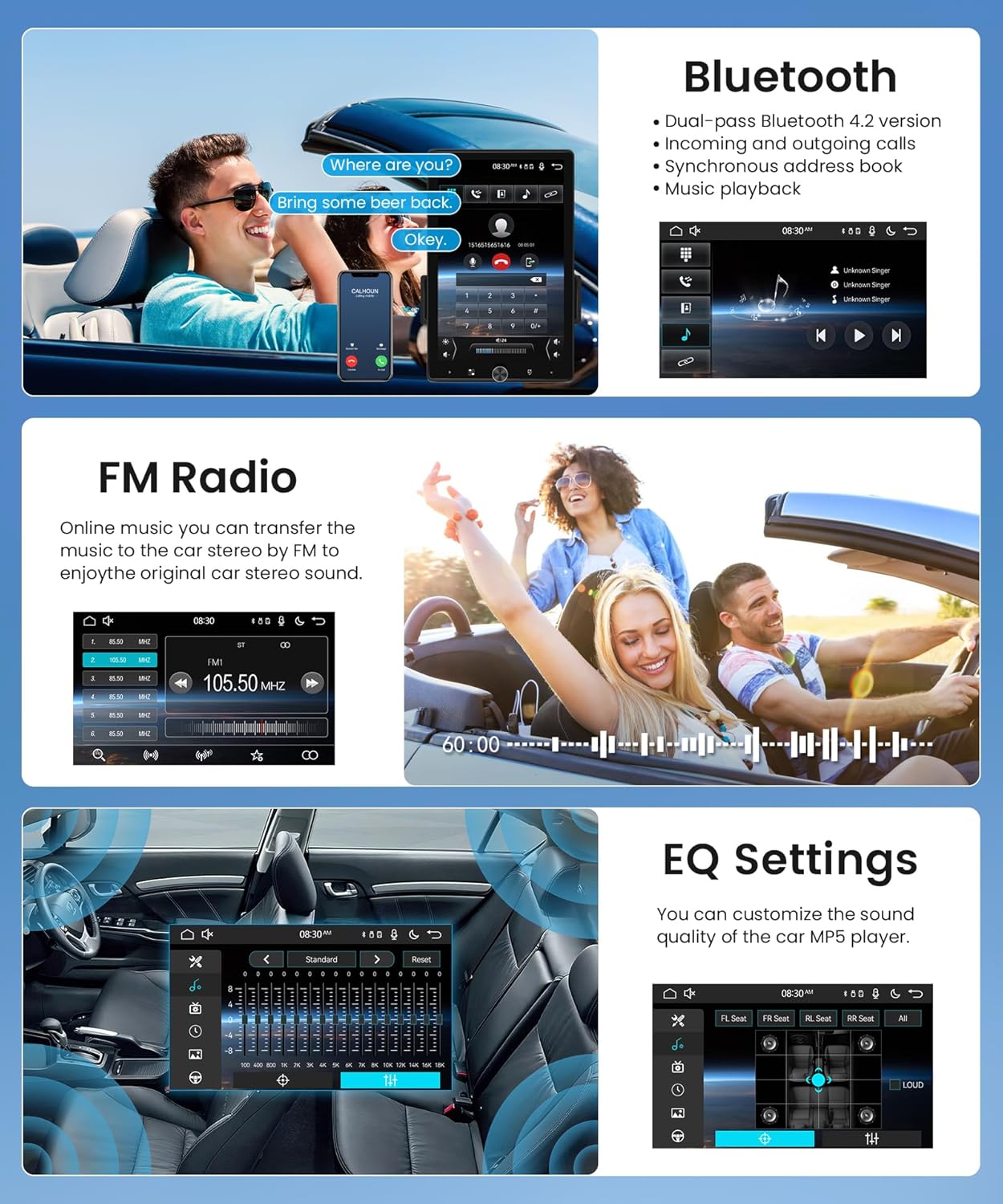
Image 4.3: Displays the user interfaces for Bluetooth calls, FM radio, and Equalizer settings.
4.6. Rear View Camera
The unit supports a rear view camera input for enhanced safety during parking.
- Connect the included backup camera to the 'Reversing Video Input' on the stereo.
- When your vehicle shifts into reverse gear, the car stereo screen will automatically display the rear view image.
- The camera provides a clear, wide-angle view, often with parking guidelines, to assist in avoiding obstacles.
4.7. Steering Wheel Control (SWC)
You can program your vehicle's existing steering wheel buttons to control the car stereo.
- Access the 'Steering Wheel Control' learning function in the stereo's settings menu.
- Follow the on-screen instructions to assign functions (e.g., volume up/down, track skip, mode) to your steering wheel buttons.

Image 4.4: Illustrates the Steering Wheel Control setup and the automatic display from the Rear View Camera.
5. Maintenance
- Screen Cleaning: Use a soft, lint-free cloth to gently wipe the screen. For stubborn smudges, slightly dampen the cloth with water or a screen-safe cleaner. Avoid harsh chemicals or abrasive materials.
- General Cleaning: Keep the unit free from dust and debris. Use a soft brush or compressed air to clean vents and ports.
- Software Updates: Periodically check the manufacturer's website for any available software updates to ensure optimal performance and access to new features.
- Avoid Extreme Temperatures: Do not expose the unit to extreme heat or cold, as this can affect its performance and lifespan.
6. Troubleshooting
If you encounter issues with your car stereo, refer to the following common problems and solutions:
- No Power:
- Check all power connections (constant 12V, accessory 12V, ground) to ensure they are secure.
- Verify the vehicle's fuse for the stereo is not blown.
- No Sound:
- Ensure speaker wires are correctly connected and not short-circuited.
- Check volume levels and mute settings on the stereo.
- Verify the audio source is correctly selected.
- Bluetooth Connectivity Issues:
- Ensure Bluetooth is enabled on both the stereo and your phone.
- Delete previous pairings on both devices and attempt to re-pair.
- Move your phone closer to the stereo.
- CarPlay/Android Auto Not Connecting:
- For wireless connection, ensure Bluetooth is active and the phone is paired.
- For wired connection, try a different USB cable.
- Ensure CarPlay/Android Auto is enabled in your phone's settings.
- Rear View Camera Not Displaying:
- Check the camera's power and video signal connections.
- Ensure the reverse trigger wire is correctly connected to the vehicle's reverse light circuit.
If these steps do not resolve the issue, please contact Rimoody customer support for further assistance.
7. Specifications
| Feature | Specification |
|---|---|
| Screen Size | 10.4 inches |
| Screen Type | 2.5D Touch Screen |
| Resolution | 1280x800 |
| Installation Size | 178 x 50 mm (Single Din) |
| Connectivity Technology | USB, Bluetooth |
| Bluetooth Version | 4.2 |
| Compatible Devices | Smartphone (iOS/Android) |
| Audio Output Mode | Stereo |
| Special Features | Touchscreen, Wireless CarPlay, Android Auto, Mirror Link, FM/RDS, EQ, Rear View Camera Input, Steering Wheel Control, Manual Rotational Screen |
| Item Weight | 3.69 pounds |
| Package Dimensions | 11.46 x 8.15 x 7.24 inches |
8. Package Contents
The following items are included in your product package:
- Rimoody 10.4 inch Single Din Car Stereo Unit
- Backup Camera
- Power Cable
- Horn Cable
- Microphone (MIC)
- Mounting Brackets (2 sets)
- User Manual (this document)

Image 8.1: Detailed view of the car stereo's dimensions and a visual representation of all items included in the package.
9. Warranty and Support
For warranty information and customer support, please refer to the warranty card included in your package or visit the official Rimoody website. If you encounter any issues or have questions regarding your product, please contact Rimoody customer service for assistance.


