
1. Introduction
Thank you for choosing the iginoa iOS Smart Tracker. This device is designed to help you keep track of your valuable items, children, elderly family members, or pets using Apple's 'Find My' network. This manual provides essential information on how to set up, operate, and maintain your smart tracker to ensure optimal performance and peace of mind.
2. Product Overview
2.1 Key Features
- Global Positioning: Utilizes Apple's 'Find My' network for accurate worldwide location tracking.
- Loss Prevention: Helps prevent the loss of personal items, children, elderly, and pets.
- Ultra-Strong Signal: Ensures reliable connectivity and tracking.
- Ultra-Lightweight & Compact: Easy to attach to various items without adding bulk.
- Long-Lasting & Replaceable Battery: Extended operational time with user-replaceable battery.
- No Monthly Fees: Enjoy tracking capabilities without recurring subscription costs.
2.2 What's Included
- 2 x iginoa iOS Smart Trackers
- Instruction Manual (this document)
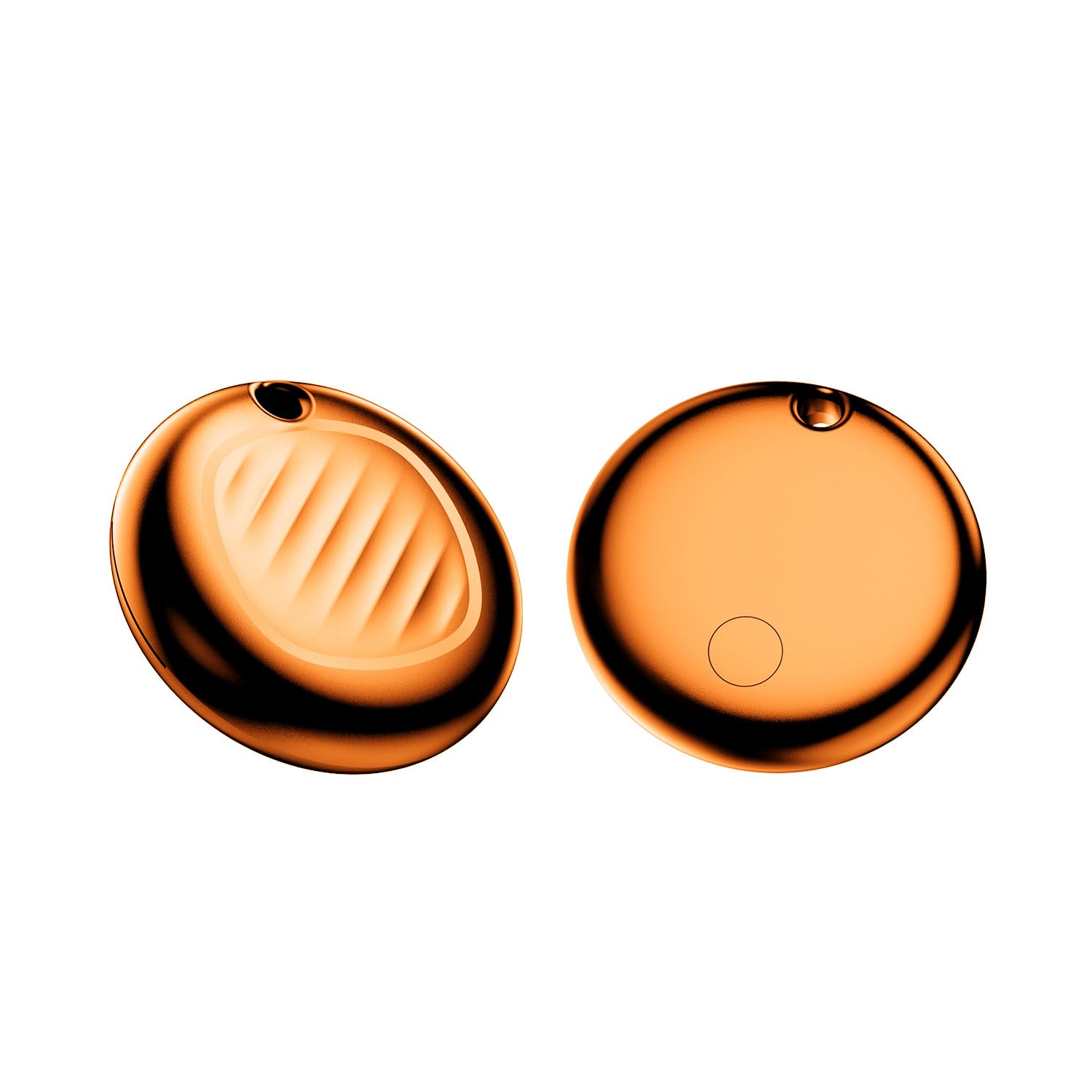
This image shows the iginoa iOS Smart Tracker, a small, white, circular device designed for tracking personal items.
3. Setup
3.1 Initial Activation
- Ensure your iOS device (iPhone, iPad, or Mac) is running the latest version of iOS/iPadOS/macOS.
- Open the 'Find My' app on your iOS device.
- Remove the battery isolation tab from the smart tracker (if present). The tracker will emit a sound indicating it is ready for pairing.
3.2 Pairing with Your iOS Device
- Hold the iginoa Smart Tracker near your iOS device. A pop-up notification will appear on your screen.
- Tap 'Connect' or 'Add Item' on the pop-up.
- Follow the on-screen instructions to name your tracker and assign an emoji.
- Confirm the pairing. Your iginoa Smart Tracker is now linked to your Apple ID and visible in the 'Find My' app.
4. Operating Instructions
4.1 Locating Your Item
- Open the 'Find My' app on your iOS device.
- Navigate to the 'Items' tab.
- Select your iginoa Smart Tracker from the list.
- The app will display the tracker's current location on a map.
4.2 Playing a Sound
If your item is nearby but out of sight:
- In the 'Find My' app, select your tracker.
- Tap 'Play Sound'. The tracker will emit a series of beeps to help you locate it.
- Tap 'Stop Sound' once you have found your item.
4.3 Lost Mode
If your item is lost or stolen, you can enable Lost Mode:
- In the 'Find My' app, select your tracker.
- Scroll down and tap 'Enable' under 'Lost Mode'.
- Follow the prompts to enter a contact phone number or email address.
- If someone finds your tracker, they can tap it with an NFC-capable smartphone to see your contact information.
5. Battery Information
5.1 Battery Type and Life
The iginoa iOS Smart Tracker uses a standard coin cell battery (e.g., CR2032, specific type may vary, check device markings). The battery is designed for ultra-long-lasting performance, typically providing several months to a year of use depending on usage patterns.
5.2 Replacing the Battery
When the battery level is low, you will receive a notification on your iOS device. To replace the battery:
- Locate the battery cover on the back of the smart tracker.
- Twist the cover counter-clockwise to unlock and remove it.
- Carefully remove the old battery.
- Insert a new battery with the positive (+) side facing up.
- Replace the cover and twist clockwise to lock it securely.
6. Maintenance
- Cleaning: Wipe the tracker with a soft, dry cloth. Avoid using harsh chemicals or abrasive materials.
- Storage: Store the tracker in a cool, dry place when not in use for extended periods.
- Battery Check: Regularly check the battery status in the 'Find My' app to ensure continuous tracking.
7. Troubleshooting
7.1 Tracker Not Connecting/Visible in 'Find My' App
- Ensure Bluetooth is enabled on your iOS device.
- Check if the tracker's battery is depleted. Replace if necessary.
- Bring the tracker closer to your iOS device.
- Restart your iOS device.
- If the issue persists, try resetting the tracker (refer to specific device instructions if available, or remove and reinsert the battery).
7.2 Location Not Updating
- Ensure your iOS device has an active internet connection (Wi-Fi or cellular data).
- The tracker's location updates when it is within range of an Apple device participating in the 'Find My' network. If it's in a remote area, updates may be less frequent.
- Check the battery level of the tracker.
7.3 Sound Not Playing
- Ensure the tracker is within Bluetooth range of your iOS device.
- Check the battery level.
8. Specifications
| Brand | iginoa |
| Model | iOS Smart Tracker |
| Compatibility | iOS devices (iPhone, iPad, Mac) with 'Find My' app |
| Tracking Network | Apple 'Find My' network |
| Battery Type | Replaceable Coin Cell (e.g., CR2032) |
| Pack Count | 2 |
| ASIN | B0FDF6M2NV |
9. Safety Information
- Choking Hazard: This device contains small parts and a coin cell battery. Keep out of reach of small children and pets to prevent accidental ingestion.
- Battery Safety: Do not ingest the battery. Keep batteries away from heat and open flames. Dispose of used batteries according to local regulations.
- Water Resistance: While the device may offer some resistance to splashes, it is not fully waterproof. Avoid submerging it in water.
- Operating Temperature: Use the device within recommended temperature ranges to avoid damage.
10. Warranty and Support
For warranty information and customer support, please refer to the contact details provided with your purchase or visit the official iginoa website. Please have your product model and ASIN (B0FDF6M2NV) ready when contacting support.