
RCA 119KZ-GD
RCA Digital Picture Frame 10.1 Inch WiFi (Model 119KZ-GD) User Manual
Model: 119KZ-GD
Introduction
This manual provides instructions for the setup, operation, and maintenance of your RCA 10.1-inch WiFi Digital Picture Frame. Please read this manual thoroughly before using the device to ensure proper functionality and longevity.

Image: The RCA 10.1-inch WiFi Digital Picture Frame in gold, showcasing a vibrant image of a child. A smartphone next to it displays the Uhale app, illustrating remote photo sharing capabilities.
Package Contents
Verify that all items listed below are included in your package:
- 1 x Box (Packaging)
- 1 x Digital Photo Frame
- 1 x DC Adapter
- 1 x Stand
- 1 x User Manual (this document)
- 2 x Screws (for wall mounting)

Image: An overhead view of the RCA Digital Picture Frame package contents, neatly laid out. This includes the frame, power adapter, stand, a printed user manual, and two screws.
Setup Guide
1. Powering On
- Connect the DC adapter to the power port on the back of the digital picture frame.
- Plug the DC adapter into a standard electrical outlet.
- The frame will automatically power on and display the initial setup screen.
2. Connecting to Wi-Fi
- On the initial setup screen, select your preferred language.
- Follow the on-screen prompts to connect the frame to your local Wi-Fi network. You will need your Wi-Fi network name (SSID) and password.
- Ensure the frame is within range of your Wi-Fi router for a stable connection.
3. Installing the Uhale App for Remote Sharing
The Uhale app allows you to share photos and videos to your frame remotely from your smartphone.
- Download the "Uhale" app from your smartphone's app store (Google Play Store for Android or Apple App Store for iOS).
- Open the Uhale app and create an account or log in.
- Follow the in-app instructions to pair your smartphone with your RCA Digital Picture Frame. This typically involves scanning a QR code displayed on the frame or entering a unique frame ID.

Image: The Uhale app on a smartphone, demonstrating wireless photo and video sharing to the RCA Digital Picture Frame. The frame displays a family photo, indicating successful content transfer.
4. Adding Photos/Videos via SD Card or USB Drive
You can also transfer media directly using an SD card or USB flash drive.
- Download photos and videos to a USB flash drive or SD card from your computer.
- Insert the U disk (USB drive) or SD card into the corresponding slot on the digital photo frame.
- Navigate to the media import section on the frame's touch screen.
- Select the photos/videos you wish to play directly or copy them to the frame's internal memory.
Note: Please ensure the SD card and USB drive are formatted to FAT32 before use for compatibility.
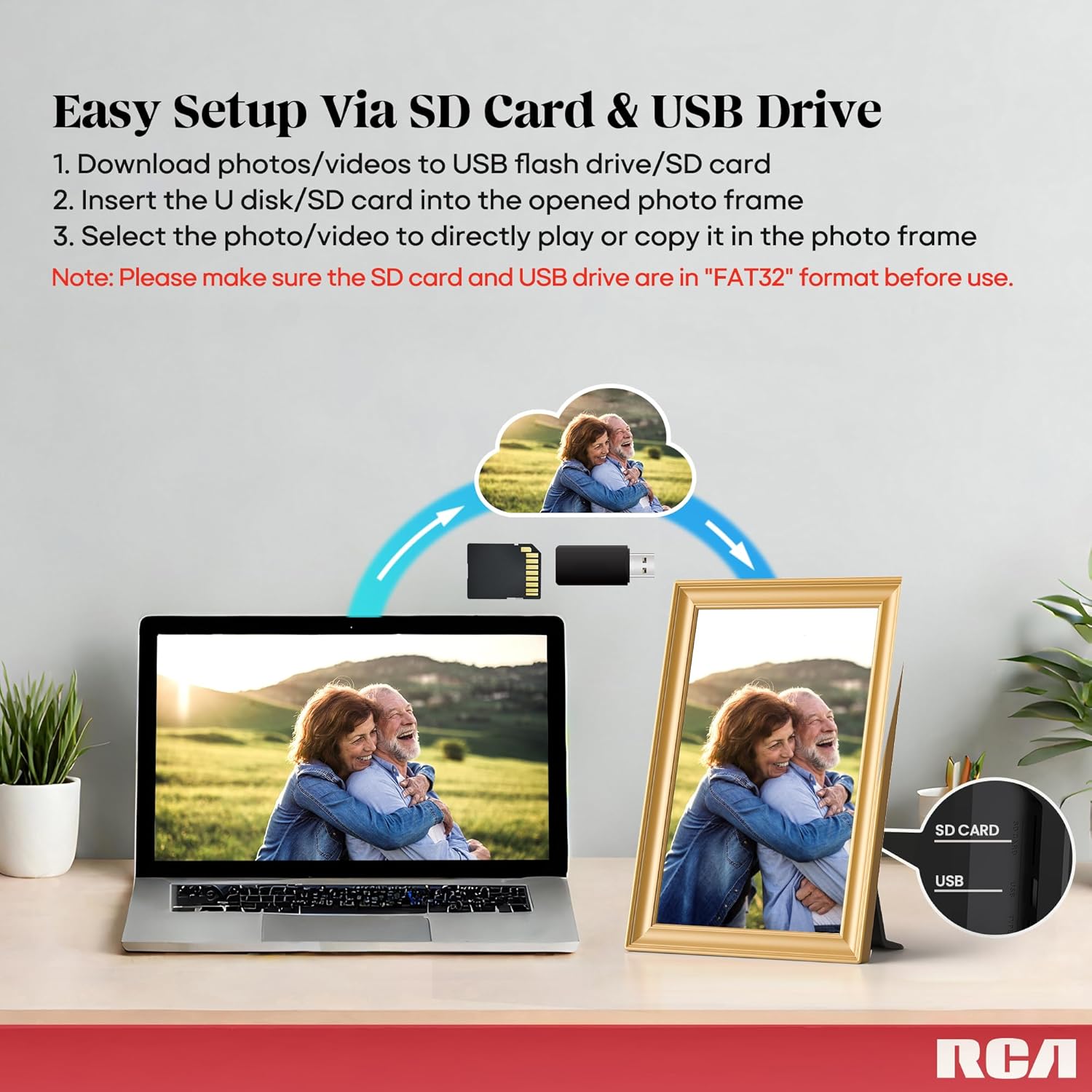
Image: A visual guide illustrating the process of transferring photos and videos from a laptop to the RCA Digital Picture Frame using either an SD card or a USB drive. The frame is shown displaying a photo, with slots for both media types visible.
5. Mounting Options
The frame can be placed on a desktop using the included stand or mounted on a wall.
- Desktop Placement: Attach the included support frame/stand to the back of the digital picture frame. Place it on a flat, stable surface.
- Wall Mounting: Use the wall hanging hole on the back of the frame. Securely install the provided screws into your wall, ensuring they can support the frame's weight, then hang the frame.

Image: Demonstrates the versatility of the RCA Digital Picture Frame, showing it both resting on a table with its support stand and mounted vertically on a wall using the integrated hanging hole.
Operating Instructions
1. Touch Screen Navigation
The RCA Digital Picture Frame features a 10.1-inch HD touch screen for intuitive control.
- Tap icons to select options or open menus.
- Swipe left or right to navigate through photos and videos.
- Pinch to zoom in or out on images (if supported by the current view).

Image: The 10.1-inch HD touch screen of the RCA Digital Picture Frame, showcasing a high-resolution image. Feature icons around the frame highlight its IPS display, 1280x800 resolution, and wide 178-degree viewing angle.
2. Display Settings
- Auto-Rotate: The frame automatically adjusts the display orientation (landscape or portrait) based on how it is positioned.
- Sleep Mode/Bedtime: Access the settings menu to schedule specific times for the frame to automatically turn off its display (e.g., during nighttime hours) and power back on.
- Shuffle Photos: In the settings, you can choose to display photos in a random order rather than sequentially.
3. Managing Photos and Videos
The frame comes with 32GB of built-in memory, capable of storing over 60,000 pictures. Memory can be expanded up to 64GB using an SD card or USB drive.
- Viewing Media: Access the "Gallery" or "Photos" section from the main menu to browse your stored media.
- Deleting Media: Select individual photos or videos and choose the delete option from the menu.
- Creating Albums: Organize your media into custom albums for easier viewing.

Image: The RCA Digital Picture Frame showcasing a central image of a child, flanked by multiple other family photos, emphasizing its 32GB built-in memory and ability to store a large volume of images.
4. Multi-User Connection
Multiple users can connect to a single frame via the Uhale app, allowing family and friends to share photos and videos from different locations.
- From the Uhale app, invite others to connect to your frame by sharing the frame's unique code or QR code.
- Accepted users can then send photos and videos directly to your frame.
- Manage connected users and their permissions through the frame's settings or the Uhale app.

Image: The RCA Digital Picture Frame displaying a family photo, accompanied by a smartphone showing the Uhale app. Surrounding the frame are multiple user profile icons on a world map, illustrating the multi-user connection feature for sharing photos and videos.
5. Sending Instant or Timed Wishes
The Uhale app allows you to send personalized messages or "wishes" to the frame, either instantly or scheduled for a specific time.
- Within the Uhale app, select the "Wishes" or "Messages" feature.
- Choose a template or compose your message.
- Select whether to send it immediately or schedule it for a future date and time.
- The message will appear on the digital picture frame at the designated time.

Image: A smartphone displaying the Uhale app's interface for creating and sending personalized messages or "wishes." The RCA Digital Picture Frame in the background shows an example message, "Happy Mother's Day," demonstrating the feature.
Maintenance
Cleaning the Frame
- Always unplug the frame before cleaning.
- Use a soft, dry, lint-free cloth to gently wipe the screen and frame.
- For stubborn smudges on the screen, lightly dampen the cloth with water or a screen-safe cleaning solution. Do not spray liquid directly onto the screen.
- Avoid using abrasive cleaners, solvents, or aerosol sprays, as these can damage the surface.
Storage
- Store the frame in a cool, dry place away from direct sunlight and extreme temperatures.
- If storing for an extended period, it is recommended to pack it in its original packaging to protect it from dust and physical damage.
Troubleshooting
If you encounter issues with your RCA Digital Picture Frame, refer to the following common solutions:
| Problem | Possible Solution |
|---|---|
| Frame does not power on. |
|
| Cannot connect to Wi-Fi. |
|
| Photos/videos not displaying from SD card/USB. |
|
| Uhale app cannot connect to the frame. |
|
| Screen is unresponsive. |
|
Specifications
| Feature | Detail |
|---|---|
| Model Number | 119KZ-GD |
| Screen Size | 10.1 Inches |
| Resolution | 1280*800 HD |
| Display Type | IPS Touch Screen |
| Internal Memory | 32GB (stores over 60,000 pictures) |
| Expandable Memory | Up to 64GB (via SD card or USB drive) |
| Connectivity | WiFi |
| Compatible Devices | Smartphone (via Uhale App) |
| Product Dimensions | 6.85 x 10.24 x 0.99 inches |
| Item Weight | 1.06 pounds |
| Color | Gold |
Support Information
For further assistance or inquiries, please refer to the following support details:
- Customer Service Response: Quick replies typically within 24 hours.
- Returns and Exchanges: Eligible for return or exchange within 30 days of purchase.
- Technical Support: Lifetime technical support is provided for this product.
Please visit the official RCA support website or contact their customer service for specific contact methods.
Related documents119KZ-GD


Ask a question about this manual
Ask about setup, troubleshooting, compatibility, parts, safety, or missing instructions. Manuals+ will review the question and use this page’s manual context to help answer it.