
1. Introduction
This manual provides essential information for the safe and efficient operation of your TCL 43P7K 4K Ultra HD Smart QLED Google TV. Please read this manual thoroughly before using the television and retain it for future reference. This television features a 43-inch 4K QLED display, Google TV operating system, Dolby Vision, HDR10+, Dolby Atmos audio, and hands-free voice control.

Figure 1.1: Front view of the TCL 43P7K 4K Ultra HD Smart QLED Google TV, showcasing its bezel-less design and vibrant display.
2. Safety Information
Always observe the following safety precautions to prevent fire, electric shock, or injury:
- Power Source: Connect the TV only to an AC power supply as indicated on the label.
- Ventilation: Ensure adequate ventilation. Do not block ventilation openings or install near heat sources.
- Water and Moisture: Do not expose the TV to rain or moisture. Do not place objects filled with liquids on the TV.
- Cleaning: Unplug the TV before cleaning. Use a soft, dry cloth. Do not use liquid or aerosol cleaners.
- Mounting: Follow instructions carefully when mounting the TV on a wall or stand. Ensure the TV is stable to prevent falling.
- Children: Do not allow children to climb on the TV or stand.
- Servicing: Do not attempt to service this product yourself. Refer all servicing to qualified service personnel.
3. Package Contents
Verify that all items are present in the package:
- 1N LED TV
- 1N Audio Cable
- 1N Stand
- 1N User Manual
- 1N Warranty Card
- 1N Power cord
- 1N Remote Control
- 2N AAA Batteries
4. Setup
4.1 Attaching the TV Stand
- Carefully place the TV face-down on a soft, flat surface to prevent screen damage.
- Align the stand bases with the corresponding screw holes on the bottom of the TV.
- Secure the stand bases using the provided screws. Ensure they are firmly attached.
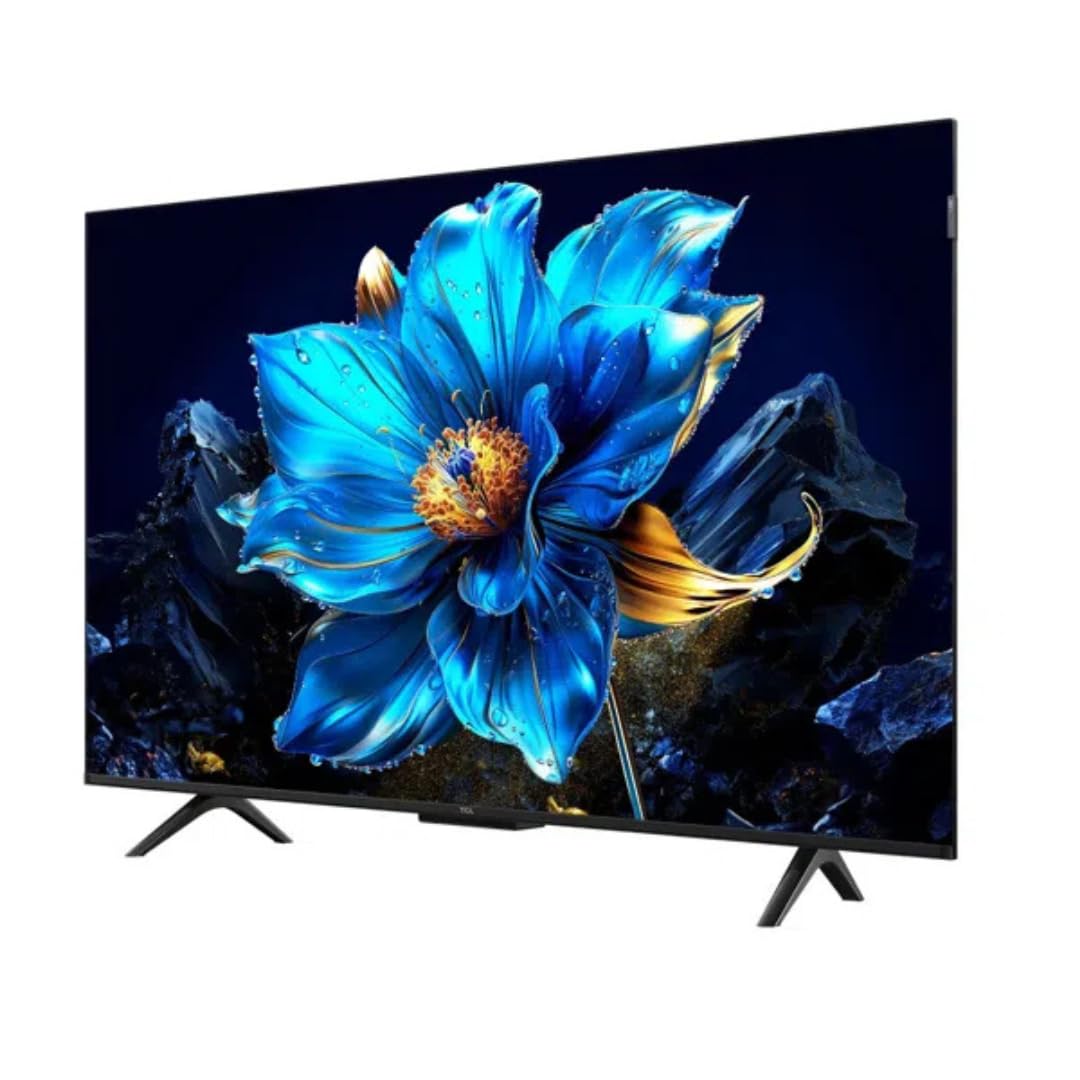
Figure 4.1: Angled front view of the TCL 43P7K TV with the stand attached, ready for placement.
4.2 Wall Mounting (Optional)
If you choose to wall mount your TV, ensure you use a compatible VESA wall mount kit (not included) and follow the instructions provided with the wall mount. It is recommended to have professional installation for wall mounting.
4.3 Connecting External Devices
The TCL 43P7K TV offers various connectivity options:
- HDMI Ports (x3): Connect Blu-ray players, gaming consoles, set-top boxes, or other HDMI-enabled devices.
- USB Port (x1): Connect USB storage devices for media playback.
- LAN Port (x1): Connect an Ethernet cable for a wired internet connection.
- Antenna Input (x1): Connect an antenna for receiving broadcast television signals.
- Digital Audio Out (x1): Connect to a soundbar or home theater system for enhanced audio.
- AV Adapter (x1): For connecting older analog devices.

Figure 4.2: Rear view of the TCL 43P7K TV, highlighting the arrangement of connectivity ports.

Figure 4.3: Side view of the TCL 43P7K TV, illustrating the conveniently located side input ports.
4.4 Power Connection
After connecting all necessary devices, plug the power cord into the TV's power inlet and then into a wall outlet. The TV will enter standby mode.
5. Operating Instructions
5.1 Initial Setup
Upon first power-on, the TV will guide you through the initial setup process, including:
- Language selection.
- Network connection (Wi-Fi or Ethernet).
- Google Account sign-in for Google TV features.
- Channel scanning (if an antenna is connected).
5.2 Remote Control Usage
The included remote control uses both IR and Bluetooth technology. Insert the two AAA batteries into the remote. Follow on-screen instructions to pair the Bluetooth remote for full functionality, including voice control.
5.3 Google TV Features
Your TCL 43P7K runs on Google TV, providing access to a wide range of smart features:
- Streaming Apps: Access popular platforms like Netflix, Prime Video, Hotstar, Zee5, YouTube, and more.
- Google Assistant: Use voice commands for search, control, and information.
- Chromecast Built-in: Cast content from your smartphone or tablet directly to the TV.
- Screen Mirroring: Share your device's screen wirelessly.
- Web Browser: Browse the internet directly on your TV.
5.4 Hands-Free Voice Control
The TV supports hands-free voice control via the built-in Google Assistant. Simply say "Hey Google" or "Ok Google" followed by your command to control the TV, search for content, or get information without needing the remote.
5.5 Display and Audio Settings
Navigate to the TV's settings menu to customize display and audio options:
- Picture Modes: Adjust brightness, contrast, color, and sharpness.
- HDR Settings: Optimize viewing for HDR10+ and Dolby Vision content.
- Micro Dimming: Enhance contrast by analyzing and adjusting brightness in different zones.
- MEMC: Motion Estimation, Motion Compensation for smoother motion in fast-paced scenes.
- Sound Modes: Select audio presets or customize equalizer settings.
- Dolby Atmos: Ensure Dolby Atmos is enabled for compatible audio systems to experience immersive sound.
6. Maintenance
6.1 Cleaning the Screen
Gently wipe the screen with a soft, lint-free cloth. For stubborn marks, lightly dampen the cloth with water or a specialized screen cleaner. Never spray liquid directly onto the screen.
6.2 Cleaning the Cabinet
Wipe the TV cabinet with a soft, dry cloth. Avoid using abrasive cleaners or solvents.
6.3 Power Cord Care
Regularly check the power cord for any damage. Do not place heavy objects on the cord or expose it to excessive heat.
7. Troubleshooting
If you encounter issues with your TV, refer to the following common solutions:
- No Power: Ensure the power cord is securely plugged into both the TV and the wall outlet. Check if the outlet is working.
- No Picture, But Sound: Check the input source. Ensure external devices are powered on and connected correctly.
- No Sound, But Picture: Check the volume level and mute status. Verify audio cable connections or sound output settings.
- Remote Control Not Working: Replace the batteries. Ensure there are no obstructions between the remote and the TV's IR sensor. Re-pair the Bluetooth remote if necessary.
- Poor Picture Quality: Check antenna connection or source device settings. Adjust picture settings in the TV menu.
- Network Connection Issues: Restart your router. Reconnect to the Wi-Fi network or check the Ethernet cable connection.
- TV Unresponsive: Unplug the TV from the power outlet, wait for 1 minute, then plug it back in.
For persistent issues, contact customer support.
8. Specifications
| Feature | Specification |
|---|---|
| Model | 43P7K |
| Screen Size | 43 Inches (108 cm) |
| Display Technology | QLED |
| Resolution | 4K Ultra HD (3840 x 2160) |
| Refresh Rate | 60 Hz |
| Operating System | Google TV |
| Processor | 64-bit Quad Core Processor (AiPQ Processor) |
| RAM | 2 GB |
| Storage (ROM) | 16 GB |
| HDR Support | HDR10+, Dolby Vision |
| Audio Output | 30 Watts |
| Audio Technology | Dolby Atmos |
| Connectivity | 3 HDMI, 1 USB, 1 LAN, 1 Antenna Input, 1 Digital Audio Out, 1 AV Adapter, Wi-Fi 5, Bluetooth |
| Special Features | Hands-Free Voice Control, MEMC, Micro Dimming, Multiple Eye Care, Game Master, Screen Mirroring |
| Viewing Angle | 178 Degrees |
| Product Dimensions (LxWxH) | 18.5 x 95.6 x 103.5 cm (with stand) |
| Item Weight | 6.4 kg |
| Energy Rating | 2 Star |
| Annual Energy Consumption | 135 kWh/Year |
9. Warranty and Support
Your TCL 43P7K TV comes with a 2-year warranty provided by the manufacturer from the date of purchase. Please retain your purchase receipt and warranty card for any warranty claims.
For technical support, service requests, or further assistance, please refer to the contact information provided on your warranty card or visit the official TCL India website.


