
Introduction
This manual provides essential information for setting up, operating, maintaining, and troubleshooting your HP 15.6 inch HD Laptop. Please read this guide thoroughly before using your device to ensure optimal performance and longevity.
Setup
Unpacking the Laptop
Carefully remove all components from the packaging. Ensure the following items are present:
- HP 15.6 inch HD Laptop
- AC Power Adapter and Power Cord
- Quick Start Guide (if included)
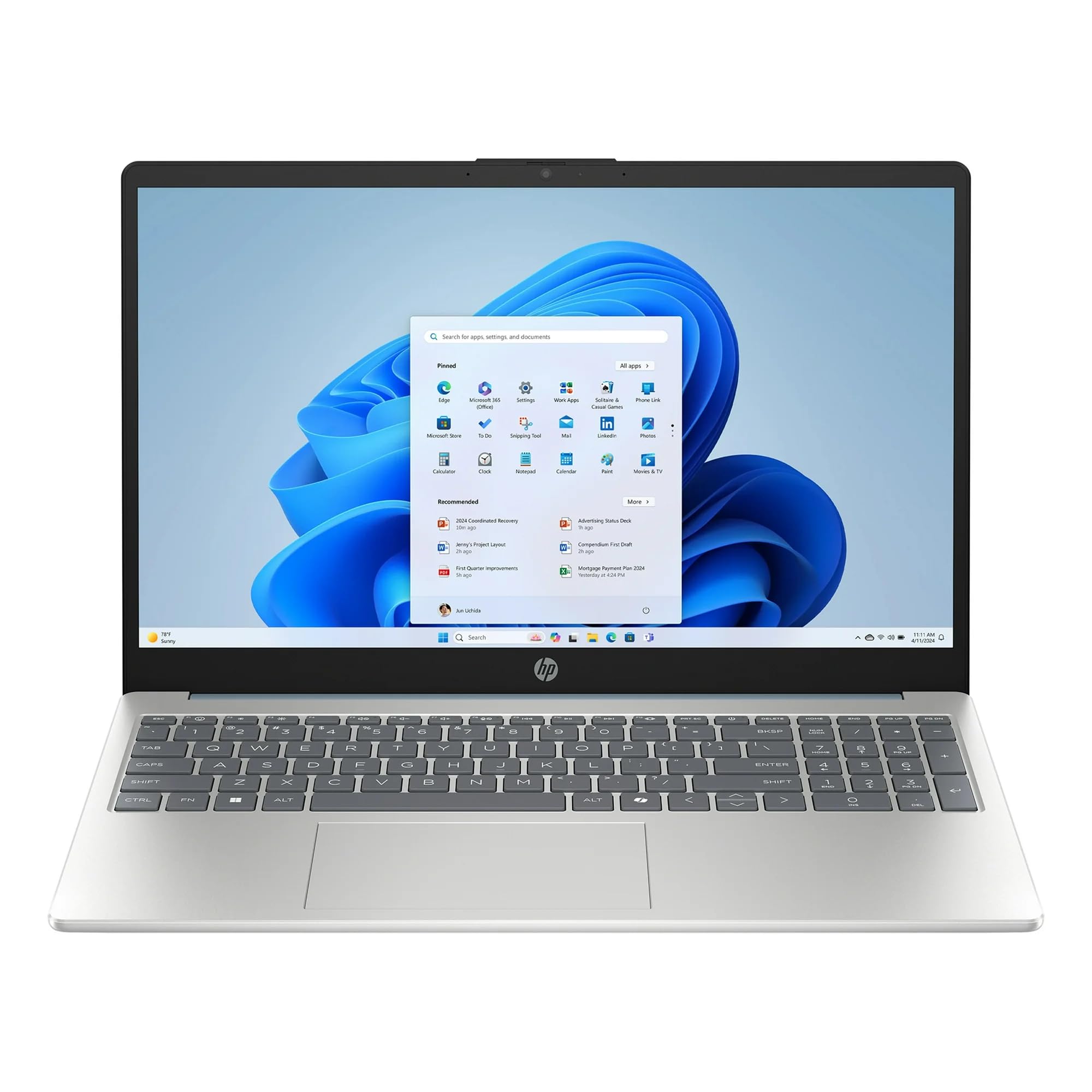
Image: The HP 15.6 inch HD Laptop, showcasing its display and keyboard layout. This is the main unit.
Connecting Power
- Connect the AC power adapter to the power connector on the side of the laptop.
- Plug the power cord into a wall outlet.
- Allow the battery to charge for at least 30 minutes before initial use, or until the battery indicator shows a full charge.
Initial Boot-up and Windows 11 Setup
Press the power button to turn on the laptop. Follow the on-screen instructions to complete the Windows 11 Home setup process. This includes selecting your region, language, connecting to a Wi-Fi network, and creating a user account.
Operating the Laptop
Keyboard and Touchpad
The laptop features a full-size keyboard and a multi-touch touchpad. Refer to the Keyboard Shortcuts section for common key combinations.
Connecting Peripherals
Utilize the available ports for connecting external devices:
- USB Ports: For mice, keyboards, external storage, etc.
- HDMI Port: For connecting to external monitors or TVs (if available).
- Audio Jack: For headphones or external speakers.
Wireless Connectivity
The laptop supports 802.11ac Wi-Fi and Bluetooth for wireless connections. Access network settings via the Windows 11 taskbar to connect to Wi-Fi networks or pair Bluetooth devices.
Maintenance
Cleaning the Laptop
- Use a soft, lint-free cloth slightly dampened with water or a screen cleaner to clean the display.
- For the keyboard and chassis, use a soft, dry cloth. Avoid harsh chemicals.
Battery Care
To prolong battery life, avoid extreme temperatures and allow the battery to discharge partially before recharging. Do not leave the laptop plugged in constantly for extended periods if not in use.
Software Updates
Regularly check for and install Windows updates and HP driver updates to ensure system stability and security. Go to Settings > Windows Update to manage updates.
Troubleshooting
| Problem | Possible Solution |
|---|---|
| Laptop does not power on. | Ensure the AC adapter is securely connected and the power outlet is functional. Try a different outlet. |
| Wi-Fi connection issues. | Check if Wi-Fi is enabled in Windows settings. Restart your router and the laptop. Update Wi-Fi drivers. |
| Slow performance. | Close unnecessary applications. Check for background processes. Ensure sufficient free storage space on the 512GB SSD. Run a disk cleanup. |
| Battery not charging. | Verify the power adapter and cable are not damaged. Ensure the connection port is clean. |
Specifications
| Feature | Detail |
|---|---|
| Model Name | HP |
| Screen Size | 15.6 Inches (HD Display) |
| Processor | AMD Ryzen 5 (3.6 GHz) |
| RAM | 8GB DDR4 SDRAM |
| Storage | 512GB SSD (PCIE x 2) |
| Graphics | Integrated Intel UHD Graphics |
| Operating System | Windows 11 Home |
| Wireless Connectivity | 802.11ac Wi-Fi, Bluetooth |
| Dimensions (LxWxH) | 12.76 x 8.86 x 0.71 inches |
| Weight | 6 pounds |
| Color | Willow Green |
Note: Specifications are subject to change without notice.
Warranty Information
This HP laptop typically comes with a standard manufacturer's warranty. Please refer to the warranty card included with your product or visit the official HP support website for detailed terms and conditions, including warranty duration and coverage specifics. Keep your proof of purchase for warranty claims.
Support
For technical assistance, driver downloads, or further support, please visit the official HP support website:
- HP Support Website: support.hp.com
- Online Documentation: Additional manuals and guides may be available online.
When contacting support, have your laptop's serial number and model number ready. These can usually be found on a sticker on the bottom of the laptop or in the system information within Windows.


