
vretti P83
vretti P83 Portable A4 Thermal Printer User Manual
Model: P83 | Brand: vretti
Introduction
The vretti P83 is a versatile and portable A4 thermal printer designed for convenient printing on the go. Utilizing direct thermal printing technology, it eliminates the need for ink, toner, or ribbons, offering a clean and efficient printing solution. This manual provides detailed instructions for setting up, operating, maintaining, and troubleshooting your P83 printer to ensure optimal performance.

Figure 1: The vretti P83 Portable A4 Thermal Printer, showcasing its compact design and A4 printing capability.
1. Setup
1.1 Unboxing and Initial Inspection
Carefully remove all components from the packaging. Verify that all items are present: the vretti P83 printer, USB cable, and user manual. Inspect the printer for any visible damage. If any components are missing or damaged, contact customer support immediately.
1.2 Charging the Printer
Before first use, fully charge the printer. Connect the provided USB cable to the printer's charging port and the other end to a compatible USB power adapter (not included) or a computer's USB port. The charging indicator light will show the charging status. A full charge ensures optimal battery life for portable use.
Figure 2: The vretti P83 printer, highlighting its compact form factor suitable for travel and various environments.
The printer features a 2000mAh large capacity battery, ideal for travel, home, business, and study environments.
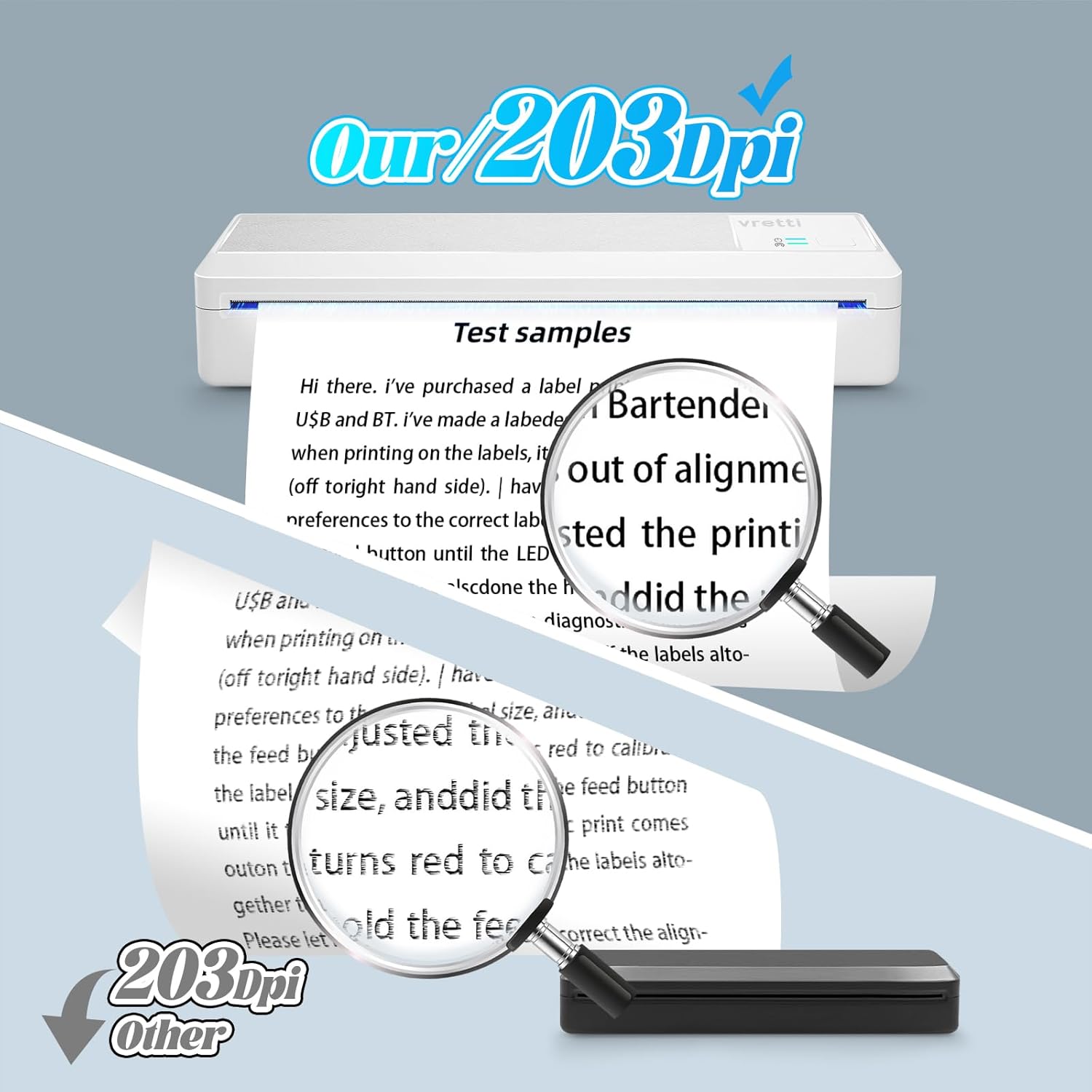
Figure 3: The vretti P83 printer demonstrating its portability and lightweight design (approximately 1.46 lbs).
1.3 Loading Thermal Paper
The vretti P83 printer supports only thermal paper, available in both roll and continuous folding paper formats. It is compatible with various sizes, including US Letter, A4, B5, A5, 110mm, 80mm, and 53mm.
- Open the paper compartment cover.
- Insert the thermal paper roll or stack of folding paper, ensuring the printable side is facing the print head.
- Gently feed the paper until it is aligned with the paper guides.
- Close the paper compartment cover securely.
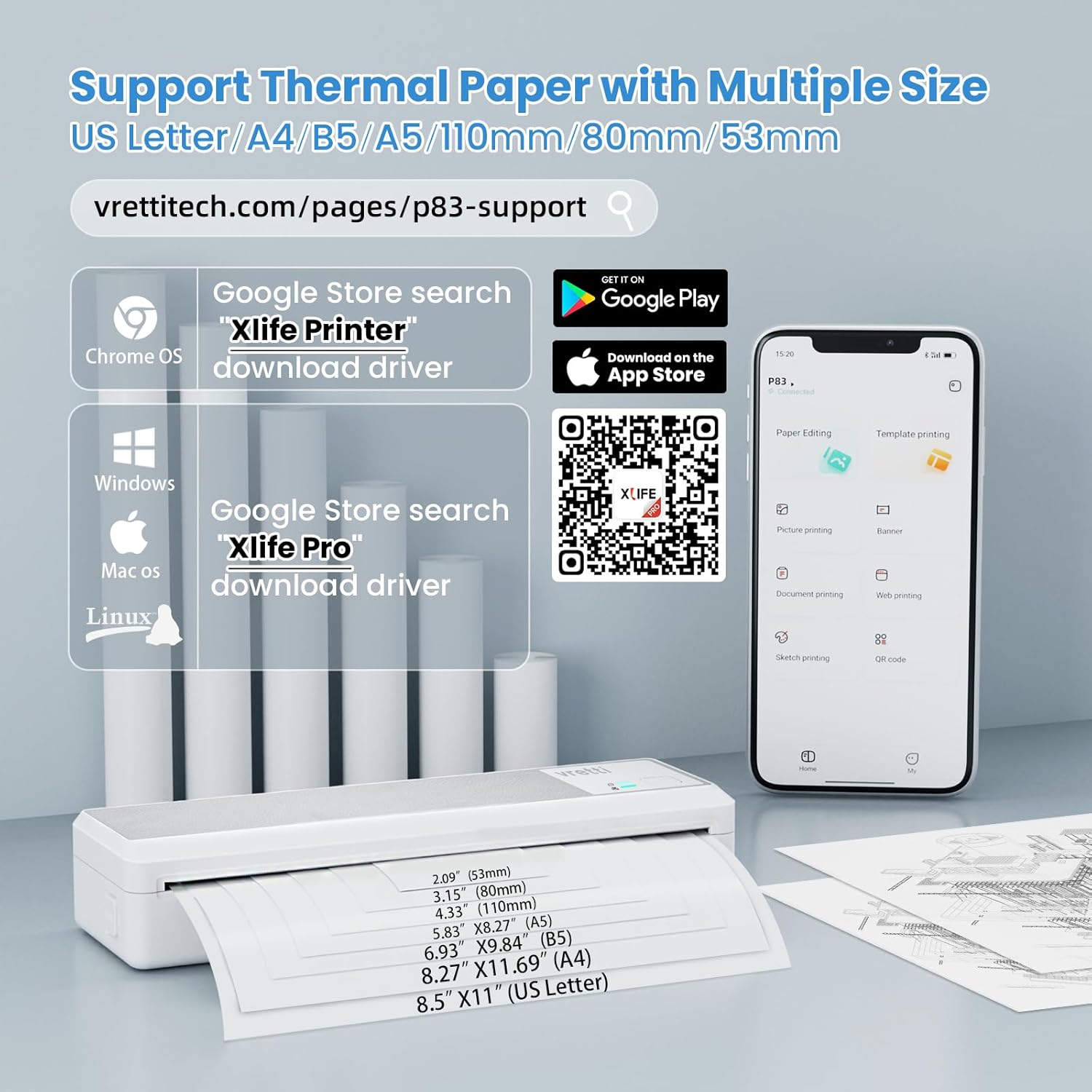
Figure 4: The vretti P83 printer demonstrating its compatibility with both roll and folding thermal paper types.

Figure 5: Illustration of the various paper sizes supported by the vretti P83 printer, including A4, B5, A5, and smaller formats.
1.4 Software Installation and Connectivity
The vretti P83 offers high compatibility with various operating systems and devices.
- For iOS/Android Smartphones and Tablets: Download the "Xlife Pro" app from your device's app store (Google Play Store for Android, App Store for iOS). This app facilitates Bluetooth connection and printing.
- For Windows/Mac OS Computers: Connect the printer via USB. For Windows and Mac OS, you may need to download the "Xlife Printer" driver. Search for "Xlife Printer" in the Google Store (for Chrome OS) or refer to the official vretti support page for driver downloads.
- For Linux/Chrome OS: The printer supports USB connection for Linux and Chrome OS. For Chrome OS, search "Xlife Printer" in the Google Store to download the driver.
You can find the app and driver downloads at the following link: https://m.yoyin.net/h5/download/download_xylife_oversea.html
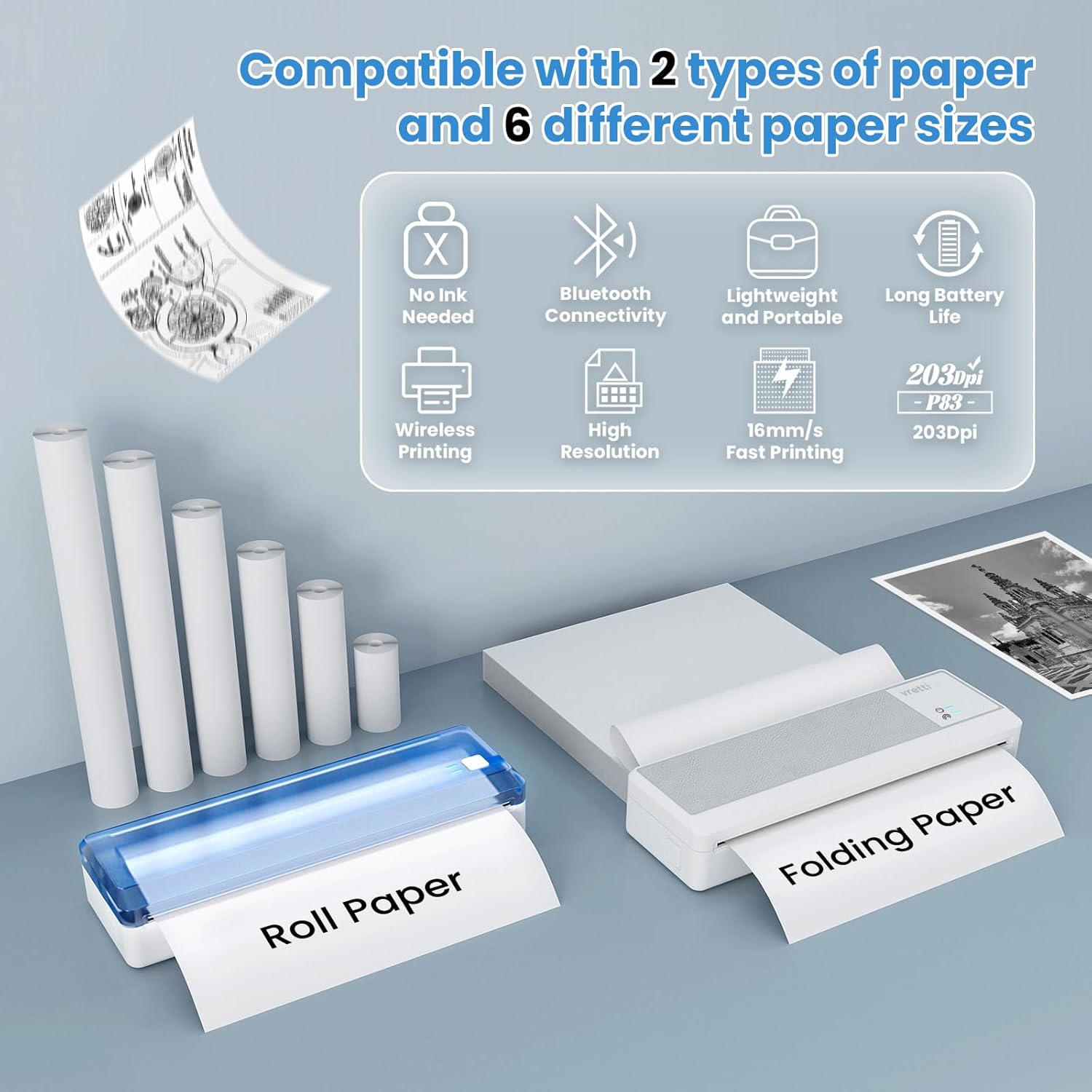
Figure 6: Overview of the vretti P83's extensive connectivity options, including Bluetooth for mobile devices and USB for computers running Windows, Mac OS, Linux, and Chrome OS.

Figure 7: Instructions for downloading the "Xlife Pro" app and "Xlife Printer" driver, including QR codes for easy access.
2. Operating the Printer
2.1 Connecting to Your Device
- Bluetooth Connection (Mobile Devices):
- Ensure Bluetooth is enabled on your smartphone or tablet.
- Turn on the vretti P83 printer.
- Open the "Xlife Pro" app. The app will guide you through pairing the printer.
- Select the P83 from the list of available Bluetooth devices to connect.
- USB Connection (Computers):
- Ensure the necessary drivers are installed on your computer.
- Connect the printer to your computer using the provided USB cable.
- The computer should recognize the printer automatically.
2.2 Printing Documents
Once connected, you can print various documents, including invoices, contracts, lists, photos, exam documents, forms, research materials, and travel documents.
- From Mobile App: Open the document or image within the "Xlife Pro" app, adjust print settings (if available), and initiate printing.
- From Computer: Open the document in your preferred application (e.g., Word, PDF viewer), select "Print" from the file menu, choose the vretti P83 printer, adjust print settings, and click "Print".
The printer delivers a clear print effect with 203DPI resolution, ensuring sharp characters and graphics.

Figure 8: A close-up view demonstrating the clear and sharp output quality of the vretti P83 printer at 203DPI resolution.
3. Maintenance
3.1 Cleaning the Printer
Regular cleaning helps maintain print quality and extends the printer's lifespan.
- Turn off the printer and disconnect it from power.
- Use a soft, lint-free cloth slightly dampened with water or isopropyl alcohol to wipe the exterior.
- To clean the print head, use a specialized thermal print head cleaning pen or a cotton swab lightly dampened with isopropyl alcohol. Gently wipe across the print head surface. Allow it to dry completely before use.
- Remove any paper dust or debris from the paper path using a soft brush or compressed air.
3.2 Storage
When not in use, store the printer in a cool, dry place away from direct sunlight and extreme temperatures. Keep it covered to prevent dust accumulation. Remove any paper from the paper compartment if storing for an extended period.
3.3 Battery Care
To maximize battery life:
- Avoid fully discharging the battery frequently.
- Charge the printer regularly, even if not in frequent use.
- Do not expose the printer to high temperatures, as this can degrade battery performance.
4. Troubleshooting
This section addresses common issues you might encounter with your vretti P83 printer.
| Problem | Possible Cause | Solution |
|---|---|---|
| Printer not turning on | Low battery; Power button not pressed correctly | Charge the printer; Press and hold the power button for a few seconds |
| No print output | No paper; Incorrect paper loading; Connection issue; App/driver issue | Load thermal paper; Re-load paper correctly; Reconnect Bluetooth/USB; Reinstall app/driver |
| Blurry or faded print | Print head dirty; Low battery; Poor quality thermal paper | Clean the print head; Charge the printer; Use high-quality thermal paper |
| Cannot connect via Bluetooth | Bluetooth off on device; Printer not in pairing mode; App not open | Enable Bluetooth; Ensure printer is discoverable; Open "Xlife Pro" app and follow pairing steps |
| Cannot connect via USB | Driver not installed; Faulty USB cable/port | Install "Xlife Printer" driver; Try a different USB cable or port |
If the problem persists, please refer to the Support section for further assistance.
5. Specifications
| Feature | Detail |
|---|---|
| Model | P83 |
| Printing Technology | Direct Thermal |
| Print Resolution | 203 DPI |
| Paper Type | Thermal Paper (Roll & Folding) |
| Supported Paper Sizes | US Letter, A4, B5, A5, 110mm, 80mm, 53mm |
| Connectivity | Bluetooth (iOS/Android), USB (Windows/Mac OS/Linux/Chrome OS) |
| Battery Capacity | 2000mAh |
| Dimensions (L x W x H) | 27.1 x 11.9 x 6.9 cm (approx. 10.67 x 4.69 x 2.72 inches) |
| Weight | 930 g (approx. 1.46 lbs) |
| Color | Grey White |
6. Warranty and Support
vretti is committed to providing excellent after-sales service. If you have any questions or require assistance with your vretti P83 printer, our professional Afier-Sales team is available to help.
- Technical Support: Lifetime technical support is available via email, phone, and remote control.
- Contact Information: Please refer to the contact details provided with your product packaging or visit the official vretti website for the most up-to-date support information.
We recommend registering your product on the vretti website to receive updates and access additional support resources.
Ask a question about this manual
Ask about setup, troubleshooting, compatibility, parts, safety, or missing instructions. Manuals+ will review the question and use this page’s manual context to help answer it.