
MERISHOPP PZINVC68034676
MERISHOPP Android 10.0 Smart Box Rk3228A User Manual
Model: PZINVC68034676
Introduction
This manual provides instructions for the setup, operation, and maintenance of your MERISHOPP Android 10.0 Smart Box Rk3228A. This device is designed to provide access to 4K Ultra HD content and various streaming services, enhancing your home entertainment experience.
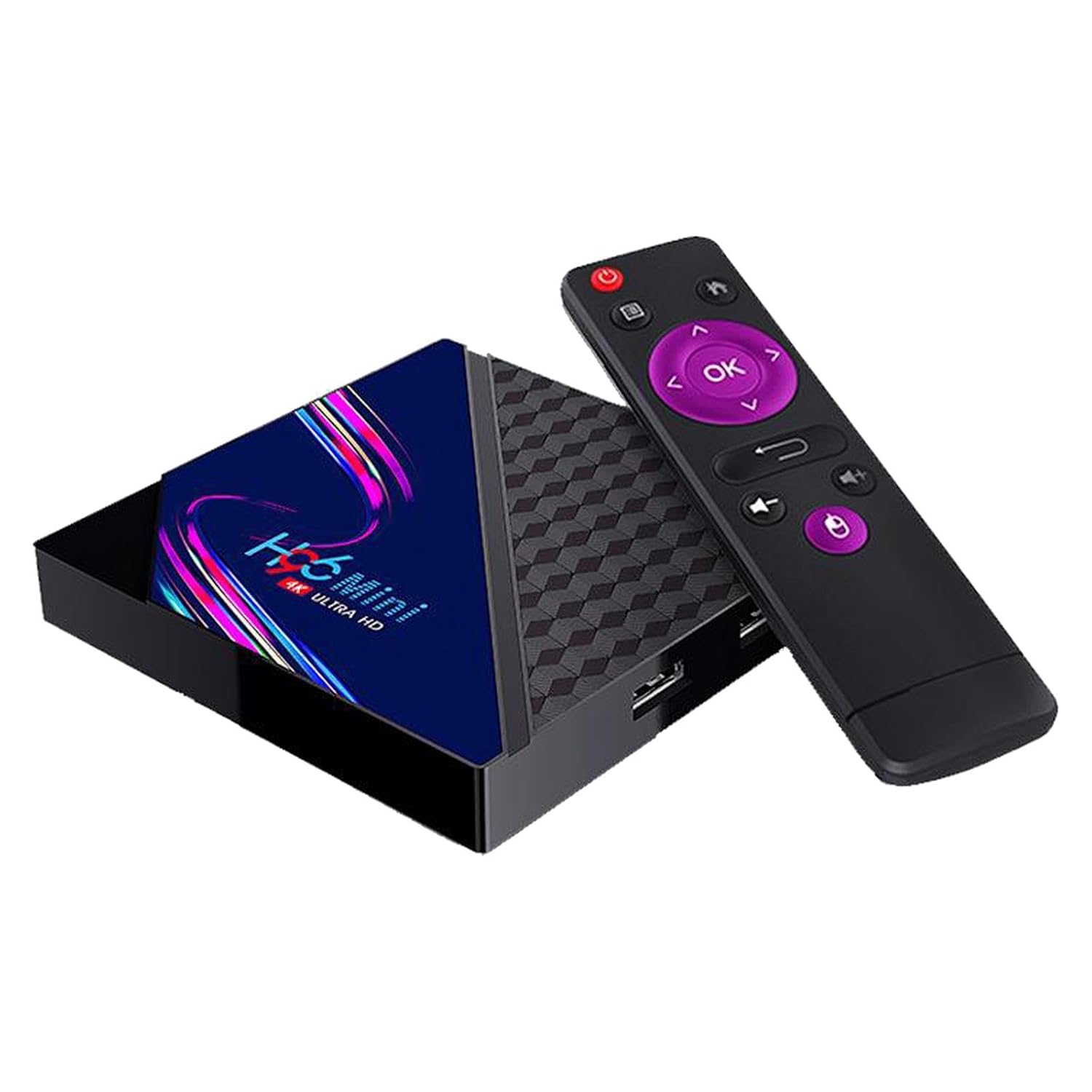
Figure 1: MERISHOPP Android Smart Box with its remote control. The box is black with a glossy top panel and a textured side, and the remote is black with purple navigation buttons.
1. Setup
1.1 Package Contents
Verify that all items are present in the package:
- 1 x MERISHOPP Android Smart Box
- 1 x HD Line (HDMI Cable)
- 1 x Remote Control
- 1 x Power Adapter
- 1 x User Manual (this document)
1.2 Connecting the Device
Follow these steps to connect your Smart Box:
- Connect HDMI Cable: Insert one end of the provided HD Line (HDMI cable) into the HDMI port on the Smart Box and the other end into an available HDMI input on your television.
- Connect Power Adapter: Plug the power adapter into the DC port on the Smart Box, then plug the adapter into a wall outlet.
- Connect to Network (Optional): For a wired internet connection, connect an Ethernet cable from your router to the Ethernet port on the Smart Box. For Wi-Fi, refer to Section 2.2.

Figure 2: Diagram illustrating the interface ports of the MERISHOPP Smart Box, including USB1, USB2, Recovery, HD (HDMI), Ethernet, and DC power input. The device dimensions are 90mm x 90mm x 17mm.
1.3 Initial Power On
After connecting all cables, turn on your television and select the correct HDMI input. The Smart Box should power on automatically. If not, press the power button on the remote control.
2. Operating Instructions
2.1 Remote Control Usage
The included remote control allows navigation through the Smart Box interface. Use the directional pad and 'OK' button for selection. The remote also features dedicated buttons for power, home, back, and volume control.

Figure 3: The remote control being used to navigate a TikTok TV interface, demonstrating the use of up and down buttons for browsing content.
2.2 Connecting to Wi-Fi
To connect to a wireless network:
- Navigate to the 'Settings' menu on the Smart Box.
- Select 'Network & Internet'.
- Choose 'Wi-Fi' and turn it on.
- Select your desired Wi-Fi network from the list.
- Enter the network password if prompted and select 'Connect'.
The device supports both 2.4G and 5.0G Wi-Fi bands for optimal network performance.
2.3 Accessing Applications and Media
The Smart Box runs on Android 10.0, providing access to a wide range of applications. The home screen typically displays pre-installed apps and allows access to the Google Play Store for additional downloads.
- Google Play: Access movies, TV shows, music, and games.
- YouTube: Stream videos.
- Browser: Browse the internet.

Figure 4: The Smart Box home screen displaying icons for YouTube, Google Play, a web browser, and other applications, indicating various media and app functionalities.
2.4 Screen Mirroring
The Smart Box supports DLNA, Miracast, and Airplay protocols, allowing you to cast content from compatible mobile devices to your television screen.

Figure 5: An illustration showing a smartphone screen being mirrored to a large television display, with icons for DLNA, Airplay, and Miracast, indicating support for these screen sharing technologies.
2.5 Gaming
Connect a compatible game controller via USB to enjoy gaming on your television through the Smart Box. Download games from the Google Play Store.

Figure 6: A scene depicting two cars racing on a television screen, with the MERISHOPP Smart Box and a game controller in the foreground, illustrating the device's gaming capability.
3. Maintenance
- Cleaning: Use a soft, dry cloth to clean the exterior of the Smart Box. Do not use liquid cleaners or abrasive materials.
- Ventilation: Ensure the device is placed in a well-ventilated area to prevent overheating. Do not block ventilation openings.
- Storage: When not in use for extended periods, disconnect the power adapter and store the device in a cool, dry place.
4. Troubleshooting
| Problem | Possible Cause | Solution |
|---|---|---|
| No power | Power adapter not connected or faulty. | Ensure the power adapter is securely connected to the device and a working power outlet. Try a different outlet. |
| No picture on TV | Incorrect HDMI input selected or HDMI cable loose. | Verify your TV is set to the correct HDMI input. Check that the HDMI cable is securely connected at both ends. |
| No internet connection | Wi-Fi not connected or Ethernet cable loose. | For Wi-Fi, check network settings (Section 2.2). For wired, ensure the Ethernet cable is properly connected to the router and Smart Box. Restart your router. |
| Remote control not responding | Batteries are low or depleted. Obstruction between remote and device. | Replace the batteries in the remote control. Ensure there is a clear line of sight between the remote and the Smart Box. |
5. Specifications
| Feature | Detail |
|---|---|
| Brand | MERISHOPP |
| Model | PZINVC68034676 |
| Processor | Rk3228A |
| System Requirements | Android 10.0 |
| Output Resolution | 1920x1080 (Supports 4K Ultra HD content) |
| Wireless Connectivity | 2.4G / 5.0G WiFi |
| Support Memory Card | TF (MicroSD) |
| Product Dimensions | 90 x 90 x 17 mm (approx. 3.54 x 3.54 x 0.61 inches) |
| Item Weight | 322 g |
| Material | High Quality |
6. Warranty Information
Specific warranty details for this product are not provided in the available information. Please refer to your purchase documentation or contact MERISHOPP customer support for warranty terms and conditions.
7. Customer Support
For technical assistance or customer service, please contact:
- Manufacturer: LR DECOR ENTERPRISE LLP
- Customer Care WhatsApp: +91-7291860014
- Email: lrdecor2nd@gmail.com
Ask a question about this manual
Ask about setup, troubleshooting, compatibility, parts, safety, or missing instructions. Manuals+ will review the question and use this page’s manual context to help answer it.