
Redragon K519-RGB
Redragon K519 RGB Gaming Keyboard Instruction Manual
Model: K519-RGB | Brand: Redragon
1. Introduction
Thank you for choosing the Redragon K519 RGB Gaming Keyboard. This manual provides detailed instructions on how to set up, operate, and maintain your new keyboard to ensure optimal performance and longevity. The K519 is a compact 60% wired keyboard featuring customizable RGB backlighting, programmable macro keys, dedicated multimedia controls, and anti-ghosting technology, designed for both gaming and everyday use.
What's in the Box:
- Redragon K519 RGB Gaming Keyboard
- USB-A to USB-C Cable
- User Manual
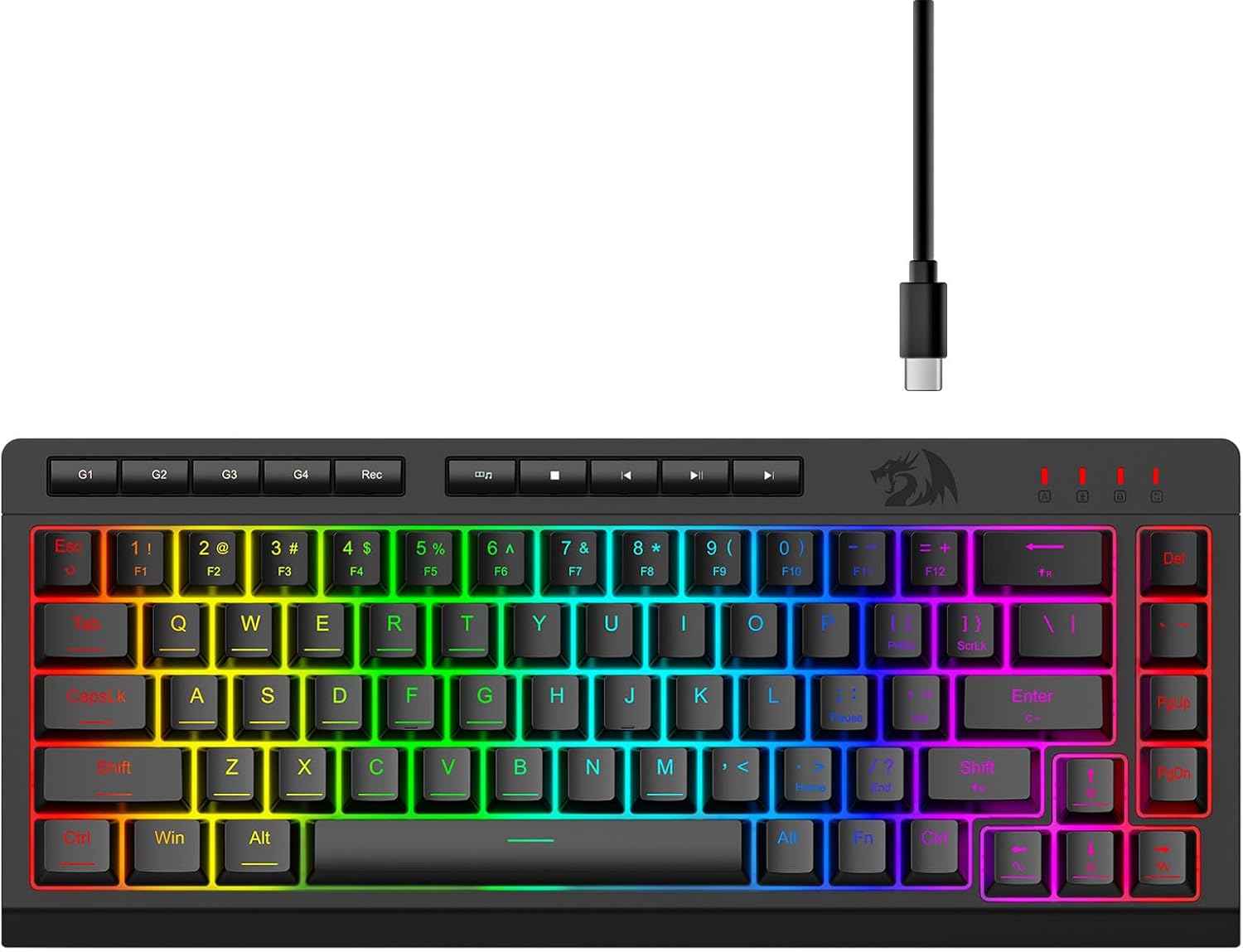
Image: Redragon K519 RGB Gaming Keyboard with its detachable USB-C cable.
2. Setup
Connecting the Keyboard:
- Locate the USB-C port on the Redragon K519 keyboard.
- Connect the USB-C end of the provided cable to the keyboard.
- Connect the USB-A end of the cable to an available USB port on your computer (PC, Laptop, Gaming Console).
- The keyboard is plug-and-play and should be automatically recognized by your operating system.

Image: The compact Redragon K519 keyboard, highlighting its USB-C wired connection.
3. Operating Instructions
3.1. RGB Backlight Control
The Redragon K519 features dynamic RGB backlighting with multiple customization options.
- Switch RGB Light Modes: Press FN + R_Shift to cycle through 8 pre-set lighting modes.
- Adjust Brightness: Press FN + | / \ to increase or decrease backlight brightness.
- Adjust Light Speed: Press FN + < / > to increase or decrease the speed of dynamic lighting effects.
- Switch Backlight Color: Press FN + Enter to switch between red, green, blue, yellow, pink, cyan, white, and RGB colors in applicable modes.
- DIY Mode: Press FN + Backspace twice to enter DIY mode. The LED indicator will flash. Press FN + 1~6 to set backlight color for specific keys. Once settings are complete, press FN + Backspace to save.

Image: The Redragon K519 keyboard showcasing its vibrant RGB backlight options.

Image: Visual guide for controlling RGB backlight effects, brightness, and speed using FN key combinations.

Image: Instructions for entering and setting colors in DIY backlight mode.
3.2. Macro Key Programming
The K519 features 4 onboard macro keys (G1-G4) that can be programmed on the fly without additional software.
Recording a Macro:
- Press the [Rec] button to start macro recording. The LED indicator will flash.
- Press one of the macro keys (G1~G4) to select a profile to record the macro.
- Type the sequence of keys you wish to record. The K519 supports up to 64 keys for macro recording.
- Press [Rec] again to save the macro.
Deleting Macros:
- Delete All Macros: Press and hold FN + [Rec] for 5 seconds. The LED indicator will flash once, confirming all macro settings are deleted.
- Delete Partial Macro: Press [Rec]. The LED indicator will flash slowly. Press the [G] key (G1-G4) you want to delete. The LED indicator will flash quickly. Press [Rec] again to confirm the macro deletion.
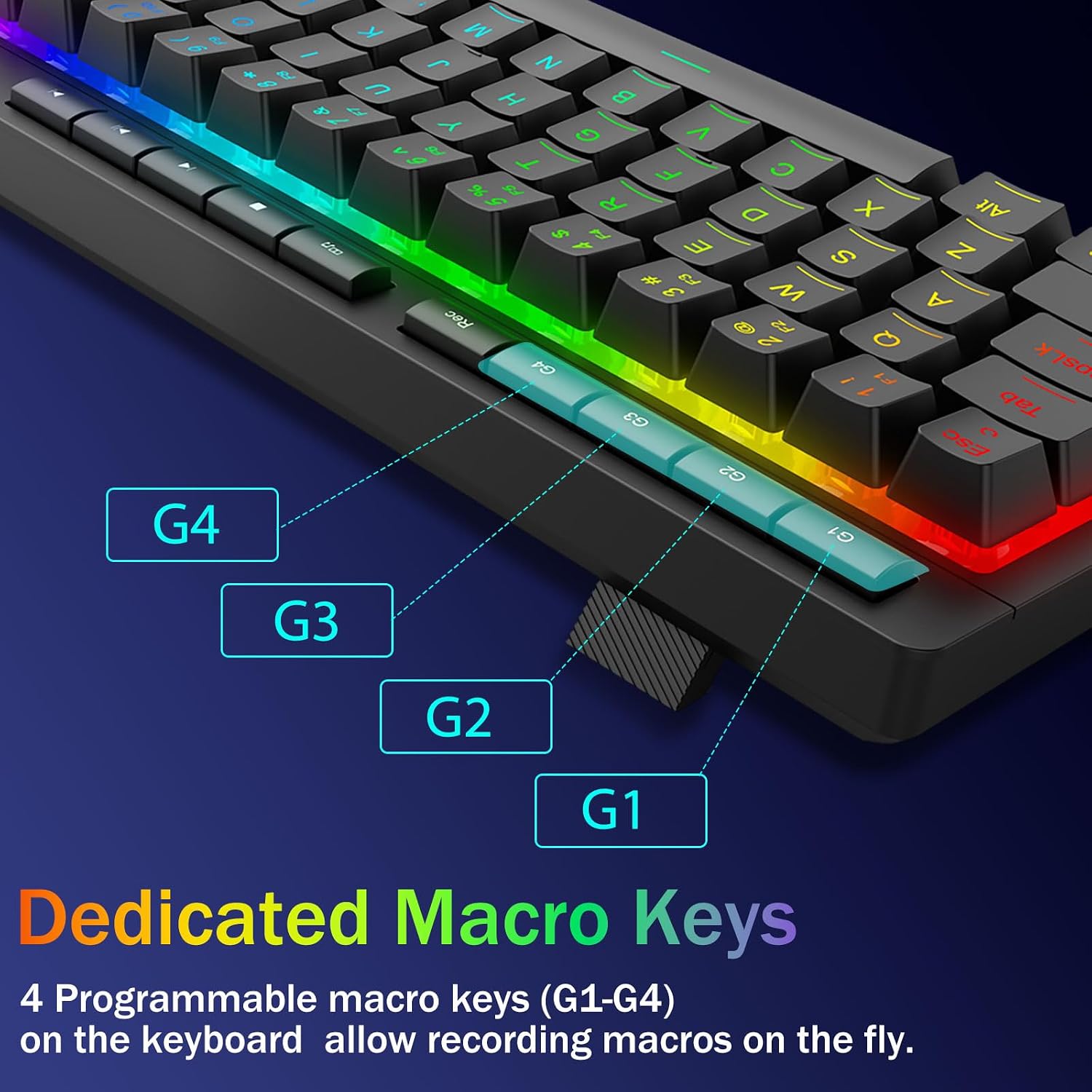
Image: Close-up of the Redragon K519 keyboard showing the G1-G4 dedicated macro keys.

Image: Step-by-step guide for recording macros on the Redragon K519 keyboard.

Image: Instructions for deleting all or specific macros from the keyboard.
3.3. Dedicated Multimedia Keys
The K519 includes dedicated multimedia controls for convenient audio and video management.
- Media Player: Opens default media player.
- Stop: Stops current media playback.
- Previous Track: Skips to the previous track.
- Play/Pause: Toggles play and pause for media.
- Next Track: Skips to the next track.

Image: The Redragon K519 keyboard highlighting its dedicated multimedia keys.

Image: Detailed view of the dedicated multimedia control buttons on the Redragon K519.
3.4. Anti-Ghosting
The K519 features 26 anti-ghosting keys, allowing for simultaneous key presses to be registered accurately. This ensures precise and smooth execution of multiple actions, crucial for gaming and fast typing.

Image: The Redragon K519 keyboard highlighting its 26 anti-ghosting keys for precise input.
3.5. Software Support
For advanced customization, including creating new lighting modes, effects, and more complex macros with different keybindings, you can utilize the dedicated software.
Software download link: bit.ly/K519WiredDriver

Image: Screenshot of the Redragon K519 keyboard's customization software interface.

Image: The custom software interface for the Redragon K519, showing options for RGB backlight and macro key customization.
3.6. FN Key Combinations
Utilize the Function (FN) key in combination with other keys for additional shortcuts:
| Combination | Function |
|---|---|
| FN + F1 | Media Player |
| FN + F2 | Volume Down |
| FN + F3 | Volume Up |
| FN + F4 | Mute |
| FN + F5 | Stop |
| FN + F6 | Previous Track |
| FN + F7 | Play/Pause |
| FN + F8 | Next Track |
| FN + F9 | |
| FN + F10 | Web Browser |
| FN + F11 | My Computer |
| FN + F12 | Calculator |
| FN + WIN | Lock/Unlock Windows Key |
| FN + ESC (Hold 3s) | Restore Factory Settings |

Image: Visual representation of FN key combinations for multimedia and system functions.
4. Maintenance
Cleaning:
- To clean the keyboard, disconnect it from your computer.
- Use a soft, lint-free cloth slightly dampened with water or a mild cleaning solution.
- Avoid excessive moisture and do not spray cleaners directly onto the keyboard.
- For dust and debris between keys, use compressed air.
Spill-Proof Design:
The Redragon K519 features a spill-proof design to protect against accidental liquid spills. While designed to withstand minor spills, it is not fully waterproof. In case of a spill, immediately disconnect the keyboard and allow it to dry completely before reconnecting.

Image: The Redragon K519 keyboard demonstrating its splash-proof capabilities.
5. Troubleshooting
Common Issues and Solutions:
- Keyboard not responding:
- Ensure the USB cable is securely connected to both the keyboard and the computer.
- Try connecting the keyboard to a different USB port.
- Restart your computer.
- If using a USB hub, try connecting directly to the computer.
- Backlight not working or incorrect:
- Check backlight brightness settings (FN + | / \).
- Cycle through different lighting modes (FN + R_Shift).
- Perform a factory reset (Hold FN + ESC for 3 seconds).
- Ensure the software (if installed) is not overriding settings.
- Macro keys not working:
- Ensure macros were recorded correctly. Refer to Section 3.2.
- If using software, ensure the macro profiles are active and correctly configured.
- Try re-recording the macro.
- Keys are sticky or unresponsive:
- Clean the keyboard as described in Section 4.
- Ensure no debris is lodged under the keycaps.
6. Specifications
| Feature | Detail |
|---|---|
| Model Number | K519-RGB |
| Product Dimensions | 12 x 1.3 x 6.1 inches (30.5 x 3.3 x 15.5 cm) |
| Item Weight | 1.05 pounds (0.48 kg) |
| Manufacturer | Redragon |
| Connectivity Technology | USB-A, USB-C (Wired) |
| Keyboard Description | Gaming |
| Recommended Uses | Business, Education, Everyday Use, Gaming, Multimedia, Office, Personal |
| Special Features | Backlit, Hotkeys and Media Keys, Integrated Stand, Lightweight, Spill Proof |
| Number of Keys | 78 |
| Keyboard Backlighting | RGB |
| Style | Classic |
| Switch Type | Quiet Membrane Switch (Volcano Switch Structure) |
| Keystroke Lifespan | 50 Million |
| Anti-Ghosting | 26-Key Rollover |

Image: Overview of the Redragon K519 RGB Macro Keyboard's main features.

Image: Dimensions and weight specifications for the Redragon K519 keyboard.

Image: The Redragon K519 keyboard's wide compatibility with various operating systems and devices.
7. Warranty and Support
Redragon products are designed for reliability and performance. For information regarding warranty coverage, technical support, or service inquiries, please refer to the warranty card included with your product or visit the official Redragon website. Please retain your proof of purchase for any warranty claims.
Related documentsK519-RGB


Ask a question about this manual
Ask about setup, troubleshooting, compatibility, parts, safety, or missing instructions. Manuals+ will review the question and use this page’s manual context to help answer it.