
1. Introduction
This manual provides essential information for the proper setup, operation, and maintenance of your Prolink DL-7211 5G Wi-Fi 6 Mobile Router. Please read this manual thoroughly before using the device to ensure optimal performance and safety. The Prolink DL-7211 is a portable dual-band Wi-Fi 6 router designed to provide high-speed 5G internet connectivity on the go, supporting multiple devices simultaneously.
2. Package Contents
Verify that all items listed below are present in your product package:
- Prolink DL-7211 5G Wi-Fi 6 Mobile Router
- USB Type-C Charging Cable
- SIM Ejector Tool
- Quick Start Guide / User Manual
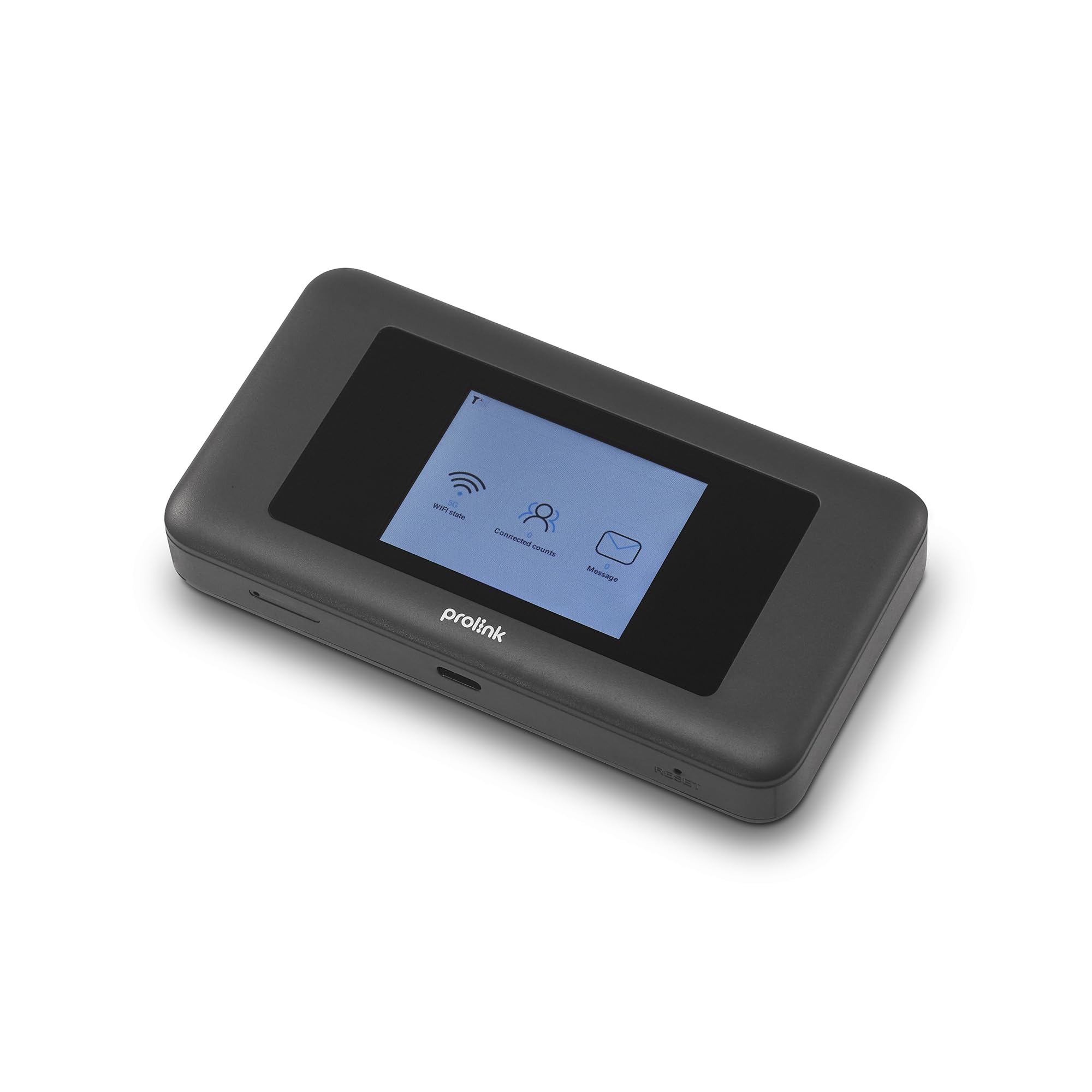
Image: The Prolink DL-7211 router, USB-C cable, SIM ejector tool, and user manual are displayed on a white background, indicating the package contents.
3. Product Overview
The Prolink DL-7211 features a compact design with an intuitive display and essential ports for connectivity and charging.
3.1. Device Layout
- Front Display: Shows network status, battery level, connected users, and data usage.
- Power Button: Located on the top edge for turning the device on/off and accessing menu options.
- SIM Card Slot: Located on the side, accessible with the provided ejector tool.
- USB Type-C Port: Located on the bottom edge for charging and USB tethering.

Image: A close-up of the Prolink DL-7211 mobile router, highlighting its front display with network and battery indicators.
4. Setup
4.1. SIM Card Installation
- Ensure the device is powered off.
- Locate the SIM card slot on the side of the router.
- Insert the SIM ejector tool into the small hole next to the SIM slot to open the tray.
- Place your Nano SIM card onto the tray with the gold contacts facing down and the notched corner aligned.
- Gently push the tray back into the slot until it clicks into place.
4.2. Powering On/Off
- To Power On: Press and hold the Power Button on the top edge for approximately 3 seconds until the screen lights up.
- To Power Off: Press and hold the Power Button for approximately 3 seconds. A menu will appear on the screen. Select "Power off" to shut down the device.
4.3. Connecting to Wi-Fi
- Power on the Prolink DL-7211 router.
- On your Wi-Fi enabled device (smartphone, laptop, tablet), search for available Wi-Fi networks.
- Select the network name (SSID) displayed on the router's screen. The default SSID and password can be found on the device's screen or a label inside the battery compartment.
- Enter the Wi-Fi password when prompted.
- Once connected, your device will have internet access.
5. Operating Instructions
5.1. Managing Connected Devices
The router supports up to 16 Wi-Fi clients. You can view connected devices through the router's touch screen interface under the 'Connected Users' option.

Image: Several individuals are shown using laptops, tablets, and smartphones, all connected to a central Wi-Fi hotspot, illustrating multi-user connectivity.
5.2. Data Usage Monitoring
Monitor your data consumption directly from the device's screen. Navigate to the 'Data Count' option to view usage statistics. You can configure display settings for daily, weekly, or monthly tracking.
5.3. Wi-Fi Band Selection
The Prolink DL-7211 supports dual-band Wi-Fi 6 (2.4GHz and 5GHz). You can select your preferred band or configure settings for each band via the 'Wi-Fi Connection' menu on the device's screen.

Image: The Prolink DL-7211 router's screen shows options for 2.4GHz and 5GHz Wi-Fi bands, indicating its dual-band capability.
5.4. Advanced Network Settings
Access advanced settings such as PIN management, network mode selection (e.g., 5G preferred, 4G only), and roaming settings through the 'Network Setting' menu on the device.
6. Key Features
- Portability: Small and compact design for easy carrying.
- 5G NR/4G Cat 18 Data Connection: Data speeds up to 2.77 Gbps on NR and 1.2 Gbps on Cat 18.
- Automatic Network Selection (Auto-APN): Connects to mobile networks automatically without manual configuration.
- Enhanced Function: Equalizer and Receiver Diversity in 5G and 4G antennas for improved signal reception.
- SMS: Ability to compose and send text messages (SMS charges may apply).
- Selectable Wi-Fi 6 Dual-band: AX1200 on 5GHz Wi-Fi and AX600 on 2.4GHz Wi-Fi.
- Long-Lasting Battery Life: Large 5050mAh capacity for up to 16 hours of connection.
- Global Coverage: Works in over 158 countries and with international carriers.
- Wide Wi-Fi Coverage: Coverage of up to 100 sqm.
- Multi-user: Share your internet connection with up to 16 Wi-Fi clients or devices.
- Multi-mode: Supports both selectable Wi-Fi 6 and Type-C USB internet connection.

Image: An infographic visually detailing the Prolink DL-7211's key features, including Wi-Fi 6, 5G connectivity, battery life, and multi-device support.
7. Technical Specifications
| Specification | Detail |
|---|---|
| Brand | Prolink |
| Model Name | DL7211 |
| Item Model Number | DL7211 CCL |
| OS | RouterOS |
| Compatible Devices | Any Wi-Fi device, Laptop, Personal Computer, Printer, Smart Television, Smartphone, Tablet |
| Special Features | Internet Security |
| Data Transfer Rate | 2770 Gigabits Per Second |
| Wireless Type | 802.11ax (Wi-Fi 6) |
| Modem Type | Network Modem |
| Frequency | 5 GHz (Dual-Band) |
| Connector Type | 4G, 5G, USB, Wi-Fi |
| Product Dimensions | 7 x 1.8 x 13 cm; 183 g |
| Batteries | 1 Lithium Ion batteries required (5050mAh) |
| Colour | Charcoal |
8. Troubleshooting
If you encounter issues with your Prolink DL-7211, refer to the following common problems and solutions:
- Device cannot power on:
Ensure the battery is charged. Connect the device to a power source using the provided USB Type-C cable and try again. If the battery is removable, ensure it is correctly inserted. - Cannot access the Internet:
Check if the SIM card is properly inserted and active. Verify that your data plan is valid and has sufficient balance. Ensure the network mode is set correctly (e.g., Auto or 5G/4G preferred). Check for network coverage in your area. - Cannot find mobile router's SSID:
Ensure the router is powered on and Wi-Fi is enabled. Try rebooting the device. Check the Wi-Fi settings on the router's screen to confirm the SSID broadcast is active. - Cannot connect mobile router through Wi-Fi:
Verify the Wi-Fi password. Ensure your connecting device is within the router's Wi-Fi range. Try restarting both the router and your connecting device. - Forgot Wi-Fi SSID and password:
The default SSID and password are usually printed on a label inside the battery compartment or on the device's screen. You can also reset the device to factory settings (refer to the Reset option in Settings), but this will erase all custom configurations. - Mobile router not getting charged:
Ensure the USB Type-C cable is securely connected to both the router and the power adapter. Try using a different USB cable or power adapter. Check the charging port for any debris.
9. Maintenance
To ensure the longevity and optimal performance of your Prolink DL-7211 Mobile Router, follow these maintenance guidelines:
- Keep the device clean and free from dust and debris. Use a soft, dry cloth for cleaning.
- Avoid exposing the device to extreme temperatures, direct sunlight, or high humidity.
- Do not drop or subject the device to strong impacts.
- If the battery is removable, ensure it is properly seated. Replace the battery if its performance significantly degrades over time.

Image: A diagram illustrating the process of removing and inserting the rechargeable battery in the Prolink DL-7211, along with the reset button and USB-C port.
10. Warranty and Support
Your Prolink DL-7211 5G Wi-Fi 6 Mobile Router comes with a standard manufacturer's warranty. For detailed warranty information, please refer to the warranty card included in your package or visit the official Prolink website. For technical support, product inquiries, or service requests, please contact Prolink customer support through their official channels.