
Introduction
This manual provides detailed instructions for the installation, operation, and maintenance of your We Technology 3D Face Recognition Smart Lock. This advanced smart lock offers a comprehensive 7-in-1 keyless entry solution, integrating cutting-edge biometric technologies such as 3D Face Recognition and Palm Vein Recognition, alongside traditional and smart access methods. It features an HD camera for real-time monitoring and two-way audio communication, enhancing your home security and convenience.
Please read this manual thoroughly before installation and use to ensure proper functionality and to maximize the lifespan of your device.
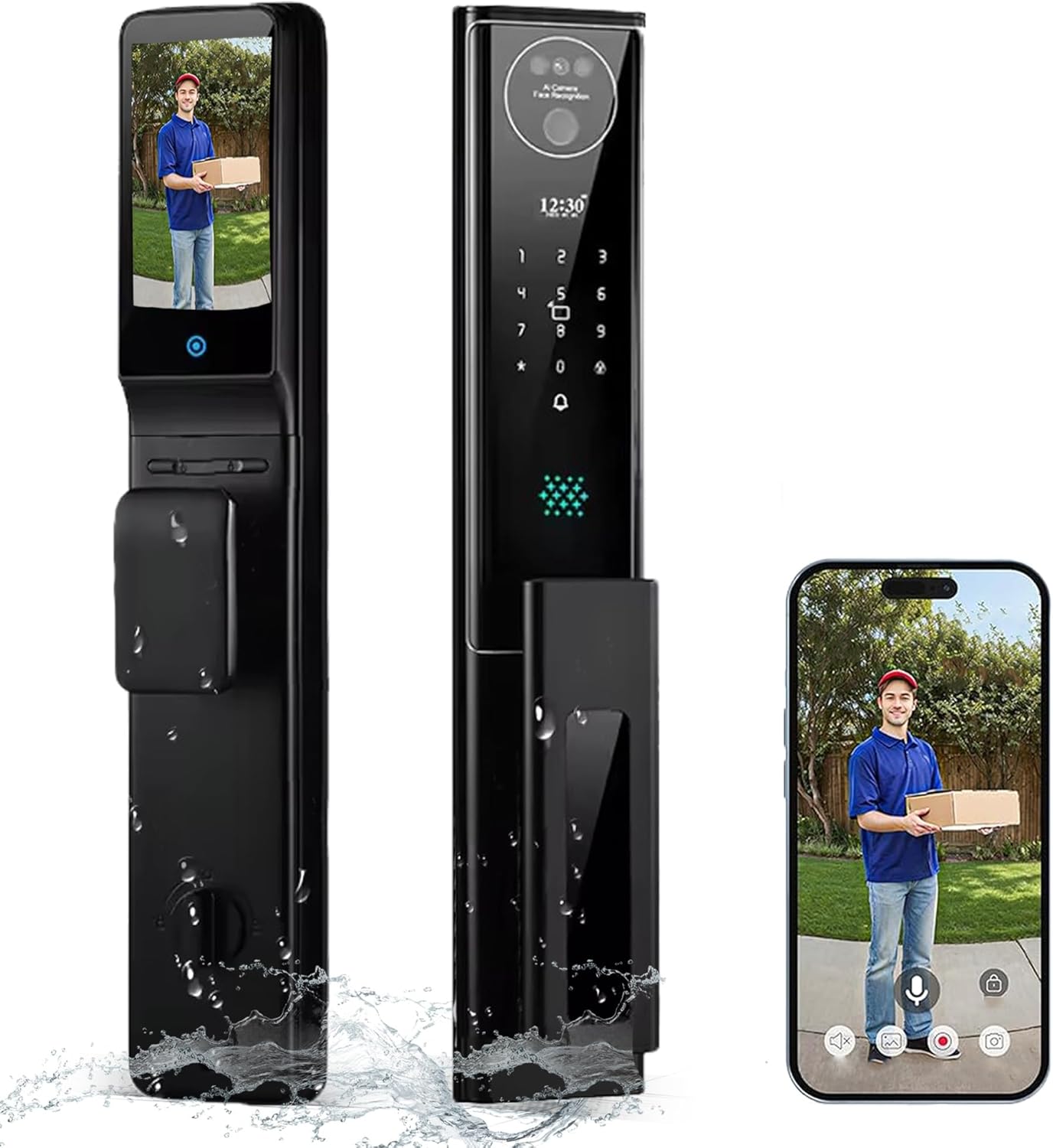
Image: The We Technology 3D Face Recognition Smart Lock, showcasing its sleek black design and the integrated HD camera with live video feed capability on a smartphone.
Setup Guide
1. Unboxing and Package Contents
Carefully unpack all components and verify that all items listed below are present and undamaged. If any items are missing or damaged, please contact customer support.
- 1 x Double-sided Door Lock Assembly
- 1 x Lock Body
- 1 x C-level Lock Cylinder
- 1 x 4200mAh Rechargeable Battery
- 1 x User Manual
- 2 x Mechanical Keys
- 2 x IC Cards
- Mounting Screws and Accessories
- 1 x USB-C Charging Cable

Image: All components included in the We Technology Smart Lock package, neatly arranged for inspection.
2. Pre-Installation Checks
Before beginning installation, ensure your door meets the compatibility requirements. The lock is designed to fit standard doors with a thickness between 45mm and 90mm. Verify the door's dimensions and check for any obstructions that might interfere with the lock's operation.
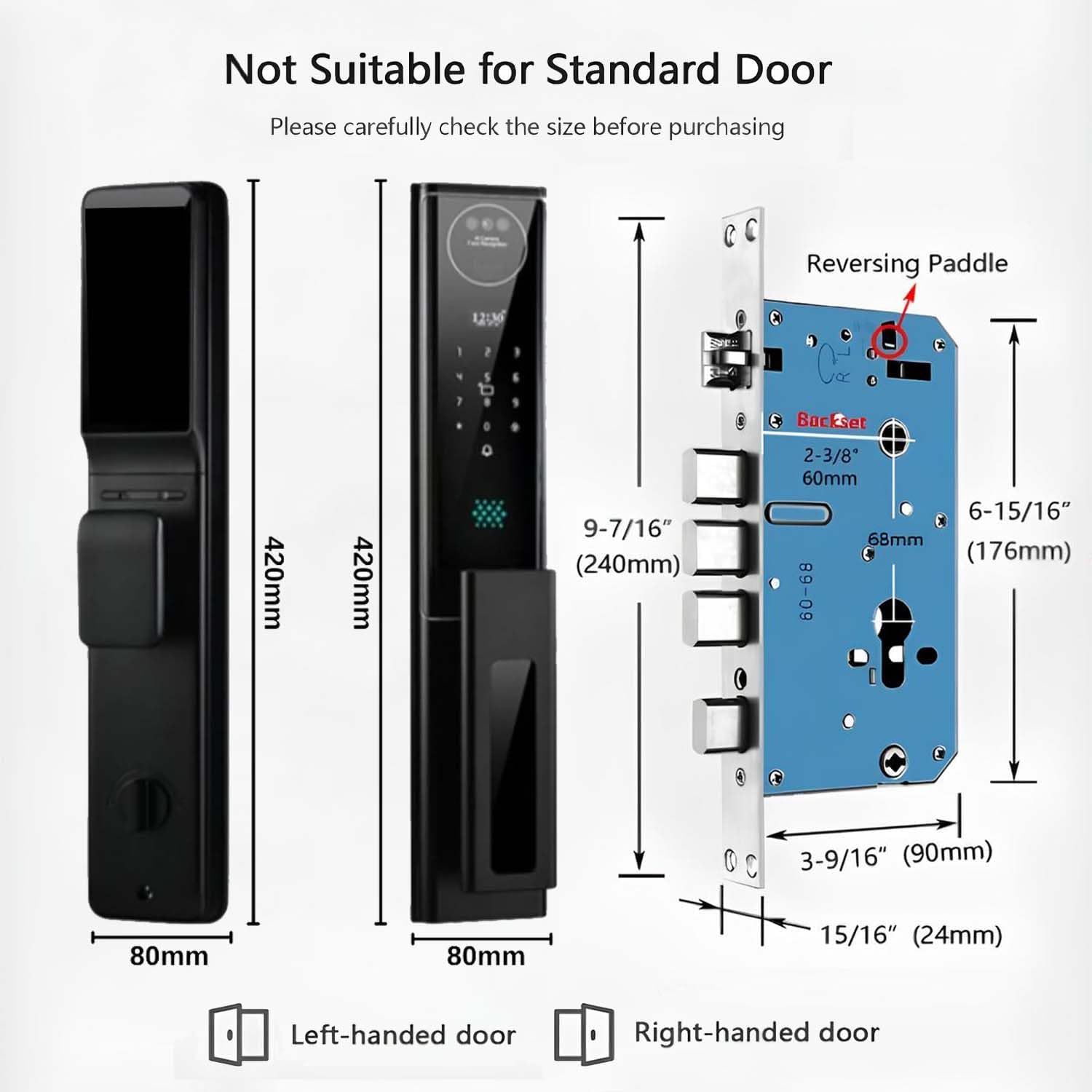
Image: Detailed dimensions of the smart lock and its mortise, crucial for checking door compatibility before installation.

Image: Technical drawing illustrating the required drilling pattern and dimensions for the smart lock installation.
3. Installation Steps
The smart lock is designed for a 15-minute DIY installation process, requiring no complex wiring or specialized tools. Follow the detailed instructions provided in the included manual for step-by-step guidance. Ensure the lock body is correctly oriented for left-handed or right-handed doors.

Image: Illustration of the smart lock installation process, highlighting the ease of fitting the internal components.
4. Battery Installation and Initial Charging
The smart lock is powered by a 4200mAh rechargeable lithium battery. Insert the battery into its designated compartment within the indoor unit. For initial use, it is recommended to fully charge the battery using the provided USB-C cable. The lock features low-battery reminders to ensure uninterrupted protection.

Image: Visual guide for installing the 4200mAh rechargeable battery into the smart lock.

Image: The smart lock's battery being charged via a USB-C cable, demonstrating its convenient recharging capability.
Operating Instructions
The We Technology Smart Lock offers multiple methods for secure and convenient access. Familiarize yourself with each method to utilize the lock's full capabilities.

Image: An overview of the various unlocking methods supported by the smart lock, including biometric and traditional options.
1. 3D Face Recognition
The lock uses infrared 3D Face ID for instant unlocking. To enroll a face, follow the instructions in the Tuya Smart App. Once enrolled, simply approach the lock, and it will identify your face in darkness or daylight, unlocking the door automatically. The system supports up to 50 unique users.

Image: Demonstrating the 3D Face Recognition feature, where the lock scans a user's face for access.
2. Palm Vein Recognition
This contactless biometric method scans your unique palm vein pattern with 99.99% accuracy. To enroll a palm, use the Tuya Smart App. To unlock, simply place your palm near the sensor. This method is highly secure and hygienic, suitable for all ages.

Image: A user demonstrating palm vein recognition, highlighting the contactless scanning process.
3. Fingerprint Unlock
The lock features a rapid 0.3-second fingerprint recognition sensor. Enroll fingerprints through the Tuya Smart App. To unlock, place your registered finger on the sensor. Ensure your finger is clean and dry for optimal performance.
4. Passcode Entry
Enter your registered passcode on the numeric keypad. The lock supports an anti-peep passcode feature, allowing you to enter random digits before or after your actual code to prevent others from guessing it.

Image: The anti-peep passcode feature in action, allowing users to enter extra digits for enhanced security.
5. IC Card Unlock
Register the provided IC cards with the lock via the Tuya Smart App. To unlock, simply tap the registered IC card on the card induction area of the lock.
6. Mechanical Key
For emergency situations or when the battery is depleted, the lock includes a mechanical key override. Insert the key into the hidden keyhole and turn to unlock the door manually.
7. Tuya Smart App Control (WiFi)
Connect your smart lock to your home's 2.4GHz WiFi network via the Tuya Smart App. This enables remote control and monitoring functionalities.
- Remote Unlock/Lock: Control your door from anywhere.
- Activity Logs: View a history of all lock and unlock events.
- Temporary Passcodes: Generate one-time, timed, or permanent passcodes for guests or service providers.
- Real-time Alerts: Receive notifications for motion detection, tamper attempts, or low battery.

Image: The Tuya Smart App interface on a smartphone, demonstrating its connectivity with the smart lock via WiFi.

Image: Remote unlocking capability via the Tuya app, allowing control from any location with internet access.

Image: The Tuya app's feature for generating various types of passcodes, such as one-time, permanent, or timed access codes.

Image: The activity log within the Tuya app, showing a chronological record of lock events and access attempts.
8. HD Camera and Live Intercom
The integrated 1080P wide-angle camera provides real-time video of visitors. Access the live feed through the Tuya App. Utilize the two-way audio feature to communicate with visitors from anywhere, enhancing convenience and security.

Image: The video intercom feature, allowing users to see and speak with visitors through their smartphone.
9. Motion Alerts and Smart Doorbell
The lock features PIR motion detection, which triggers real-time alerts and video clips sent directly to your phone. The integrated doorbell function allows visitors to alert you of their presence, providing immediate notification.
10. Auto-Lock Function
You can set an automatic lock timer from 5 seconds to 3 minutes. After the door closes, the lock will automatically engage after the set duration, ensuring your home remains secure even if you forget to lock it manually.

Image: The auto-lock feature, demonstrating how the lock automatically secures the door after a set time.
11. Alexa Voice Control
Integrate your smart lock with Amazon Alexa for hands-free voice control. Once connected, you can lock or unlock your door, check its status, and receive alerts using simple voice commands.

Image: The smart lock's integration with Alexa, allowing for convenient voice control within a smart home environment.
Maintenance
Regular maintenance ensures the optimal performance and longevity of your smart lock.
- Cleaning: Wipe the lock's exterior with a soft, damp cloth. Avoid abrasive cleaners or solvents that could damage the finish or electronic components.
- Battery Care: Recharge the 4200mAh battery when low-battery alerts are received. Avoid completely draining the battery frequently to prolong its lifespan.
- Firmware Updates: Periodically check the Tuya Smart App for available firmware updates. Keeping the firmware updated ensures you have the latest features and security enhancements.
- Mechanical Components: Ensure the deadbolt and latch operate smoothly. If you notice any stiffness, consult the troubleshooting section or contact support.
Troubleshooting
If you encounter issues with your smart lock, refer to the following common problems and solutions:
| Problem | Possible Cause | Solution |
|---|---|---|
| Lock not responding / No power | Battery depleted or improperly installed. | Recharge the battery using the USB-C cable. Ensure the battery is correctly inserted. |
| Face/Palm/Fingerprint recognition failure | Incorrect enrollment, sensor obstruction, or environmental factors. | Ensure proper distance and angle during recognition. Clean the sensor. Re-enroll biometric data if necessary. |
| Passcode not working | Incorrect code, anti-peep feature confusion, or lock frozen. | Verify the passcode. Try entering the code without extra digits. Restart the lock if unresponsive. |
| Cannot connect to WiFi / App issues | Incorrect WiFi password, 5GHz network, or app glitch. | Ensure you are connecting to a 2.4GHz WiFi network. Re-enter WiFi credentials. Restart the app or your router. |
| Doorbell/Intercom not functioning | App notification settings, network connectivity. | Check app permissions for notifications. Ensure stable WiFi connection. |
If the issue persists after attempting these solutions, please refer to the full troubleshooting guide in the included manual or contact We Technology customer support.
Product Specifications
| Feature | Specification |
|---|---|
| Model Name | Smart door lock F46YA-N |
| Indoor/Outdoor Usage | Outdoor |
| Power Source | Battery Powered (4200mAh Rechargeable) |
| Connectivity Protocol | Bluetooth, Wi-Fi (2.4GHz) |
| Controller Type | Amazon Alexa, Android, Apple HomeKit, Google Assistant, iOS |
| Mounting Type | Door Mount |
| Color | Black |
| Material | Aluminum |
| Item Dimensions (L x W x H) | 10 x 4 x 2 inches |
| Item Weight | 10.14 pounds |
| Water Resistance Level | Waterproof (IP65-rated) |
| Special Features | Battery Indicator, HD Resolution, Weather Proof, Anti-Tamper Defense (105dB alarm, AES-256 encryption, titanium anti-drill deadbolt) |
Warranty and Support
Your We Technology Smart Lock is backed by a manufacturer's warranty. Please refer to the warranty card included in your package for specific terms and conditions. For technical support, troubleshooting assistance, or warranty claims, please contact We Technology customer service through the contact information provided in your product documentation or on the official We Technology website.