
1. Product Overview
The Boowen Wireless Controller is designed for versatile gaming across multiple platforms, including Nintendo Switch, Switch 2, Switch Lite, Switch OLED, PC, and Android phones. It features advanced Hall Effect joysticks and triggers for precise, drift-free control, programmable back buttons for custom commands, and a Turbo function for rapid input. Enhanced with 6-axis gyro motion control and adjustable vibration feedback, this controller aims to provide an immersive and responsive gaming experience. It also includes a convenient one-tap wake-up function for Nintendo Switch consoles.
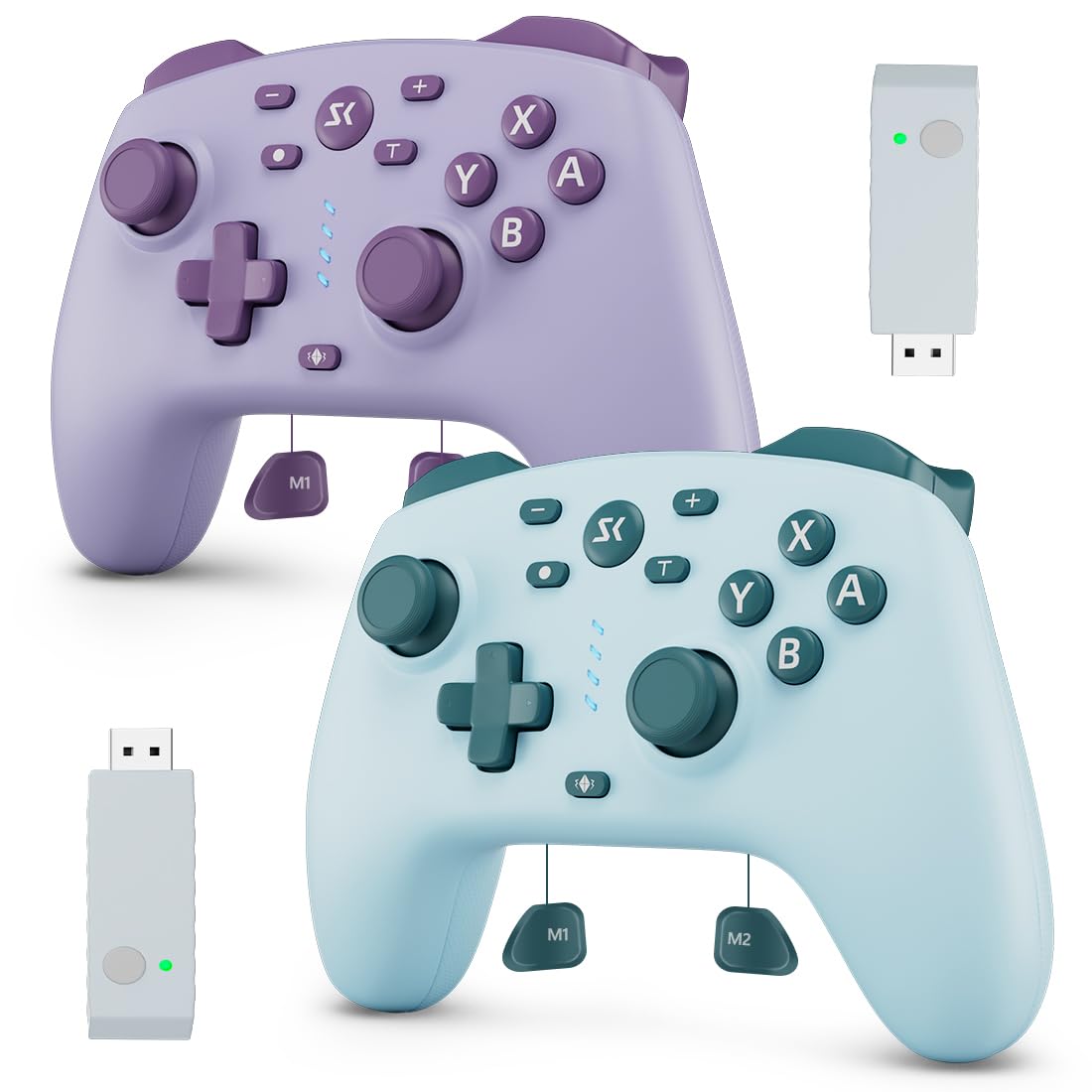
Image 1: Boowen Wireless Controllers in Lake Blue and Purple, showcasing the overall design.
2. Package Contents
- Boowen Wireless Controller (Lake Blue + Purple)
- 2.4G USB Adapter
- USB-C Charging Cable
- Instruction Manual
Video 1: Unboxing and overview of the Boowen Wireless Controller and its included accessories, including the 2.4G USB adapter and charging cable.
3. Setup & Connection
3.1 Pairing with Nintendo Switch / Switch 2 / Lite / OLED
- On your Nintendo Switch console, navigate to the 'Controllers' menu.
- Select 'Change Grip/Order'.
- Press and hold the HOME button on the Boowen Wireless Controller for 3-5 seconds until the LED indicators begin to flash.
- The controller will automatically connect to your Switch. Once connected, the corresponding player LED(s) will light up solid.
- To wake up the Switch from sleep mode, simply press the HOME button on the controller.
3.2 Connecting to PC (Windows)
The controller can connect to a PC via Bluetooth or using the included 2.4G USB adapter.
3.2.1 Bluetooth Connection
- Ensure your PC has Bluetooth enabled.
- On the controller, press and hold the HOME button until the LED indicators flash.
- On your PC, go to 'Settings' > 'Devices' > 'Bluetooth & other devices'.
- Select 'Add Bluetooth or other device' and choose 'Bluetooth'.
- Select the Boowen Wireless Controller from the list of available devices to pair.
3.2.2 2.4G USB Adapter Connection
- Plug the 2.4G USB adapter into an available USB port on your PC.
- The adapter's indicator light will flash.
- Press and hold the HOME button on the Boowen Wireless Controller until the LED indicators flash.
- The controller will automatically connect to the adapter. The adapter and controller LEDs will become solid once connected.
3.3 Connecting to Android Phones
- Enable Bluetooth on your Android phone.
- Press and hold the HOME button on the Boowen Wireless Controller until the LED indicators flash.
- On your phone, search for Bluetooth devices and select the Boowen Wireless Controller to pair.
4. Operating Instructions
4.1 Hall Effect Joysticks & Triggers
The controller utilizes Hall Effect technology for its joysticks and triggers. This electromagnetic induction system provides smooth, precise control and eliminates common issues like stick drift, ensuring a longer lifespan and consistent performance.

Image 2: Detailed view highlighting the Hall Effect Joysticks and Triggers for enhanced precision and durability.
4.2 Programmable Back Buttons (M1/M2)
The controller features two programmable back buttons (M1 and M2) that allow you to map complex button combinations or single button functions. This feature helps reduce finger strain and can provide a competitive edge in games.
- To Program: Press the T/FN button + M1/M2, then press any combination of buttons/single button, and finally press M1/M2 again to save.
- To Clear: Press the T/FN button + M1/M2, then press M1/M2 again.

Image 3: Visual guide for programming the M1/M2 macro buttons on the controller's rear.
4.3 Turbo Function
Activate the Turbo function for rapid-fire inputs. You can set any button (A/B/X/Y/LB/RB/LT/RT) to one of three speeds: 5, 10, or 20 presses per second.

Image 4: Illustration of the Turbo function with adjustable speeds (5, 12, 20 shots/s).
4.4 Wake-Up Function
With the one-tap wake-up feature, simply press the HOME button to instantly activate your Nintendo Switch, Switch Pro, or OLED console from sleep mode. The controller will automatically reconnect to the last paired device.

Image 5: Demonstrates the one-tap Wake Up Function for quick console activation.
4.5 Vibration Feedback
Experience immersive gameplay with dual vibration motors offering 5 adjustable levels of rumble feedback. Adjust the intensity to your preference for different games.

Image 6: Visual representation of the 5 adjustable vibration levels.
4.6 6-Axis Gyro Motion Control
The built-in 6-axis gyro sensor enhances gameplay for motion-based actions, providing precise control for games requiring tilting, steering, or aiming.
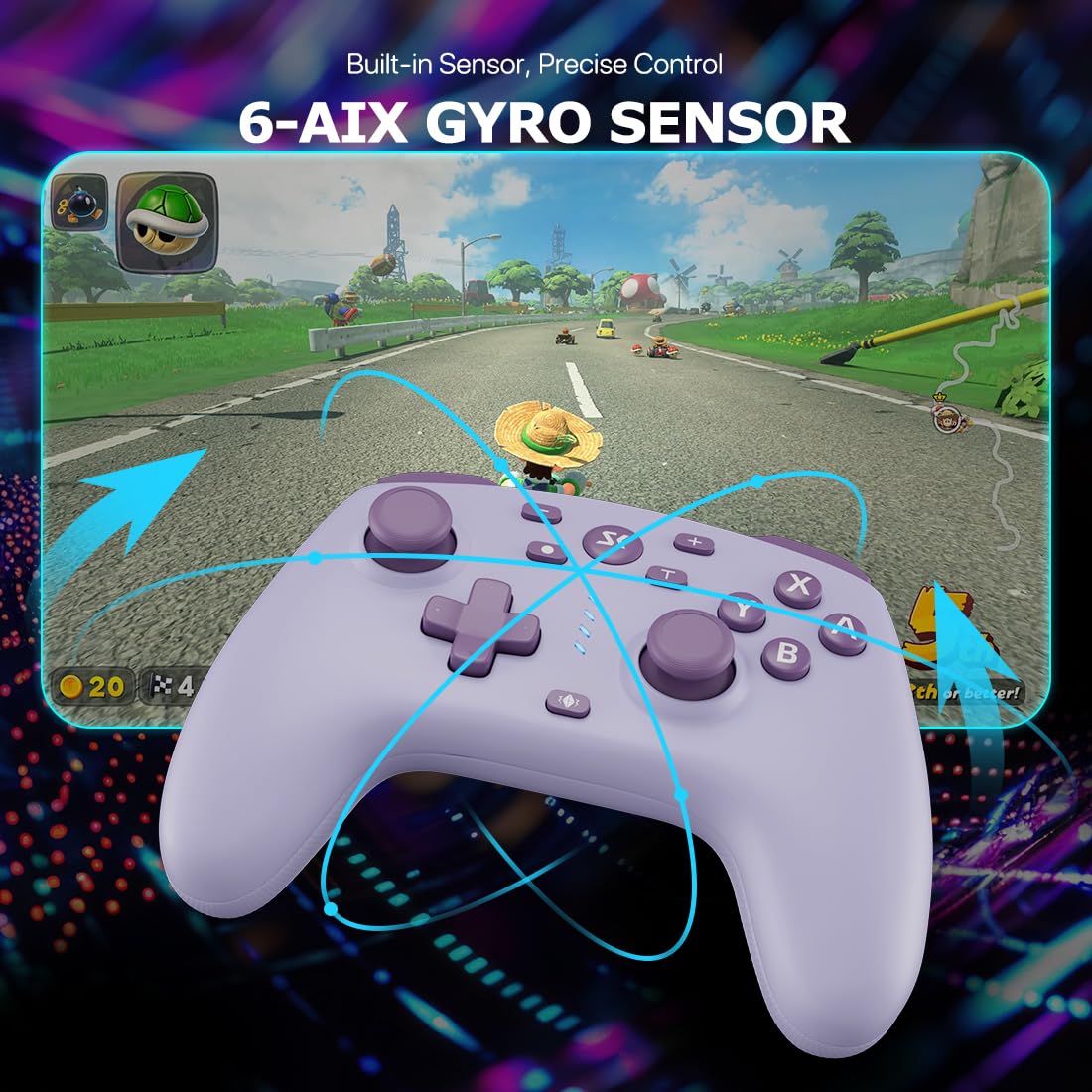
Image 7: The controller in action, illustrating the 6-Axis Gyro Motion Control feature.
Video 2: A seller-provided video demonstrating the Boowen Wireless Controller's features and compatibility with Switch and PC.
5. Charging & Battery
The controller is equipped with an 800mAh rechargeable battery, providing 8-10 hours of continuous use on a full charge. Charging is done via the USB-C port. The controller enters sleep mode after 10 minutes of inactivity to conserve power.

Image 8: Information on the controller's 800mAh battery, 8-10 hours continuous use, and USB-C charging.
6. Specifications
- Model: B0FD9RH5FC
- Manufacturer: Boowen
- Connectivity: Wireless (Bluetooth, 2.4G Adapter)
- Compatibility: Nintendo Switch, Switch 2, Switch Lite, Switch OLED, PC, Android
- Joysticks/Triggers: Hall Effect
- Battery: 800mAh (1 12V battery included)
- Continuous Use Time: 8-10 hours
- Charging Port: USB-C
- Special Features: Programmable Back Buttons (M1/M2), Turbo Function (3 speeds), One-Tap Wake-Up, 5-Level Vibration, 6-Axis Gyro
- Product Dimensions: 3.94 x 1.18 x 7.09 inches
- Item Weight: 1.41 pounds
7. Troubleshooting
7.1 Controller Not Connecting
- Ensure the controller is sufficiently charged.
- Verify Bluetooth is enabled on your device (Switch, PC, Android).
- For Switch, ensure you are in the 'Change Grip/Order' menu before attempting to pair.
- If using the 2.4G adapter, ensure it is securely plugged into your PC and its indicator light is active.
- Try restarting both the controller (by holding the HOME button until it turns off, then turning it back on) and the host device.
- Remove any previous pairings on your device and attempt to pair again.
7.2 Input Lag or Unresponsiveness
- Ensure there are no significant obstructions between the controller and the host device.
- Move closer to the host device to improve signal strength.
- Check for other wireless devices that might be causing interference.
- Ensure the controller's battery is not critically low.
7.3 Stick Drift
The Boowen Wireless Controller uses Hall Effect joysticks designed to prevent stick drift. If you experience any issues, ensure the controller's firmware is up to date (check the manufacturer's website for updates) and try recalibrating the joysticks through your console or PC settings.
8. Warranty & Support
For warranty information, technical support, or further assistance, please refer to the contact details provided with your purchase or visit the official Boowen website. Keep your proof of purchase for warranty claims.