
Introduction
Thank you for choosing the LIANGSTAR Laptop Cooling Pad. This manual provides essential information for the proper setup, operation, and maintenance of your cooling pad. Designed to enhance your laptop's performance by preventing overheating, this cooling pad features 8 quiet fans, 7 adjustable height settings, 2 USB ports, and a convenient phone holder. Please read this manual thoroughly before use.
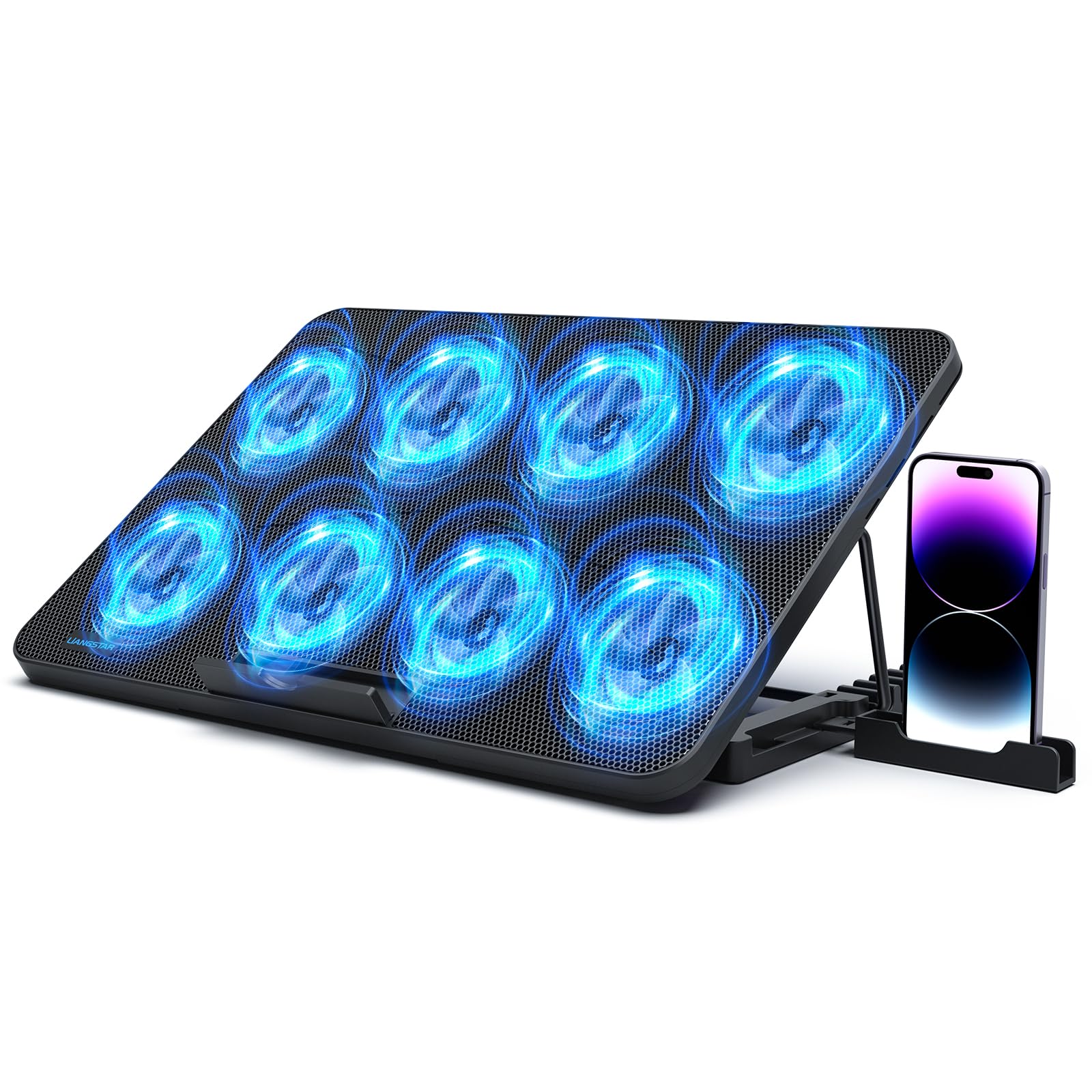
Image: The LIANGSTAR Laptop Cooling Pad, showcasing its sleek design and blue LED fans.
Product Features
- 8 Ultra-Quiet Fans: Equipped with 8 fans that provide strong airflow to dissipate heat efficiently while operating quietly. Blue LED lights indicate fan activity and speed.
- Adjustable Fan Wind Speed: Infinitely adjustable fan speed via a gear button, allowing you to customize cooling intensity.
- 7 Height Adjustable Settings: Offers 7 ergonomic height adjustments to provide a comfortable viewing and typing angle, reducing neck and wrist strain.
- Integrated Phone Holder: A unique, retractable phone holder located on the side of the pad allows for convenient placement of your smartphone.
- 2 USB Ports: Features two USB ports; one for powering the cooling pad and the other for connecting external USB devices like a mouse or keyboard.
- Large Metal Mesh Surface: The top surface is constructed from a large metal mesh, optimizing heat dissipation and providing durability.
- Non-Slip Baffle & Pads: Includes a large non-slip baffle to prevent your laptop from sliding off, and enlarged anti-skid pads at the bottom for stability.
- Wide Compatibility: Suitable for laptops ranging from 12 to 17.3 inches, including popular brands like Dell, MacBook Pro, Alienware, ThinkPad, Lenovo, HP, and ASUS.
Setup Instructions
- Unpack the Cooling Pad: Carefully remove the cooling pad from its packaging.
- Connect Power: Locate the USB cable. Plug one end into the USB port labeled 'IN' on the cooling pad and the other end into an available USB port on your laptop or a USB power adapter. The blue LED lights on the fans will illuminate, indicating power.
- Adjust Fan Speed: Use the rotary knob on the side of the cooling pad to adjust the fan speed. Turn clockwise to increase speed and counter-clockwise to decrease it.
- Set Height (Optional): Flip the cooling pad over. Extend the two adjustable legs at the bottom to select one of the 7 available height settings for optimal ergonomics.
- Deploy Non-Slip Baffle: Pull out the non-slip baffle located at the front edge of the cooling pad to secure your laptop in place, especially when using an inclined angle.
- Place Laptop: Carefully place your laptop on the cooling pad, ensuring it rests securely against the non-slip baffle.
- Use Phone Holder (Optional): Slide out the phone holder from the left side of the cooling pad base to place your smartphone.

Image: Detail of the gear switch for fan speed control and the two USB ports on the side of the cooling pad.
Operating Instructions
Fan Speed Control
The LIANGSTAR Laptop Cooling Pad features an infinitely adjustable fan speed. Use the rotary knob on the side of the unit to increase or decrease the fan speed. The brightness of the blue LED lights will correspond to the fan speed, providing a visual indicator.
Height Adjustment
To adjust the height, gently lift your laptop off the pad. On the underside of the cooling pad, you will find two foldable legs. Extend these legs and position them into the desired grooves to achieve one of the 7 ergonomic height settings. Ensure both legs are securely locked into place before placing your laptop back on the pad.

Image: Visual representation of the 7 adjustable height settings for ergonomic comfort.
Phone Holder Usage
A unique phone holder is integrated into the left side of the cooling pad. Gently slide it out to use it. This allows you to conveniently place your phone next to your laptop for easy viewing of information or notifications.

Image: The integrated phone holder extended for use, positioned next to a laptop.
Maintenance
- Cleaning: Regularly clean the metal mesh surface and fan blades to prevent dust buildup, which can impede airflow. Use a soft, dry cloth or a can of compressed air. Do not use liquid cleaners directly on the fans or electronic components.
- Storage: When not in use, store the cooling pad in a cool, dry place away from direct sunlight and extreme temperatures. Ensure the adjustable legs are folded in and the non-slip baffle is retracted to prevent damage.
- Cable Care: Avoid bending or twisting the USB cable excessively to prevent internal damage.
Troubleshooting
- Fans Not Spinning/LEDs Off:
- Ensure the USB cable is securely connected to both the cooling pad and a powered USB port on your laptop or adapter.
- Try connecting to a different USB port or power source.
- Check the fan speed knob to ensure it is not set to the minimum (off) position. - Insufficient Cooling:
- Increase the fan speed using the rotary knob.
- Ensure the metal mesh surface and fan blades are free from dust and obstructions.
- Verify that your laptop's vents are not blocked by the cooling pad or other objects. - Laptop Sliding Off:
- Ensure the non-slip baffle at the front of the cooling pad is fully extended and your laptop is resting against it. - Unusual Noise:
- Check for any foreign objects obstructing the fan blades.
- Ensure the cooling pad is placed on a flat, stable surface.
Specifications
| Feature | Detail |
|---|---|
| Model Number | PD-A75J-QC7B |
| Brand | LIANGSTAR |
| Color | Black Blue-LED 8 Fans |
| Material | Metal, Plastic |
| Item Weight | 1 Kilograms |
| Product Dimensions | 14"L x 10"W x 1"H |
| Number of Fans | 8 |
| Cooling Method | Air, Fan |
| Compatibility | 12"-17.3" Laptops |
Warranty and Support
The LIANGSTAR Laptop Cooling Pad (Model PD-A75J-QC7B) comes with a 1-Year Warranty from the date of purchase. This warranty covers manufacturing defects and malfunctions under normal use. It does not cover damage caused by misuse, accidents, unauthorized modifications, or improper maintenance.
For warranty claims, technical support, or any questions regarding your product, please contact LIANGSTAR customer service through the retailer where you purchased the product or visit the official LIANGSTAR website for contact information.
Please retain your proof of purchase for warranty validation.