
Vorally QA1756X
Vorally 7 Inch Android Car Radio Instruction Manual
Model: QA1756X
For Ford F150/F250/F350 (2004-2014)
Introduction
This manual provides detailed instructions for the installation, operation, and maintenance of your new Vorally 7 Inch Android Car Radio. Please read this manual thoroughly before using the product to ensure proper function and safety. Keep this manual for future reference.
Compatible Vehicles
This car stereo is compatible with the following vehicle models:
- F150: 2004-2008
- F250/F350: 2006-2016
- E150/E250/E350: 2009-2014
- Edge: 2007-2010
- Escape: 2008-2012
- Mustang: 2005-2009
- Fusion: 2006-2009
- Five Hundred: 2005-2007
- Focus/Freestar/Freestyle: 2005-2007
- Shelby GT500: 2007-2009
- Expedition: 2007-2014
- Explorer: 2006-2010
- Taurus: 2008-2009
- Sable: 2008-2009
- Mark LT: 2006-2008
- MKX: 2007-2009
- Mountaineer: 2007-2010
- Mercury Montego: 2005-2007
- Mercury Milan: 2006-2009
Note: This unit cannot fit original cars equipped with factory navigation systems.

Image: Applicable models and stereo dimensions (188mm x 120mm). Please confirm your original car stereo panel size and connectors match before installation. The third connector is for original cars with a subwoofer; if your car does not have one, it is not needed.

Image: Installation comparison showing the original car radio and the new Android car radio installed in a Ford F150 dashboard.
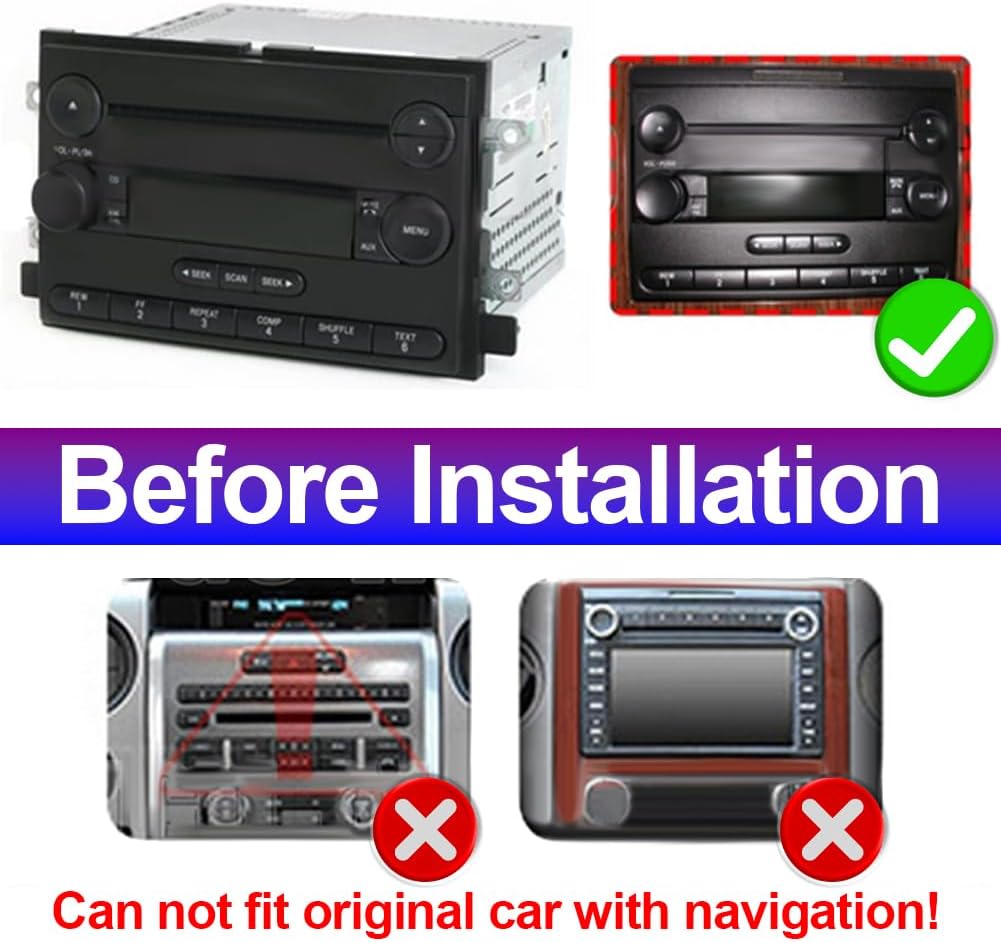
Image: Examples of original car radios that are not compatible, specifically those with factory navigation.
What's Included
The package includes the following components:
- 1 x Android Car Stereo
- 1 x Power Cable
- 1 x GPS Antenna
- 2 x USB Cable
- 1 x RCA Cable
- 1 x Backup Camera
- 1 x User Manual

Image: Visual representation of the Android Car Stereo, backup camera, GPS antenna, power cable, RCA input/output cables, USB cables, instruction manual, protocol box, and radio adapter.
Video: This video demonstrates the unboxing and shows all components included in the package for the Ford F150 radio.
Setup and Installation
Wiring Connections
Refer to the wiring diagram for proper connection of all cables. Ensure all connections are secure before powering on the unit.
- Power Cord: Connect the main power harness to your vehicle's wiring.
- RCA Input/Output: For external audio/video devices and amplifiers.
- USB Cables: Two USB ports are provided for media playback, smartphone connection (CarPlay/Android Auto), and charging.
- Radio Adaptor: Connect for FM/AM radio reception.
- GPS Device: Connect the GPS antenna for navigation functionality.
- CANBUS: Connect the CANBUS to the power cable. If your original car stereo does not support a subwoofer, the smallest connector may not be needed. If two connectors are correctly connected but the stereo does not power on, you may need to cut some wires to connect to your car.
- Backup Camera: Connect the AHD backup camera for reverse imaging.
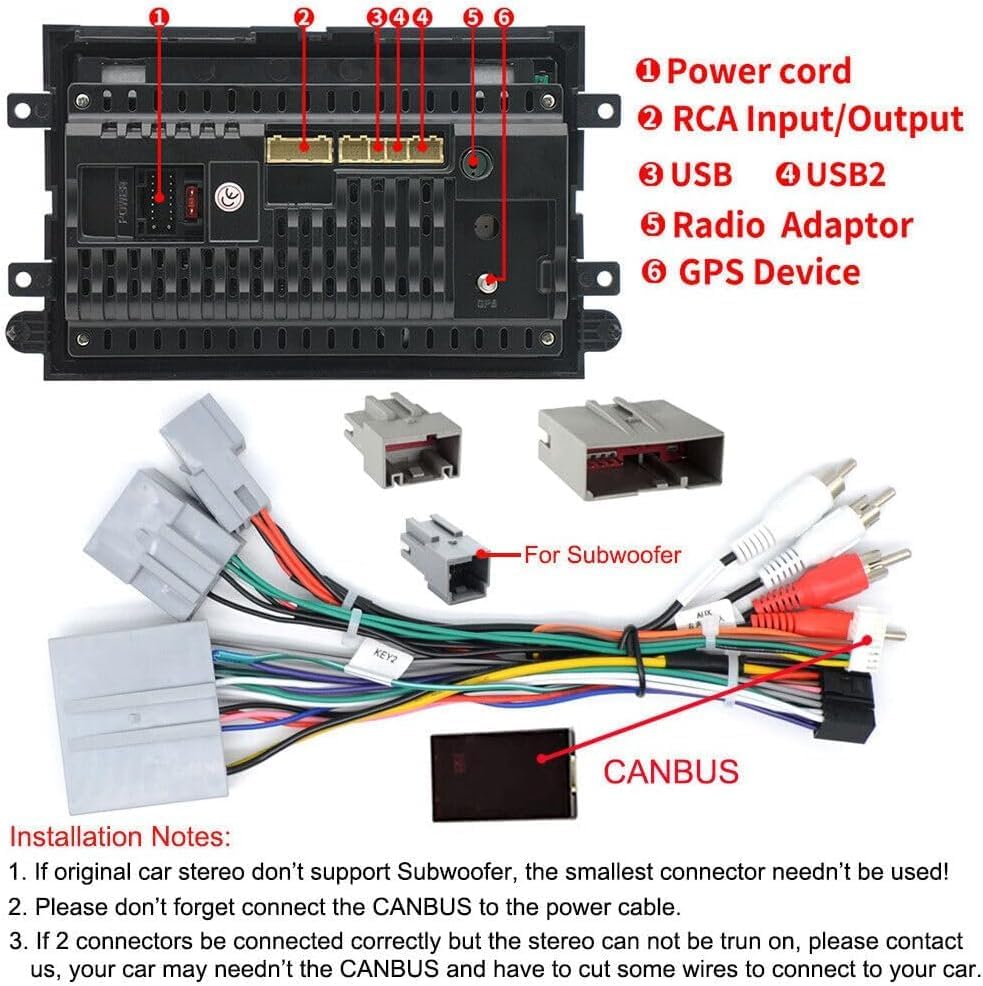
Image: Rear view of the Android car radio unit, showing labeled ports for power, RCA, USB, radio adapter, and GPS device.

Image: Detailed wiring diagram illustrating connections for power, RCA, USB, microphone, reverse cable, GPS cable, and CANBUS box.
Camera Cable Insertion
Ensure the camera cable is inserted correctly. This cable helps enhance Wi-Fi and Bluetooth signals, regardless of whether a camera is installed.
Video: This video demonstrates the installation process of the 7-inch car radio for Ford F150/F250/F350, including connecting the camera cable.
Operating Instructions
Android 13 System
The unit runs on the latest Android 13 system with 2GB RAM and 32GB ROM, providing a smooth user experience. You can download various applications from the Play Store.
Video: This video provides a brief UI presentation of the Android system on the car radio.
Wireless Apple CarPlay & Android Auto
Connect your smartphone via USB or Bluetooth to access features like Google Maps, phone contacts, notifications, and music. Voice control is supported for hands-free operation.

Image: Display of Wireless Apple CarPlay and Android Auto interfaces, highlighting features like hands-free calling, online music, GPS navigation, and various apps.
Video: This video demonstrates the CarPlay connection process for the F150 car radio, including Bluetooth pairing and using maps and music.
Video: This video illustrates how to connect Bluetooth and Android Auto, including Wi-Fi setup.
GPS Navigation & WiFi
The unit features built-in GPS navigation. You can download offline maps or connect to Wi-Fi for online maps with real-time traffic conditions. Wi-Fi also allows web browsing and app downloads.

Image: Display of GPS navigation with route guidance and various app icons for Wi-Fi connectivity, including streaming services.

Image: A detailed view of the GPS navigation interface, showing a map with route, distance, and estimated arrival time.
Bluetooth 5.0 & FM Radio
Bluetooth 5.0 supports hands-free calls, music streaming, and phone address book synchronization. The FM radio has 18 preset stations for weather, traffic, and news broadcasts.

Image: Bluetooth interface for calls and music, demonstrating voice control functionality. Also highlights the 1024*600 high-resolution touchscreen.

Image: FM Radio interface showing frequency tuning and preset station options.
AHD Backup Camera & SWC
The included AHD backup camera features IP68 waterproofing, night vision, and a 170-degree wide-angle view. It automatically displays the reverse image when shifting into reverse. Steering Wheel Control (SWC) allows quick function switching.

Image: Backup camera features including clear image, night vision, and 170-degree wide angle. Also shows a wiring diagram for camera connection.
Image: Close-up of steering wheel control buttons, indicating their use for managing car radio functions.
System Settings
The unit offers various system and car-specific settings for customization. Access these through the 'Settings' menu on the main screen.
- System Info: View details about the Android OS, RAM, ROM, and display resolution (1024*600).
- Factory Settings: (Password: 8888) Access advanced settings for protocol, touch, USB, power amplifier, and encoder settings.
- Car Settings: Configure settings specific to your vehicle's integration.
- Android Settings: Access native Android settings for network, display, applications, storage, and more.
- Volume Settings: Adjust media, call, and navigation volumes.
- Navigation: Select your preferred navigation app.
- GPS Detection: Monitor GPS signal status.
- Steering Learn: Configure steering wheel controls.
- Logo Settings: Customize boot logo and animation.
Video: This video demonstrates various system and settings options available on the car radio, including UI presentation, equalizer, and navigation settings.
Maintenance
To ensure the longevity and optimal performance of your Vorally Android Car Radio, follow these maintenance guidelines:
- Cleaning: Use a soft, dry cloth to clean the screen and exterior. Avoid abrasive cleaners or solvents.
- Software Updates: Periodically check for and install software updates to ensure the system is running the latest version with improved features and bug fixes.
- Temperature: Avoid exposing the unit to extreme temperatures, both hot and cold, as this can affect performance and lifespan.
- Power Management: Ensure your vehicle's electrical system is in good condition to prevent power fluctuations that could damage the unit.
Troubleshooting
If you encounter any issues with your car radio, refer to the following common troubleshooting steps:
- No Power: Check all power cable connections. Ensure the vehicle's ignition is on. Verify the fuse is not blown.
- No Sound: Check speaker connections. Ensure volume is not muted or set too low. Verify audio output settings.
- Bluetooth Connection Issues: Ensure Bluetooth is enabled on both the car radio and your smartphone. Try restarting both devices. Clear previous pairings and attempt to pair again.
- CarPlay/Android Auto Not Connecting: Ensure Bluetooth is connected first. For CarPlay, verify the CarPlay function is enabled in your iPhone settings (General > CarPlay > Zlink > Open/Close CarPlay). For Android Auto, ensure the Android Auto app is installed on your phone. Try clearing the background apps on the car radio and restarting the Zlink application.
- GPS Signal Loss: Ensure the GPS antenna is properly installed and has a clear view of the sky. Check GPS detection settings.
- Backup Camera Not Displaying: Check the camera's power and video signal connections. Ensure the reverse gear is engaged.
- Touchscreen Unresponsive: Try restarting the unit. If the issue persists, a factory reset might be necessary (note: this will erase all user data).
If these steps do not resolve the issue, please contact Vorally customer support.
Specifications
| Feature | Specification |
|---|---|
| Item Weight | 2.86 pounds |
| Product Dimensions | 8.27 x 4.72 x 12.2 inches |
| Item Model Number | QA1756X |
| Display Size | 7 Inches |
| Operating System | Android 13 |
| Memory (RAM/ROM) | 2GB RAM, 32GB ROM |
| Screen Resolution | 1024*600 IPS Capacitive Touch Screen |
| Connectivity Technology | Bluetooth 5.0, USB, Wi-Fi |
| Special Features | Backup Camera, Mic, FM Radio, SWC, GPS Navigation, Wireless Apple Carplay, Android Auto, Mirror Link |
| Map Type | Worldwide |
| Audio Output Mode | Stereo |
| Mounting Type | Dashboard Mount |
Warranty and Support
The Vorally 7 Inch Android Car Radio comes with a 1-year warranty. For technical support or warranty claims, please contact Vorally customer service.
You can typically reach support by visiting the product page on Amazon, finding the 'Sold by Vorally' section, and clicking 'Ask a question'.
Ask a question about this manual
Ask about setup, troubleshooting, compatibility, parts, safety, or missing instructions. Manuals+ will review the question and use this page’s manual context to help answer it.