
EDJO 2.4G Full-Sized Ergonomic Wireless Keyboard and Mouse Combo User Manual
Model: B0FD9FR46G
1. Introduction
This manual provides comprehensive instructions for the setup, operation, maintenance, and troubleshooting of your EDJO 2.4G Full-Sized Ergonomic Wireless Keyboard and Mouse Combo. Please read this manual carefully before using the product to ensure proper function and longevity.
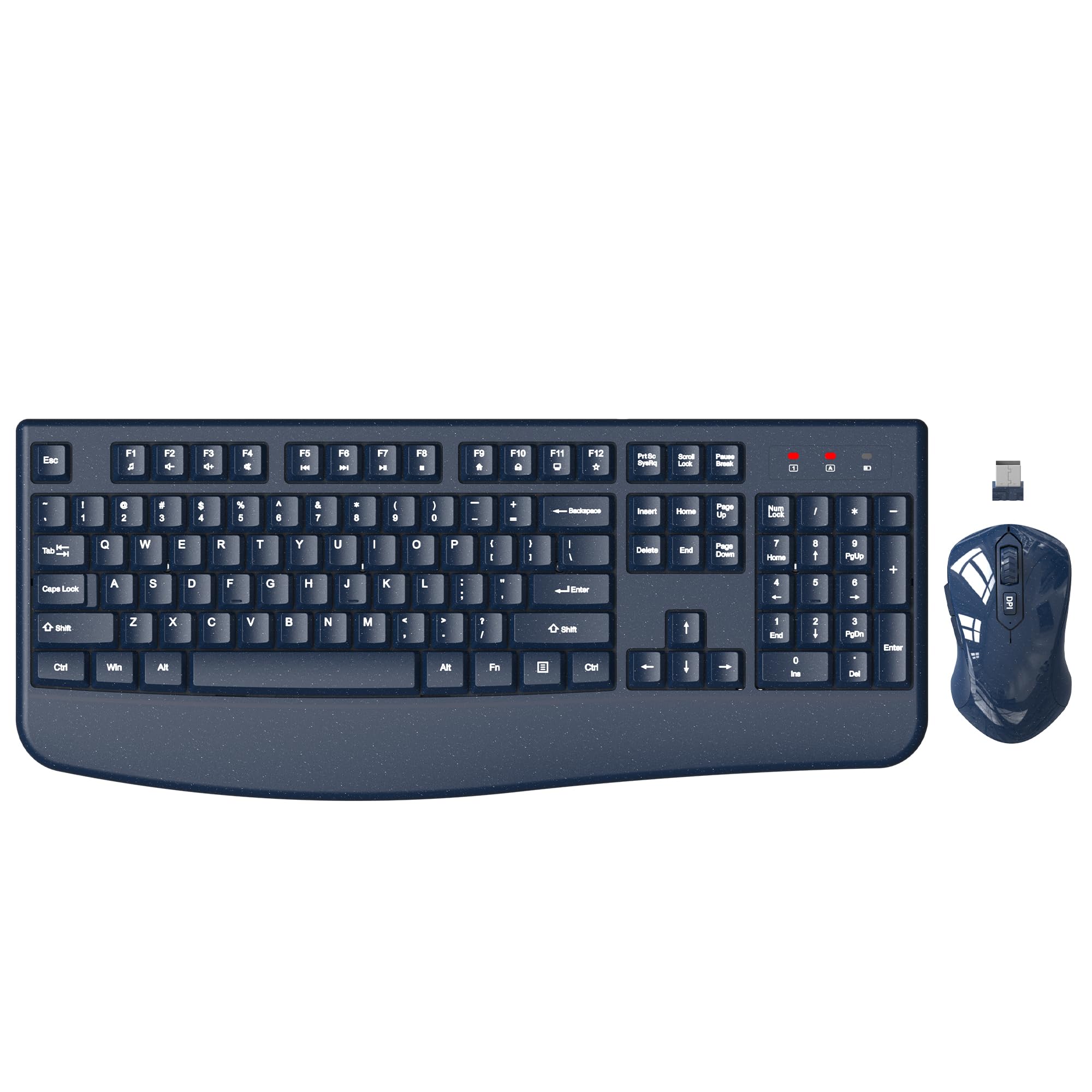
Image 1.1: The EDJO 2.4G Full-Sized Ergonomic Wireless Keyboard and Mouse Combo.
2. Setup
2.1 Package Contents
- 1 x EDJO Wireless Keyboard
- 1 x EDJO Wireless Mouse
- 1 x 2.4G USB Receiver (stored in the mouse battery compartment)
- 1 x User Manual
2.2 Battery Installation
The keyboard requires one (1) AA battery, and the mouse requires one (1) AA battery (batteries not included).
- For the Mouse: Open the battery compartment cover located on the underside of the mouse. Insert one AA battery, ensuring correct polarity (+/-). The 2.4G USB receiver is stored in this compartment. Remove the receiver before closing the cover.
- For the Keyboard: Open the battery compartment cover on the underside of the keyboard. Insert one AA battery, ensuring correct polarity (+/-). Close the cover.

Image 2.1: Location of the USB receiver and battery compartment in the mouse.

Image 2.2: The USB receiver is securely stored within the mouse's battery compartment.
2.3 Connecting the USB Receiver
- Locate the 2.4G USB receiver inside the mouse battery compartment.
- Plug the USB receiver into an available USB port on your computer (desktop, laptop, PC, etc.).
- The keyboard and mouse will automatically connect to your computer. No additional drivers or software installation are required.

Image 2.3: The 2.4G wireless connection provides a stable link up to 33 feet (10 meters).

Image 2.4: The compact 2-in-1 nano USB receiver connects both keyboard and mouse.
3. Operating Instructions
3.1 Keyboard Features
- Ergonomic Design: The full-sized keyboard features an integrated palm rest and foldable holders to maintain an optimal typing angle, reducing wrist strain during extended use.
- Anti-Slide Pads: Equipped with anti-slide pads to ensure stability during rapid typing.
- Indicator Lights: Includes dedicated indicator lights for Number Lock, Caps Lock, and Power status.
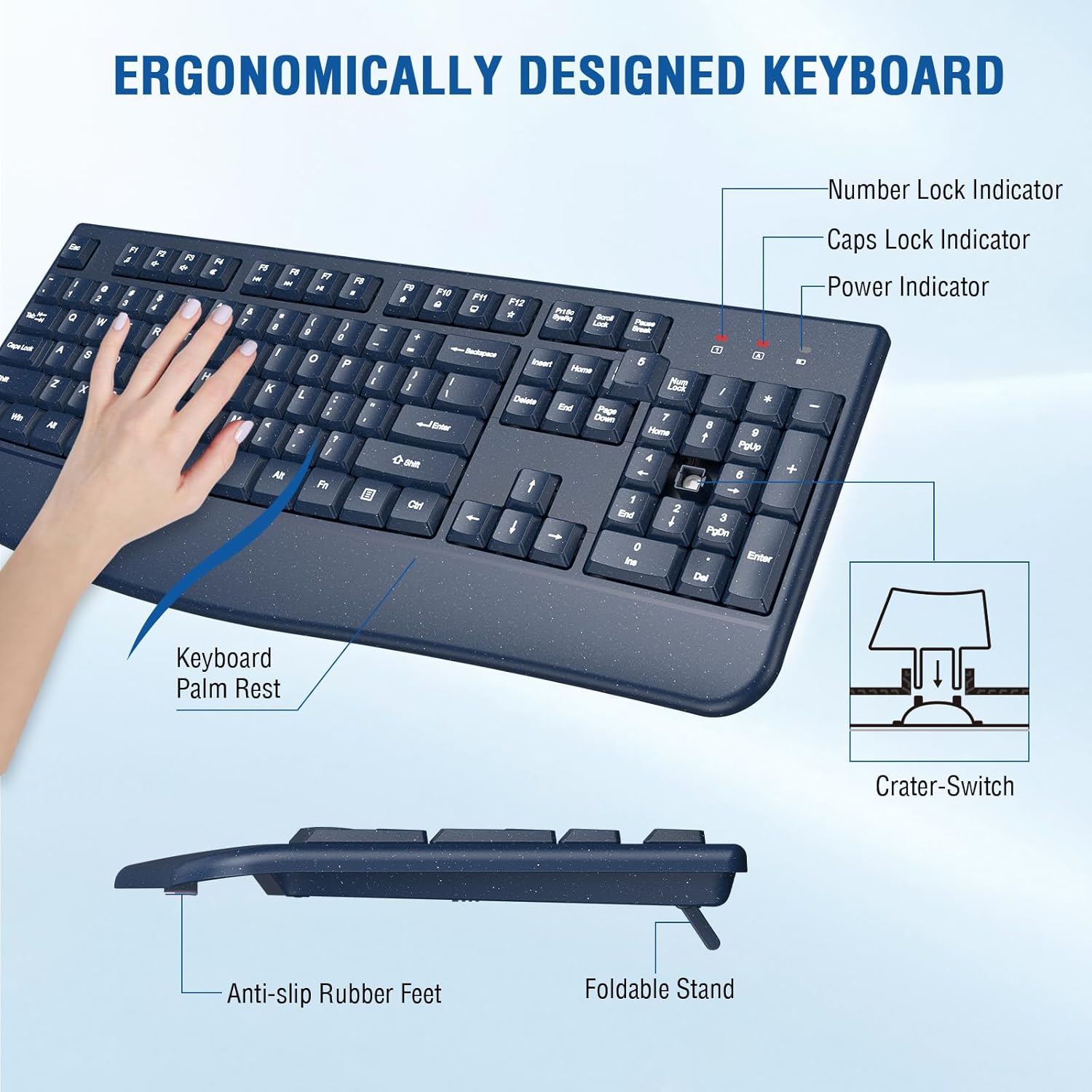
Image 3.1: The ergonomic design of the keyboard, featuring a palm rest and foldable stand.

Image 3.2: Close-up of the Number Lock, Caps Lock, and Power indicator lights on the keyboard.
3.2 Mouse Features
- Optical Tracking: Provides precise control on various surfaces.
- Adjustable DPI: Cycle through 3 DPI levels (800/1600/2400) to adjust cursor speed to your preference.
- Symmetrical Design: Suitable for both right-handed and left-handed users.
- Navigation Buttons: Includes dedicated 'Previous Page' and 'Next Page' buttons for enhanced browsing.

Image 3.3: The mouse features 3 adjustable DPI levels: 800, 1600, and 2400.
3.3 Automatic Power Saving Function
To conserve battery life, both the keyboard and mouse feature an automatic power-saving mode:
- The keyboard enters sleep mode after 30 minutes of inactivity.
- The mouse enters sleep mode after 25 seconds of inactivity.
To reactivate the device, simply click any button on the mouse or press any key on the keyboard.
3.4 Compatibility
This wireless keyboard and mouse combo is compatible with Windows XP/Vista/7/8/10/X, Mac OS, and other operating systems. It works effectively with desktops, Chromebooks, PCs, laptops, and more. Note: Some multimedia functions may not be available on Mac OS.

Image 3.4: The combo is compatible with various operating systems including Windows and Mac OS.
4. Maintenance
4.1 Battery Replacement
When the keyboard or mouse stops responding or exhibits intermittent connectivity, it may be time to replace the batteries. Follow the battery installation steps in Section 2.2 to replace the AA batteries in both devices.
4.2 Cleaning
To clean your keyboard and mouse, use a soft, dry cloth. For stubborn dirt, lightly dampen the cloth with water or a mild cleaning solution. Avoid using harsh chemicals or abrasive materials. Ensure devices are powered off before cleaning.
4.3 Spill-Resistant Design
The keyboard features a spill-resistant design, which helps protect against accidental liquid spills. In case of a spill, immediately disconnect the keyboard from your computer and allow it to dry completely before reuse. This feature is designed to mitigate damage but does not guarantee full waterproofing.

Image 4.1: The keyboard's spill-resistant design helps protect against minor liquid exposure.
5. Troubleshooting
- No Connection/Lag:
Ensure the USB receiver is securely plugged into a working USB port. Check that both the keyboard and mouse have fresh batteries installed. Move the devices closer to the USB receiver to rule out range issues (maximum 33 feet). - Devices Not Turning On:
Verify that batteries are correctly inserted with proper polarity. Replace batteries with new ones if necessary. - Mouse Tracking Issues:
Clean the optical sensor on the underside of the mouse. Ensure you are using the mouse on a suitable surface; highly reflective or transparent surfaces may affect tracking. Adjust the DPI setting using the button on the mouse. - Keyboard Input Errors:
Check for any stuck keys. Ensure the keyboard is not in sleep mode. Re-insert the USB receiver.
6. Specifications
| Feature | Detail |
|---|---|
| Brand | EDJO |
| Model | B0FD9FR46G |
| Color | Galaxy Blue |
| Connectivity Technology | 2.4G Wireless |
| Special Features | Ergonomic, Wrist Rest |
| Compatible Devices | Laptop, Personal Computer |
| Power Source | Battery Powered (1x AA for keyboard, 1x AA for mouse) |
| Keyboard Layout | QWERTY |
| Number of Keys | 104 |
| Keyboard Description | Membrane |
| Mouse DPI Levels | 800/1600/2400 |
| Hand Orientation | Ambidextrous |
| Compatible Operating Systems | Chrome OS, Linux, Mac OS, Windows |
7. Warranty and Support
7.1 Warranty Information
This EDJO product comes with a 12-month warranty from the date of purchase. This warranty covers manufacturing defects and malfunctions under normal use. It does not cover damage caused by misuse, accidents, unauthorized modifications, or external factors.
7.2 Customer Support
If you encounter any issues or have questions regarding your EDJO Wireless Keyboard and Mouse Combo, please contact us directly via Amazon email. Our customer service team is available to provide assistance and satisfactory solutions.

Image 7.1: Diagram illustrating the recommended customer support process: contact seller first for assistance.
