
1. Introduction
This manual provides essential information for the safe and efficient use of your Azeyou M17QF27A Android Tablet. Please read this manual thoroughly before operating the device and retain it for future reference.
The Azeyou M17QF27A is an 11.97-inch Android tablet featuring a Unisoc T616 processor, 20GB RAM (8GB physical + 12GB virtual), 256GB internal storage expandable up to 1TB, a 1920x2000 FHD touch screen, dual cameras, Wi-Fi 5, Bluetooth 5.0, and an 8000mAh battery.
2. Package Contents
Verify that all items are present in your product package:
- Azeyou M17QF27A Android Tablet
- Protective Case
- USB-C Charging Cable
- Power Adapter
- User Manual (this document)
- SIM Ejector Tool (if applicable for cellular models)
3. Device Overview
Familiarize yourself with the physical components of your tablet.
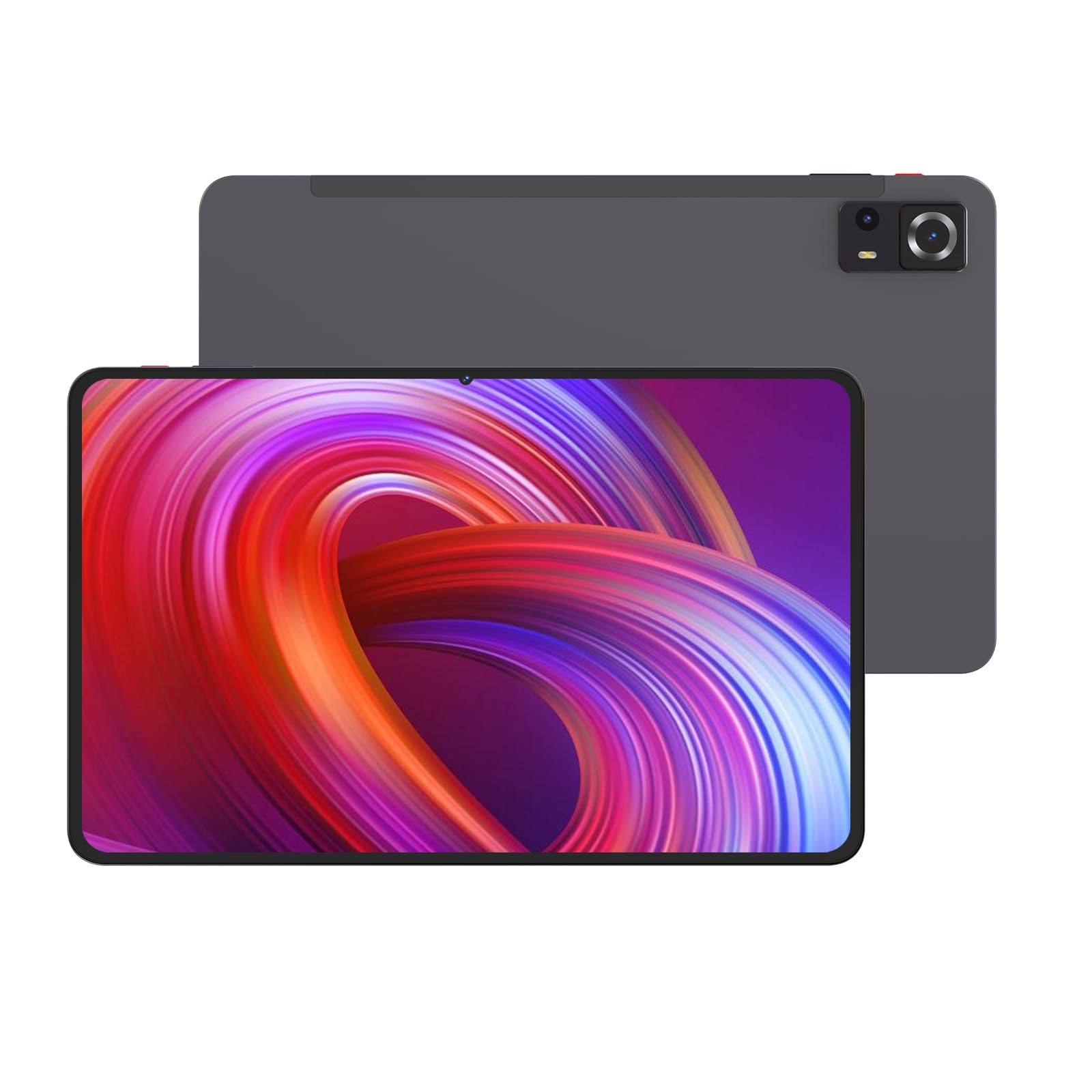
Image 1: Front and back view of the Azeyou M17QF27A Android Tablet, showcasing the screen, cameras, and the included protective case.
3.1. Physical Components
- Front Camera: Located at the top center when held vertically.
- Display: 11.97-inch FHD Touch Screen.
- Power Button: Typically on the side, used to power on/off or wake/sleep the device.
- Volume Buttons: Adjacent to the power button, for adjusting audio levels.
- USB-C Port: For charging and data transfer.
- Speaker Grilles: For audio output.
- Rear Camera: Located on the back of the tablet.
- MicroSD Card Slot: For storage expansion up to 1TB.
4. Setup
4.1. Charging the Battery
Before first use, fully charge your tablet. Connect the USB-C charging cable to the tablet's USB-C port and the power adapter to a wall outlet. The battery indicator on the screen will show charging progress. A full charge typically takes several hours.
The tablet is equipped with an 8000mAh battery, providing an average battery life of approximately 6 hours under typical usage conditions.
4.2. Powering On/Off
- To Power On: Press and hold the Power button until the Azeyou logo appears on the screen.
- To Power Off: Press and hold the Power button until a power menu appears. Select "Power off" and confirm.
- To Sleep/Wake: Briefly press the Power button to put the tablet to sleep or wake it up.
4.3. Initial Setup
Upon first power-on, the tablet will guide you through the initial setup process:
- Select your preferred language.
- Connect to a Wi-Fi network. This is essential for downloading updates and accessing online services.
- Sign in with your Google account or create a new one. This is required for accessing the Google Play Store and other Google services.
- Review and accept the terms and conditions.
- Set up screen lock (PIN, pattern, password, or facial recognition).
- Restore data from a previous device (optional).
5. Operating Instructions
5.1. Basic Navigation
Your Azeyou tablet uses an Android 14 operating system with a touch-sensitive screen. Common gestures include:
- Tap: To select an item, open an app, or press a button.
- Tap and Hold: To access contextual menus or move icons.
- Swipe: To scroll through lists, switch between home screens, or navigate within apps.
- Pinch-to-Zoom: To zoom in or out on images, maps, or web pages.
5.2. Wi-Fi Connectivity
To connect to a Wi-Fi network:
- Go to Settings > Network & internet > Wi-Fi.
- Toggle Wi-Fi On.
- Select your desired network from the list.
- Enter the password if prompted and tap Connect.
The tablet supports Wi-Fi 5 (802.11ac) for fast wireless connections.
5.3. Bluetooth Connectivity
To pair with a Bluetooth device (e.g., headphones, keyboard):
- Go to Settings > Connected devices > Bluetooth.
- Toggle Bluetooth On.
- Ensure your Bluetooth device is in pairing mode.
- Select the device from the list of available devices and follow any on-screen prompts to complete pairing.
The tablet supports Bluetooth 5.0 for stable and efficient wireless connections.
5.4. Storage Management
Your tablet comes with 256GB of internal storage. You can expand this storage up to 1TB using a microSD card. To insert a microSD card:
- Locate the microSD card slot on the side of the tablet.
- Use the provided SIM ejector tool (or a paperclip) to open the tray.
- Place the microSD card into the tray with the gold contacts facing down.
- Gently push the tray back into the slot until it clicks into place.
To manage storage, go to Settings > Storage.
5.5. Using the Cameras
The tablet features dual cameras. To use the camera:
- Open the Camera app from your home screen or app drawer.
- Tap the shutter button to take a photo.
- Tap the video icon to switch to video recording mode.
- Use the camera switch icon to toggle between the front and rear cameras.
6. Maintenance
6.1. Cleaning the Tablet
To clean your tablet, power it off and disconnect all cables. Use a soft, lint-free cloth slightly dampened with water or a screen cleaner specifically designed for electronics. Avoid using harsh chemicals, abrasive materials, or excessive moisture.
6.2. Software Updates
Regularly check for and install software updates to ensure optimal performance and security. Go to Settings > System > System update.
6.3. Battery Care
To prolong battery life:
- Avoid extreme temperatures.
- Do not let the battery completely drain frequently.
- Unplug the charger once the battery is full.
- Reduce screen brightness and disable unnecessary features (e.g., Bluetooth, Wi-Fi) when not in use.
7. Troubleshooting
| Problem | Possible Solution |
|---|---|
| Tablet does not power on. | Ensure the battery is charged. Connect the charger and wait a few minutes before attempting to power on again. |
| Wi-Fi connection issues. | Check if Wi-Fi is enabled in settings. Restart your router and the tablet. Ensure you are entering the correct Wi-Fi password. |
| Apps are crashing or freezing. | Close and reopen the app. Clear the app's cache (Settings > Apps > select app > Storage & cache > Clear cache). Restart the tablet. |
| Slow performance. | Close unnecessary background apps. Clear cache and temporary files. Consider uninstalling unused apps. Check for system updates. |
| Battery drains quickly. | Reduce screen brightness. Disable Wi-Fi, Bluetooth, and GPS when not in use. Close background apps. Check battery usage in settings to identify power-hungry apps. |
8. Specifications
| Feature | Detail |
|---|---|
| Model Name | M17QF27A |
| Brand | Azeyou |
| Operating System | Android 14 |
| Processor | Unisoc T616 |
| RAM | 20GB (8GB physical + 12GB virtual) |
| Internal Storage | 256GB |
| Expandable Storage | Up to 1TB via microSD card |
| Screen Size | 11.97 Inches |
| Max Screen Resolution | 1920x2000 Pixels FHD |
| Cameras | Dual Camera (Front and Rear) |
| Wireless Connectivity | Wi-Fi 5 (802.11ac), Bluetooth 5.0 |
| Battery Capacity | 8000mAh |
| Average Battery Life | Approximately 6 hours |
| Dimensions (LxWxH) | 10.94 x 6.81 x 0.3 inches |
| Item Weight | 2.36 pounds |
| Color | Metal-Grey |
9. Warranty and Support
For warranty information and technical support, please refer to the warranty card included in your package or visit the official Azeyou website. Keep your purchase receipt as proof of purchase for warranty claims.
For further assistance, you may contact Azeyou customer service through the contact details provided on their official support page.


