
EVERSECU LCB2
EVERSECU HD 1080P Wireless Light Bulb Security Camera LCB2 User Manual
Model: LCB2
Introduction
This manual provides detailed instructions for the installation, operation, and maintenance of your EVERSECU HD 1080P Wireless Light Bulb Security Camera (Model LCB2). Please read this manual thoroughly before using the product to ensure proper functionality and safety. Keep this manual for future reference.
Product Overview
The EVERSECU LCB2 is a versatile security camera designed for easy integration into your home or office. It features high-definition video, dual-band WiFi connectivity, and advanced surveillance capabilities.

Image: The EVERSECU HD 1080P Wireless Light Bulb Security Camera, showing its bulb-like design and a smartphone displaying its live feed with 2.4G and 5G WiFi indicators.
Key Features:
- Wireless Connectivity: Supports both 2.4GHz and 5GHz WiFi networks for flexible installation.
- 1080P HD Video: Captures clear 2MP high-definition video.
- Pan/Tilt/Zoom (PTZ): Offers 355° pan, 110° tilt, and 4x digital zoom controllable via the app.
- Smart Night Vision: Provides 31ft white/black night vision and 65.6ft full-color night vision.
- Motion Detection & Auto Tracking: Automatically detects movement, tracks subjects, and sends real-time alerts.
- Two-Way Audio: Enables communication through the camera.
- ONVIF & RTSP Support: Compatible with third-party software and NVR systems.
- Storage Options: Supports local storage via Micro SD card (up to 128GB) and cloud storage (subscription required).
- Alexa Compatible: Integrates with smart home systems for voice control and viewing.
What's in the Box
Upon opening the package, please verify that all components are present and in good condition:
- 1 x EVERSECU Light Bulb Security Camera
- 1 x User Manual
- 1 x Light Bulb Camera Socket (with US Plug)
Setup Guide
1. Installation
- Power Off: Ensure the power to the light socket is turned off before installation.
- Screw In: Carefully screw the EVERSECU camera into a standard E26/E27 light socket (110V-240V). No additional wiring or power cables are required.
- Power On: Restore power to the light socket. The camera will initiate its startup sequence.
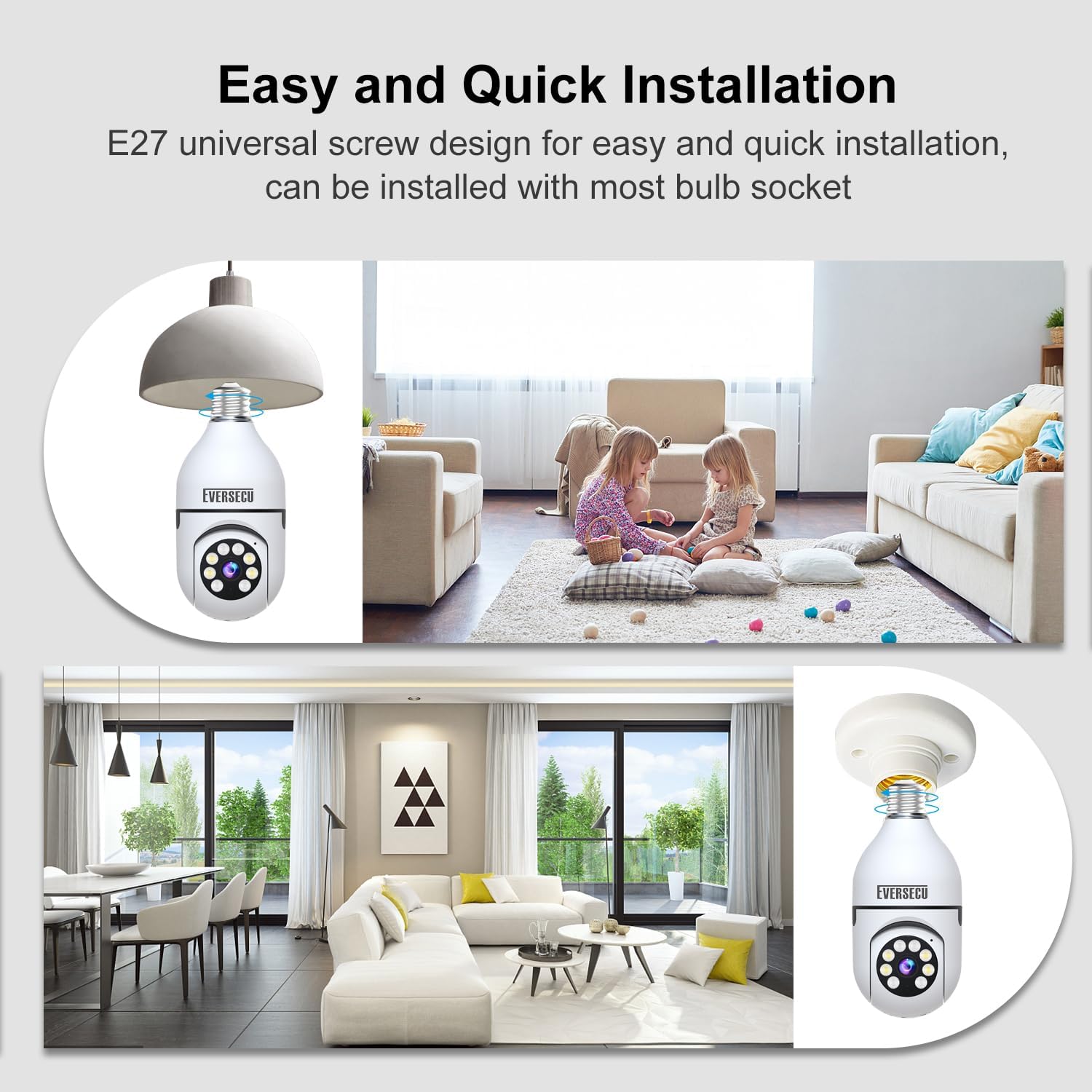
Image: Diagram showing the simple screw-in installation of the EVERSECU light bulb camera into a standard E27 socket.
2. App Download and Configuration
- Download App: Download the 'O-kam Pro' app from your smartphone's app store (iOS or Android).
- Account Creation: Open the app and create a new user account or log in if you already have one.
- Add Device: Follow the in-app instructions to add your new camera. This typically involves scanning a QR code on the camera or selecting the device type manually.
- WiFi Connection: Connect the camera to your WiFi network. The camera supports both 2.4GHz and 5GHz bands. Ensure your phone is connected to the same WiFi network during the setup process.
- Completion: Once connected, the camera will appear in your app, and you can begin live viewing and configuration.
Operating Instructions
Live View and PTZ Control
Access the live feed of your camera through the 'O-kam Pro' app. From the live view interface, you can control the camera's pan (355° horizontal), tilt (110° vertical), and digital zoom (4x) functions by swiping on the screen.

Image: An illustration highlighting the camera's features including 2MP resolution, 355° pan, 110° tilt, 4x zoom, two-way audio, and night vision capabilities.
Motion Detection and Alerts
The camera is equipped with a sensitive motion sensor. When motion is detected, the camera can automatically:
- Auto Track: Follow the detected movement.
- Record: Capture video footage of the event.
- Alert: Send real-time notifications to your smartphone.
- Voice Alert (Optional): Trigger an audible alarm to deter intruders.
- Spotlight (Optional): Activate a spotlight for enhanced visibility and deterrence.
Configure motion detection sensitivity and alert preferences within the 'O-kam Pro' app settings.

Image: A visual representation of the camera's motion detection capabilities, showing a person triggering an alert and the app displaying a notification.
Night Vision Modes
The camera offers advanced night vision capabilities:
- Infrared (IR) Mode: Provides clear black and white video in low-light conditions up to 31 feet.
- Full-Color Night Vision: Utilizes integrated white LEDs to deliver full-color video in darkness up to 65.6 feet.
You can switch between these modes or set them to automatic activation based on ambient light levels in the app.

Image: A comparison showing the camera's view in IR mode (black and white) and full-color night vision mode in a dimly lit room.
Two-Way Audio
Use the two-way audio feature to communicate with individuals near the camera. Press the microphone icon in the app's live view to speak, and listen through the camera's speaker.

Image: A scene depicting two-way audio communication, with a person speaking through the camera and another person responding via the app.
Storage Options
The camera offers flexible storage solutions for recorded footage:
- Micro SD Card: Insert a Micro SD card (up to 128GB, not included) into the camera's designated slot for local storage. The camera supports intelligent loop recording.
- Cloud Storage: Optional cloud storage is available via subscription through the 'O-kam Pro' app, providing secure remote backup of your recordings.

Image: An illustration showing the camera's support for both Micro SD card local storage and cloud storage, with a timeline of recorded events on a smartphone.
Multi-User Sharing
Share access to your camera's live feed and recordings with family and friends through the 'O-kam Pro' app. This allows multiple users to monitor the same device simultaneously.

Image: The EVERSECU camera surrounded by various devices (smartphones, tablets, monitors) and people, illustrating the multi-user sharing capability.
ONVIF and RTSP Compatibility
The EVERSECU LCB2 camera is ONVIF compliant, allowing integration with various third-party software and NVR systems such as Blue Iris, ZoneMinder, Security Spy, and VLC. To enable ONVIF, set a password within the 'O-KAM Pro' App.
The RTSP address format is: rtsp://[username]:[password]@[ip]:10554/tcp/av0_0. The default username is admin.

Image: A setup showing the EVERSECU camera connected to an NVR system via a router, demonstrating its ONVIF and RTSP compatibility for continuous recording.
Alexa Integration
The camera is compatible with Alexa. Follow the instructions in the 'O-kam Pro' app or your Alexa app to link the device for voice control and viewing on compatible Alexa-enabled screens.
Maintenance
- Cleaning: Use a soft, dry cloth to clean the camera lens and body. Avoid using harsh chemicals or abrasive cleaners.
- Firmware Updates: Regularly check the 'O-kam Pro' app for firmware updates to ensure optimal performance and security.
- Environmental Conditions: The camera is rated IP55, indicating protection against dust and low-pressure water jets. However, avoid direct exposure to heavy rain or extreme weather conditions to prolong its lifespan. The clarity of the product may be affected at night and under extreme weather conditions.
Troubleshooting
- Camera not connecting to WiFi:
- Ensure your router is broadcasting a 2.4GHz or 5GHz network.
- Verify the WiFi password is entered correctly in the app.
- Place the camera closer to the WiFi router during initial setup.
- Reset the camera (refer to app instructions for reset procedure) and try connecting again.
- Poor video quality:
- Check your internet connection speed.
- Ensure the camera lens is clean and free from obstructions.
- Adjust video quality settings in the 'O-kam Pro' app if available.
- Motion alerts not received:
- Verify motion detection is enabled in the app settings.
- Check notification settings on your smartphone for the 'O-kam Pro' app.
- Adjust motion detection sensitivity.
- ONVIF connection issues:
- Ensure an ONVIF password has been set in the 'O-KAM Pro' app.
- Verify the camera's IP address and port (10554) are correct.
- Check network firewall settings if applicable.
Specifications
| Brand | EVERSECU |
| Model Number | LCB2 |
| Resolution | 1080P (2MP) |
| Connectivity | 2.4GHz & 5GHz WiFi |
| Pan Range | 355° |
| Tilt Range | 110° |
| Digital Zoom | 4x |
| Night Vision | 31ft (B/W), 65.6ft (Full-Color) |
| Storage | Micro SD Card (up to 128GB), Cloud Storage (subscription) |
| App Compatibility | O-kam Pro |
| Smart Home Integration | Alexa |
| ONVIF Support | Yes |
| RTSP Support | Yes |
| Power Supply | E26/E27 Light Socket (110V-240V) |
| Material | Plastic |
| Item Dimensions (L x W x H) | 1.2 x 1.2 x 2.8 inches |
| Bulb Camera Size | 2.76 x 2.76 x 6.10 inches |
| Item Weight | 9.1 ounces |
| International Protection Rating | IP55 |
| Operating Temperature | 30°F to 100°F |
Warranty and Support
Warranty Information
EVERSECU products are designed and manufactured to the highest quality standards. This product comes with a standard manufacturer's warranty against defects in materials and workmanship. Please refer to the product packaging or the official EVERSECU website for specific warranty terms and conditions.
Customer Support
If you encounter any issues or have questions regarding your EVERSECU HD 1080P Wireless Light Bulb Security Camera, please contact our customer support team. You can find contact information on the official EVERSECU website or through the 'O-kam Pro' app.
For additional resources, including FAQs and video tutorials, please visit the EVERSECU Store on Amazon.
Ask a question about this manual
Ask about setup, troubleshooting, compatibility, parts, safety, or missing instructions. Manuals+ will review the question and use this page’s manual context to help answer it.