
1. Introduction
This manual provides detailed instructions for the setup, customization, operation, and maintenance of your Turtle Beach Victrix Pro BFG Reloaded Wireless Gaming Controller. This controller is designed for use with Xbox Series X|S, Xbox One, and PC, offering advanced modularity and precision for an enhanced gaming experience.
Please read this manual thoroughly before using your controller to ensure proper functionality and to maximize its features.
2. Package Contents
- Victrix Pro BFG Reloaded Controller
- USB Wireless Transmitter
- Detachable 3m Braided USB-C Cable
- 6-button Fightpad Module with Kailh Microswitches
- Reversible D-Pad and Thumbstick Left Module with Hall-Effect Technology
- Swappable Button & Thumbstick Right Module with Hall-Effect Technology
- Interchangeable D-Pads, Thumbsticks, and Gates (various types)
- Module Customization Tool
- Carrying Case
3. Setup
3.1 Initial Charging
Before first use, fully charge the controller using the included 3m braided USB-C cable. Connect the USB-C end to the controller and the USB-A end to a powered USB port on your console, PC, or a wall adapter. The LED indicator on the controller will show charging status.
3.2 Wireless Connection (USB Transmitter)
- Insert the USB Wireless Transmitter into an available USB-A port on your Xbox console or PC.
- Power on the controller by pressing the Xbox button.
- The controller and transmitter will automatically pair. The LED on both devices will become solid when connected.
3.3 Bluetooth Connection
For compatible devices such as mobile phones, Smart TVs, or cloud streaming services:
- Ensure the controller is powered off.
- Press and hold the Bluetooth pairing button (refer to controller diagram for location) until the LED flashes rapidly.
- On your device, go to Bluetooth settings and select 'Victrix Pro BFG Reloaded' to pair.
- The controller LED will become solid when successfully paired.
3.4 Wired Connection
For a direct, low-latency connection, or during tournaments:
- Connect the 3m braided USB-C cable to the controller.
- Connect the USB-A end to your Xbox console or PC.
- The controller will automatically switch to wired mode and function without the wireless transmitter.
4. Customization
The Victrix Pro BFG Reloaded offers extensive modular customization to adapt to your preferred playstyle.
4.1 Modular Components
The controller features three main modular sections: the left module (D-Pad/Thumbstick), the right module (Buttons/Thumbstick), and the Fightpad module. These can be swapped using the included customization tool.
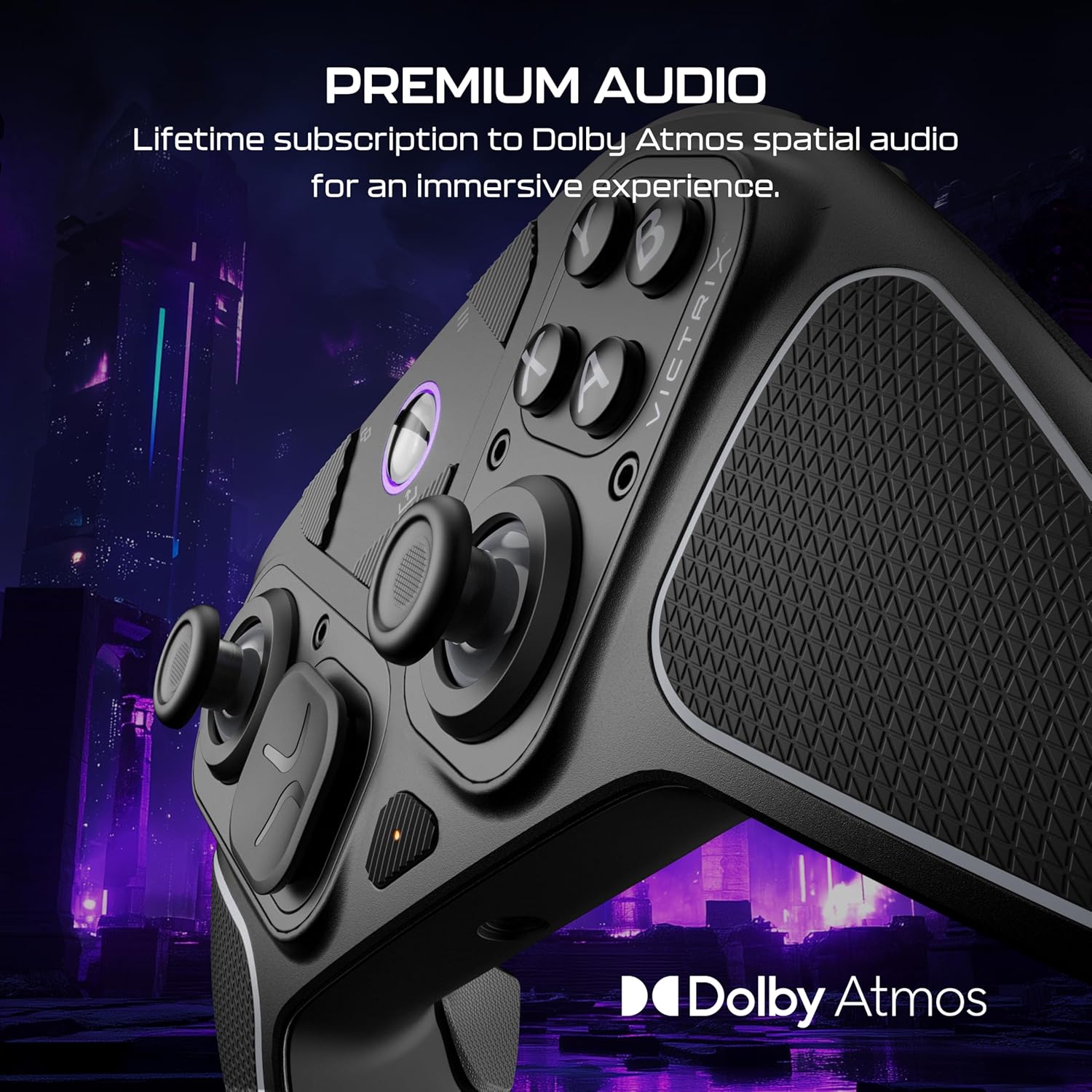
Image: The Victrix Pro BFG Reloaded controller disassembled, showing the main body, the left and right modular sections, the Fightpad module, various thumbstick caps, D-pads, and gates. This illustrates the extensive customization options available.
4.2 Hall-Effect Thumbsticks and D-Pads
The controller includes Hall-Effect thumbsticks for drift-free precision. Various thumbstick caps (standard, dome, sniper) and D-pads are provided to suit different gaming genres and preferences. To change, gently pull off the existing component and press the new one into place.

Image: A detailed view of the controller's left and right thumbsticks, highlighting the Hall-Effect technology for enhanced precision and durability.
4.3 Fightpad Module
The ergonomically enhanced 6-button Fightpad module with Kailh microswitches can be swapped into the right module slot for fighting game enthusiasts. Use the customization tool to carefully remove the standard right module and install the Fightpad module.

Image: The controller configured with the 6-button Fightpad module on the right side, designed for precise inputs in fighting games.
4.4 5-Stop Hall-Effect Clutch Triggers
The patented 5-stop Hall-Effect Clutch Triggers offer adjustable sensitivity, including a Hair-Trigger mode for faster reaction times in FPS games. Adjust the physical switches located on the underside of the controller to set your preferred trigger travel distance.

Image: A view of the controller's underside, highlighting the adjustable 5-stop Hall-Effect clutch triggers and their adjustment mechanisms.
4.5 Mappable Quick-Action Back Buttons
The controller features four mappable quick-action back buttons. These can be programmed for various functions to provide faster response times and enhanced control. Refer to the Victrix Control Hub App section for mapping instructions.
5. Operating the Controller
5.1 Power On/Off
To power on the controller, press the Xbox button. To power off, press and hold the Xbox button for several seconds until the controller shuts down.
5.2 Victrix Control Hub App
The free Victrix Control Hub app (available on Xbox and PC) allows for advanced customization:
- Remap buttons
- Adjust deadzones
- Optimize triggers
- Adjust EQ settings for audio
- Run diagnostics
- Update firmware
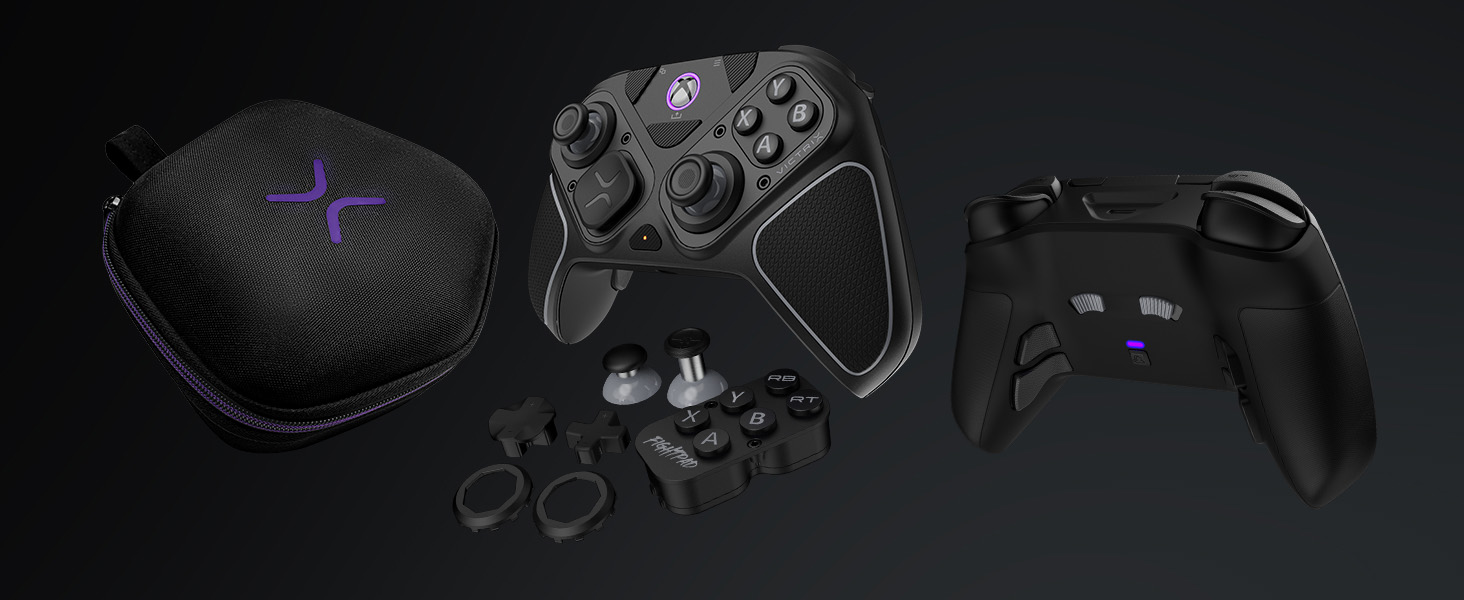
Image: A digital interface displaying the Victrix Control Hub app, which allows users to configure various controller settings such as button mapping, audio, and diagnostics.
5.3 Dolby Atmos Audio
The controller supports Dolby Atmos spatial audio through its 3.5mm headset jack, providing an immersive sound experience. A lifetime subscription to Dolby Atmos is included. Connect a compatible headset to the 3.5mm jack on the controller.
6. Maintenance
6.1 Cleaning
Use a soft, dry cloth to clean the controller. For stubborn dirt, a slightly damp cloth can be used, but ensure no moisture enters openings. Avoid harsh chemicals or abrasive materials.
6.2 Storage
Store the controller in its included carrying case when not in use to protect it from dust, spills, and physical damage. Avoid storing in extreme temperatures or direct sunlight.
6.3 Battery Care
To prolong battery life, avoid fully discharging the controller frequently. Charge the controller regularly, even if not in constant use. If storing for an extended period, charge the battery to approximately 50%.
7. Troubleshooting
7.1 Connection Issues
- Wireless (USB Transmitter): Ensure the transmitter is securely plugged in and the controller is within range (up to 30 feet). Try re-pairing by pressing the sync button on both the controller and transmitter.
- Bluetooth: Ensure Bluetooth is enabled on your device and the controller is in pairing mode. Forget the device on your system and attempt to re-pair.
- Wired: Verify the USB-C cable is fully inserted into both the controller and the console/PC. Try a different USB port or cable.
7.2 Input or Drift Issues
The Hall-Effect technology minimizes drift. If you experience input issues, ensure all modular components are securely seated. Use the Victrix Control Hub app to calibrate thumbsticks and adjust deadzones.
7.3 Audio Problems
Ensure your headset is fully plugged into the 3.5mm jack. Check audio settings on your console/PC and within the Victrix Control Hub app. Verify Dolby Atmos is correctly configured.
7.4 Controller Not Responding
Try resetting the controller by holding the Xbox button for 10-15 seconds. If the issue persists, connect the controller via USB-C cable to check if it functions in wired mode. Ensure the battery is charged.
8. Technical Specifications
| Model Number | TBC-2101-05 |
| Compatibility | Xbox Series X|S, Xbox One, PC (Wireless & Wired); Mobile, Smart TVs, Cloud Streaming Services (Bluetooth) |
| Connectivity | Low-latency Wireless (USB-A transmitter), Wired (3m braided USB-C cable), Bluetooth |
| Audio | 3.5mm 4-pole headset jack, Dolby Atmos support (lifetime subscription included) |
| Battery | 2000mAh Lithium Ion (up to 20 hours per charge) |
| Dimensions (Controller) | 6.3” x 4.1” x 2.4” (160mm x 105mm x 60mm) |
| Weight | 9.3 ounces (264 grams) |
9. Warranty and Support
For warranty information and technical support, please visit the official Turtle Beach website or contact their customer service. Keep your proof of purchase for warranty claims.
Online Support: www.turtlebeach.com/pages/support


