
Introduction
This manual provides comprehensive instructions for the LogiLink AA0187 2.4GHz Wireless Gaming Controller. It covers setup, operation, maintenance, troubleshooting, and technical specifications. Please read this manual carefully before using the device to ensure proper functionality and longevity.

Image: The LogiLink AA0187 wireless gaming controller, shown with its included USB-A receiver and USB-C adapter.
Setup Instructions
1. Battery Installation
- Locate the battery compartment on the back of the controller.
- Open the battery cover.
- Insert two AAA batteries, ensuring correct polarity (+/-).
- Close the battery cover securely.

Image: A detailed view of the controller's back, highlighting the battery compartment for AAA batteries.
2. Connecting the Receiver
The LogiLink AA0187 controller uses a 2.4 GHz wireless connection via a USB receiver.
- Identify the appropriate USB port on your device (PC, Android TV box, PS3).
- For devices with a standard USB-A port, plug the USB-A receiver directly into the port.
- For devices with a USB-C port (e.g., some Android smartphones/tablets), attach the included USB-C adapter to the USB-A receiver, then plug the adapter into the USB-C port. Ensure your Android device supports OTG (On-The-Go) functionality.
- The system should automatically detect and install the necessary drivers.
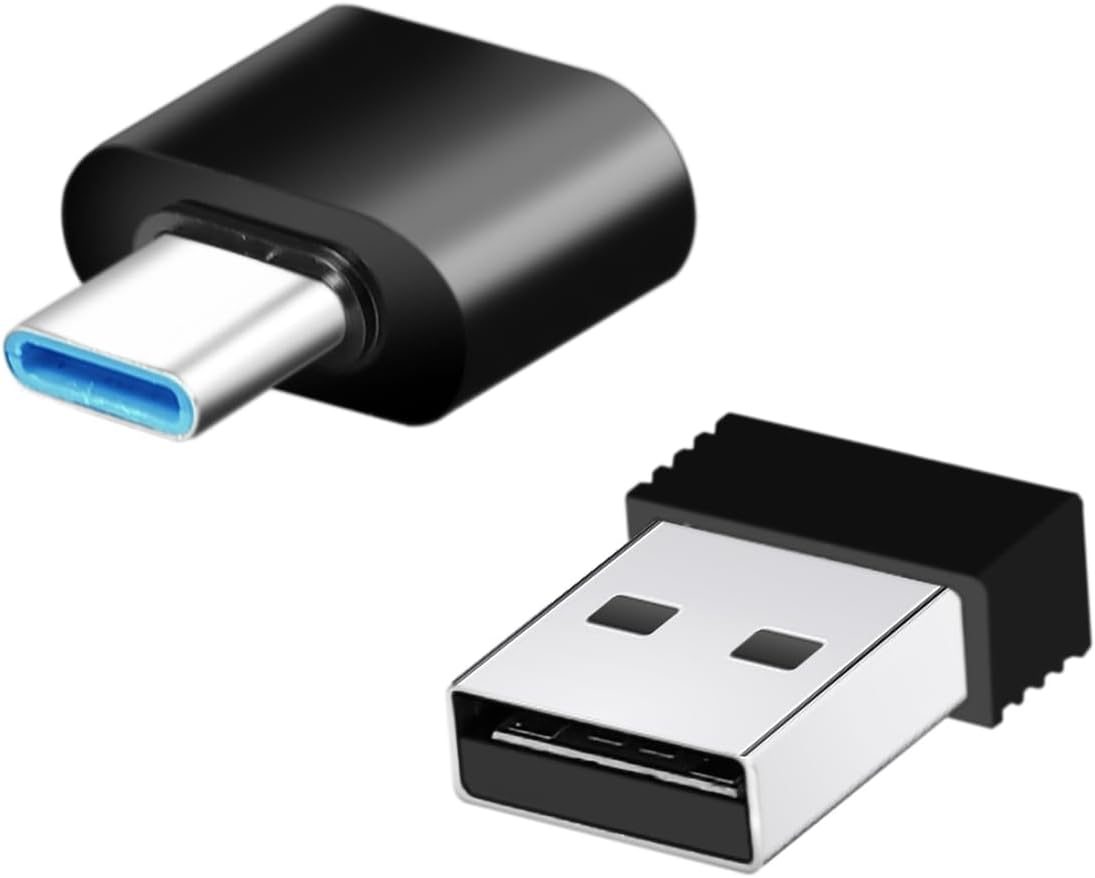
Image: The USB-A wireless receiver and the USB-C adapter, used for connecting the controller to various devices.
3. Powering On the Controller
Once batteries are installed and the receiver is connected, press the MODE button on the controller to power it on. The Power LED indicator should illuminate, indicating a successful connection.
Operating Instructions
Controller Layout
Image: A diagram illustrating the various buttons and components of the LogiLink AA0187 controller, including joysticks, D-pad, function buttons, and shoulder buttons.
- Direction Pad (D-Pad): For directional input.
- Function Buttons (A, B, X, Y): Primary action buttons.
- Right/Left Rocker (Analog Joysticks): For precise 360° movement and camera control.
- START Button: Typically used to pause games or access menus.
- SELECT Button: Often used for secondary functions or menu navigation.
- MODE Button: Powers the controller on/off and may switch operating modes (if applicable).
- L1/R1 Buttons: Shoulder buttons, often used for actions like aiming or switching items.
- L2/R2 Buttons: Trigger buttons, often used for actions like firing or accelerating.
- LED Indicators: Show power status and connection mode.
Basic Usage
Once connected, the controller functions as a standard input device for compatible games and applications. Refer to your game's specific control settings for optimal configuration.
Maintenance
- Cleaning: Use a soft, dry cloth to clean the controller. Avoid using harsh chemicals or abrasive materials.
- Storage: Store the controller in a dry place away from direct sunlight and extreme temperatures. Remove batteries if the controller will not be used for an extended period to prevent leakage.
- Battery Care: Replace batteries when the controller's performance degrades or the power indicator shows low battery. Dispose of used batteries responsibly according to local regulations.
Troubleshooting
- Controller not connecting:
- Ensure batteries are correctly installed and have sufficient charge.
- Verify the USB receiver is securely plugged into the device.
- Try plugging the receiver into a different USB port.
- For Android devices, confirm OTG support and that the USB-C adapter is correctly used.
- Press the MODE button on the controller to attempt reconnection.
- Input lag or unresponsive buttons:
- Check battery level and replace if low.
- Ensure the controller is within the 8-meter wireless range of the receiver.
- Minimize interference from other 2.4 GHz wireless devices.
- Controller not recognized by game:
- Ensure the controller is connected and powered on.
- Check the game's settings for controller support and configuration options.
- Restart the game or the device.
Specifications
| Model Number | AA0187 |
| Connection Type | 2.4 GHz Wireless |
| Wireless Range | Up to 8 meters (in open area) |
| Frequency Range | 2408-2470 MHz |
| Max. Transmission Power | 3.21 mW |
| Power Supply | 2x AAA Batteries |
| Compatibility | Windows PC, Android smartphones/tablets/TV boxes/Smart TVs (Android requires OTG support), PlayStation 3 |
| Joysticks | Non-slip 360° analog joysticks |
| Included Accessories | 1x USB-A Receiver, 1x USB-C Adapter |
| Dimensions (approx.) | 15.7 cm (width) x 9.2 cm (height) x 6.2 cm (depth) |
| Weight (approx.) | 109 g (without batteries) |

Image: The controller shown with its approximate dimensions and icons indicating compatibility with Windows, Android, TV-Box, and PS3.
Warranty and Support
For warranty information and technical support, please refer to the documentation provided with your purchase or visit the official LogiLink website. Keep your proof of purchase for warranty claims.
For further assistance, you may contact LogiLink customer service through their official channels.
