
Introduction
The Wyze Lock Bolt v2 is a smart deadbolt lock designed for keyless entry using fingerprint recognition, keypad codes, or the Wyze app. It features an AI self-learning fingerprint scanner, built-in Wi-Fi connectivity for remote control, auto-lock functionality, and multiple backup options for secure and convenient access.
Setup
1. Unboxing and Components
Before installation, ensure all components are present. The package includes the Wyze Lock Bolt v2 unit and 8 AA batteries.

Image: The Wyze Lock Bolt v2 smart lock, showing the exterior keypad and fingerprint scanner, along with the interior unit. The image highlights key features like BHMA Grade 2 Security, 8-month battery life, 0.5-second fingerprint recognition, auto-lock with time delay, and Wi-Fi control & notifications.
2. Installation
Installation typically takes under 10 minutes with a Phillips head screwdriver. Follow the detailed instructions provided in the Wyze app for step-by-step guidance.
The lock is designed to replace a standard deadbolt. Ensure the door is prepared according to the app's instructions.
Video: A comprehensive instructional video demonstrating the complete installation process, app setup, and usage of the Wyze Lock Bolt v2. This video is provided by the seller, Honest Reviews.
3. App Setup and Calibration
Download the Wyze app from your device's app store. Follow the in-app instructions to add your new Wyze Lock Bolt v2. This process includes connecting the lock to your Wi-Fi network and calibrating the lock mechanism.
Video: A quick tour of the Wyze Lock Bolt v2 features, demonstrating how it works and providing an app demonstration. This video is provided by the seller, TheRoneZone.
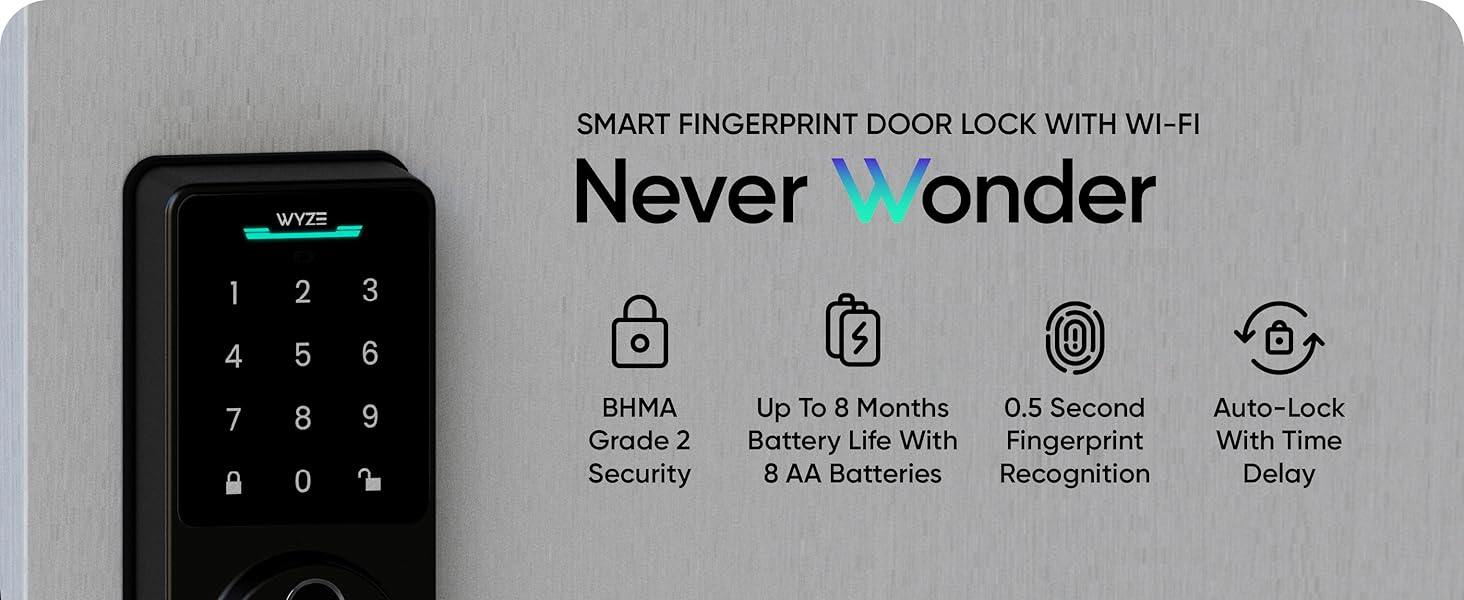
Image: An overview of the Wyze Lock Bolt v2, showing the lock installed on a door and highlighting its smart features and connectivity with the Wyze app.
Operating the Lock
1. Fingerprint Entry
The biometric fingerprint scanner allows for quick entry in approximately 0.5 seconds. The AI self-learning scanner improves recognition accuracy over time with each use. To use, place your registered finger on the scanner located below the keypad.

Image: A hand placing a finger on the fingerprint scanner of the Wyze Lock Bolt v2, illustrating the fast and secure entry method. The image also shows icons for 0.5s door unlock and secure local data storage.

Image: A diagram illustrating the AI self-learning capability of the fingerprint scanner, showing how it logs pressure and angle with each scan (Scan 1, Scan 5, Scan 15, Scan 30) to improve accuracy over time.
2. Keypad Entry
Enter your unique access code on the numbered keypad. The lock supports up to 50 unique access codes. You can also create one-time guest passcodes that expire on a schedule.

Image: A person using the numbered keypad on the Wyze Lock Bolt v2. The image highlights the ability to set up to 50 unique codes for different users like babysitters, cleaners, dog walkers, and landscapers.
Anti-Peep Technology: To prevent others from guessing your code, you can enter extra random digits before or after your actual code. The lock will still recognize the correct sequence within the longer input.

Image: A hand pressing numbers on the Wyze Lock Bolt v2 keypad, demonstrating the anti-peep technology. A graphic overlay shows how random digits can be added before or after the correct password, and the lock will still unlock.
3. Wyze App Control
With built-in Wi-Fi, you can control and monitor your lock remotely using the Wyze app. Features include remote lock/unlock, viewing access history, setting access schedules, and customizing lock notifications.

Image: A smartphone displaying the Wyze app interface, showing various control options for the smart lock, including keyless entry, creating codes, auto-lock timers, viewing history, setting access schedules, and remote lock/unlock.
Video Doorbell Integration: If you have a Wyze Video Doorbell, you can lock and unlock your door directly from the live feed within the Wyze app.

Image: A visual representation of the Wyze Lock Bolt v2 integrating with Wyze Video Doorbells, allowing users to lock and unlock the door directly from the doorbell's live view in the app.
4. Auto-Lock Feature
The auto-lock feature automatically locks the door after a set period of time. You can configure the delay settings within the Wyze app.

Image: A smartphone screen showing the Wyze app's auto-lock settings, with an option to enable auto-lock and set a time delay (e.g., 15 seconds). The image also shows a notification indicating the front door has been automatically locked.
5. Manual Key Option
For traditional access, a mechanical lock and physical keys are included. This provides a reliable backup entry method.

Image: A hand inserting a physical key into the keyhole of the Wyze Lock Bolt v2, demonstrating the manual key override option.
Maintenance
1. Battery Replacement
The Wyze Lock Bolt v2 operates on 8 AA batteries (included), providing up to 8 months of battery life. The Wyze app will notify you when battery levels are low. To replace, remove the battery cover on the interior unit and insert new AA batteries, ensuring correct polarity.
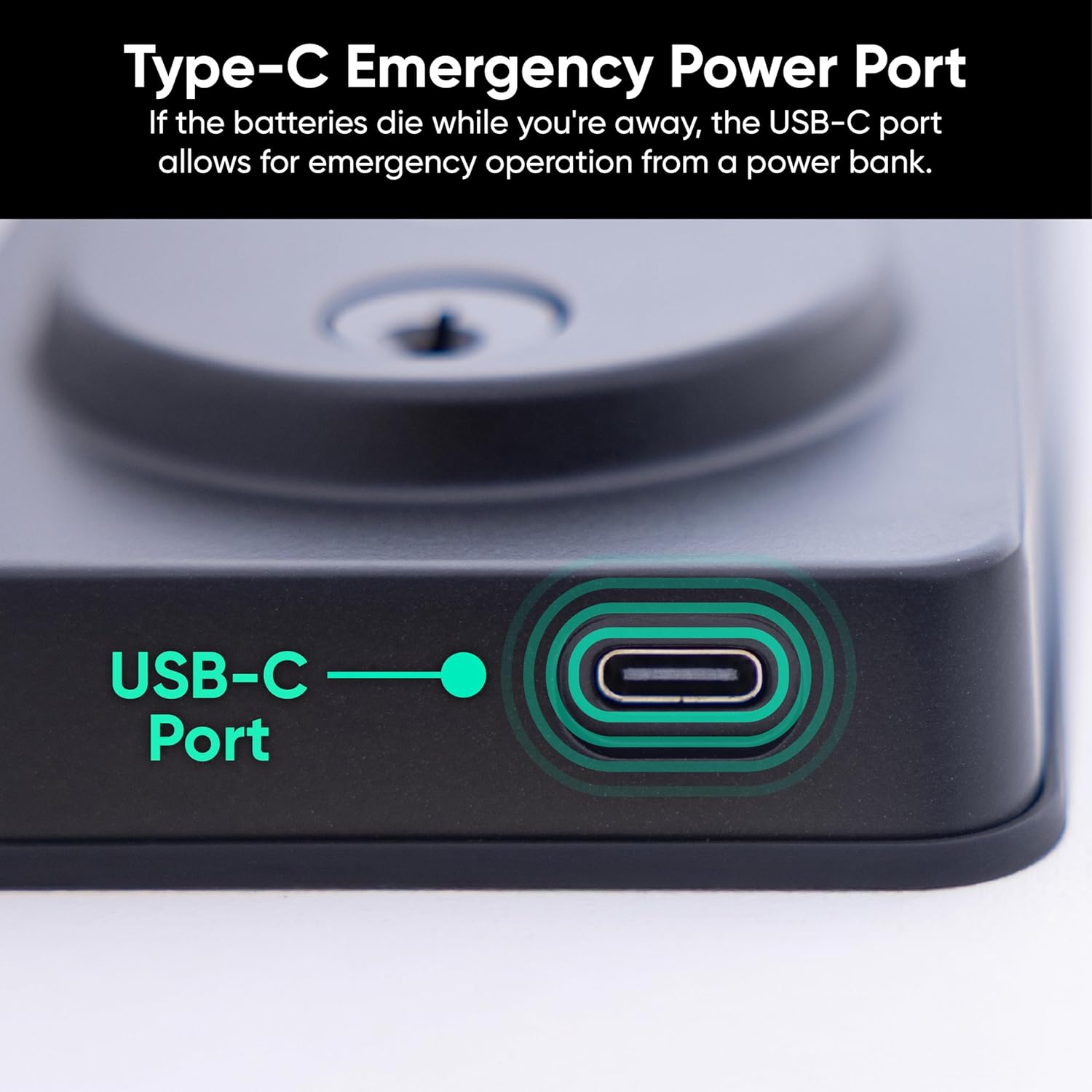
Image: The interior view of the Wyze Lock Bolt v2, showing the battery compartment with 8 AA batteries installed. Text indicates "8 AA Batteries (included)" and "8 Month Battery Life."
2. Emergency Power
In case the batteries completely drain while you are away, the lock features a USB-C port for emergency power. Connect a common power bank to this port to temporarily power the lock and gain entry.

Image: A close-up view of the USB-C emergency power port located on the bottom of the Wyze Lock Bolt v2 exterior unit, highlighted with a green circle.
Troubleshooting
1. Lock Not Responding
- Check battery levels in the Wyze app. Replace batteries if low.
- Ensure the lock is within Wi-Fi range and connected to your network.
- Attempt to power the lock using the USB-C emergency port with a power bank.
2. Fingerprint Not Recognized
- Ensure your finger is clean and dry.
- Try repositioning your finger on the scanner.
- Re-register your fingerprint in the Wyze app if issues persist.
3. Keypad Not Working
- Verify the access code is correct.
- Check if the keypad is disabled due to multiple incorrect attempts (indicated by a red flash). Wait for the lockout period to end.
- Ensure the keypad surface is clean.
4. Tamper and Jam Alarms
The lock is equipped with tamper and jam alarms. An alarm will sound if it detects tampering from excessive incorrect unlock attempts or if the lock mechanism jams. Notifications will be sent to your Wyze app.

Image: A person attempting to tamper with the Wyze Lock Bolt v2, triggering an alarm. The image shows app notifications for "Password entered incorrectly" and "Door jammed," indicating the lock's security features.
Specifications
| Feature | Detail |
|---|---|
| Brand | WYZE |
| Model Number | WLCKB2 |
| Lock Type | Biometric, Deadbolt, Keypad |
| Special Feature | Auto-Lock |
| Material | Aluminum, Glass |
| Connectivity Protocol | Wi-Fi |
| Control Method | Voice (via Smart Home Integration) |
| Power Source | 8 AA Batteries (included) |
| Battery Life | Up to 8 months |
| Emergency Power | USB-C Port |
| Dimensions (L x W x H) | 7.09 x 2.93 x 1.41 inches |
| Weight | 1.47 kg |
| Weather Resistance | IP53 Rated |
| Durability Certification | BHMA2 Certified |

Image: The Wyze Lock Bolt v2 shown with water droplets, illustrating its weather resistance. The image also highlights its BHMA Certified status and icons representing various weather conditions (rain, snow, sun).
Warranty Information
A warranty document for the Wyze Lock Bolt v2 is available. For detailed terms and conditions, please refer to the official warranty PDF.
Support
For further assistance, frequently asked questions, or to contact customer support, please visit the official WYZE support website.
The Wyze Lock Bolt v2 supports integration with smart home systems like Amazon Alexa and Google Assistant for voice control.

Image: A smart home setup showing a Wyze Lock Bolt v2 integrated with voice assistants like Amazon Alexa and Google Assistant, demonstrating voice control functionality.


