
Product Overview
This manual provides instructions for the WonVon 5 Inch Motorcycle Carplay GPS Navigation System. This device offers seamless integration with Apple CarPlay and Android Auto, providing navigation, communication, and entertainment features for motorcycle riders. Its rugged, waterproof design ensures reliable performance in various conditions.

The WonVon 5 Inch Motorcycle Carplay GPS Navigation System displaying its main interface with options for Apple CarPlay and Android Auto.
Package Contents
Verify that all items are present in the package:
- 5 Inch Motorcycle Carplay Unit
- Mounting Bracket
- Power Cable
- Open-end Wrench
- User Manual

Image showing the complete installation kit, including the main unit, mounting bracket, power cable, and tools.
Setup and Installation
Mounting the Device
The device features a robust handlebar mounting system designed for secure attachment.
Official video demonstrating the installation of the bracket and how it can be rotated for optimal viewing angle.
- Secure the U-bolt bracket around your motorcycle's handlebars. Use the provided nuts and wrench to tighten it firmly. Ensure the rubber bumper is used to protect the handlebars from scratches.
- Attach the ball mount to the U-bolt bracket.
- Connect the device to the ball mount and adjust the viewing angle. Tighten the hand-screw mount to secure the device in place.

Detailed steps for installing the bracket onto the motorcycle handlebars.
Power Connection
Connect the power cable to your motorcycle's power source. The red wire connects to ACC (Accessory power, typically switched with ignition) and the black wire connects to GND (Ground, typically to the battery negative terminal).

Diagram illustrating the power cable connection to the motorcycle's electrical system.
Operating Instructions
Wireless CarPlay and Android Auto Connection
The device supports wireless Apple CarPlay and Android Auto for seamless smartphone integration.
The device's main screen showing options for connecting to Apple CarPlay or Android Auto.
For Apple CarPlay:
- Turn on Bluetooth and Wi-Fi on your iPhone.
- On the device, select the CarPlay option.
- Search for the device's Bluetooth name on your iPhone and pair. Confirm the pairing code displayed on both screens.
- Once connected, your iPhone's CarPlay interface will appear on the device.

Visual guide for connecting an iPhone to the device via Wireless Apple CarPlay.
For Android Auto:
- Turn on Bluetooth and Wi-Fi on your Android smartphone.
- On the device, select the Android Auto option.
- Search for the device's Bluetooth name on your Android phone and pair. Confirm the pairing code.
- Once connected, your Android Auto interface will appear on the device.

Visual guide for connecting an Android phone to the device via Wireless Android Auto.
Navigation and Voice Control
Utilize your preferred navigation apps (e.g., Google Maps, Waze) directly on the device. Voice commands via Siri or Google Assistant are supported for hands-free operation.

The device showing GPS navigation with examples of voice commands for Siri and Google Assistant.
Music Playback
Stream music from your smartphone through the device. Connect a Bluetooth headset or helmet for audio output.
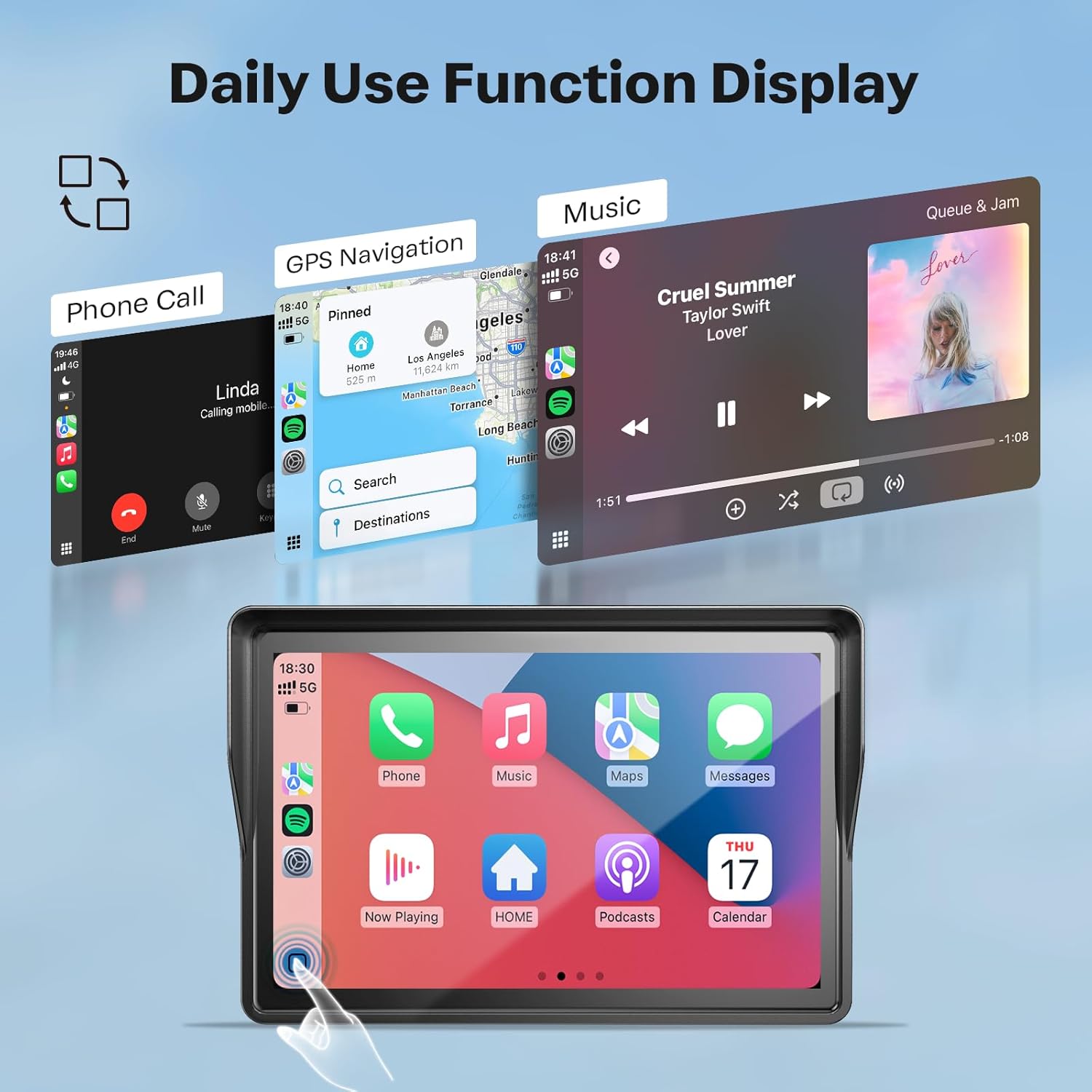
The device's screen showing the music playback interface, including track information and controls.
Split Screen Function
Display navigation and music simultaneously for enhanced convenience during your ride.

The device displaying both navigation and music playback on a split screen.
Day & Night Mode
The device features adjustable brightness and a day/night mode for optimal visibility in varying light conditions. Manual adjustment may be required in strong sunlight.
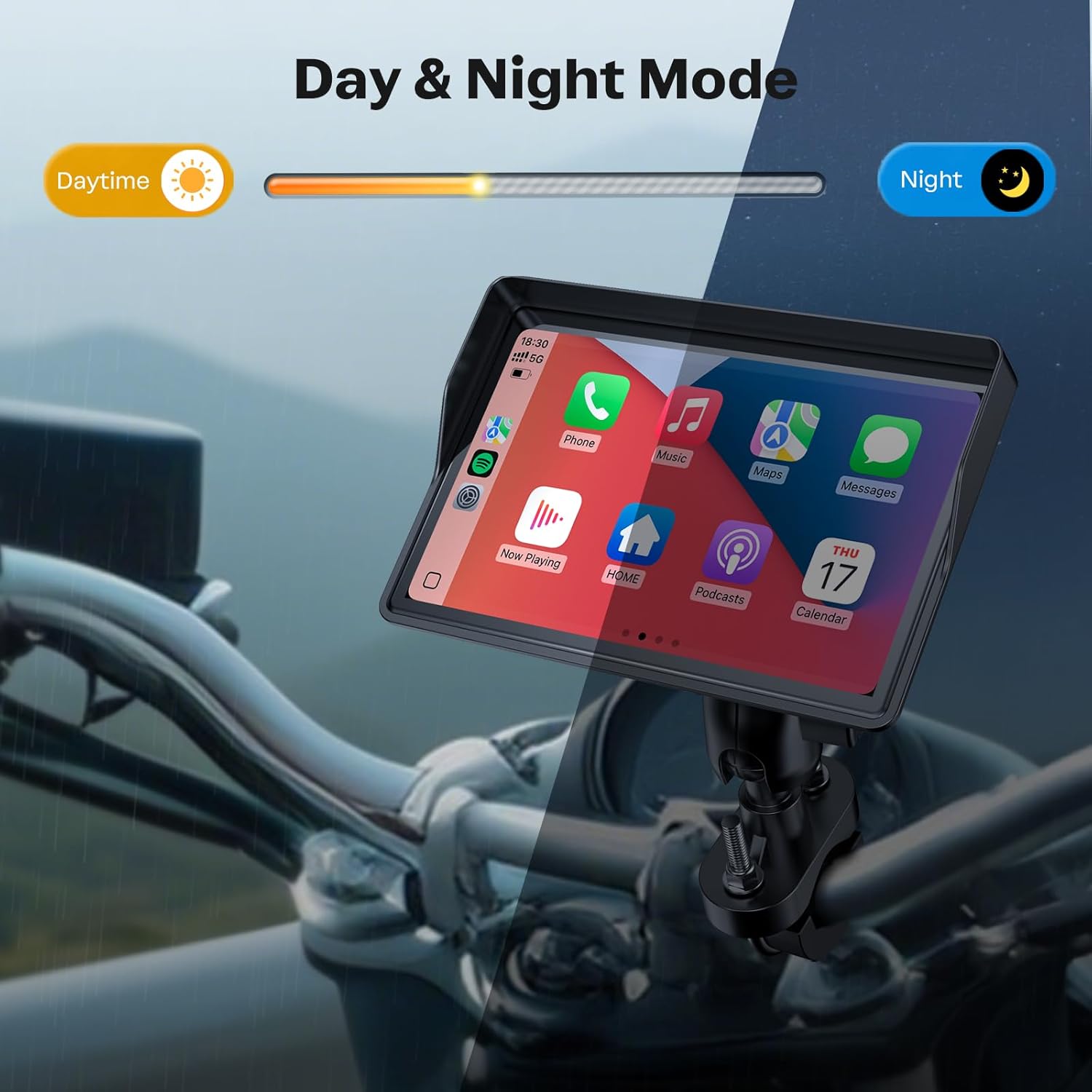
Illustration of the device's day and night display modes for improved visibility.
Bluetooth Audio Control
Connect your Bluetooth headset or helmet for calls, music, and navigation while riding. This allows for hands-free communication and audio streaming.

Diagram illustrating the Bluetooth audio connection flow from smartphone to device and then to a helmet or headset.
Note: Ensure your Bluetooth headset or helmet has microphones for phone calls and voice controls.
TPMS Support
The device supports Tire Pressure Monitoring System (TPMS) functionality. TPMS accessories are not included and must be purchased separately.
Key Features
- 5-Inch IPS Display: Crisp 854x480 resolution, anti-glare, sunlight readable, glove-friendly operation.
- IP67 Waterproof: Ensures durability and reliable function in rain, dust, and mud.
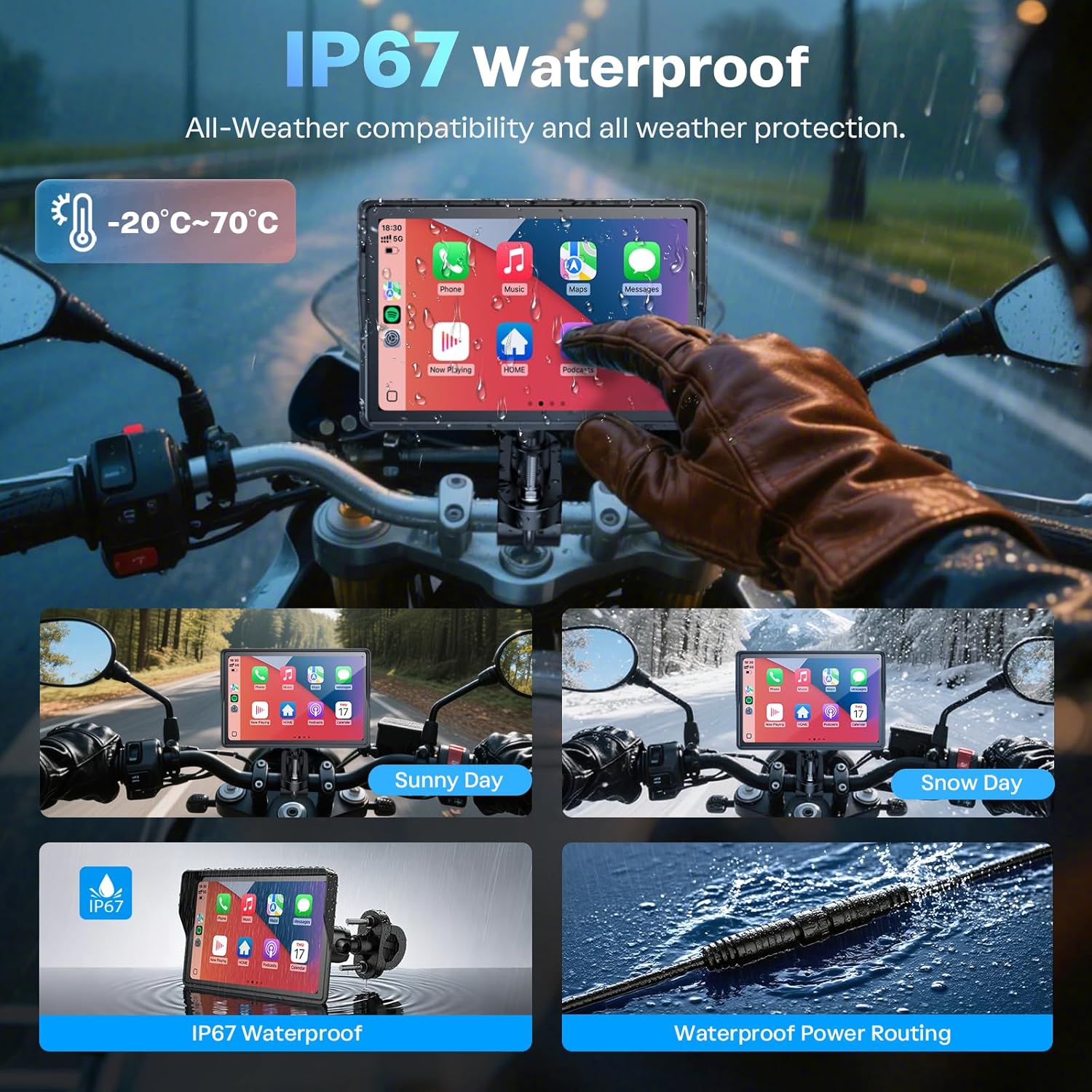
The device showcasing its IP67 waterproof rating, suitable for all-weather use.
- Dual Bluetooth: For stable connections with headsets and smartphones.
- Global Language & Voltage Support: Supports 11 languages and 12-24V input.
- Wide Compatibility: Designed for various motorcycles, ATVs, and side-by-sides.

Image illustrating the broad compatibility of the device with different types of motorcycles and powersports vehicles.
- Anti-Glare Design: Reduces reflections for better screen visibility in bright conditions.

The device mounted on a motorcycle, highlighting its anti-glare screen design for improved visibility in sunlight.
Product Specifications
| Feature | Detail |
|---|---|
| Product Dimensions | 8.56 x 3.89 x 4 inches |
| Item Weight | 1.06 pounds |
| Screen Size | 5 Inches |
| Operating System | Linux |
| Connectivity Technology | Bluetooth |
| Special Features | Bluetooth, Touchscreen, Waterproof |
| Vehicle Service Type | Motorcycle |
| Mounting Type | Handlebar Mount |
Troubleshooting
Device Not Powering On
- Check all power connections to ensure they are secure and correctly wired to the motorcycle's battery (ACC and GND).
- Verify the motorcycle's battery has sufficient charge.
- Inspect the power cable for any visible damage.
Cannot Connect to CarPlay/Android Auto
- Ensure Bluetooth and Wi-Fi are enabled on your smartphone.
- Restart both the device and your smartphone.
- Forget the device from your phone's Bluetooth settings and attempt to pair again.
- Make sure the device is set to the correct mode (CarPlay or Android Auto).
Screen Visibility Issues
- Adjust the screen brightness manually through the device settings.
- Position the device to minimize direct sunlight glare. The anti-glare design helps, but extreme conditions may still affect visibility.
Audio Problems
- Ensure your Bluetooth headset or helmet is properly paired and connected to the device.
- Check the volume levels on both the device and your headset/helmet.
- Verify that your headset/helmet has a working microphone for calls and voice commands.
Maintenance
- Cleaning: Use a soft, damp cloth to clean the screen and device housing. Avoid abrasive cleaners or solvents.
- Storage: When not in use for extended periods, store the device in a cool, dry place.
- Cable Inspection: Periodically check all cables for wear, fraying, or damage. Replace any damaged cables immediately.
- Firmware Updates: Check the manufacturer's website for any available firmware updates to ensure optimal performance and new features.
Warranty and Support
The WonVon 5 Inch Motorcycle Carplay GPS Navigation System comes with a 12-month warranty.
Lifetime technical support is available.
For customer service, replacement guarantees, or technical assistance, please contact WonVon customer support. Responsive email support is typically provided within 24 hours.

Image detailing customer support information, including response times and warranty period.