
1. Product Overview
This manual provides essential information for the installation, operation, and maintenance of your SOYO Geforce GTX750Ti Graphics Card. Please read it carefully before use.
The SOYO Geforce GTX750Ti Graphics Card features 4GB GDDR5 memory and a 128-bit interface, designed for efficient data transfer and gaming performance. Built on a 28nm process, it balances power and efficiency. It includes HDMI, DVI, and VGA connectors for versatile display options and utilizes a PCI Express X16 3.0 bus interface for stable data transfer.
An efficient cooling system maintains optimal temperatures, and the card supports DirectX 12, OpenGL 4.6, and Vulkan for advanced graphics capabilities.
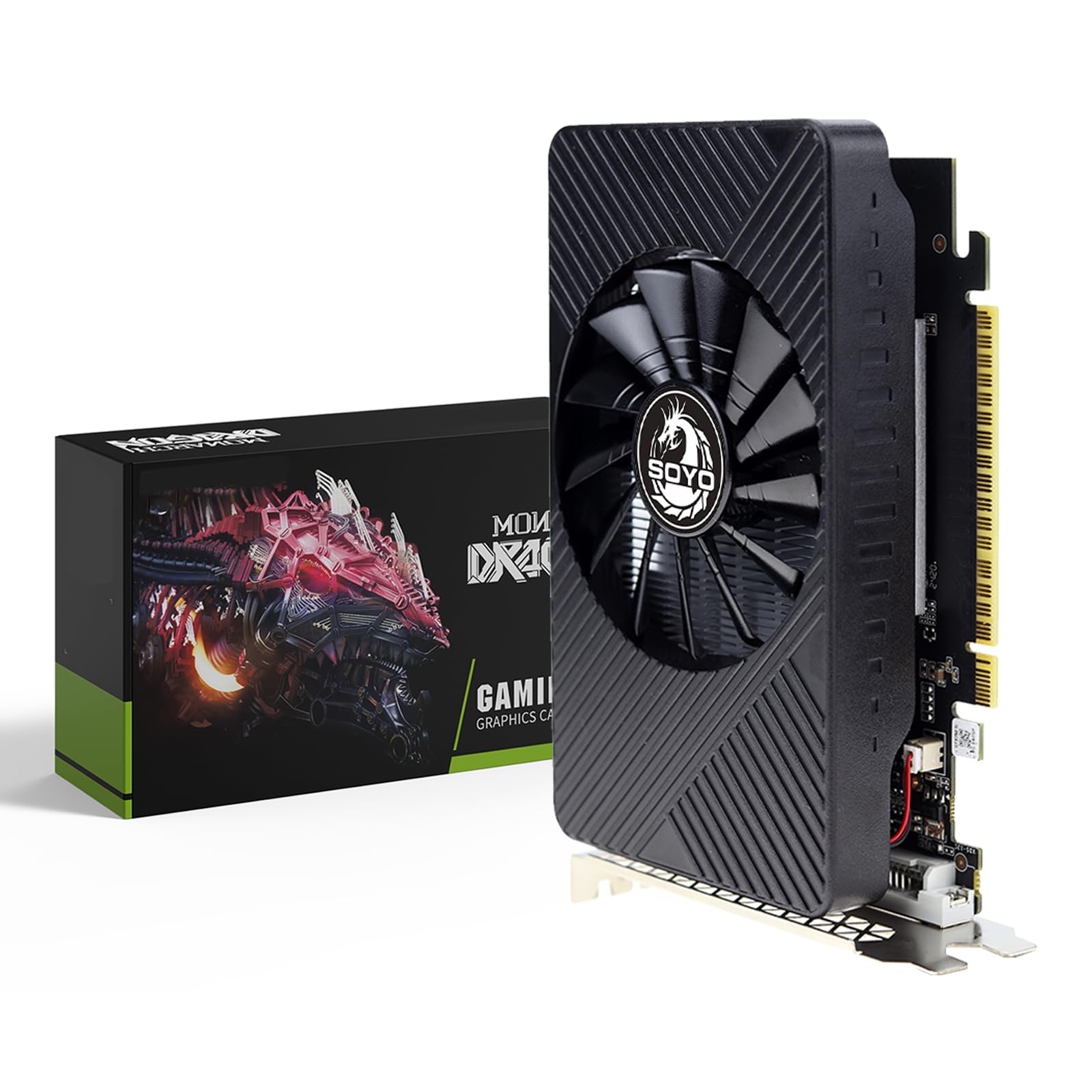
Image 1.1: Front view of the SOYO Geforce GTX750Ti Graphics Card, showcasing its single fan cooling system.
2. Installation Guide
2.1 System Requirements
- PCI Express x16 slot on motherboard
- Compatible motherboard with an available PCI Express x16 slot
- Adequate power supply unit (PSU)
- Compatible operating system (e.g., Windows 7/8/10/11 64-bit)
2.2 Physical Installation
- Power Off: Completely shut down your computer and unplug the power cord from the wall outlet.
- Open Case: Open your computer's side panel to access the motherboard.
- Locate Slot: Identify an available PCI Express x16 slot on your motherboard.
- Remove Cover: Carefully remove the metal slot cover from the back of your computer case corresponding to the chosen PCI Express x16 slot.
- Insert Card: Align the graphics card with the PCI Express x16 slot and press it down firmly until it is securely seated. You should hear a click from the slot's retention clip.
- Secure Card: Secure the graphics card to the computer case using the screw or latch mechanism.
- Close Case: Replace the computer's side panel.
- Connect Displays: Connect your monitor(s) to the graphics card's output ports (HDMI, DVI, or VGA).
- Power On: Plug the power cord back into the wall outlet and power on your computer.

Image 2.1: The graphics card features HDMI, VGA, and DVI output ports for connecting various display types.
2.3 Driver Installation
- Boot OS: Allow your computer to boot into the operating system. The system may install a generic display driver automatically.
- Download Drivers: Visit the official NVIDIA website or SOYO's support page to download the latest graphics drivers for the Geforce GTX750Ti.
- Run Installer: Execute the downloaded driver installer and follow the on-screen prompts. It is recommended to perform a clean installation.
- Restart: Restart your computer after the driver installation is complete to apply all changes.
3. Operation
3.1 Connecting Displays
Connect your monitor(s) to the available HDMI, DVI, or VGA ports on the graphics card. Ensure the cables are securely fastened.
3.2 Multi-Monitor Setup
The SOYO Geforce GTX750Ti supports multiple displays. After connecting your monitors, you can configure their arrangement and display modes (e.g., extended desktop, duplicate displays) through your operating system's display settings or the NVIDIA Control Panel.

Image 3.1: The graphics card supports connecting to multiple monitors simultaneously for an expanded workspace or gaming experience.
3.3 Software Configuration
The NVIDIA Control Panel, installed with the drivers, allows you to fine-tune various graphics settings, including resolution, refresh rate, 3D settings, and color adjustments, to optimize your visual experience.
4. Maintenance
4.1 Cleaning
To ensure optimal performance and longevity, regularly clean the graphics card. With the computer powered off and unplugged, use compressed air to remove dust from the fan blades and heatsink fins. Avoid touching components directly.
4.2 Driver Updates
Periodically check for and install the latest graphics drivers from the NVIDIA website. Driver updates often include performance improvements, bug fixes, and compatibility enhancements for new games and applications.
5. Troubleshooting
5.1 Common Issues and Solutions
- No Display Output:
- Ensure the graphics card is fully seated in the PCI Express slot.
- Verify that all display cables are securely connected to both the graphics card and the monitor.
- Check if your monitor is set to the correct input source (HDMI, DVI, VGA).
- Try connecting the monitor to a different output port on the graphics card or using a different cable.
- Display Artifacts or Distortion:
- Update your graphics drivers to the latest version.
- Ensure proper airflow within your computer case to prevent overheating.
- Important Note: Avoid using signal conversion adapters (e.g., HDMI-DVI, HDMI-VGA, DP-VGA) as they can cause artifacts, black screens, or no image. It is recommended to use direct HDMI, DVI, or VGA connections for better compatibility and stability.
- Poor Gaming Performance:
- Ensure your graphics drivers are up to date.
- Check your system's CPU and RAM usage during gaming.
- Adjust in-game graphics settings to a lower preset.
6. Technical Specifications

Image 6.1: Key technical parameters of the SOYO Geforce GTX750Ti Graphics Card.
| Feature | Specification |
|---|---|
| Model Name | GTX750Ti |
| Graphics Coprocessor | NVIDIA GeForce GTX 750 TI |
| Graphics RAM Size | 4 GB |
| Graphics RAM Type | GDDR5 |
| Memory Clock Speed | 5000 MHz |
| Video Output Interface | DVI, HDMI, VGA |
| Graphics Card Interface | PCI-Express x16 |
| Number of Fans | 1 |
| Display Maximum Resolution | 3840 x 2160 |
| Compatible Devices | Desktop |

Image 6.2: Physical dimensions of the SOYO Geforce GTX750Ti Graphics Card.
7. Warranty and Support
For warranty information, technical assistance, and customer support, please refer to the official SOYO website or contact your authorized retailer. It is recommended to keep your proof of purchase for any warranty claims.