
1. Introduction
This manual provides essential information for the safe and efficient operation of your FASTWD Android 15 Tablet 11-inch. Please read this manual thoroughly before using the device and retain it for future reference. This tablet features an 11-inch 2K display, Android 15 operating system, Octa-Core processor, 36GB RAM, 256GB ROM (expandable up to 1TB), 4G LTE, and 5G WiFi connectivity.
2. Safety Information
- Do not expose the tablet to extreme temperatures, direct sunlight, or high humidity.
- Avoid dropping or subjecting the tablet to strong impacts.
- Use only approved chargers and accessories to prevent damage and ensure safety.
- Keep the tablet away from water and other liquids.
- Do not attempt to disassemble or repair the tablet yourself. Contact customer support for assistance.
- Dispose of the battery and device according to local regulations.
3. Package Contents
Upon opening your FASTWD Android 15 Tablet package, please verify that all the following items are included:
- FASTWD Tablet
- Bluetooth Keyboard
- Mouse
- Protective Case
- Stylus Pen
- Type-C Cable
- Charger
- User Manual

Image: The FASTWD Android 15 Tablet displayed with its full set of accessories, including the keyboard, mouse, protective case, stylus, and charging components.
4. Device Overview
The FASTWD Android 15 Tablet features a sleek metal body with an 11-inch 2K INCell display. It is designed for both productivity and entertainment.
4.1 Physical Features
- Display: 11-inch 2K UHD INCell display with 120Hz refresh rate.
- Cameras: 8MP front camera, 13MP rear camera with LED flash.
- Ports: USB Type-C port for charging and data transfer.
- Card Slot: Dual SIM card slot, also supports MicroSD card expansion up to 1TB.
- Speakers: Four amplitude speakers for enhanced audio.

Image: A visual representation of the FASTWD tablet's slim design, 11-inch screen, and Type-C charging port.
5. Setup
5.1 Initial Power On
- Press and hold the Power button located on the side of the tablet until the FASTWD logo appears.
- Follow the on-screen prompts to select your language, region, and connect to a Wi-Fi network.
- Sign in with your Google account or create a new one to access the Google Play Store and other services.
5.2 SIM Card and MicroSD Card Installation
Your tablet supports dual SIM cards for 4G LTE connectivity and a MicroSD card for expanded storage.
- Locate the SIM/MicroSD card tray on the side of the tablet.
- Use the provided SIM ejector tool to gently push into the small hole next to the tray until it pops out.
- Place your Nano-SIM card(s) and/or MicroSD card into the designated slots on the tray. Ensure they are correctly oriented.
- Carefully reinsert the tray into the tablet until it clicks into place.

Image: A detailed view of the tablet's SIM card tray, showing slots for two SIM cards and one MicroSD card.
6. Operating Instructions
The FASTWD tablet runs on Android 15, offering an intuitive and customizable user experience.
6.1 Basic Navigation
- Swipe Up: Access the app drawer.
- Swipe Down: Open the notification panel and quick settings.
- Tap: Select items or open applications.
- Long Press: Access contextual menus or move icons.
- Pinch-to-Zoom: Adjust zoom level in apps like browser or gallery.
6.2 Android 15 Features
Android 15 introduces several enhancements for privacy, security, and user experience:
- Improved Privacy Controls: Granular permissions for apps, allowing you to authorize access more precisely.
- AI Optimization: Intelligent AI features for improved performance and battery life.
- Gesture Navigation: New touch control gestures for a more fluid interaction.
- Global Dark Mode: System-wide dark theme for reduced eye strain and power consumption.
- Face Recognition Unlock: Securely unlock your tablet using facial recognition.
- Parental Controls: Manage screen time and app access for children.
- Split Screen: Use two applications simultaneously side-by-side.
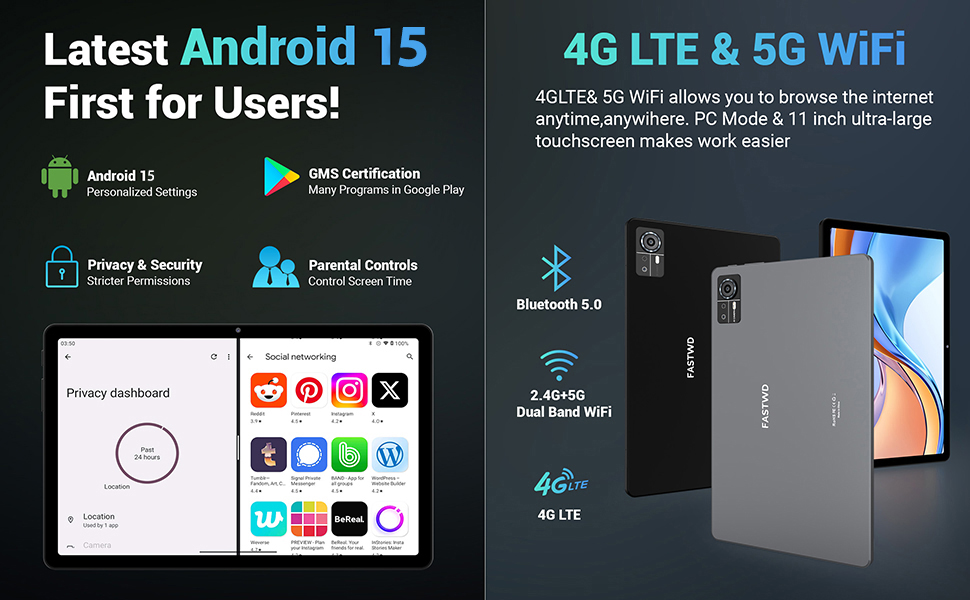
Image: A visual guide to key Android 15 features such as easy app pairing, storage management, quick Bluetooth connection, face recognition unlock, double-tap to wake, and parental control settings.
7. Connectivity
Your FASTWD tablet offers versatile connectivity options for internet access and peripheral devices.
7.1 Wi-Fi Connection
- Go to Settings > Network & internet > Wi-Fi.
- Toggle Wi-Fi On.
- Select your desired network from the list and enter the password if prompted.
- The tablet supports dual-band 2.4G/5G Wi-Fi for stable and fast connections.
7.2 4G LTE Mobile Data
With a compatible SIM card installed, you can access 4G LTE mobile data.
- Ensure your SIM card is correctly installed (refer to Section 5.2).
- Go to Settings > Network & internet > Mobile network.
- Enable Mobile data and configure APN settings if required by your carrier.
7.3 Bluetooth Pairing
Connect Bluetooth accessories like the included keyboard and mouse.
- Go to Settings > Connected devices > Bluetooth.
- Toggle Bluetooth On.
- Put your Bluetooth accessory into pairing mode.
- Select the accessory from the list of available devices and follow any on-screen prompts to complete pairing.
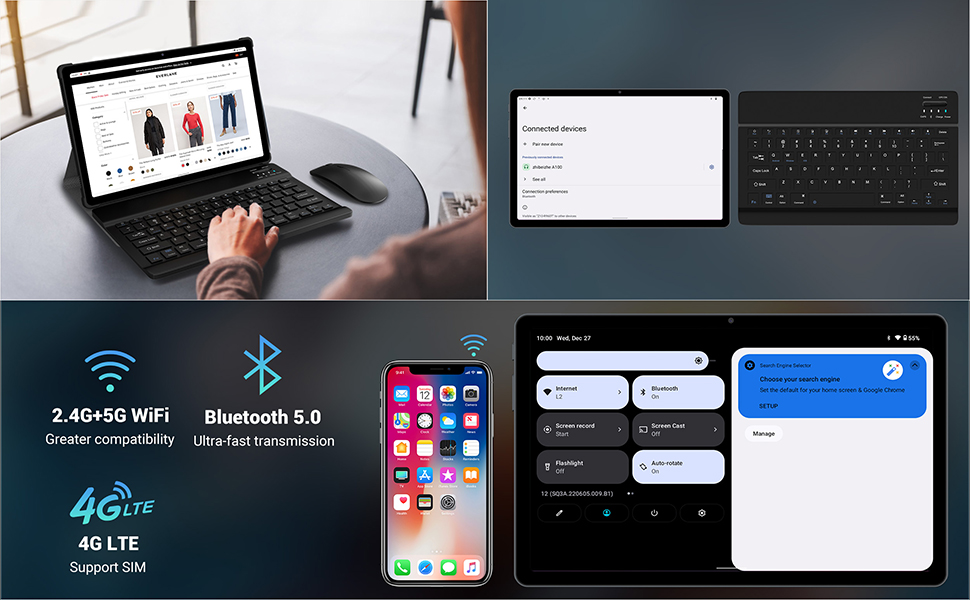
Image: The FASTWD tablet connected to its keyboard and mouse, illustrating its 2.4G+5G WiFi, Bluetooth 5.0, and 4G LTE SIM support for comprehensive connectivity.
8. Camera
The tablet is equipped with an 8MP front camera and a 13MP rear camera for photos and video calls.
- Open the Camera application.
- Tap the shutter button to take a photo.
- Switch between front and rear cameras using the camera toggle icon.
- AI post-processing technology enhances photo quality, making images more realistic.

Image: A detailed view of the tablet's rear camera, highlighting its 13MP sensor and AI Camera branding.
9. Battery Management
The tablet features a 9580mAh battery for extended usage and supports 12W fast charging.
9.1 Charging the Tablet
- Connect the Type-C cable to the tablet's charging port.
- Plug the other end of the cable into the provided charger, and then into a power outlet.
- The battery icon on the screen will indicate charging status.
9.2 Battery Optimization
- Adjust screen brightness to a comfortable level.
- Close unused applications running in the background.
- Enable battery saver mode in Settings > Battery.
- Disable Wi-Fi, Bluetooth, or GPS when not in use.

Image: The FASTWD tablet connected to a Type-C charger, illustrating its 9580 mAh battery and 12W fast charging capability.
10. Storage
The tablet comes with 256GB of internal storage (ROM) and supports expansion up to 1TB via a MicroSD card.
10.1 Managing Storage
- To check storage usage, go to Settings > Storage.
- You can free up space by uninstalling unused apps, deleting old files, or moving media to a MicroSD card.
10.2 RAM Management
The tablet features 36GB RAM (12GB LPDDR4 + 24GB expandable virtual memory) for smooth multitasking.
- The system automatically manages RAM for optimal performance.
- You can activate additional virtual RAM in the settings if needed for demanding applications.
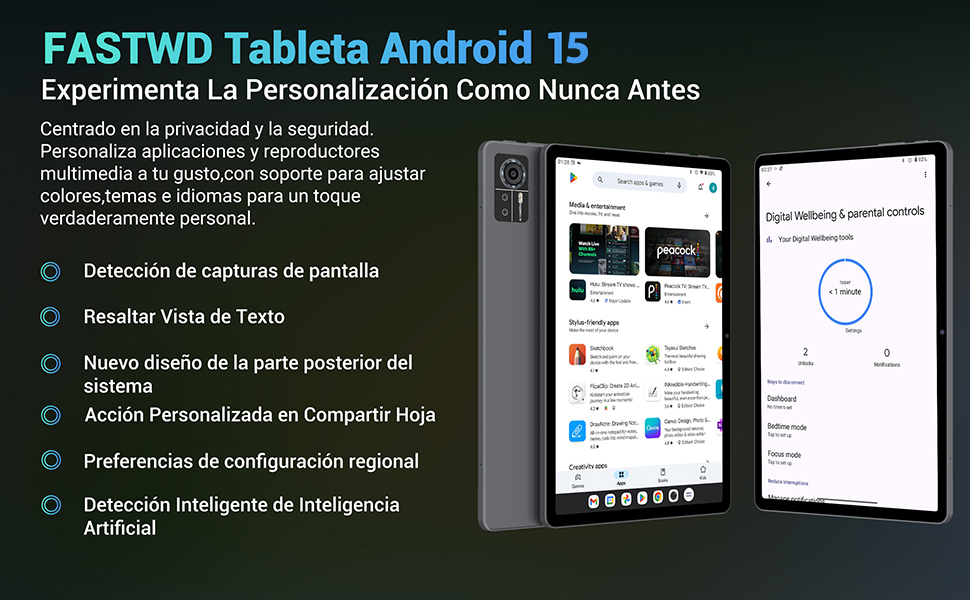
Image: An illustration highlighting the tablet's 36GB RAM (12+24GB), 256GB ROM, and 1TB MicroSD expansion capabilities, alongside its Octa-core processor.
11. Maintenance
11.1 Cleaning
- Use a soft, lint-free cloth to clean the screen and body of the tablet.
- Do not use harsh chemicals or abrasive materials.
11.2 Software Updates
- Regularly check for system updates in Settings > System > System update to ensure optimal performance and security.
12. Troubleshooting
If you encounter issues with your tablet, refer to the following common solutions:
| Problem | Solution |
|---|---|
| Tablet does not power on | Ensure the battery is charged. Connect the charger and wait a few minutes before attempting to power on again. If unresponsive, perform a forced restart by holding the Power button for 10-15 seconds. |
| Applications crash or freeze | Close background applications. Clear the cache of the problematic app (Settings > Apps > [App Name] > Storage & cache > Clear cache). Restart the tablet. |
| Poor Wi-Fi connection | Ensure you are within range of the Wi-Fi router. Restart your router and the tablet. Forget the network and reconnect. |
| SIM card not detected | Ensure the SIM card is correctly inserted into the tray. Restart the tablet. Verify the SIM card is active with your mobile carrier. |
| Battery drains quickly | Reduce screen brightness. Disable unused connectivity features (Wi-Fi, Bluetooth, GPS). Close background apps. Check for apps consuming excessive battery in Settings > Battery. |
13. Specifications
Detailed technical specifications for the FASTWD Android 15 Tablet 11-inch (Model M986):
| Feature | Specification |
|---|---|
| Brand | FASTWD |
| Model Name | FASTWD Android 15 Tablet 11 Pulgadas |
| Operating System | Android 15 |
| Processor Speed | 2 GHz Octa-Core |
| RAM | 36 GB (12GB LPDDR4 + 24GB expandable) |
| Internal Storage (ROM) | 256 GB |
| Expandable Storage | Up to 1 TB via MicroSD card |
| Screen Size | 11 Pulgadas (Inches) |
| Screen Resolution | 2560 x 1440 pixels (2K UHD INCell) |
| Refresh Rate | 120 Hz |
| Rear Camera | 13 MP |
| Front Camera | 8 MP |
| Battery Capacity | 9580 mAh |
| Battery Life (average) | 8 Hours (video playback) |
| Charging | 12W Fast Charging, Type-C Interface |
| Connectivity | 4G LTE (Cellular), 5G Wi-Fi (802.11ac), Bluetooth 5.0 |
| Dimensions | 29.7 x 19.6 x 4 cm |
| Weight | 1.36 kg |
| Special Features | Gaming Tablet, Face Recognition, Parental Control, GPS (Beidou, Galileo, Glonass, GPS) |
14. Warranty and Support
FASTWD offers two years of premium after-sales service and long-term technical support for your tablet.
- Warranty Period: 2 years from the date of purchase.
- Technical Support: For any issues or inquiries, please contact the FASTWD after-sales team through your Amazon purchase platform.
- Our support team aims to respond within 24 hours.
