
1. Introduction
Welcome to the user manual for your new FASTWD Android 15 Tablet 11-inch. This guide provides essential information for setting up, operating, and maintaining your device. Please read this manual thoroughly to ensure optimal performance and longevity of your tablet.
The FASTWD Android 15 Tablet features an 11-inch 2K QHD display, an Octa-Core T615 processor, 36GB RAM, 256GB ROM, and an 8000mAh battery. It supports 5G WiFi, 4G LTE, and includes AI-enhanced cameras, Gemini AI, and Widevine L1 for high-quality streaming.
2. Package Contents
Upon unboxing, please verify that all items listed below are present in your package:
- FASTWD Android 15 Tablet (11-inch)
- Mouse
- Keyboard
- Click Pen
- Leather Case
- Charger
- Data Cable (USB Type-C)
- Tablet User Manual

Figure 2.1: Included accessories with the FASTWD Android 15 Tablet.
3. Device Overview
The FASTWD Android 15 Tablet features a sleek, lightweight metal body with a slim profile and straight edges. The display bezel measures 7.8mm, contributing to an immersive viewing experience.
Physical Features
- Display: 11-inch 2K QHD (2560x1440) In-cell Display with 90Hz refresh rate and Wide Viewing Angle.
- Body: Metal construction, weighing approximately 568g.
- Ports: USB Type-C for charging and data transfer, SIM/MicroSD card slot.
- Cameras: Rear 13MP + 3MP with autofocus and Low Light LED Flash; Front 8MP with autofocus.
- Audio: Four Amplitude Speakers with Artificial Intelligence Noise Cancellation technology.

Figure 3.1: Overview of the tablet's design and key features.

Figure 3.2: Detail of the tablet's connectivity ports and speaker placement.
4. Setup
4.1 Initial Charging
Before first use, fully charge your tablet using the provided USB Type-C cable and charger. Connect the cable to the tablet's USB-C port and the charger to a power outlet. The battery indicator on the screen will show charging progress.
4.2 Powering On/Off
- To Power On: Press and hold the Power button until the FASTWD logo appears on the screen.
- To Power Off: Press and hold the Power button, then select 'Power off' from the options that appear on the screen.
- To Restart: Press and hold the Power button, then select 'Restart' from the options.
4.3 Initial Setup Wizard
Upon first power-on, the tablet will guide you through an initial setup process. This includes selecting your language, connecting to a Wi-Fi network, setting up your Google account, and configuring basic security settings.
4.4 SIM and MicroSD Card Installation
Locate the SIM/MicroSD card tray on the side of the tablet. Use the provided SIM ejector tool to open the tray. Insert your Nano-SIM card (for 4G LTE connectivity) and/or a MicroSD card (for expanded storage) into the designated slots, ensuring correct orientation. Gently push the tray back into the tablet.
4.5 Bluetooth Device Pairing
To connect Bluetooth accessories like the included keyboard or mouse:
- Go to Settings > Connected devices > Bluetooth.
- Toggle Bluetooth On.
- Ensure your Bluetooth device is in pairing mode.
- Select 'Pair new device' and choose your device from the list.
- Follow any on-screen prompts to complete pairing.

Figure 4.1: Bluetooth device connection interface.
4.6 Face Recognition Unlock
For convenient and secure unlocking, you can set up Face Recognition:
- Go to Settings > Security & privacy > Device unlock > Face unlock.
- Follow the on-screen instructions to register your face. Ensure you are in a well-lit environment.
Figure 4.2: Face Recognition Unlock setup.
5. Operating Instructions
5.1 Basic Navigation
The tablet uses standard Android touch gestures:
- Tap: Select an item or open an app.
- Swipe: Scroll through pages or lists.
- Pinch-to-zoom: Zoom in or out on images and web pages.
- Long press: Access contextual menus or move app icons.
5.2 Wi-Fi and 4G LTE Connectivity
- Wi-Fi: Go to Settings > Network & internet > Internet. Select your desired Wi-Fi network and enter the password if required. The tablet supports 2.4G/5G dual-band Wi-Fi.
- 4G LTE: If a SIM card is installed, go to Settings > Network & internet > SIMs to manage mobile data settings. The tablet supports 4G LTE TDD+FDD and VoLTE.

Figure 5.1: Connectivity features of the tablet.
5.3 App Management
To manage your applications:
- Install Apps: Use the Google Play Store to download and install new applications.
- Uninstall Apps: Long-press an app icon on the home screen or app drawer, then drag it to 'Uninstall' or select 'App info' and choose 'Uninstall'.
- Free Up Storage Space: Go to Settings > Apps > See all apps. Select an app, then choose 'Storage & cache' to clear cache or data, or 'Force stop' to temporarily halt its operation.
Figure 5.2: App management options.
5.4 Parental Controls
Manage and monitor tablet usage for children using parental controls:
- Go to Settings > Digital Wellbeing & parental controls.
- Set up screen time limits, app restrictions, and content filters.
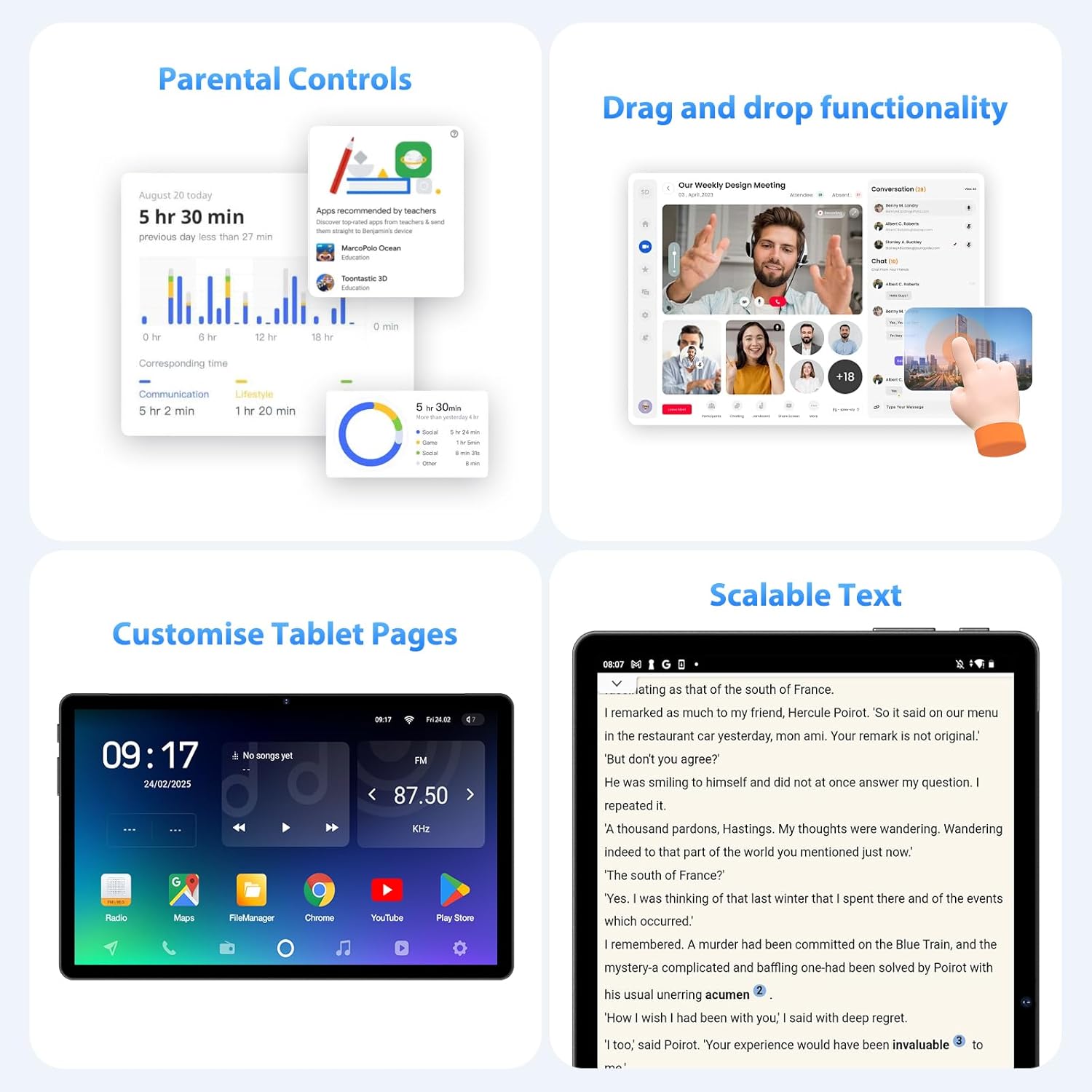
Figure 5.3: Parental control settings.
5.5 Double-tap to Wake
To quickly wake the screen without pressing the power button, simply double-tap the display. This feature can usually be enabled or disabled in Settings > Display > Lock screen display.
Figure 5.4: Double-tap to wake functionality.
5.6 Customizing Tablet Pages
Personalize your tablet's home screens by long-pressing on an empty area to access wallpaper, widgets, and home screen settings. You can also rearrange app icons and create folders.
Figure 5.5: Example of a customized tablet page.
6. Advanced Features
6.1 Display and Multimedia
- 2K QHD 90Hz Display: Enjoy smooth visuals and vibrant colors on the 11-inch 2560x1440 resolution display. The 90Hz refresh rate enhances scrolling and gaming experiences.
- Widevine L1 DRM: Supports Widevine L1 Digital Rights Management, enabling high-definition (1080P) streaming from services like Netflix.
- DP HD Screen Throwing: Allows for high-definition screen mirroring or extension to compatible external displays.
- Scalable Text: Adjust text size for improved readability via display settings.
Figure 6.1: Scalable text feature for enhanced readability.
6.2 Performance and AI
- Octa-Core T615 Processor: Equipped with a powerful 12nm Octa-Core T615 processor (4x A73 + 4x A53) and Mali-G72 GPU for efficient multitasking and smooth application performance.
- Gemini AI Integration: Leverages Gemini AI for enhanced smart features and optimized user experience.
- AI Smart Detection: The tablet incorporates AI for various smart detection functionalities, improving user interaction and device efficiency.
Figure 6.2: Octa-core processor specifications.
6.3 Camera Features
The tablet is equipped with AI-enhanced cameras:
- Rear Cameras: 13MP + 3MP with HD Video Call support, autofocus, and Low Light LED Flash.
- Front Camera: 8MP with autofocus.
- Capture Unlock Face: Utilize the front camera for face recognition to unlock the device.
6.4 Audio System
Experience clear audio with the tablet's advanced sound system:
- Four Amplitude Speakers: Delivers rich and immersive sound.
- AI Noise Cancellation: Artificial Intelligence Noise Cancellation technology automatically filters out ambient noise for clearer audio output.
7. Maintenance and Care
7.1 Cleaning the Tablet
Use a soft, lint-free cloth to gently wipe the screen and body of the tablet. For stubborn smudges, slightly dampen the cloth with water or a screen-cleaning solution. Avoid using harsh chemicals or abrasive materials.
7.2 Battery Care
The tablet is equipped with an 8000mAh battery, providing approximately 8 hours of usage. To prolong battery life:
- Avoid extreme temperatures.
- Do not let the battery completely drain frequently.
- Use the provided charger for optimal charging.
- Reduce screen brightness and disable unnecessary features (Wi-Fi, Bluetooth, GPS) when not in use.
7.3 Software Updates
Regularly check for and install software updates to ensure your tablet has the latest features, security patches, and performance improvements. Go to Settings > System > System update to check for available updates.
7.4 Storage Management
The tablet comes with 256GB of internal storage, expandable up to 1TB via MicroSD card. To manage storage:
- Regularly delete unnecessary files and apps.
- Move large files (photos, videos) to the MicroSD card or cloud storage.
- Clear app cache periodically via Settings > Storage.
8. Troubleshooting
This section addresses common issues you might encounter with your tablet.
8.1 Tablet Not Turning On
- Ensure the battery is charged. Connect the tablet to the charger for at least 30 minutes.
- Press and hold the Power button for 10-15 seconds to perform a forced restart.
8.2 Wi-Fi Connection Issues
- Restart your Wi-Fi router and the tablet.
- Ensure you are within range of the Wi-Fi signal.
- Verify the Wi-Fi password is correct.
- Forget the network in Wi-Fi settings and reconnect.
8.3 Slow Performance
- Close unused applications running in the background.
- Clear app caches and free up storage space.
- Restart the tablet periodically.
- Consider performing a factory reset if performance issues persist (Note: This will erase all data on the tablet. Back up important data first).
8.4 Screen Unresponsive
- Perform a forced restart by holding the Power button.
- Ensure the screen is clean and free of moisture or debris.
9. Specifications
| Feature | Specification |
|---|---|
| Brand | FASTWD |
| Model Name | FASTWD Android 15 Tablet 11-inch |
| Operating System | Android 15 |
| Processor | Octa-Core T615 (4x A73, 4x A53, 12nm) |
| GPU | Mali-G72 |
| RAM | 36GB (12GB + 24GB virtual) |
| Internal Storage | 256GB |
| Expandable Storage | Up to 1TB MicroSD |
| Display Size | 11 Inches |
| Display Resolution | 2560x1440 (2K QHD) |
| Refresh Rate | 90Hz |
| Battery Capacity | 8000 mAh |
| Battery Life | Approximately 8 hours |
| Rear Camera | 13MP + 3MP with Autofocus and LED Flash |
| Front Camera | 8MP with Autofocus |
| Wi-Fi | 802.11ac (2.4G/5G Dual-band) |
| Cellular Connectivity | 4G LTE (TDD+FDD), VoLTE |
| Bluetooth | Yes |
| Ports | USB Type-C |
| Dimensions (Product) | 26L x 16W x 0.8H cm |
| Weight | Approximately 568g |
| DRM Support | Widevine L1 |
| Other Features | Gemini AI, GPS, TÜV Certified (implied from product title) |
10. Warranty and Support
For detailed warranty information, please refer to the warranty card included in your product packaging or contact your point of purchase. Warranty terms and conditions may vary by region and retailer.
If you encounter issues not covered in this manual or require further assistance, please contact FASTWD customer support through the contact information provided with your product or on the official FASTWD website.

