
Introduction
This manual provides comprehensive instructions for the SAFFUN 2.4 GHz Wireless GameCube Switch2 Pro Controller. It covers product features, setup, operation, maintenance, and troubleshooting to ensure optimal performance and user experience. Please read this manual thoroughly before using the product.
Package Contents
Verify that all items listed below are included in your package:
- Wireless Controller (2 units)
- GameCube Receiver (2 units)
- USB Receiver (2 units)
- Charging Cable (2 units)
- User Manual

Image: Contents of the SAFFUN 2.4 GHz Wireless GameCube Switch2 Pro Controller package, including two controllers and their receivers.
Product Overview
The SAFFUN Wireless GameCube Switch2 Pro Controller is designed to provide a familiar GameCube layout with modern wireless capabilities and multi-platform compatibility. Key features include:
- GameCube Layout: Retains the original GameCube button and stick configuration.
- 2.4 GHz Wireless: Offers a reliable connection up to 10 meters (33 feet).
- Built-in Rumble: Provides immersive vibration feedback.
- Rechargeable Battery: Integrated 500mAh lithium battery for extended usage.
- Precision Analog Sticks: Features Japanese imported 3D analog sticks and ALPS buttons for accuracy.
- Multi-Platform Support: Compatible with NGC GameCube Console, Nintendo Switch, PC, and Steam Deck.
- Player Indicator & Low Battery LED: Visual indicators for status.
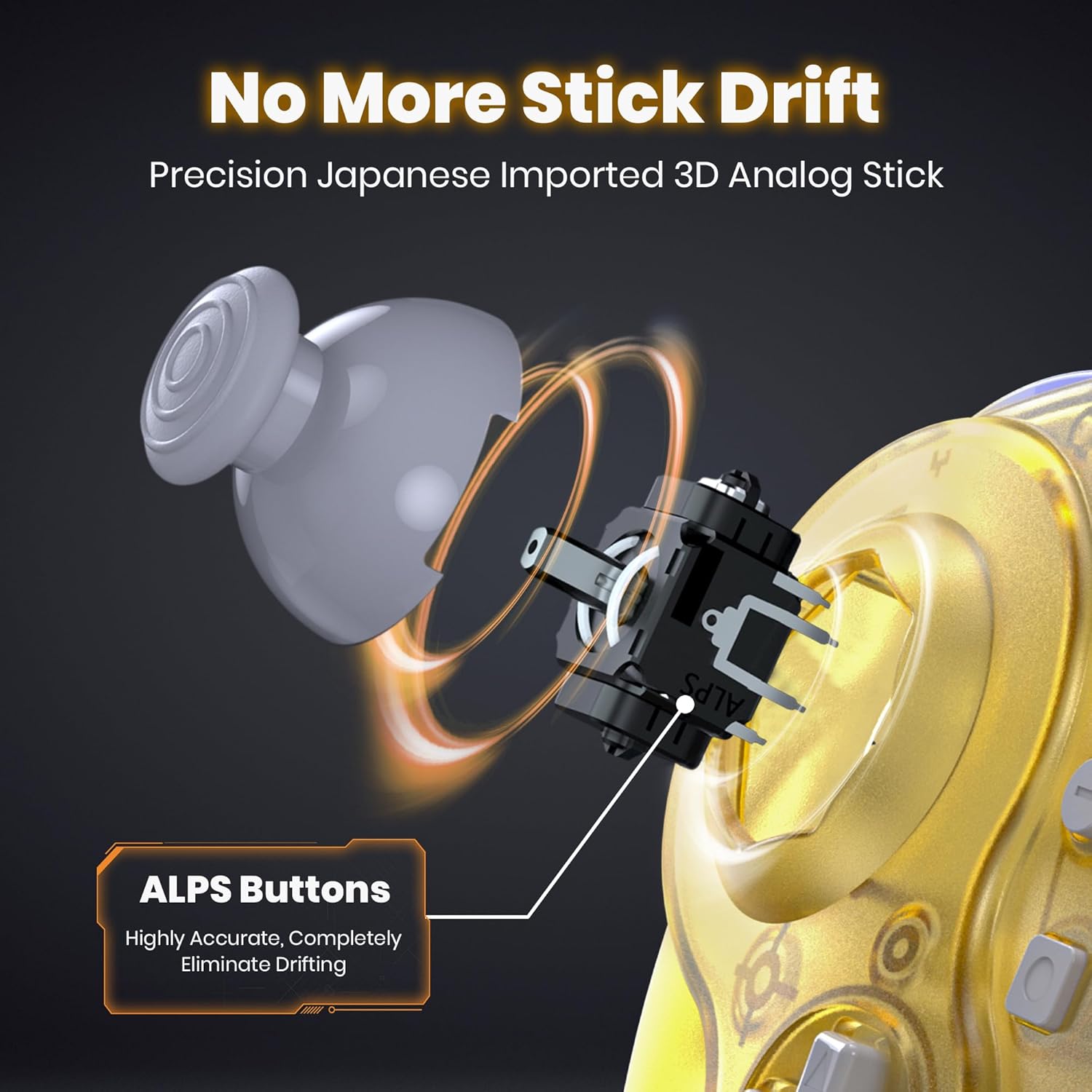
Image: Internal view of the controller's analog stick mechanism, emphasizing precision components.

Image: Multiple views of the clear yellow controller, showcasing its design.
Setup
1. Charging the Controller
The controller is equipped with a built-in rechargeable lithium battery. Before first use, or when the low battery LED indicates, charge the controller using the provided USB charging cable.
- Connect the small end of the charging cable to the controller's charging port.
- Connect the large end of the charging cable to a USB power source (e.g., computer USB port, USB wall adapter).
- Ensure the controller's ON/OFF switch is in the "ON" position for charging to initiate.
- The charging indicator LED will illuminate during charging and turn off when fully charged.
- A full charge takes approximately 2.5 hours and provides up to 10 hours of usage.

Image: Battery specifications and charging details for the controller.
2. Connecting to Consoles/Devices
The controller supports multiple platforms using two types of receivers:
- GameCube Receiver: For NGC GameCube Console.
- USB Receiver: For Nintendo Switch, PC, Steam Deck, iOS Mac, and Raspberry Pi.
2.1. Connecting to NGC GameCube Console
- Insert the GameCube Receiver into a controller port on your NGC GameCube Console.
- Ensure the controller's ON/OFF switch is in the "ON" position.
- Press the SYNC button on the GameCube Receiver and the SYNC button on the controller simultaneously. The indicator lights on both devices will flash and then become solid when connected.
2.2. Connecting to Nintendo Switch, PC, Steam Deck
- Insert the USB Receiver into an available USB port on your Nintendo Switch dock, PC, or Steam Deck.
- Ensure the controller's ON/OFF switch is in the "ON" position.
- Press the SYNC button on the USB Receiver and the SYNC button on the controller simultaneously. The indicator lights on both devices will flash and then become solid when connected.
- For Nintendo Switch, ensure "Pro Controller Wired Communication" is enabled in the system settings if connecting via the dock.

Image: Multi-platform compatibility of the controller, including Nintendo Switch, GameCube, Steam Deck, and PC.
Operating Instructions
1. Power On/Off
- To power on, slide the ON/OFF switch to the "ON" position.
- To power off, slide the ON/OFF switch to the "OFF" position.
2. Player Indicator and Low Battery Warning
- The controller features an LED player indicator to show which player number it is assigned to.
- A flashing LED will indicate a low battery level. Recharge the controller promptly when this occurs.
3. Rumble Feature
The controller includes built-in vibration motors to enhance your gaming experience with tactile feedback. This feature is automatically active when supported by the game.

Image: Visual representation of the controller's built-in vibration motor functionality.
4. Ergonomic Design
The controller is ergonomically designed to fit comfortably in your hands, providing a secure grip during extended gaming sessions.

Image: A user holding the clear yellow controller, highlighting its ergonomic design.

Image: A user holding the clear red controller, highlighting its ergonomic design.
Maintenance
- Keep the controller and receivers dry. Avoid exposure to humidity or liquids.
- Clean the controller with a soft, dry cloth. Do not use harsh chemicals or abrasive materials.
- Store the controller in a cool, dry place away from direct sunlight and extreme temperatures.
- Avoid dropping or subjecting the controller to strong impacts.
Troubleshooting
| Problem | Possible Cause | Solution |
|---|---|---|
| Controller does not power on. | Battery is depleted. | Charge the controller for at least 2.5 hours. Ensure the ON/OFF switch is in the "ON" position during charging. |
| Controller does not connect to console/PC. | Not paired correctly; receiver not properly inserted; out of range. | Ensure the correct receiver is used and fully inserted. Re-attempt pairing by pressing SYNC buttons on both controller and receiver. Ensure controller is within 10 meters of the receiver. |
| Input lag or dropped connection. | Interference; low battery; too far from receiver. | Move closer to the receiver. Ensure no other 2.4 GHz devices are causing interference. Charge the controller. |
| Rumble feature not working. | Game does not support rumble; rumble disabled in game settings. | Verify that the game supports vibration feedback. Check in-game settings to ensure rumble is enabled. |
| Controller charges but does not turn on. | ON/OFF switch is in the "OFF" position. | Slide the ON/OFF switch to the "ON" position. |
Specifications
- Model: 2.4 GHz Wireless GameCube Switch2 Pro Controller
- Connectivity: 2.4 GHz Wireless
- Wireless Range: Up to 10 meters (33 feet)
- Battery: 500mAh Lithium Polymer (included)
- Charging Time: Approximately 2.5 hours
- Usage Time: Up to 10 hours
- Compatibility: NGC GameCube Console, Nintendo Switch, PC, Steam Deck, iOS Mac, Raspberry Pi
- Product Dimensions: 8 x 6 x 0.72 inches
- Item Weight: 1.37 pounds
- Manufacturer: SAFFUN
- ASIN: B0FD2FQB6N
Warranty and Support
SAFFUN products are designed for reliability and performance. For any issues or questions regarding your SAFFUN 2.4 GHz Wireless GameCube Switch2 Pro Controller, please refer to the following:
- Warranty: Please retain your proof of purchase for warranty claims. Specific warranty terms may vary by region and retailer.
- Customer Support: For technical assistance or support, please contact the retailer where the product was purchased or visit the official SAFFUN support website (if available).