
1. Product Overview
The Thunderobot Storm 15 4050 is a high-performance gaming laptop designed for demanding applications and immersive gaming experiences. It features a 15.6-inch Full HD display with a 165Hz refresh rate, an Intel Core i7-13620H processor, and NVIDIA GeForce RTX 4050 graphics. This laptop is equipped with 32GB DDR4 RAM and a 1TB PCIe M.2 SSD for fast boot times and efficient multitasking.
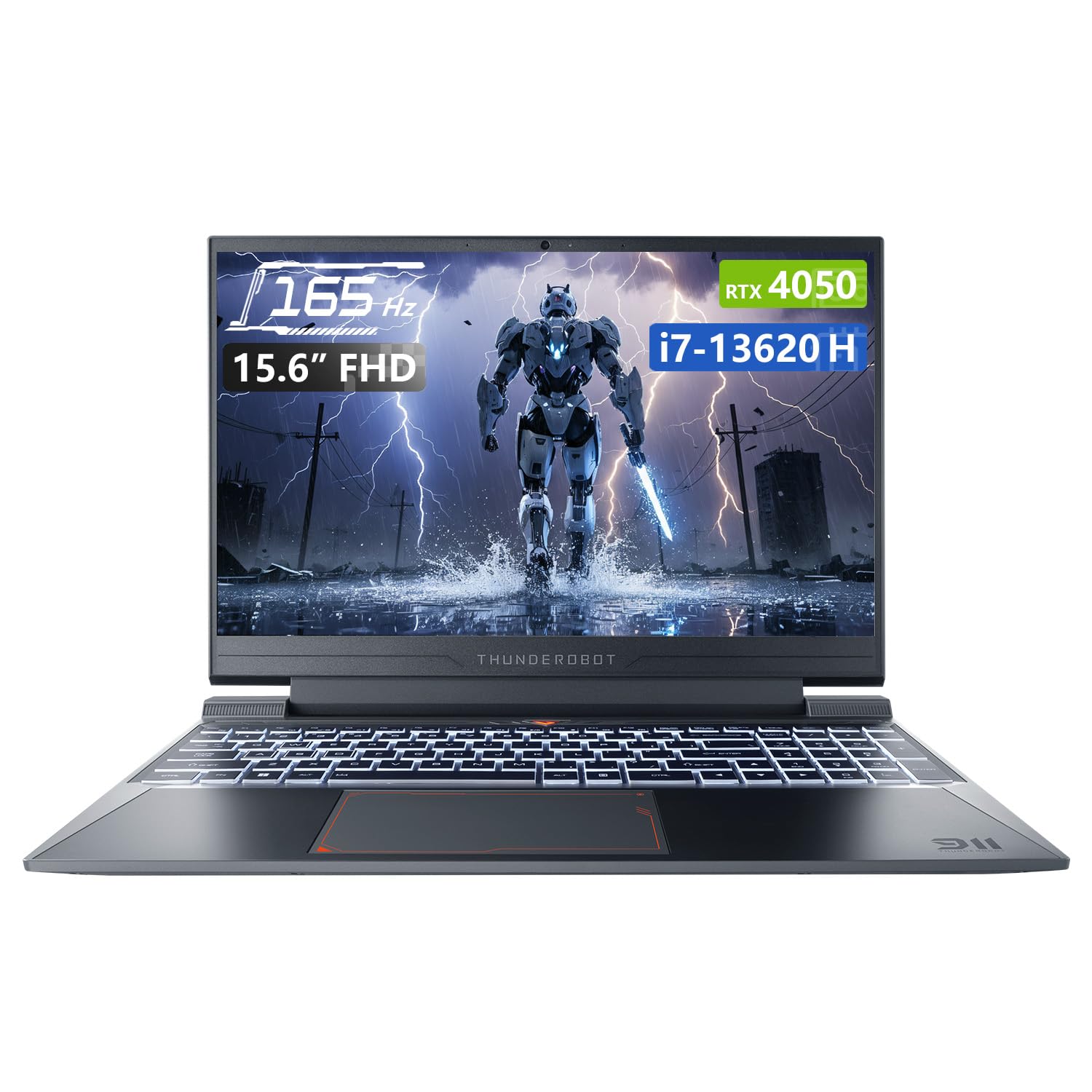
Image: Thunderobot Storm 15 4050 Gaming Laptop, front view with screen on.
Key Features:
- High-Speed Memory & Storage: 32GB DDR4 RAM and 1TB PCIe M.2 SSD for quick boot times and seamless multitasking.
- Powerful Performance: Intel Core i7-13620H processor and NVIDIA GeForce RTX 4050 GPU for fast processing and stunning visuals.
- 165Hz FHD Display: 15.6-inch screen with a 165Hz refresh rate for ultra-smooth motion and clear visuals.
- Efficient Cooling System: Frost Cooling System with dual heat pipes, an 80-blade turbine fan, and 126 copper fins for stable performance.
- Connectivity: USB-A, USB-C, HDMI, RJ-45, and Wi-Fi for comprehensive peripheral support.
- Backlit Keyboard: RGB backlit keyboard with a numeric pad for enhanced usability.

Image: Diagram illustrating the performance capabilities of the RTX 4050 GPU and Intel Core i7-13620H CPU.
2. Setup Guide
2.1 Unboxing and Initial Power-On
- Carefully remove the laptop and all accessories from the packaging.
- Connect the power adapter to the laptop's power input port and then to a power outlet.
- Open the laptop lid and press the power button, typically located above the keyboard or on the side.
- Follow the on-screen instructions to complete the initial Windows 11 Home setup.
2.2 Connecting Peripherals
The Thunderobot Storm 15 offers various ports for connecting external devices.

Image: Diagram showing the various ports and slots on the Thunderobot Storm 15 laptop.
- USB Devices: Connect external mice, keyboards, or storage devices to the available USB 3.1 Type-A or USB 3.1 Gen 2 Type-C ports.
- External Display: Use the HDMI port to connect an external monitor or TV.
- Network Connection: For a stable wired internet connection, plug an Ethernet cable into the RJ-45 Ethernet port.
- Audio: Connect headphones or external speakers to the 3.5mm Combo Audio Jack.
3. Operating Instructions
3.1 Power Management
- Power On: Press the power button.
- Sleep Mode: Close the lid or select 'Sleep' from the Windows Start menu.
- Shut Down: Select 'Shut down' from the Windows Start menu.
- Restart: Select 'Restart' from the Windows Start menu.
3.2 Keyboard Functions
The laptop features a full-size backlit keyboard with a numeric pad.

Image: Close-up view of the Thunderobot Storm 15's full-size backlit keyboard.
- Backlight Control: Use the dedicated function keys (Fn + [key]) to adjust keyboard backlight brightness or toggle it on/off.
- Numeric Pad: The integrated numeric pad allows for efficient data entry.
- Function Keys: Utilize the Fn key in combination with F1-F12 for various system controls like volume, screen brightness, and Wi-Fi toggle.
3.3 Display Settings
The 15.6-inch FHD display supports a 165Hz refresh rate.

Image: The 15.6-inch FHD 165Hz display of the Thunderobot Storm 15 laptop.
- Refresh Rate: To ensure optimal gaming performance, verify the display refresh rate is set to 165Hz in Windows Display Settings.
- Brightness: Adjust screen brightness using the dedicated function keys or through Windows Display Settings.
3.4 Audio Settings
The laptop features professional sound certification and high-specification speakers.

Image: Laptop displaying sound waves, indicating wide range audio capabilities.
- Volume Control: Adjust volume using the function keys or the Windows volume mixer.
- External Audio: Connect headphones or external speakers to the 3.5mm combo jack for private listening or enhanced audio output.
3.5 Using the Control Center
The Control Center software allows you to customize performance modes, fan speed, and lighting settings.

Image: Screenshots of the Thunderobot Control Center interface, showing performance modes, fan adjustment, and lighting settings.
- Performance Modes: Switch between 'Berserk mode' (full performance), 'Game mode' (speed and smooth), and 'Audio and video office' (battery life optimized) based on your needs.
- Fan Adjustment: Manually adjust fan speeds for optimal cooling or quieter operation.
- Lighting Settings: Customize the RGB keyboard backlight effects and colors.
- Note: System mode switching in Control Center requires the device to be connected to a power source.
4. Maintenance
4.1 Cleaning the Laptop
- Screen: Use a soft, lint-free cloth lightly dampened with water or a screen cleaner. Avoid harsh chemicals.
- Keyboard and Chassis: Use a soft cloth to wipe surfaces. A can of compressed air can remove dust from between keys and vents.
- Vents: Regularly check and clean the cooling vents to prevent dust buildup, which can hinder airflow and lead to overheating.

Image: Diagram illustrating the highly efficient air cooling system of the Thunderobot Storm 15.
4.2 Software and Driver Updates
- Windows Updates: Regularly check for and install Windows updates to ensure system stability and security.
- Driver Updates: Keep graphics drivers (NVIDIA) and other system drivers updated for optimal performance and compatibility. Visit the Thunderobot support website or NVIDIA's official website for the latest drivers.
4.3 Battery Care
- Avoid completely discharging the battery frequently.
- Store the laptop in a cool, dry place if not used for extended periods.
- For prolonged use while plugged in, consider using battery management software (if available) to limit charging to 80% to extend battery lifespan.
5. Troubleshooting
5.1 No Power / Does Not Turn On
- Ensure the power adapter is securely connected to both the laptop and a working power outlet.
- Verify the power outlet is functional by plugging in another device.
- If the battery is completely drained, allow the laptop to charge for at least 15-30 minutes before attempting to power it on.
5.2 Display Issues
- Blank Screen: Try connecting an external monitor to check if the issue is with the laptop's display or the graphics card.
- Flickering/Distorted Image: Update your graphics drivers. Adjust the display refresh rate in Windows settings.
- Dim Screen: Adjust brightness using function keys or Windows settings.
5.3 Performance Lag
- Check the Control Center to ensure the laptop is in an appropriate performance mode (e.g., 'Game mode' or 'Berserk mode') when running demanding applications.
- Close unnecessary background applications.
- Ensure the cooling vents are clear and the laptop is not overheating.
- Update drivers, especially graphics drivers.
5.4 Audio Problems
- Check volume levels in Windows and ensure speakers are not muted.
- Verify that the correct audio output device is selected in Windows Sound Settings.
- Update audio drivers.
- If using external audio devices, ensure they are properly connected.
6. Specifications
| Feature | Specification |
|---|---|
| Model Name | Storm 15 |
| Screen Size | 15.6 Inches |
| Screen Resolution | 1920 x 1080 pixels (FHD) |
| Max Screen Resolution | 1920x1080 Pixels |
| Processor | Intel Core i7-13620H (4.9 GHz) |
| RAM | 32 GB DDR4 (3200 MHz) |
| Hard Drive | 1 TB PCIe M.2 SSD |
| Graphics Coprocessor | NVIDIA GeForce RTX 4050 Laptop GPU |
| Operating System | Windows 11 Home |
| Wireless Type | 801.11ac (Wi-Fi) |
| USB 3.0 Ports | 3 |
| Special Feature | Backlit Keyboard, Numeric Keypad |
| Item Weight | 12 pounds |
| Product Dimensions | 14.12 x 10.14 x 0.94 inches |
7. Warranty and Support
Every Thunderobot laptop includes a 12-month warranty, offering expert support, thorough diagnostics, and genuine parts if a repair is needed. Additionally, a 90-day warranty is provided on all warranty replacement parts, ensuring hassle-free repairs. Your complete satisfaction is our commitment.

Image: Graphic detailing Thunderobot's warranty and service commitment.
For technical support, warranty claims, or further assistance, please visit the official Thunderobot support website or contact their customer service.

