1. Introduction
This manual provides essential information for the setup, operation, and maintenance of your Thunderobot Zero 18 Pro 5080 Gaming Laptop. Please read this manual thoroughly before using the device to ensure proper functionality and to maximize your user experience. Keep this manual for future reference.
2. Key Features
2.1. Performance Hardware
The Thunderobot Zero 18 Pro is equipped with high-performance components designed for demanding applications and gaming.
- Processor: Intel Core Ultra 9 275HX (24 Cores, 24 Threads, up to 5.40GHz)
- Graphics: NVIDIA GeForce RTX 5080
- Memory: 32GB DDR5 RAM
- Storage: 1TB PCIe M.2 SSD
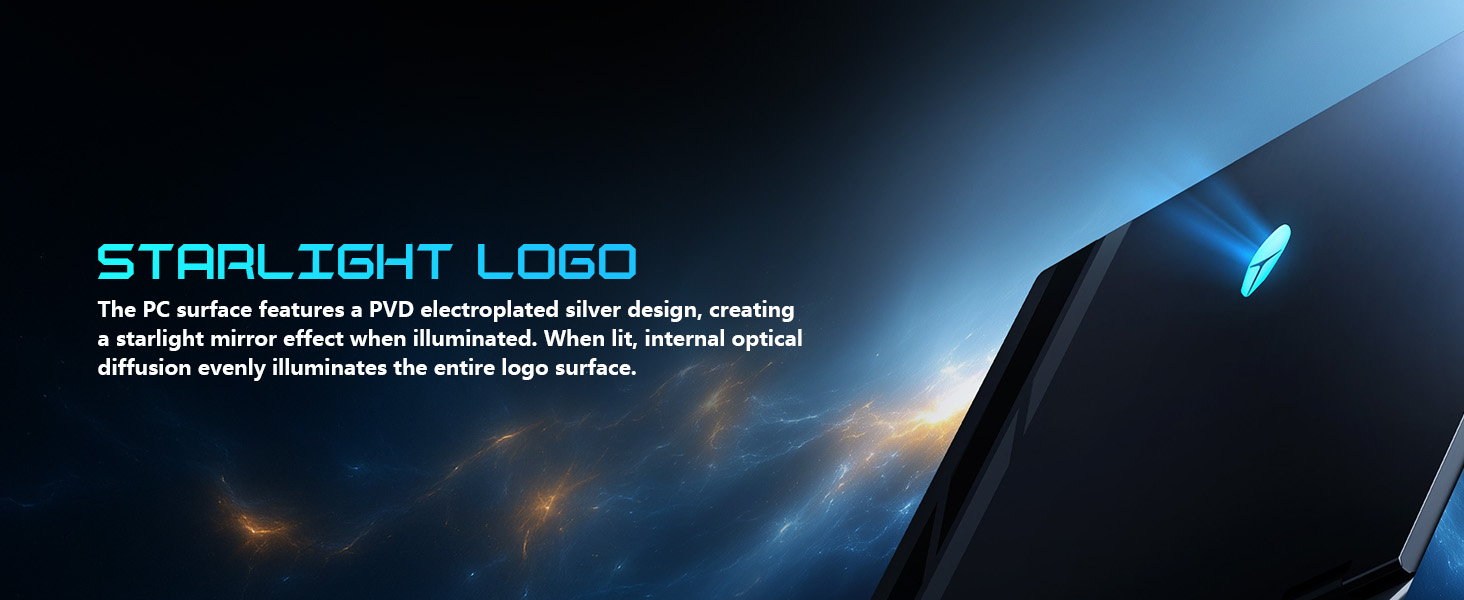
Image: Detailed view of the Intel Core Ultra 9 275HX processor and NVIDIA GeForce RTX 5080 graphics card, highlighting their specifications and capabilities.
2.2. Display Technology
The laptop features an advanced display for clear and fluid visuals.
- Size: 18-inch QHD+ (2560x1600)
- Refresh Rate: 240Hz
- Technology: Bionic Hummingbird Eye-Care Display with Anti-Glare and Anti-Reflection properties.
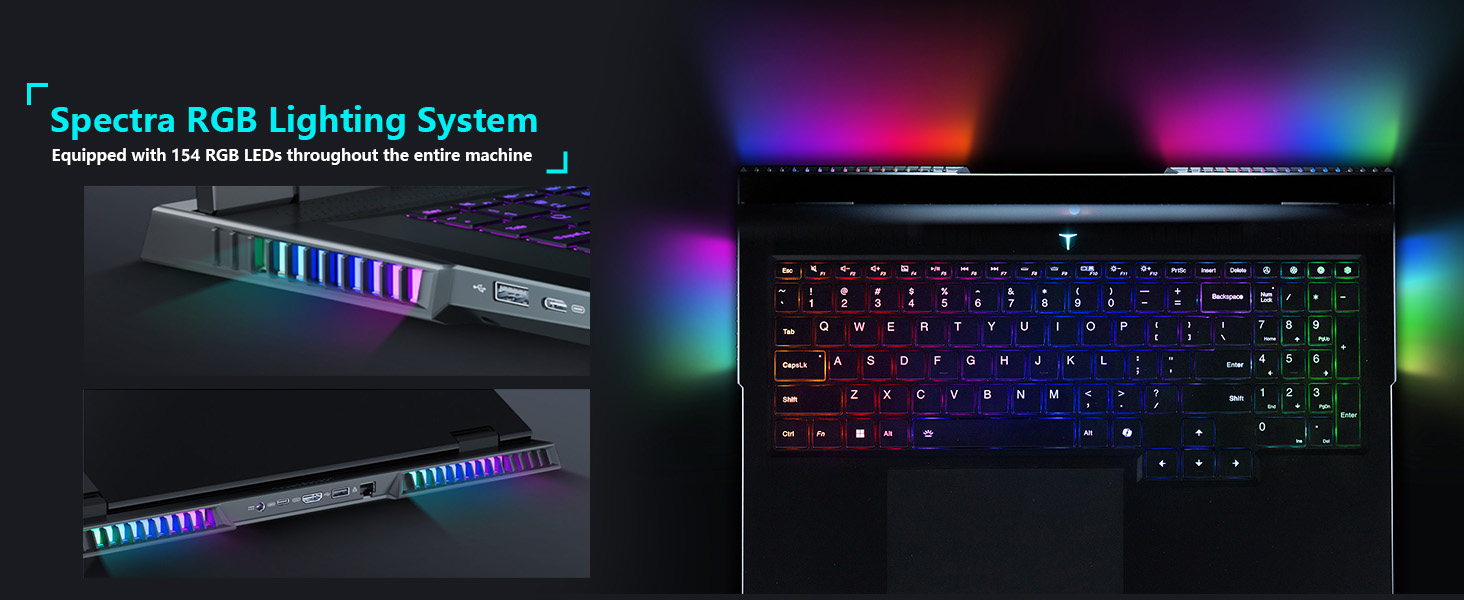
Image: The 18-inch Bionic Hummingbird Eye-Care Display showcasing its QHD+ resolution, 240Hz refresh rate, and anti-glare features.
Video: Overview of the THUNDEROBOT Series Display features, including refresh rate and resolution.
2.3. Cooling System
The laptop incorporates an advanced cooling system to maintain optimal performance during intensive use.
- Fans: 3 Night Owl fans with high air volume.
- Heat Pipes: 7 high-efficiency heat pipes.
- Fins: 338 pieces of 0.075mm ultra-thin copper fins.
- Power Release: Up to 270W total power release.
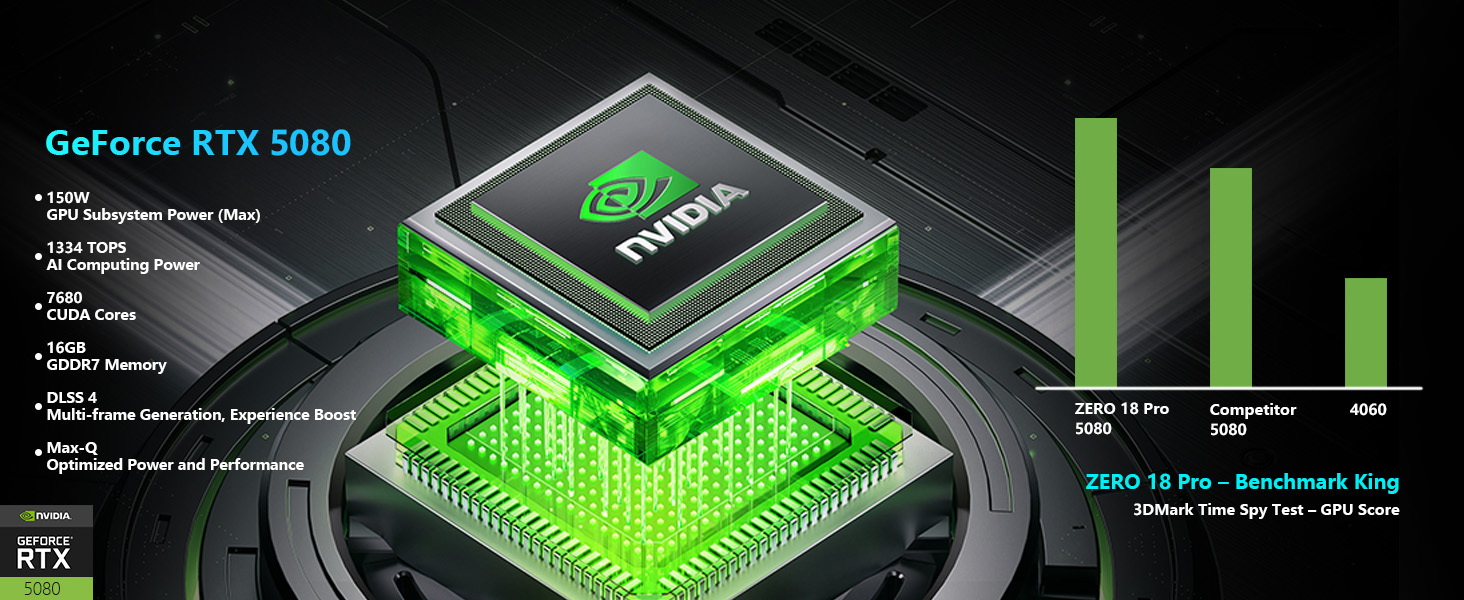
Image: An internal view illustrating the laptop's heat dissipation architecture, including fans and heat pipes.
2.4. Keyboard and Lighting
The laptop features a customizable keyboard and integrated lighting.
- Keyboard: Per-Key RGB Backlit Keyboard with numeric keypad.
- Lighting System: "Spectra" RGB Lighting System with 154 RGB light beads.
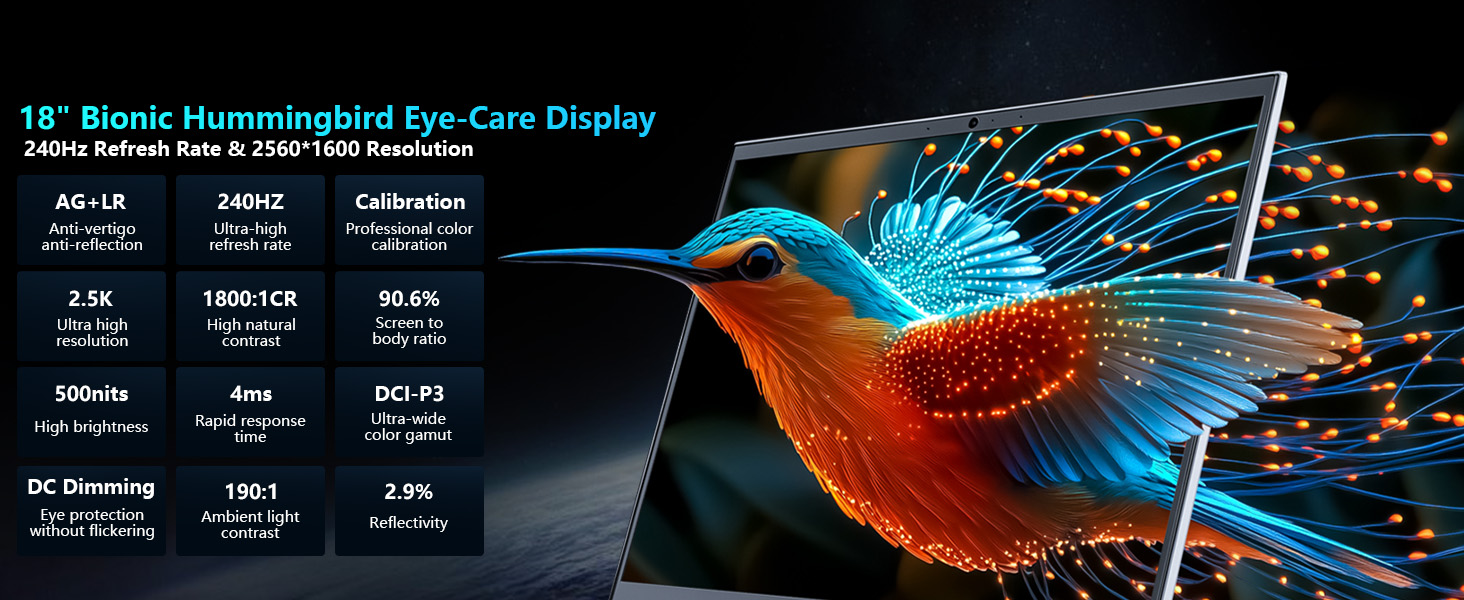
Image: Close-up of the laptop keyboard, highlighting the Per-Key RGB backlighting and dedicated mode switching keys.
Video: Demonstration of the Thunderobot RGB lighting features and customization options.
2.5. Connectivity
The Zero 18 Pro offers a range of ports for external devices and network connectivity.
- USB Ports: 3 x Superspeed USB Type-A, 2 x Superspeed USB Type-C (Thunderbolt 5 compatible).
- Video Output: 1 x HDMI 2.1.
- Network: 1 x RJ-45 (Ethernet), Wi-Fi 6E.
- Audio: 1 x Audio Port.
- Wireless: Bluetooth.
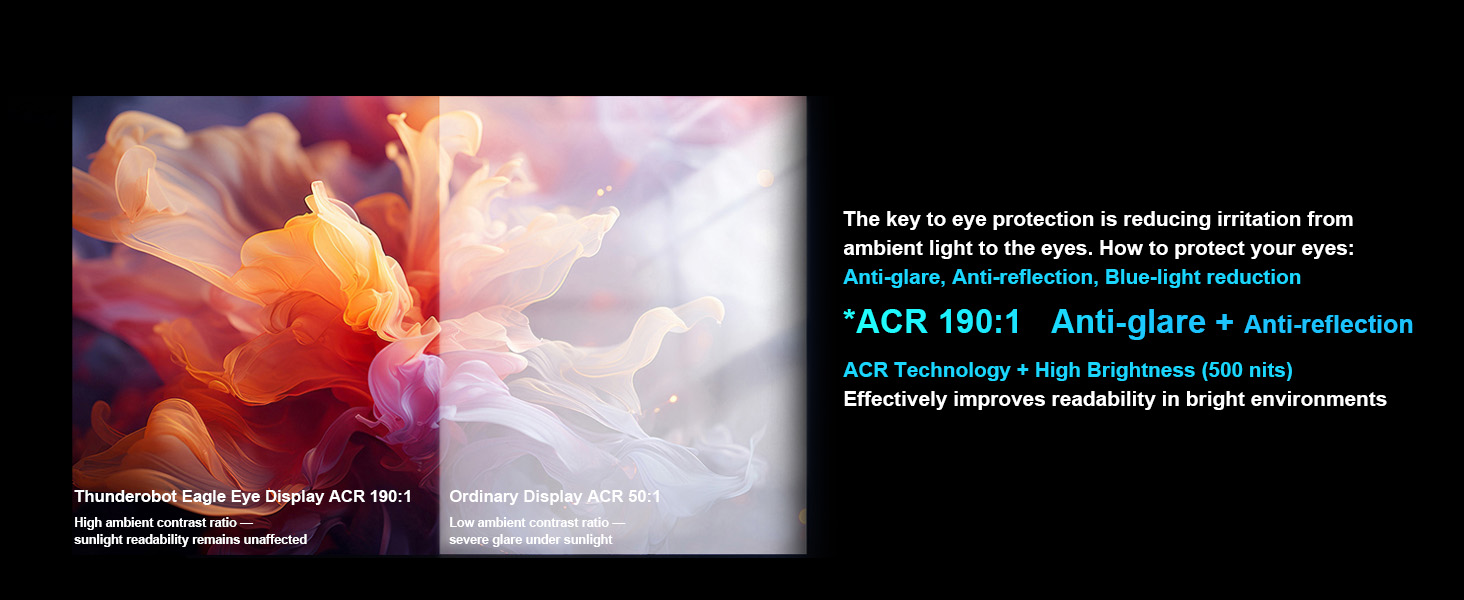
Image: Diagram illustrating the location and types of ports available on the Thunderobot Zero 18 Pro laptop.
3. Setup Guide
3.1. Unboxing and Initial Inspection
- Carefully remove the laptop and all accessories from the packaging.
- Verify that all components listed in the 'What's in the Box' section are present.
- Inspect the laptop for any physical damage. If damage is found, contact customer support immediately.
3.2. Connecting Power
- Connect the AC adapter to the power port on the laptop.
- Plug the power cord into a grounded electrical outlet.
- It is recommended to fully charge the battery before initial use.
3.3. First Boot and Operating System Setup
- Open the laptop lid and press the power button.
- Follow the on-screen instructions to complete the Windows 11 Home setup process. This includes selecting your region, language, and setting up user accounts.
- Connect to a Wi-Fi network when prompted to ensure the operating system can download necessary updates.
4. Operating Instructions
4.1. Power On/Off
- Power On: Press the power button located on the keyboard deck.
- Power Off: Click the Start button in Windows, then select Power > Shut down.
- Sleep Mode: Close the laptop lid or click the Start button, then select Power > Sleep.
4.2. Keyboard Functions
The keyboard features Per-Key RGB backlighting and dedicated function keys.
- Function Keys (Fn): Hold the Fn key and press the corresponding F-key (F1-F12) for special functions like volume control, brightness adjustment, or toggling Wi-Fi.
- RGB Customization: Use the pre-installed control software to customize the Per-Key RGB lighting effects and colors.
- Performance Mode Switching: Dedicated keys (Fn+Space) allow quick switching between performance profiles (e.g., Quiet, Balance, Turbo).
4.3. AI Intelligent Control Center
The AI Intelligent Control Center software provides comprehensive control over your laptop's performance, lighting, and system settings.
- Performance Tuning: Adjust CPU/GPU power limits and fan speeds.
- Intelligent Light Adjustment: Customize RGB lighting zones (keyboard, strip, logo) with various effects.
- Comprehensive Adjustment: Access system monitoring, power plans, and other advanced settings.
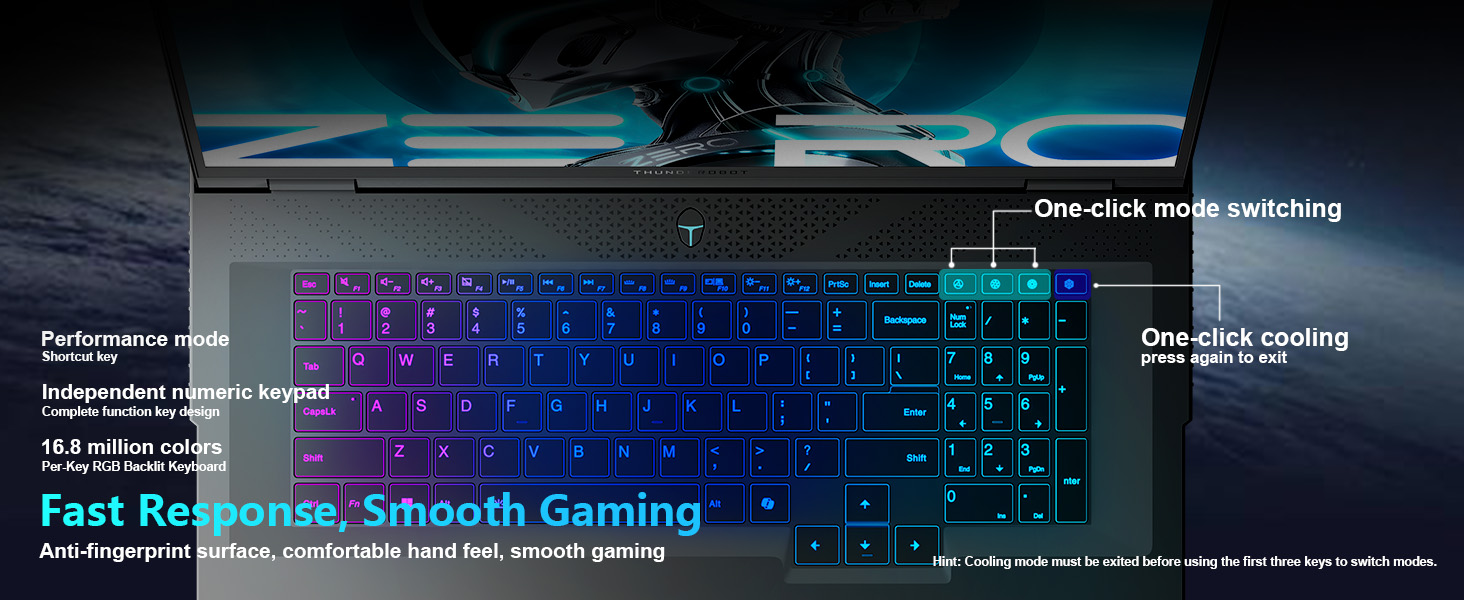
Image: Screenshot of the AI Intelligent Control Center, showing options for system, lighting, and settings adjustments.
Video: A detailed overview of the THUNDEROBOT Zero 18 Pro, showcasing its design, features, and the AI Intelligent Control Center.