
1. Product Overview
The Netgate 6100 MAX is a high-performance pfSense+ Security Gateway designed for robust network routing, firewall protection, and VPN capabilities. This fanless desktop appliance offers versatile WAN and high-performance LAN connectivity, making it suitable for both business and advanced home network environments.
Key Features:
- Business Ready: Includes lifetime pfSense+ software updates and Netgate TAC Lite technical support.
- Complete Solution: Pre-loaded with pfSense+ software for quick deployment and customization.
- Exceptional Performance: Achieves up to 18.7 Gbps L3 routing, 10.1 Gbps firewall, 7.9 Gbps NAT, and 2.1 Gbps AES-GCM IPsec VPN throughput.
- 10 Gigabit Edge Connectivity: Features 2x 10 GbE SFP+ ports, 2x 1 Gbps Combo ports, and 4x 2.5 Gbps ports.
- Powerful Hardware: Equipped with a 2.2 GHz Quad Core Atom CPU, integrated QuickAssist Technology, and 8 GB DDR4 memory.
- Compact Design: Small form factor with low power consumption and silent operation, ideal for various placements.
- AI Security: Designed to protect AI workloads and data.
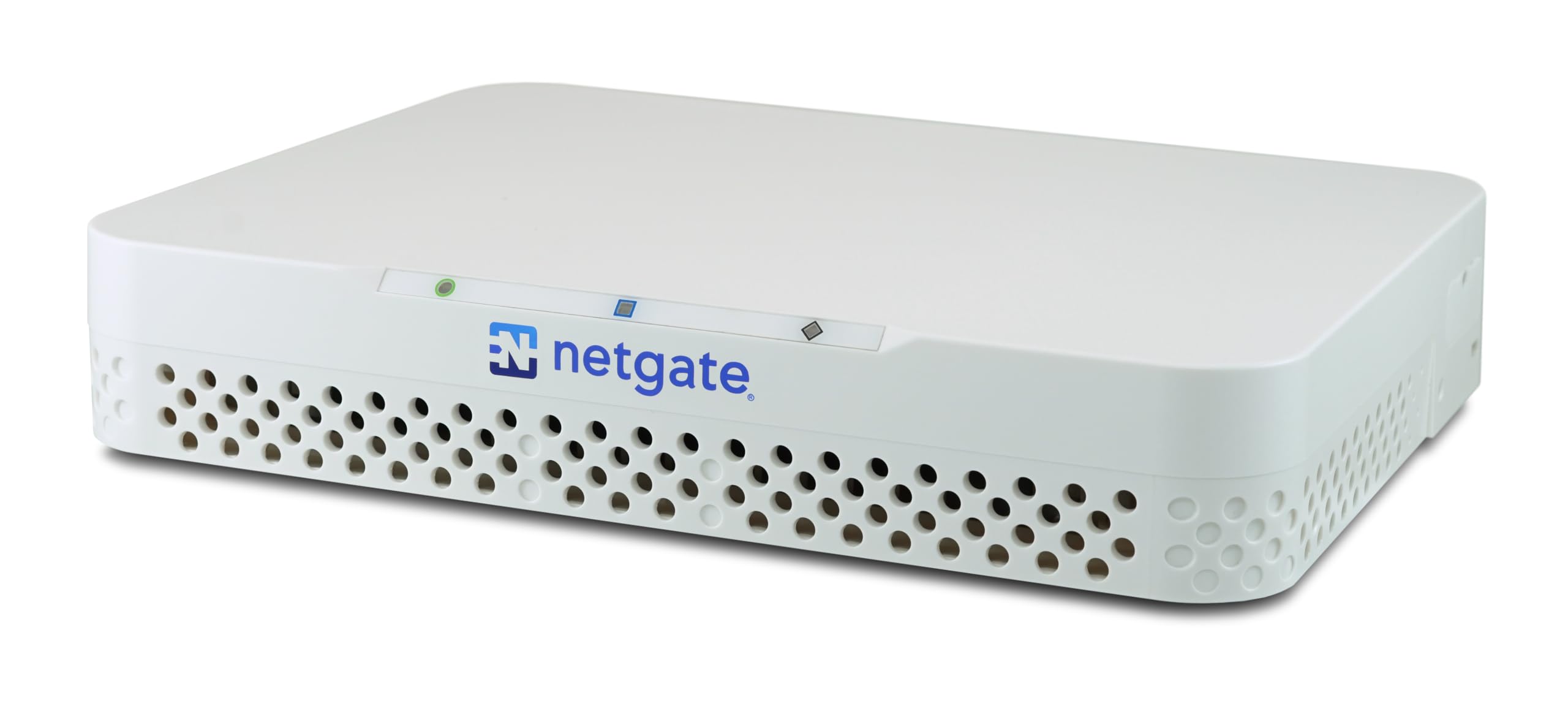
This image displays the Netgate 6100 MAX appliance from a top-down perspective, highlighting its compact and fanless design. The device is white with a textured top surface, indicating its robust build.
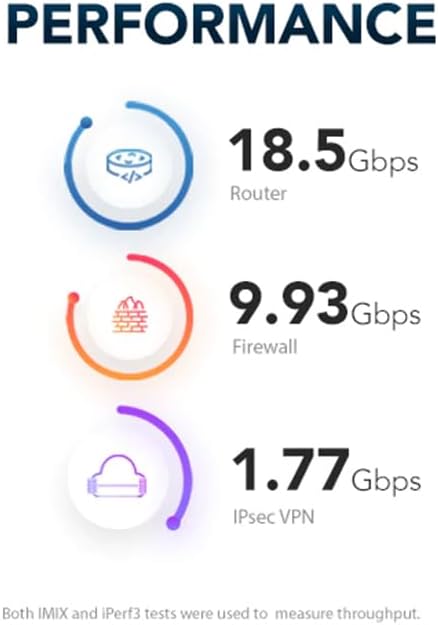
This graphic illustrates the performance capabilities of the Netgate 6100 MAX, showing 18.5 Gbps for routing, 9.93 Gbps for firewall throughput, and 1.77 Gbps for IPsec VPN. These figures demonstrate the device's high-speed processing for various network functions.
2. Initial Setup
Follow these steps to set up your Netgate 6100 MAX Security Gateway.
2.1 Unboxing and Physical Placement
- Carefully remove the Netgate 6100 MAX from its packaging.
- Choose a stable, well-ventilated location for the device. Its compact, fanless design allows for desktop or wall-mounted placement.
- Ensure adequate space around the device for proper airflow, especially around the ventilation grilles.

This image shows the Netgate 6100 MAX with its physical dimensions labeled: 10 inches (254mm) in length, 7.8 inches (200mm) in width, and 1.8 inches (48mm) in height. This provides a clear understanding of the device's size for placement planning.
2.2 Connecting the Device
The Netgate 6100 MAX features a variety of ports for flexible network integration.
- Power: Connect the included power adapter to the locking power connector on the device and to a power outlet.
- WAN Connection: Connect your internet service provider's modem or router to one of the WAN ports (e.g., WAN1 or WAN2) using an Ethernet cable. The device supports 2x 10 GbE SFP+ ports and 2x 1 Gbps Combo ports for WAN connectivity.
- LAN Connection: Connect your local network devices (computers, switches, access points) to the LAN ports (LAN1-LAN4) using an Ethernet cable. These are 4x 2.5 Gbps ports.
- Console Port: For initial configuration or troubleshooting, connect a computer to the dual USB / RJ45 serial port console using the appropriate cable.

This image provides a detailed view of the rear panel of the Netgate 6100 MAX, displaying its various connectivity options. From left to right, it shows the console port (USB/RJ45), WAN1 and WAN2 (1G Combo ports), WAN3 and WAN4 (10G SFP+ ports), and LAN1 through LAN4 (2.5G ports). The 12 VDC power input and a grounding screw are also visible on the right.
2.3 Initial Configuration
Upon first boot, the pfSense+ software will guide you through the initial setup wizard. It is recommended to use the console port for the very first configuration to ensure direct access.
- Power on the device.
- Access the pfSense+ web interface from a connected computer by navigating to the default IP address (usually 192.168.1.1).
- Follow the on-screen instructions to configure basic network settings, including WAN and LAN interfaces, administrator password, and time zone.
- For detailed setup instructions, refer to the official pfSense+ documentation available on the Netgate website.
3. Operation
The Netgate 6100 MAX, powered by pfSense+ software, offers extensive capabilities for managing your network.
3.1 Network Routing and Firewall
- Dashboard: The pfSense+ web interface provides a comprehensive dashboard to monitor network status, traffic, and system health.
- Firewall Rules: Configure granular firewall rules to control inbound and outbound network traffic, enhancing security and managing access.
- NAT (Network Address Translation): Manage NAT settings for internet access and port forwarding.
- Routing: Set up static routes or dynamic routing protocols to optimize network traffic flow.
3.2 VPN Configuration
Establish secure connections using the integrated VPN features.
- The Netgate 6100 MAX supports various VPN protocols, including IPsec and OpenVPN.
- Configure client-to-site VPNs for remote access or site-to-site VPNs to connect multiple locations securely.
- Refer to the pfSense+ documentation for detailed guides on VPN setup.
3.3 Advanced Features
- Package Manager: Extend functionality by installing additional packages from the pfSense+ package manager, such as intrusion detection systems, traffic shapers, and more.
- VLANs: Create Virtual LANs (VLANs) to segment your network for improved security and management.
- High Availability: For critical environments, configure two Netgate 6100 MAX units in a High Availability (HA) cluster to ensure continuous operation.
4. Maintenance
Regular maintenance ensures optimal performance and security of your Netgate 6100 MAX.
4.1 Software Updates
- Keep your pfSense+ software up-to-date to benefit from the latest features, security patches, and performance improvements.
- Access the update function through the pfSense+ web interface under System > Update.
- It is recommended to perform updates during off-peak hours to minimize network disruption.
4.2 Configuration Backup
- Regularly back up your pfSense+ configuration. This allows for quick restoration in case of unexpected issues or hardware replacement.
- Backups can be performed via the web interface under Diagnostics > Backup/Restore.
4.3 Physical Care
- Keep the device clean and free from dust. Although fanless, dust accumulation can affect heat dissipation.
- Ensure the device is in a stable environment, away from extreme temperatures or humidity.
5. Troubleshooting
Here are solutions to common issues you might encounter.
5.1 No Internet Connectivity
- Check Cables: Ensure all Ethernet cables are securely connected to the correct WAN and LAN ports.
- Modem/ISP: Verify that your modem is working correctly and your internet service provider (ISP) is active.
- pfSense+ Interface Status: Log into the pfSense+ web interface and check the status of your WAN interface. Ensure it has an IP address from your ISP.
- Firewall Rules: Temporarily disable firewall rules to see if they are blocking traffic. Re-enable and adjust as needed.
5.2 Web Interface Inaccessible
- IP Address: Confirm you are using the correct IP address for the pfSense+ web interface (default is 192.168.1.1).
- Network Connection: Ensure your computer is connected to a LAN port of the Netgate 6100 MAX.
- Console Access: If web access fails, use the console port for direct access and diagnostics.
5.3 Performance Issues
- Resource Usage: Check the system dashboard for high CPU or memory usage.
- Logs: Review system logs for any errors or warnings that might indicate a problem.
- Network Configuration: Ensure your network configuration is optimized for your environment. Incorrect settings can impact performance.
6. Technical Specifications
| Feature | Detail |
|---|---|
| Model Name | Netgate 6100 MAX pfSense+ Security Gateway |
| CPU | 2.2 GHz Quad Core Atom CPU with QuickAssist Technology |
| Memory | 8 GB DDR4 |
| Storage | 128 GB NVMe M.2 SSD |
| WAN Ports | 2x 10 GbE SFP+ Ports, 2x 1 Gbps Combo Ports |
| LAN Ports | 4x 2.5 Gbps Ports |
| Console Port | Dual USB / RJ45 Serial Port Console |
| Special Features | Fanless, Internet Security, AI Security |
| Product Dimensions | 10 x 7.88 x 1.8 inches |
| Item Weight | 2.75 pounds |
| Color | White |
| Included Components | pfSense+ Software, RJ45 serial port console, locking power connector, 10 GbE ports |

This image shows the underside of the Netgate 6100 MAX, featuring a large metal heatsink for passive cooling, rubber feet, and a product label with model information (Netgate 6100), serial number, and regulatory compliance marks. For more regulatory information, visit netgate.com/regs/.
7. Support & Warranty
Netgate provides comprehensive support and warranty for your 6100 MAX Security Gateway.
7.1 Technical Support (TAC Lite)
- Your Netgate appliance includes a lifetime TAC Lite "zero-to-ping" technical assistance subscription from Netgate Global Support.
- TAC Lite support is included at no charge with the purchase of a Netgate appliance.
- "Zero-to-Ping" support assists with connecting your Netgate appliance, AWS, or Azure firewall to the Internet and one client on the same network.
- For rapid assistance, visit info.netgate.com/pfsense-support-amazon.

This image outlines the technical support provided by Netgate, including lifetime TAC Lite "zero-to-ping" assistance. It specifies that TAC Lite is free with appliance purchase and helps with initial internet connectivity for the device and one client. A URL for rapid assistance is also provided.
7.2 Hardware Warranty
- A one-year hardware warranty is included with your purchase.
- For details regarding warranty claims and service, please contact Netgate support.
7.3 Official Product Video (Netgate 1100 - Related Model)
This video provides an overview of the Netgate 1100 firewall, which also runs pfSense+ software. While not the 6100 MAX model, it offers insights into the pfSense+ software capabilities and general Netgate product philosophy, including performance metrics for the 1100 model.


