
1. Introduction
The Splenssy HS7080 Wireless Video Doorbell system provides enhanced security and convenience for your home, apartment, or office. It features a 4.3-inch IPS indoor monitor and a 1080P outdoor camera with a 170° wide-angle view. Enjoy two-way audio communication, IP65 weather resistance, and long-lasting battery performance. This manual provides detailed instructions for installation, operation, and maintenance of your new video doorbell.
2. Key Features
- 4.3" IPS Display & 1080P Full HD Camera: Offers crystal-clear day and night vision with LED light, supporting recording to a TF card (not included).
- IP65 Waterproof & Wide Temperature Range (-10°C~50°C): Designed to withstand rain, dust, and extreme weather conditions for permanent outdoor use.
- Real-time Two-Way Communication: Speak with visitors from anywhere using the integrated microphone and speaker.
- 170° Ultra-Wide Angle: Covers the entire access area, eliminating blind spots for comprehensive monitoring.
- Long Battery Life (3 Months) & USB Charging: Equipped with a 1000Ah rechargeable battery (USB 5V/2A charging), ideal for intensive use.
- 5-Minute Wireless Installation: Bluetooth connection ensures easy setup without complex wiring, suitable for homes, offices, or buildings.
3. Package Contents
Please check the package for the following items:
- Indoor Monitor (4.3-inch IPS screen)
- Outdoor Camera (1080P)
- USB Charging Cable
- Power Adapter
- Mounting Screws and Wall Anchors
- Mounting Bracket
- User Manual
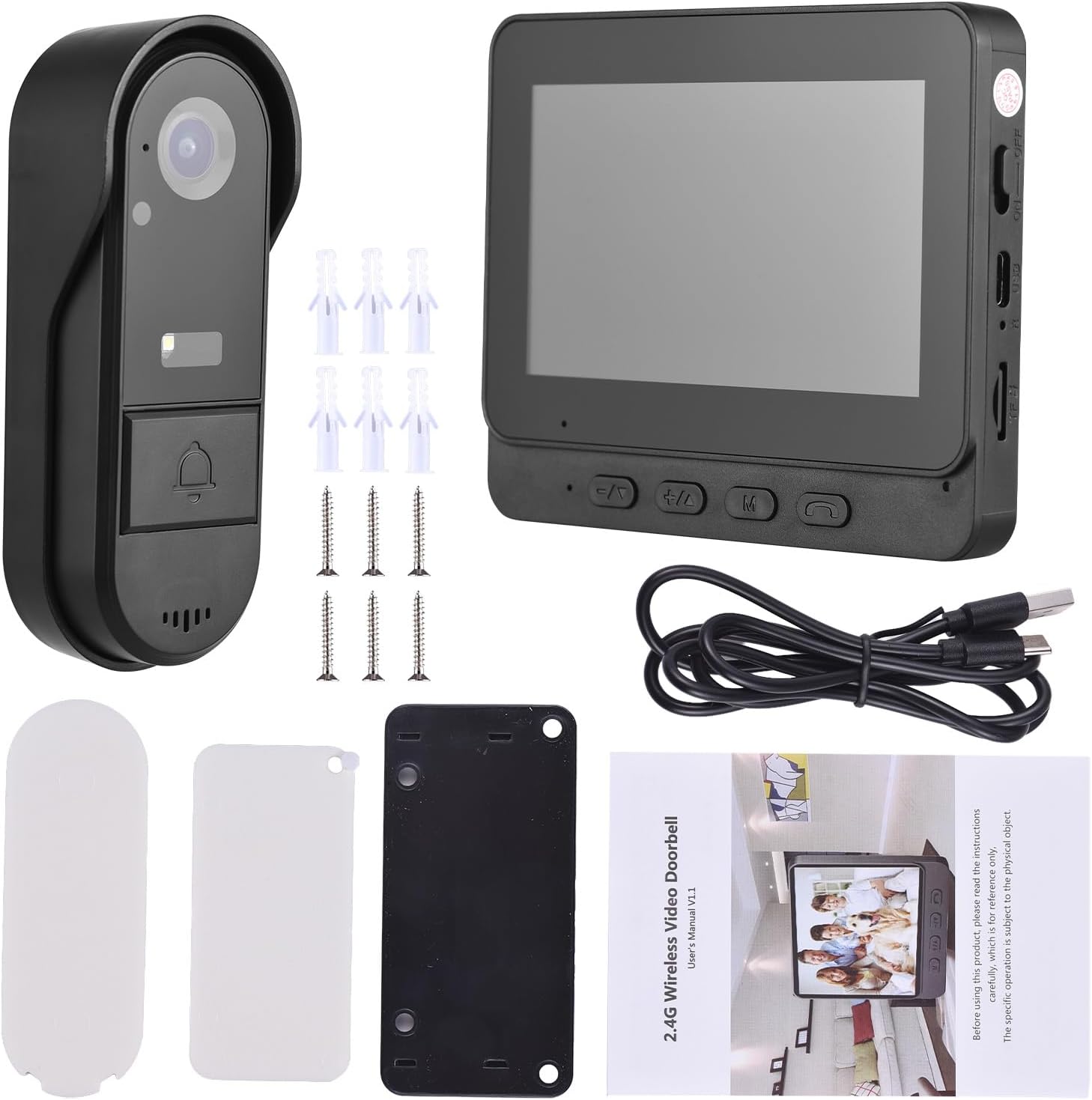
Image: All components included in the Splenssy HS7080 package, including the indoor monitor, outdoor camera, charging cable, power adapter, mounting hardware, and user manual.
4. Setup
4.1 Initial Charging
Before first use, ensure both the indoor monitor and outdoor camera are fully charged. Use the provided USB cable and power adapter.
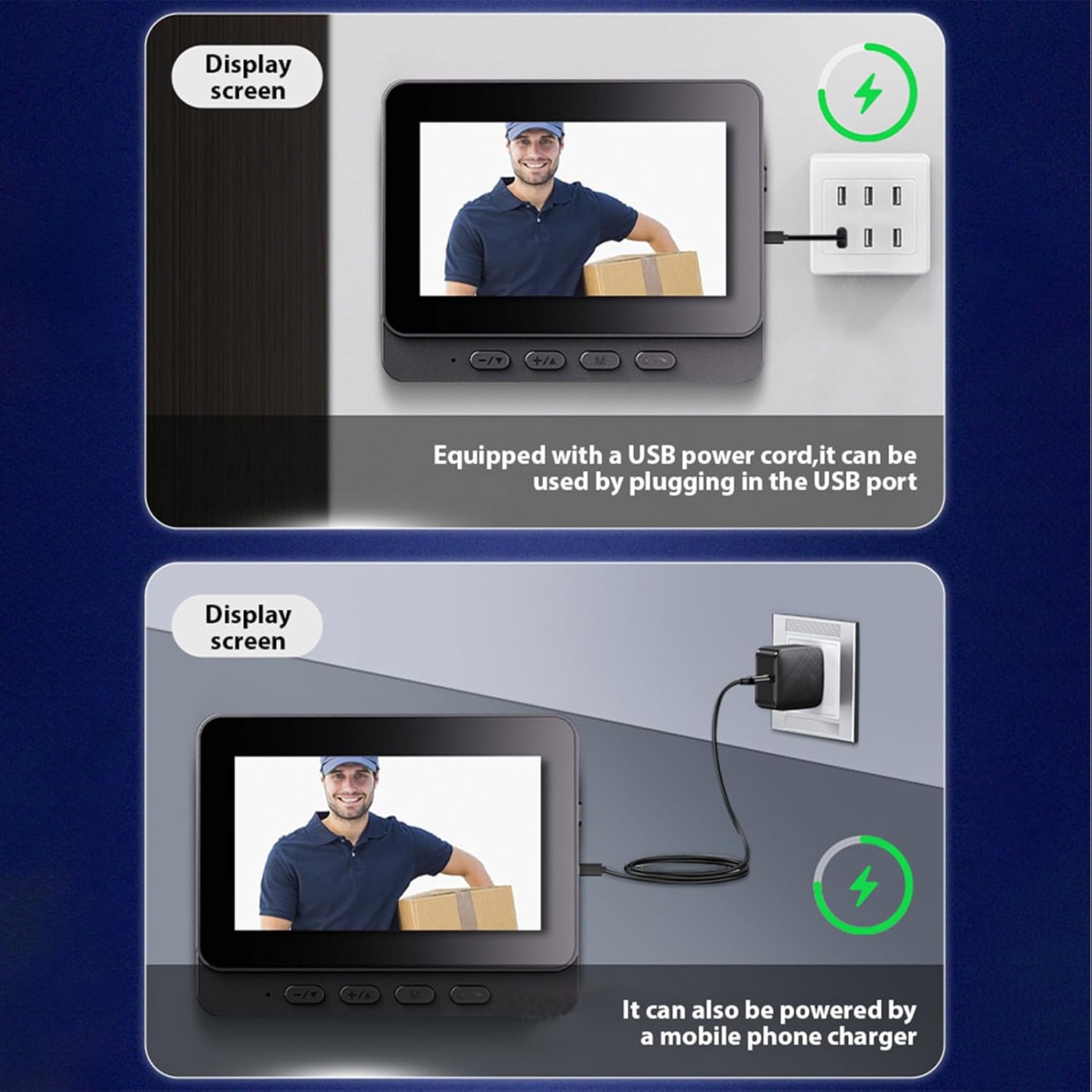
Image: The indoor monitor and outdoor camera being charged via USB cable, illustrating the charging ports and methods.
4.2 Pairing the Doorbell
The indoor monitor and outdoor camera should be paired for communication. Follow these steps:
- Turn on the indoor monitor.
- On the indoor monitor, navigate to the pairing function (often found in settings or by pressing a specific button).
- Press the doorbell button on the outdoor camera to initiate pairing.
- The monitor will display a 'Pairing...' message and a countdown. Once successful, it will show 'Connected'.
Video: Demonstrates the process of pairing the Splenssy HS7080 outdoor doorbell camera with the indoor monitor, showing button presses and screen feedback.
4.3 Installation
The Splenssy HS7080 is designed for wireless installation. Choose a suitable location for both the outdoor camera and indoor monitor.
- Outdoor Camera Placement: Mount the outdoor camera near your door, ensuring a clear view of the entrance. Use the provided mounting bracket, screws, and wall anchors.
- Indoor Monitor Placement: Place the indoor monitor in a convenient location within your home, ensuring it is within range of the outdoor camera.
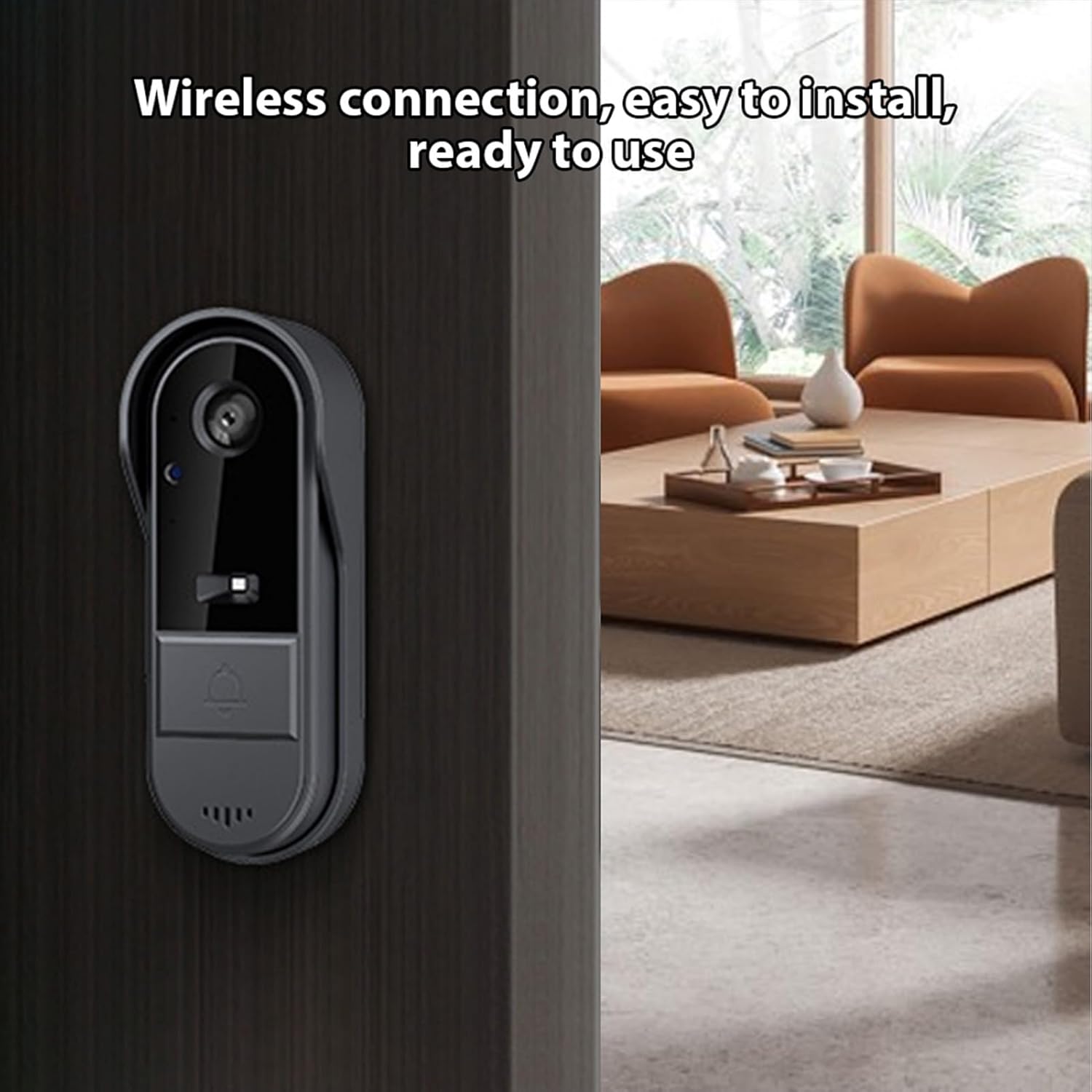
Image: The outdoor camera mounted wirelessly next to a door, demonstrating its ease of installation.
Video: Detailed instructions on how to install the Splenssy HS7080 video doorbell, including mounting the outdoor unit and connecting the indoor monitor.
4.4 Smart Home Integration (Alexa & Google Home)
The Splenssy HS7080 can be integrated with Amazon Alexa and Google Home for enhanced control and monitoring. Refer to the following videos for detailed instructions:
Video: Guide on how to connect the Splenssy HS7080 video doorbell with Amazon Alexa and Google Home for smart home functionality.
5. Operating Instructions
5.1 Answering a Call
When a visitor presses the doorbell button, the indoor monitor will ring and display the live video feed. Press the phone icon button on the monitor to answer the call.
Video: Demonstrates how to use the Splenssy HS7080 video doorbell, including answering calls and using two-way communication.
5.2 Two-Way Communication
During an active call, hold down the phone icon button on the indoor monitor to engage in two-way communication with the visitor. Release the button to listen.
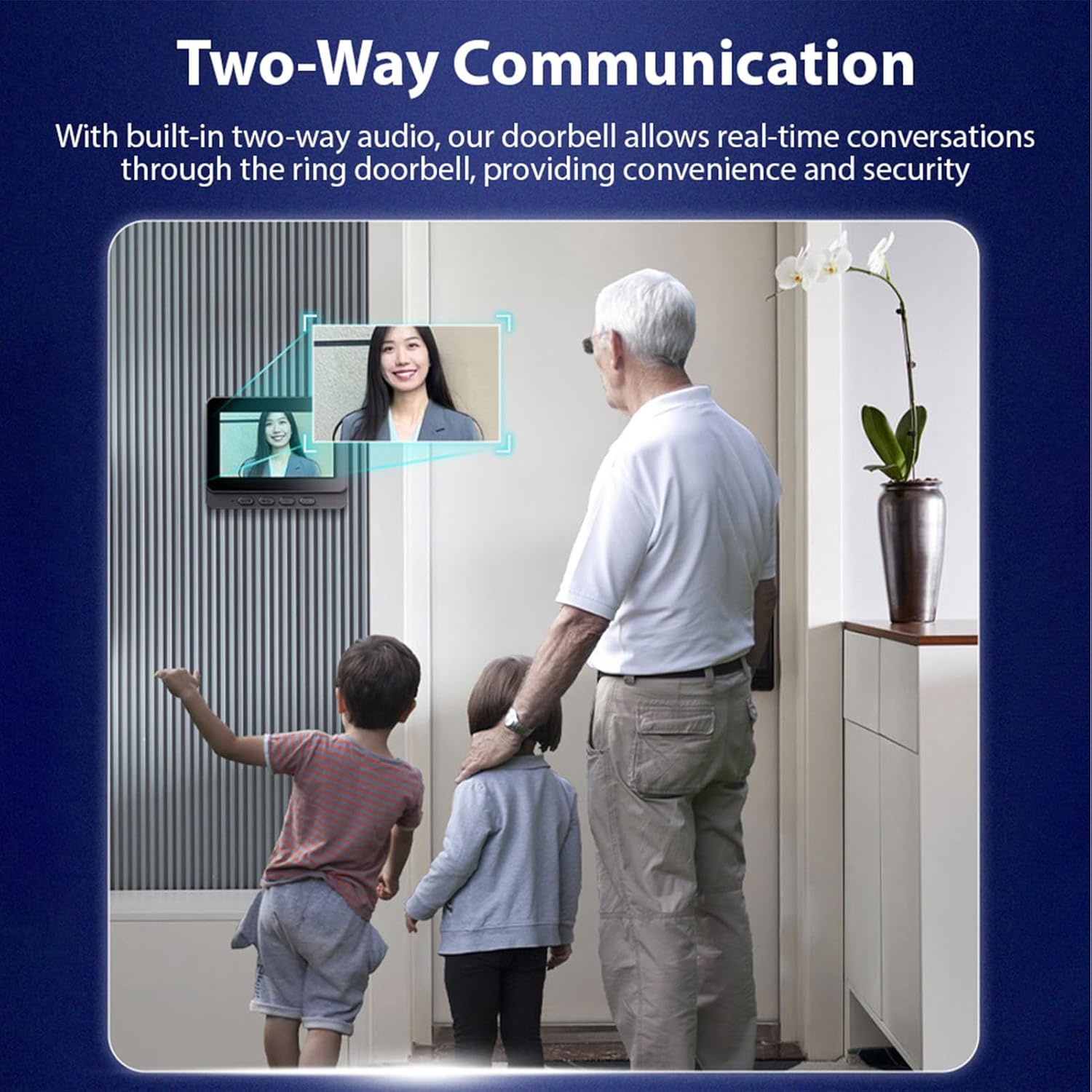
Image: Illustrates the two-way communication feature, showing a family interacting with a visitor through the indoor monitor.
5.3 Adjusting Volume
Use the +/- buttons on the indoor monitor to adjust the ring volume and communication volume.
5.4 Accessing Menu and Settings
Press the M button on the indoor monitor to access the main menu. From here, you can navigate through various settings such as language, brightness, ring volume, and time settings.
5.5 Viewing Recorded Videos
The system supports recording events to a TF card (not included). To view recorded videos:
- Access the main menu by pressing the M button.
- Select the 'Video file' option.
- Browse and select the desired video for playback.
5.6 Setting Time and Date
To ensure accurate timestamps on recordings:
- Access the main menu by pressing the M button.
- Select 'Time Setting'.
- Adjust the year, month, day, hour, and minute using the navigation buttons.
- After setting, use the doorbell to make a call once to save the result.
6. Maintenance
- Cleaning: Use a soft, dry cloth to clean the indoor monitor and outdoor camera. Avoid abrasive cleaners or solvents.
- Battery Care: Recharge the devices regularly to maintain optimal battery life. Avoid extreme temperatures during charging and storage.
- Weather Protection: While the outdoor camera is IP65 rated for water and dust resistance, ensure its mounting location provides some shelter from direct, prolonged exposure to severe weather conditions to maximize longevity.
- Firmware Updates: Check the manufacturer's website or app for any available firmware updates to ensure optimal performance and security.
7. Troubleshooting
7.1 No Video Feed on Indoor Monitor
- Ensure both the outdoor camera and indoor monitor are powered on and fully charged.
- Verify that the devices are properly paired. If not, repeat the pairing process (Section 4.2).
- Check the distance between the outdoor camera and indoor monitor. Excessive distance or thick walls can interfere with the wireless signal.
7.2 Poor Video Quality
- Clean the camera lens on the outdoor unit.
- Ensure adequate lighting conditions. The camera has night vision, but extreme darkness can still affect clarity.
- Check for any obstructions in the camera's field of view.
7.3 Doorbell Not Ringing
- Check the ring volume settings on the indoor monitor (Section 5.3).
- Ensure the outdoor camera button is functioning correctly.
- Re-pair the devices if necessary (Section 4.2).
7.4 Short Battery Life
- Ensure both devices are fully charged before use.
- Frequent use, especially two-way communication and video recording, can reduce battery life.
- Extreme temperatures can affect battery performance.
8. Specifications
| Feature | Specification |
|---|---|
| Model Number | HS7080 |
| Brand | Splenssy |
| Effective Video Resolution | 1080P |
| Viewing Angle | 170 Degrees |
| Voltage | 3.7 Volts |
| Indoor Monitor Dimensions (L x W x H) | 4.7 x 0.7 x 3.7 inches (approx. 11.9 x 1.8 x 9.4 cm) |
| Outdoor Camera Dimensions (L x W x H) | 5.1 x 2 x 1.4 inches (approx. 13 x 5.1 x 3.6 cm) |
| Weight | 500 Grams (total) |
| Battery Capacity (Outdoor Camera) | 1000Ah |
| Battery Capacity (Indoor Monitor) | 400mAh |
| Connectivity Technology | Wireless (Bluetooth) |
| Indoor/Outdoor Use | Outdoor Camera: Outdoor (IP65); Indoor Monitor: Indoor |
| Mounting Type | Wall Mount |
| Storage | Supports TF card up to 128GB (not included) |
9. Warranty and Support
For warranty information, technical support, or service inquiries, please refer to the contact information provided with your purchase or visit the official Splenssy website. Keep your purchase receipt as proof of purchase for warranty claims.