1. Introduction
This manual provides comprehensive instructions for the setup, operation, maintenance, and troubleshooting of your new Lenovo ThinkPad T14 Gen 5 laptop. Please read this manual thoroughly to ensure proper use and to maximize the performance and longevity of your device.
2. Product Overview
The Lenovo ThinkPad T14 Gen 5 is a high-performance laptop designed for productivity and reliability. It features a 14-inch WUXGA IPS display, an Intel Core Ultra 5 125U processor, and comes with 16GB DDR5 RAM and a 1TB NVMe M.2 SSD, running on Windows 10 Pro.

Figure 2.1: Front view of the Lenovo ThinkPad T14 Gen 5 laptop, showcasing its display and keyboard.
3. Key Features
- Brilliant 14" WUXGA Display: A 1920 x 1200 resolution IPS Anti-Glare display with 400 nits brightness, 45% NTSC, and 60Hz refresh rate, powered by Intel Graphics. Includes a 5.0MP + IR Discrete Camera with Privacy Shutter.
- Intel Core Ultra 5 125U Processor: Features an Ultra Smart Platform with up to 4.3GHz Intel Turbo Boost Technology, 12 MB Intel Smart cache, 12 Cores (2 Performance-Cores, 10 Efficient-Cores), and 14 threads.
- Enhanced Input and Security: Equipped with a Backlit Keyboard, Fingerprint Reader, and TrackPoint for comfortable and secure interaction.
- Customized Configuration: Upgraded with 16GB DDR5 SDRAM 5600MHz and a 1TB NVMe M.2 Solid State Drive, running Windows 10 Pro.
- Long-lasting Battery with Express Charge: The 52.5Whr 4-Cell Lithium-Ion battery provides up to 6 hours of battery life and supports Express Charge, recharging 80% in 60 minutes.
4. Setup Guide
4.1 Unpacking and Initial Inspection
Carefully remove all components from the packaging. Verify that all items listed below are present and undamaged:
- Lenovo ThinkPad T14 Gen 5 Laptop
- 65W AC Adapter
- MST 32GB USB Drive
If any items are missing or damaged, contact your vendor immediately.
4.2 Connecting Power
- Connect the AC adapter to the power connector on your laptop.
- Plug the power cord into an electrical outlet.
- The battery will begin charging automatically. It is recommended to fully charge the battery before first use.
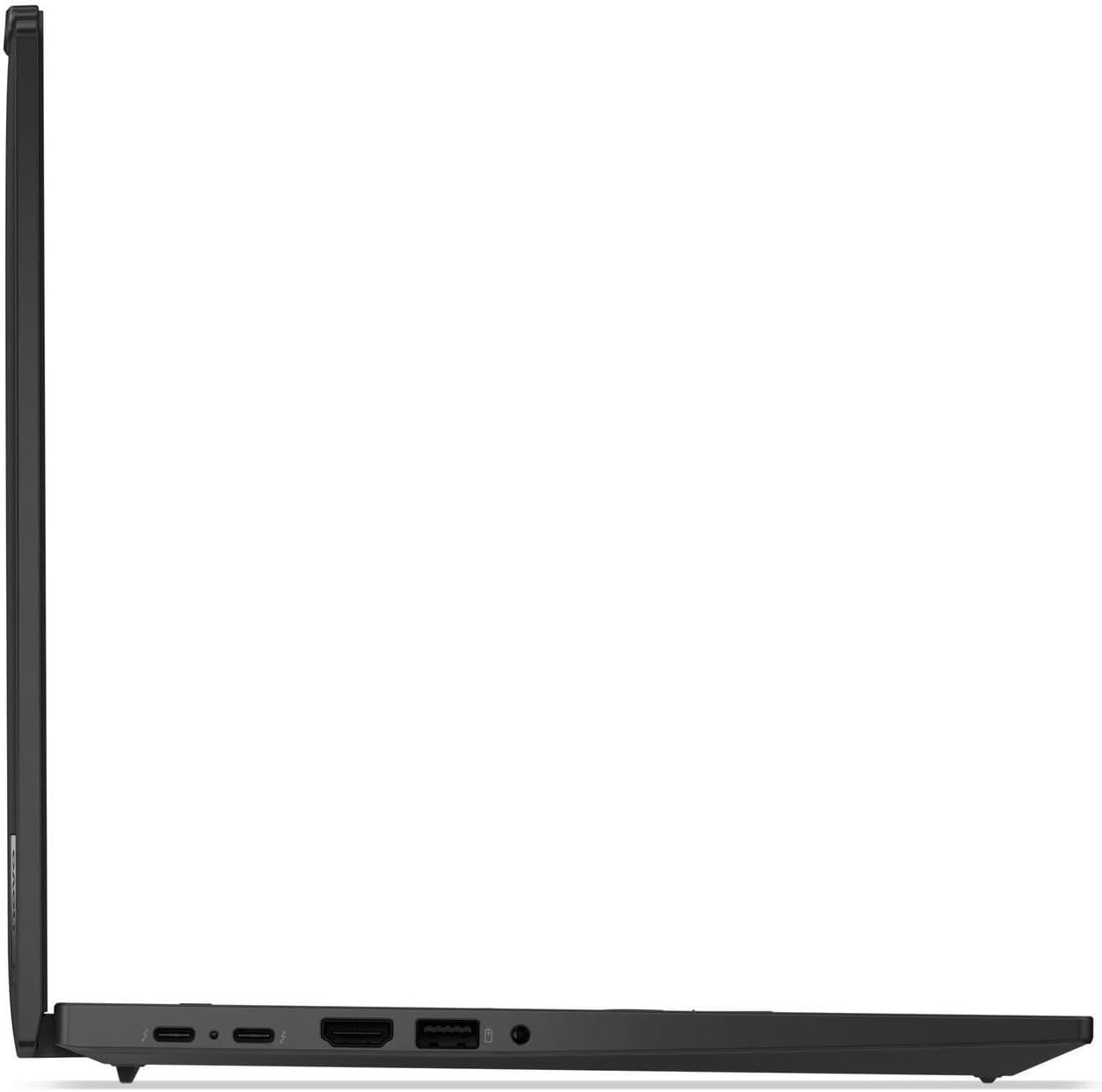
Figure 4.1: Left side view illustrating the power input and various ports.
4.3 First Boot and Operating System Setup
- Open the laptop lid.
- Press the power button, typically located on the top right of the keyboard deck.
- Follow the on-screen instructions to complete the Windows 10 Pro setup, including language selection, network connection, and user account creation.
5. Operating Your Laptop
5.1 Keyboard and TrackPoint/Touchpad
Your ThinkPad T14 Gen 5 features a backlit keyboard for comfortable typing in various lighting conditions. The integrated TrackPoint and large touchpad provide precise cursor control.
- Backlit Keyboard: Press Fn + Spacebar to cycle through backlight brightness levels (off, low, high).
- TrackPoint: Use the red TrackPoint in the center of the keyboard for precise cursor movement. The three buttons below the spacebar function as left-click, scroll, and right-click for the TrackPoint.
- Touchpad: The multi-touch touchpad supports gestures for navigation, scrolling, and zooming.

Figure 5.1: Top-down view highlighting the keyboard layout and pointing devices.
5.2 Fingerprint Reader
The integrated fingerprint reader provides a secure and convenient way to log in to your system. To set up:
- Go to Windows Settings > Accounts > Sign-in options.
- Select "Windows Hello Fingerprint" and follow the on-screen instructions to register your fingerprints.
5.3 Ports and Connectors
Your laptop is equipped with various ports for connectivity:
- 2 x USB Thunderbolt 4 / USB4 40Gbps Type-C: Supports Power Delivery and DisplayPort.
- 1 x USB 3.2 Gen 1 Type-A: Supports Always On / 5Gbps.
- 1 x USB 3.2 Gen 1 Type-A: Supports 5Gbps.
- 1 x Headphone/microphone combo jack.
- 1 x HDMI v2.1.
- 1 x RJ-45 (Ethernet).
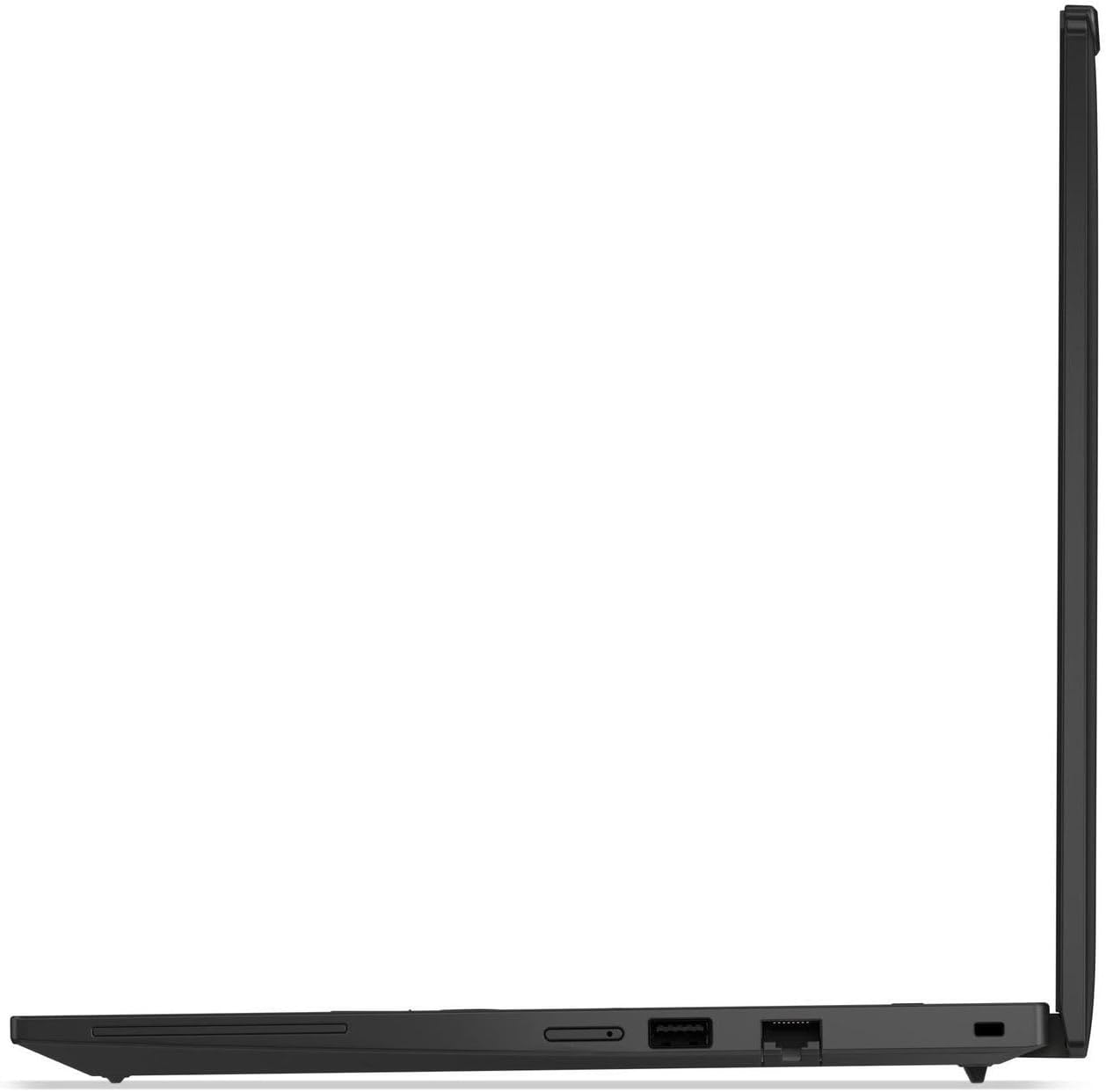
Figure 5.2: Right side view illustrating USB-A ports, audio jack, and Ethernet port.
6. Maintenance and Care
6.1 Cleaning Your Laptop
- Use a soft, lint-free cloth slightly dampened with water or a screen cleaner to clean the display.
- For the keyboard and chassis, use a soft cloth. Avoid harsh chemicals or abrasive materials.
- Ensure the laptop is powered off and unplugged before cleaning.
6.2 Battery Care
- To prolong battery life, avoid extreme temperatures.
- Do not fully discharge the battery frequently.
- If storing the laptop for an extended period, ensure the battery is charged to about 50-60%.
7. Troubleshooting
| Problem | Possible Cause | Solution |
|---|---|---|
| Laptop does not power on. | Battery is depleted or AC adapter is not connected properly. | Ensure AC adapter is securely connected to both the laptop and a working power outlet. Allow battery to charge for a few minutes before attempting to power on again. |
| Display is blank. | Laptop is in sleep mode, display output issue, or brightness is too low. | Press any key or move the mouse to wake from sleep. Check display cable if using external monitor. Increase brightness using keyboard function keys (Fn + F5/F6). |
| Wi-Fi connection issues. | Wi-Fi adapter disabled, incorrect password, or router issue. | Check Wi-Fi settings in Windows to ensure adapter is enabled. Verify Wi-Fi password. Restart your router and modem. |
8. Technical Specifications
| Feature | Specification |
|---|---|
| Model Name | ThinkPad T14 Gen 5 |
| Item Model Number | 21MLS18Y00 |
| Display | 14" WUXGA (1920 x 1200) IPS Anti-Glare 400 nits, 45% NTSC, 60Hz |
| Processor | Intel Core Ultra 5 125U (Up to 4.3GHz, 12 Cores, 14 Threads) |
| Graphics | Intel Graphics (Integrated) |
| RAM | 16GB DDR5 5600 MHz SDRAM |
| Storage | 1TB NVMe M.2 SSD |
| Operating System | Windows 10 Pro |
| Keyboard | Backlit Keyboard |
| Security | Fingerprint Reader |
| Camera | 5.0MP + IR Discrete Camera with Privacy Shutter |
| Audio | Stereo speakers, 2W x2, Dolby Audio |
| Wireless Connectivity | Intel Wi-Fi 6E AX211 (2x2) and Bluetooth 5.3 |
| Ports | 2x Thunderbolt 4 (USB4 40Gbps, PD, DP), 2x USB 3.2 Gen 1 Type-A (1 Always On), 1x Headphone/mic combo, 1x HDMI 2.1, 1x RJ-45 |
| Battery | 4 Cell 52.5Wh (Up to 6 hours average battery life) |
| Power Adapter | 65W AC Adapter |
| Dimensions (LxWxH) | 12.44 x 8.81 x 0.70 inches |
| Weight | 3.15 lbs |
| Color | Black |
9. Warranty and Support
For warranty information and technical support, please refer to the documentation provided with your purchase or visit the official Lenovo support website. Keep your proof of purchase for warranty claims.
Lenovo Support Website: https://support.lenovo.com


