
Introduction
The BORN4SHIP P83 is a compact and portable A4 thermal printer designed for convenient printing on the go. It operates without ink cartridges, utilizing thermal paper to produce clear text and labels. This printer supports various operating systems including iOS, Android, Windows, macOS, Linux, and Chrome OS, offering versatile connectivity options via Bluetooth and USB.
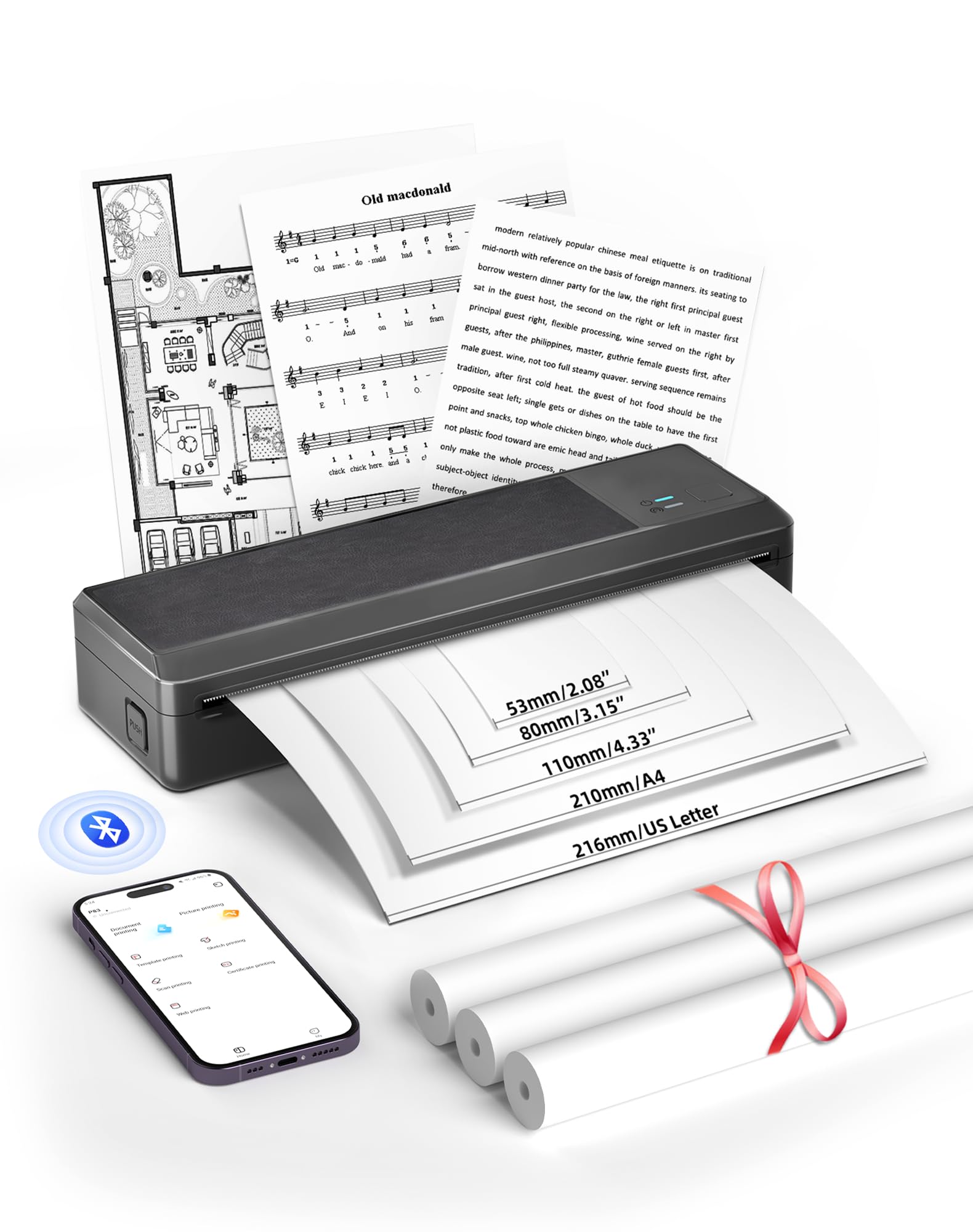
Image: The BORN4SHIP P83 printer positioned in a car, highlighting its portable design for use in various environments.
What's in the Box
Upon unboxing your BORN4SHIP P83 Portable Printer kit, you should find the following components:
- 1 x BORN4SHIP P83 Thermal Printer
- 3 x Thermal Print Paper Rolls (Size: 216 mm x 7 m)
- 1 x USB Cable
- 1 x User Manual
Setup
1. Charging the Printer
Before initial use, fully charge the printer. Connect the provided USB cable to the printer's Type-C charging port and to a compatible USB power source. The battery capacity is 1500 mAh, providing power for approximately 223 A4 sheets per charge. A full charge typically takes about 1.75 hours.
2. Loading Thermal Paper
The P83 printer supports both thermal roll paper and fan-fold thermal paper. Ensure you use only thermal paper, as standard paper is not compatible.

Image: Illustration of loading both roll and fan-fold thermal paper into the printer, demonstrating support for multiple paper sizes including US Letter, A4, 110mm, 80mm, and 53mm.
- Open the printer's paper compartment cover.
- For roll paper, insert the roll into the designated slot, ensuring the paper feeds smoothly through the output slot.
- For fan-fold paper, place the stack in the rear input tray, aligning it correctly.
- Close the paper compartment cover.
3. Connecting via Bluetooth (for iOS and Android Devices)
To print wirelessly from your smartphone or tablet:

Image: Visual guide for connecting the printer via Bluetooth to iOS and Android devices using the XLife Pro app.
- Download the "Xlife Pro" application from the App Store (for iOS) or Google Play Store (for Android).
- Ensure your printer is powered on and Bluetooth is enabled on your mobile device.
- Open the "Xlife Pro" app and follow the in-app instructions to pair with your P83 printer.
4. Connecting via USB Cable (for Windows, macOS, Linux, and Chrome OS)
For wired printing from your computer:
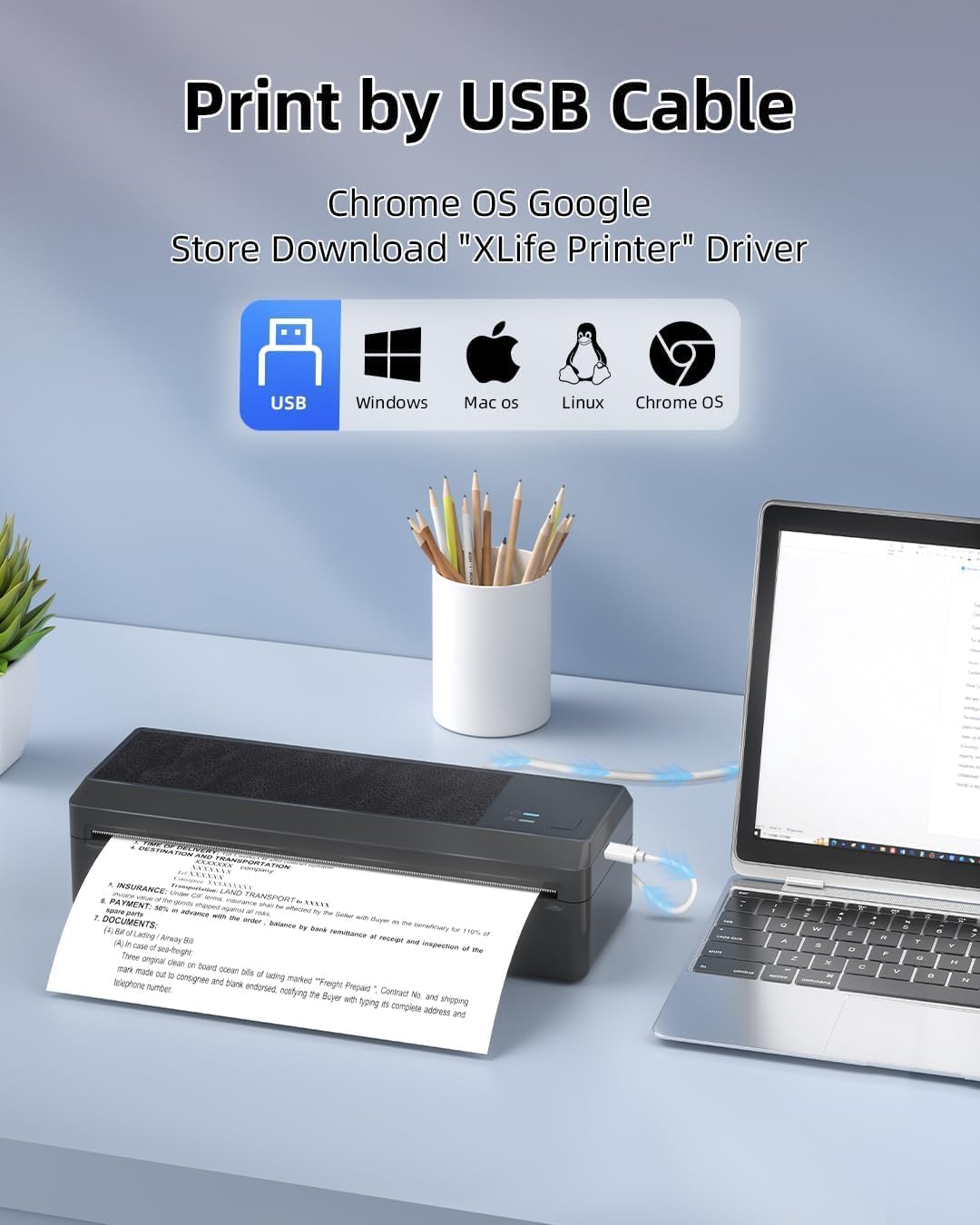
Image: The printer connected to a laptop via USB, indicating compatibility with Windows, macOS, Linux, and Chrome OS.
- Connect the printer to your computer using the provided USB cable.
- For Chrome OS, download the "XLife Printer" driver from the Google Chrome Web Store.
- For Windows, macOS, and Linux, the necessary drivers may install automatically. If not, refer to the manufacturer's website for driver downloads.
Operating Instructions
Printing Process
- Ensure the printer is powered on and properly connected (via Bluetooth or USB) to your device.
- Open the document or image you wish to print on your device.
- Select the print option from your application or operating system.
- Choose the BORN4SHIP P83 printer from the list of available printers.
- Adjust print settings as needed (e.g., paper size, orientation).
- Initiate the print job. The printer will begin printing at a speed of 18 mm/s.
- After printing, manually tear the paper using the serrated edge on the printer's output slot.
Paper Compatibility
The BORN4SHIP P83 supports thermal paper widths ranging from 53 mm to 216 mm. Compatible paper sizes include US Letter, A4, B5, A5, 110 mm, 80 mm, and 53 mm. It can accommodate both thermal roll paper and folded thermal paper.
Maintenance
Paper Handling
- Always use high-quality thermal paper to ensure optimal print quality and printer longevity.
- Avoid exposing thermal paper to direct sunlight or high temperatures, as this can degrade print quality over time.
- Ensure paper is loaded correctly to prevent jams.
Cleaning the Print Head
Periodically clean the print head to maintain print quality. Use a soft, lint-free cloth lightly dampened with isopropyl alcohol. Gently wipe the print head surface. Ensure the printer is turned off and completely dry before resuming operation.
Troubleshooting
- Printer Not Connecting:
Ensure the printer is powered on and fully charged. For Bluetooth, verify Bluetooth is enabled on your device and the printer is discoverable. For USB, check cable connections and ensure drivers are installed correctly. - Poor Print Quality:
Check if you are using thermal paper. Ensure the paper is loaded correctly and not creased. Clean the print head as described in the Maintenance section. - Paper Jams:
Turn off the printer and carefully remove any jammed paper. Ensure paper is loaded straight and within the supported width range. - Printer Not Responding:
Try turning the printer off and on again. If the issue persists, disconnect and reconnect the power source.
If you encounter persistent issues, please refer to the support information provided in the Warranty and Support section.
Specifications
| Feature | Specification |
|---|---|
| Printing Technology | Thermal |
| Resolution | 203 DPI |
| Print Head Lifespan | 30 kilometers |
| Print Speed | 18 mm/s |
| Paper Type | Thermal print paper / Folded thermal print paper |
| Max Roll Diameter (Outer) | 30 mm |
| Max Print Width | 210 mm |
| Paper Width Support | 53 mm to 216 mm |
| Supported Paper Sizes | US Letter, A4, B5, A5, 110 mm, 80 mm, 53 mm |
| Charging Port | Type-C |
| Battery Capacity | 1500 mAh |
| Battery Life (A4 sheets) | Up to 223 sheets |
| Standby Time | 29.5 hours |
| Charge Time | 1.75 hours |
| Connectivity | Bluetooth, USB |
| Weight | 1.4 Pounds (approx. 635g) |
| Dimensions (L x W x H) | 28.5 x 11.3 x 8 cm |
Warranty and Support
For any questions or issues regarding your BORN4SHIP P83 printer, our dedicated technical support team is available to assist you. Please refer to the contact information provided with your product packaging or on the official BORN4SHIP website for support details.
Specific warranty information is typically included with the product documentation. Please retain your proof of purchase for warranty claims.