
1. Introduction
Thank you for choosing the UBOTIE Wireless Keyboard and Mouse Combo. This manual provides essential information for setting up, operating, and maintaining your new peripheral devices. This combo offers a full-size QWERTY layout keyboard with round colorful keys, an integrated phone holder, and a comfortable wrist rest, paired with a quiet wireless mouse, all connected via a single 2.4GHz USB receiver.
2. Safety Information
- Keep the devices away from water and other liquids to prevent damage.
- Avoid exposing the devices to extreme temperatures or direct sunlight.
- Do not attempt to disassemble or repair the devices yourself. Contact customer support for assistance.
- Dispose of batteries according to local regulations.
3. Package Contents
- 1 x UBOTIE Wireless Keyboard
- 1 x UBOTIE Wireless Mouse
- 1 x 2.4GHz USB Receiver (stored inside the mouse)
- 1 x Integrated Wrist Rest
- 1 x Keycap Cleaning Brush
Note: Batteries (2x AAA for keyboard, 1x AA for mouse) are not included and must be purchased separately.

Image: UBOTIE Wireless Keyboard and Mouse Combo with wrist rest and USB receiver.
4. Setup
4.1 Battery Installation
- For the Mouse: Open the battery compartment cover on the underside of the mouse. Insert one AA battery, ensuring correct polarity (+/-). Close the cover.
- For the Keyboard: Open the battery compartment cover on the underside of the keyboard. Insert two AAA batteries, ensuring correct polarity (+/-). Close the cover.
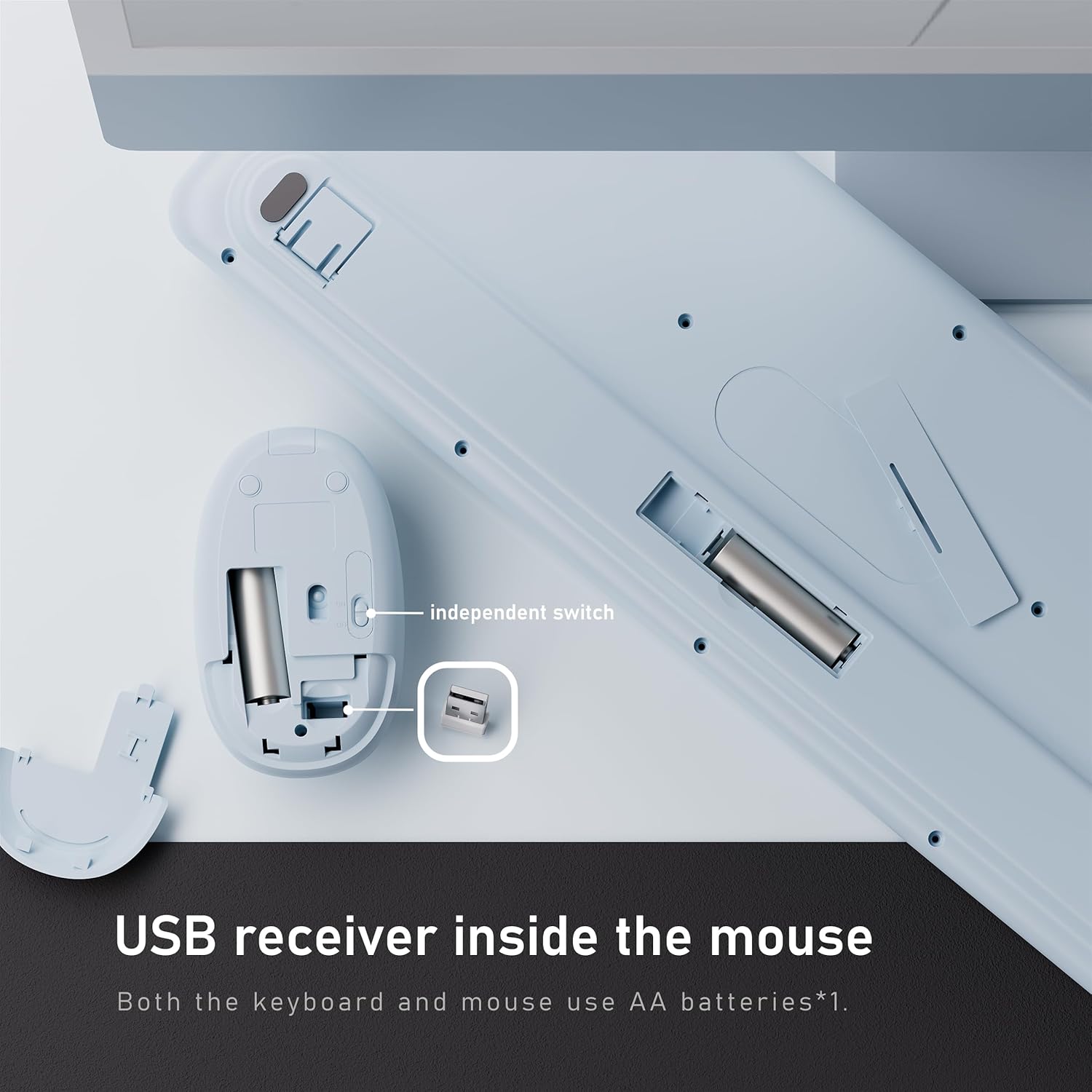
Image: Underside of the mouse showing the USB receiver storage and battery compartment. Underside of the keyboard showing its battery compartment.
4.2 Connecting the USB Receiver
- Locate the 2.4GHz USB receiver stored in the battery compartment of the mouse.
- Remove the USB receiver.
- Plug the USB receiver into an available USB-A port on your computer or laptop. If your computer only has USB-C ports, use the provided USB-C adapter.
- Turn on the power switches for both the keyboard and the mouse. The devices are plug-and-play and should connect automatically.
Video: Demonstrates the plug-and-play setup of the wireless keyboard and mouse combo, highlighting the USB receiver and connection process.
5. Operating Instructions
5.1 Keyboard Features
- Full-Size QWERTY Layout: Standard keyboard layout with function keys and a numeric keypad for efficient typing.
- Round Colorful Keycaps: Unique design for enhanced visual appeal and comfortable typing.
- Integrated Phone Holder: A slot at the top of the keyboard allows you to place your smartphone or tablet for easy viewing and multitasking.
- Wrist Rest: The detachable wrist rest provides ergonomic support to reduce strain during extended typing sessions. It attaches magnetically to the keyboard.
- Power Switch: An independent power switch is located on the keyboard to conserve battery life when not in use.

Image: The UBOTIE keyboard showcasing the integrated phone holder with a smartphone placed in it.
5.2 Mouse Features
- Quiet Clicks: The mouse features low-noise buttons, ideal for quiet environments.
- Adjustable DPI: A DPI button allows you to adjust the mouse sensitivity for precise control.
- Ergonomic Design: Contoured shape for comfortable grip.
- Power Switch: An independent power switch is located on the mouse to conserve battery life.
Video: A seller-provided video demonstrating the features of the wireless keyboard and mouse, including the ergonomic design and quiet operation.
6. Maintenance
6.1 Cleaning the Keycaps
The floating keycap design allows for easy cleaning. Use the included brush or a soft, dry cloth to remove dust and debris from between the keys. For deeper cleaning, individual keycaps can be carefully removed and reattached.
6.2 General Cleaning
Wipe the surface of the keyboard and mouse with a soft, damp cloth. Avoid using harsh chemicals or abrasive materials that could damage the finish.
7. Troubleshooting
- No Connection: Ensure both the keyboard and mouse are powered on and have fresh batteries. Verify the USB receiver is securely plugged into your computer. Try plugging the receiver into a different USB port.
- Lag or Intermittent Connection: Move the devices closer to the USB receiver. Avoid placing the receiver near other wireless devices that may cause interference.
- Mouse Cursor Jumps/Sticks: Check the mouse's DPI setting and adjust if necessary. Ensure the mouse sensor is clean and used on a suitable surface.
- Keys Not Responding: Check battery levels. If individual keys are stuck, gently clean around them.
- Device Not Waking from Sleep: The devices enter sleep mode after 30 minutes of inactivity to save power. Simply press any key or click the mouse to wake them up.
8. Specifications
| Feature | Detail |
|---|---|
| Brand | UBOTIE |
| Model | B0FCXTYWDF |
| Connectivity | 2.4GHz Wireless (USB Receiver) |
| Keyboard Layout | Full-Size QWERTY |
| Keyboard Battery | 2 x AAA batteries (not included) |
| Mouse Battery | 1 x AA battery (not included) |
| Compatibility | Windows 11, 10, 8, 7 |
| Operating Range | Up to 10 meters (33 feet) |
| Keyboard Description | Membrane Computer Keyboard and Mouse With Phone Holder Wrist Rest |
| Item Weight | 2.48 pounds (1.13 Kilograms) |
| Package Dimensions | 17.52 x 8.9 x 2.01 inches |
9. Warranty and Support
UBOTIE products come with a standard manufacturer's warranty. For specific warranty details, please refer to the product packaging or contact UBOTIE customer support directly. If you encounter any issues or have questions about your product, please visit the official UBOTIE website or contact their customer service team for assistance.
For more information, visit the UBOTIE Store on Amazon.

