
1. Introduction
Thank you for choosing the Tikom L8000 Pro Robot Vacuum and Mop Combo. This device is designed to provide efficient and automated cleaning for your home, combining powerful vacuuming with effective mopping capabilities. This manual provides essential information for safe operation, setup, maintenance, and troubleshooting to ensure optimal performance of your robot cleaner.
2. Important Safety Instructions
Before using this product, please read all safety instructions carefully and keep this manual for future reference. Failure to follow these instructions may result in electric shock, fire, or serious injury.
- This appliance can be used by children aged 8 years and above and persons with reduced physical, sensory or mental capabilities or lack of experience and knowledge if they have been given supervision or instruction concerning use of the appliance in a safe way and understand the hazards involved.
- Children should be supervised to ensure that they do not play with the appliance.
- Cleaning and user maintenance shall not be made by children without supervision.
- Only use the original power adapter provided by the manufacturer.
- Do not use the product in environments with open flames or fragile objects.
- Do not use the product in extremely hot or cold environments.
- Ensure the robot is turned off and unplugged before performing any maintenance or cleaning.
- Keep hair, loose clothing, fingers, and all parts of the body away from openings and moving parts.
- Do not operate the robot in rooms where an infant or child is sleeping.
- Do not use the robot to pick up large debris, liquids, or burning objects.
- Remove any loose cables, small objects, or fragile items from the floor before operation to prevent entanglement or damage.
3. Product Overview
3.1 What's in the Box
The Tikom L8000 Pro package includes the following components:

Image: All components included in the Tikom L8000 Pro packaging, laid out for identification.
- Robotic Vacuum Cleaner
- Water Tank
- Charging Station
- Power Adapter
- Side Brushes x 2
- Spare Dust Bin Transparent Blocking Plate x 2
- Spare HEPA Filter & Sponge
- Cleaning Brush
- Cable Ties x 5
- Mopping Cloth Holder
- Spare Mopping Cloth
- User Manual (this document)
3.2 Product Features
- Powerful Suction: 6000 Pa suction power for effective removal of pet hair and dust. Automatic MAX suction power activation on carpets.
- Smart LiDAR Navigation: Advanced radar navigation system for quick and accurate mapping of living spaces. Supports saving and managing up to 5 maps for multi-floor homes.
- 2-in-1 Vacuuming and Mopping: Integrated water tank (300ml) and dustbin (450ml) for simultaneous sweeping and mopping. Supports Sweep Only, Mop Only, and Sweep & Mop modes.
- Quiet Operation: Operates at 45 dB in low suction mode, minimizing disturbance. Features a "Do Not Disturb" mode for quiet operation during specific hours.
- Extended Runtime: Up to 150 minutes of operation in quiet mode. Automatic return to charging station when battery is low, with resume cleaning function.
- Convenient App Control: Remote control via smartphone app. Customizable suction and water levels, restricted areas (No-Go Zones, No-Mop Zones, Virtual Walls), and scheduling. Compatible with Alexa & Google Home.
- Enhanced Connectivity: Supports both 2.4Ghz and 5Ghz Wi-Fi networks.
4. Setup Guide
4.1 Preparing the Environment
- Remove any obstacles, loose cables, or small items from the floor that could entangle the robot or hinder its movement.
- Ensure there is adequate space around the charging station (at least 0.5m on both sides and 1.5m in front) for the robot to dock successfully.
4.2 Installing Side Brushes
Attach the two side brushes to the corresponding posts on the bottom of the robot until they click into place.
4.3 Placing the Charging Station
Place the charging station against a wall on a hard, level surface. Plug the power adapter into the charging station and then into a wall outlet. Ensure the indicator light on the charging station illuminates.
4.4 Initial Charge
Place the robot onto the charging station. Ensure the charging contacts on the robot align with those on the station. The robot will begin charging automatically. For first-time use, fully charge the robot before operation (approximately 4-5 hours).
4.5 App Connection and Smart Mapping
Download the Tikom app from your smartphone's app store. Follow the in-app instructions to connect your L8000 Pro to your home Wi-Fi network (supports 2.4Ghz and 5Ghz). Once connected, initiate a mapping run to allow the robot to create a detailed map of your home using its LiDAR navigation system. This map will be saved in the app for future use and customization.

Image: The Tikom L8000 Pro robot vacuum demonstrating its smart mapping capabilities and integration with a smartphone app for control.

Image: A visual representation of the Tikom L8000 Pro utilizing 360-degree LiDAR navigation to create multi-layer maps of a home environment.
5. Operating Instructions
5.1 Starting and Pausing Cleaning
- Start: Press the power button on the robot or use the "Start" command in the app.
- Pause: Press the power button again or use the "Pause" command in the app.
- Return to Charging Station: Press the home button on the robot or use the "Recharge" command in the app.
5.2 Cleaning Modes
The L8000 Pro supports multiple cleaning modes, selectable via the app:
- Sweep Only: The robot will only vacuum.
- Mop Only: The robot will only mop (ensure water tank is filled).
- Sweep & Mop: The robot will vacuum and mop simultaneously.
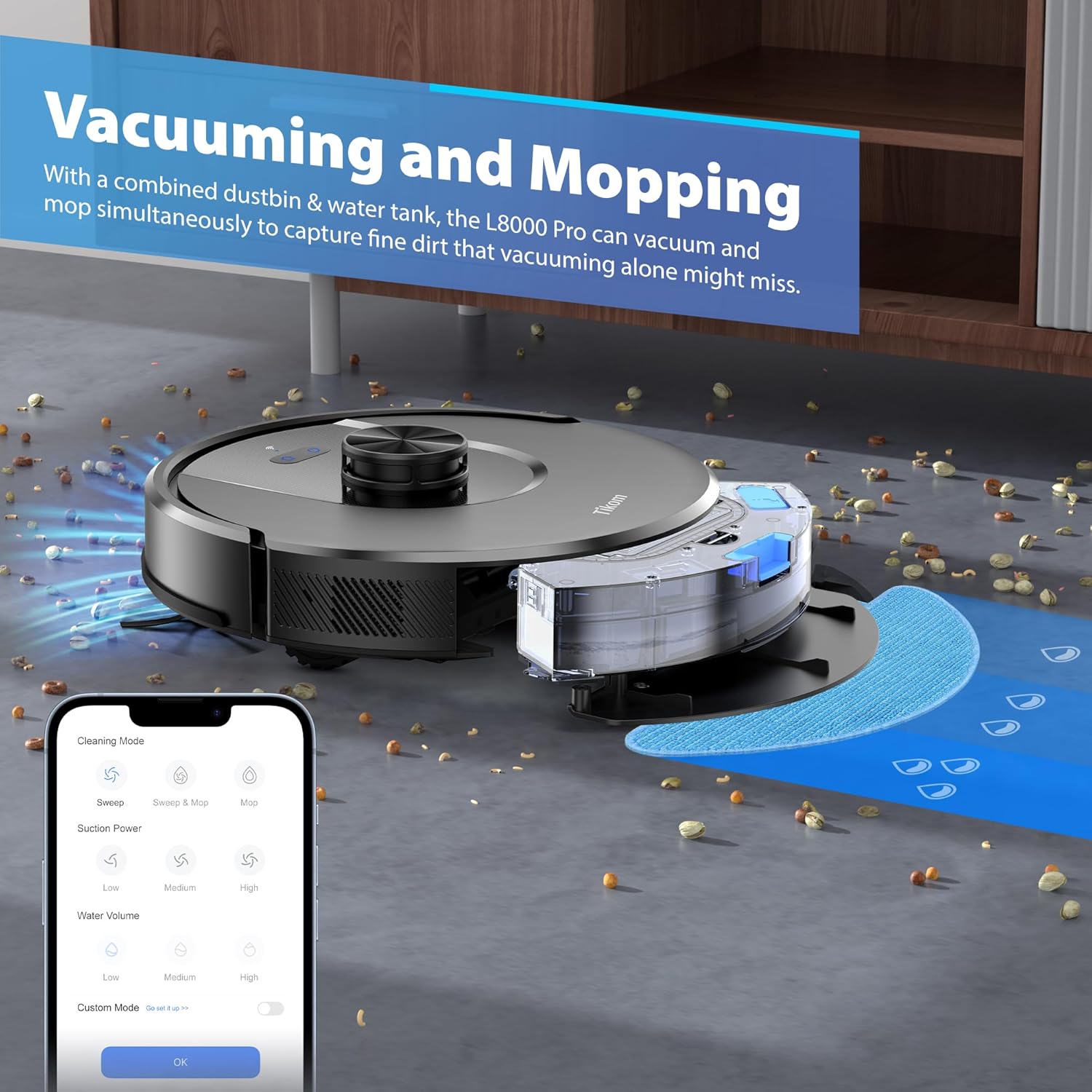
Image: The Tikom L8000 Pro robot vacuum demonstrating its combined vacuuming and mopping capabilities, showing the water tank and dustbin integration.
5.3 Suction Power and Water Level Adjustment
Adjust suction power (Low, Medium, High, MAX) and water flow level (Low, Medium, High) through the Tikom app to suit different floor types and cleaning needs. The robot automatically increases suction on carpets.
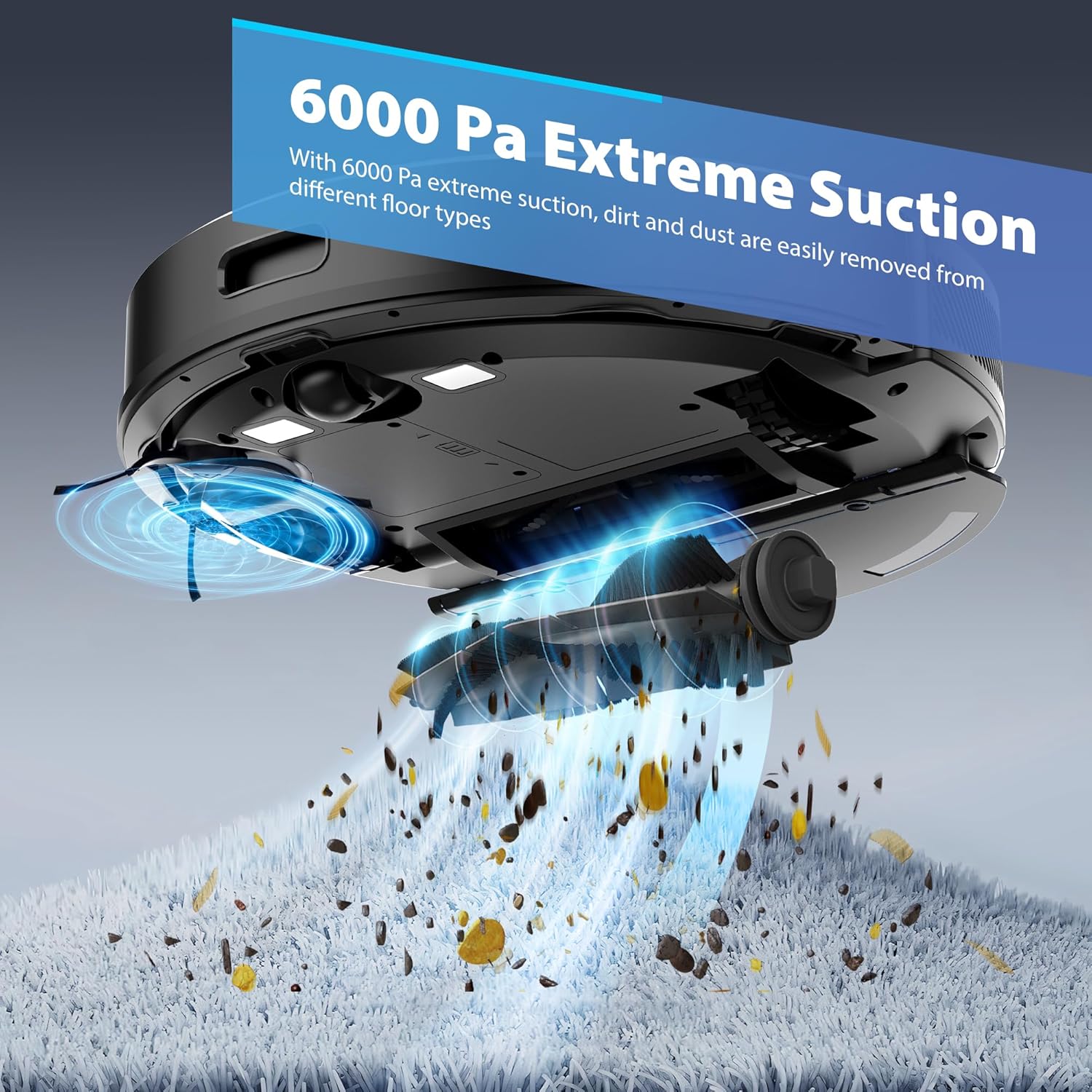
Image: The underside of the Tikom L8000 Pro robot vacuum, illustrating its 6000 Pa suction power effectively removing dirt and debris from a carpeted surface.
5.4 Scheduling Cleaning
Use the app to set cleaning schedules for specific times and days. The robot will automatically start cleaning according to your programmed schedule.
5.5 Restricted Areas (No-Go Zones, No-Mop Zones, Virtual Walls)
Define areas where the robot should not clean or mop using the app's mapping features. This is useful for protecting fragile items, pet areas, or preventing mopping on carpets.

Image: The Tikom L8000 Pro robot vacuum navigating around a designated "No-Go Zone" and illustrating its recharge and resume function.
5.6 Recharge and Resume
When the battery level is low (below 15%), the robot will automatically return to its charging station. Once charged to 80%, it will resume cleaning from where it left off, ensuring complete coverage.
5.7 Quiet Mode and Do Not Disturb
The robot operates quietly at 45 dB in low suction mode. Activate the "Do Not Disturb" mode in the app to prevent the robot from cleaning during specified hours, ensuring a peaceful environment.

Image: The Tikom L8000 Pro robot vacuum operating quietly, demonstrating its low noise level compared to other household appliances.
5.8 Voice Control Integration
The Tikom L8000 Pro is compatible with Amazon Alexa and Google Home. Follow the instructions in the Tikom app to link your robot with your preferred voice assistant for hands-free control.
6. Maintenance
Regular maintenance ensures the optimal performance and longevity of your Tikom L8000 Pro. Always turn off the robot and unplug the charging station before performing any maintenance.
6.1 Emptying the Dustbin
The dustbin has a capacity of 450ml. It should be emptied after each cleaning cycle or when full. Open the robot's top cover, remove the dustbin, and empty its contents into a trash bin. Rinse the dustbin with water if necessary and allow it to air dry completely before reinserting.
6.2 Cleaning the Water Tank and Mopping Cloth
The water tank has a capacity of 300ml. After mopping, empty any remaining water and rinse the tank. Remove the mopping cloth, wash it by hand or machine, and allow it to air dry. Replace the mopping cloth regularly for best results.
6.3 Cleaning the Main Brush
Remove the main brush cover and then the main brush. Use the provided cleaning tool to remove hair and debris tangled around the brush. Reinstall the main brush and cover.
6.4 Cleaning Side Brushes
Periodically remove the side brushes and clean any hair or debris. If brushes are worn or damaged, replace them with new ones.
6.5 Cleaning Filters
The robot uses a HEPA filter. Remove the filter from the dustbin and tap it gently to remove dust. Do not wash the HEPA filter with water. Replace the HEPA filter and sponge every 3-6 months, or as needed, depending on usage.
6.6 Cleaning Sensors and Charging Contacts
Wipe the cliff sensors, wall sensors, and charging contacts on both the robot and the charging station with a clean, dry cloth. This ensures proper navigation and charging.
7. Troubleshooting
If you encounter issues with your Tikom L8000 Pro, refer to the following common problems and solutions:
| Problem | Possible Cause | Solution |
|---|---|---|
| Robot does not turn on. | Low battery; power button not pressed. | Place robot on charging station; press and hold power button. |
| Robot cannot charge. | Charging contacts dirty; charging station unplugged. | Clean charging contacts; ensure charging station is powered. |
| Robot gets stuck or lost. | Obstacles; dirty sensors; mapping issue. | Clear obstacles; clean sensors; reset map in app if needed. |
| Poor cleaning performance. | Full dustbin; clogged brushes/filters; low suction setting. | Empty dustbin; clean/replace brushes/filters; increase suction in app. |
| Mopping not effective. | Empty water tank; dry/dirty mopping cloth; low water level setting. | Fill water tank; clean/wet mopping cloth; increase water level in app. |
| App connection issues. | Incorrect Wi-Fi password; router too far; wrong Wi-Fi band. | Verify Wi-Fi details; move robot closer to router; ensure 2.4Ghz/5Ghz compatibility. |
If the problem persists, please contact Tikom customer support for further assistance.
8. Specifications
| Feature | Detail |
|---|---|
| Brand | Tikom |
| Model Name | L8000 Pro |
| Special Feature | LiDAR Navigation, Smart Mapping |
| Color | Pure Black |
| Product Dimensions | 12.6"L x 12.6"W x 3.6"H |
| Included Components | Robotic vacuum and accessories (see "What's in the Box") |
| Filter Type | HEPA Filter |
| Battery Life | Up to 150 minutes (in quiet mode) |
| Voltage | 14.4 Volts |
| Dustbin Capacity | 450 Milliliters |
| Water Tank Capacity | 300 Milliliters |
| Power Source | Battery Powered |
| Batteries Included | Yes (1 Nonstandard Battery) |
| Compatible Devices | Smartphones (via app), Alexa, Google Home |
| Form Factor | Robotic |
| Item Weight | 5.29 pounds |
| Wi-Fi Support | 2.4Ghz & 5Ghz |
9. Warranty and Support
For warranty information, please refer to the warranty card included with your product or visit the official Tikom website. If you require technical support, have questions about operation, or need to order replacement parts, please contact Tikom customer service. Contact details can typically be found on the product packaging or the official Tikom website.


