
1. Product Overview
The Huawei H155-382 5G CPE Router is a powerful network solution designed for modern connectivity needs. This device functions as both a Wi-Fi modem and a router, utilizing the latest 5G technology to deliver ultra-fast internet speeds and a stable connection. Its advanced capabilities make it suitable for both home networks and small office environments, enabling seamless connection of multiple devices and providing reliable Wi-Fi coverage. The compact design ensures it is a space-saving solution for any location. The H155-382 combines cutting-edge router technology with Huawei's renowned ease of use, making it ideal for streaming, gaming, and other demanding digital applications. Installation is straightforward, and the intuitive user interface simplifies network parameter management.
Key Features:
- 5G Network Compatibility: Supports 5G mobile networks for ultra-fast internet speeds and reliable connections.
- Integrated Router and Modem: Operates as both a router and a Wi-Fi modem in a single device for simplified network management.
- Flexible Connectivity: Offers both Wi-Fi and LAN ports for versatile connection options.
- User-Friendly Interface: Features easy setup and management via an intuitive user interface.
- Versatile Application: Ideal for home networks and small offices requiring a fast 5G internet connection.
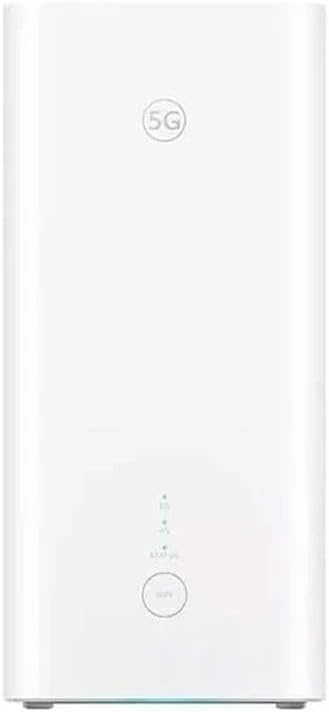
Image 1: Front view of the Huawei H155-382 5G CPE Router. This image displays the sleek, white, rectangular device with a '5G' logo and status indicators on the front panel.
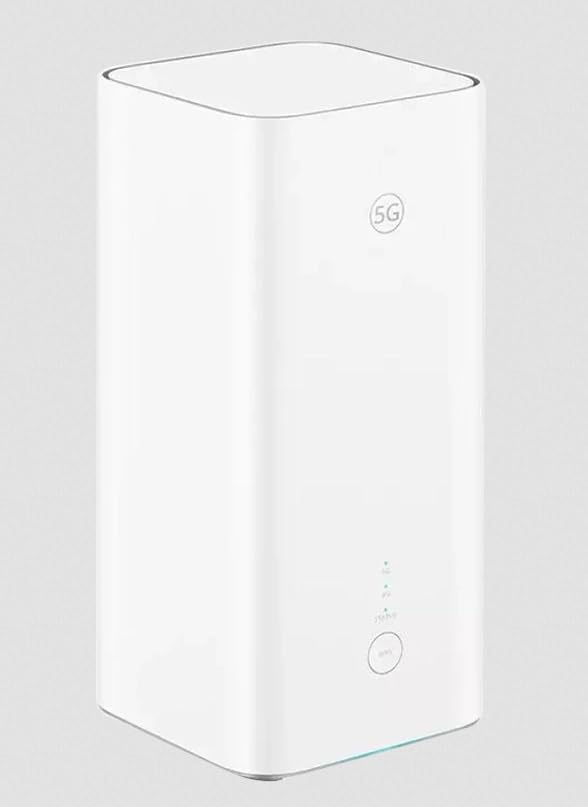
Image 2: Angled view of the Huawei H155-382 5G CPE Router. This perspective shows the device from a slight angle, highlighting its compact and modern design.
2. Initial Setup
Follow these steps to set up your Huawei H155-382 5G CPE Router for the first time.
- Unpack the Device: Carefully remove the router and all accessories from the packaging. Ensure all components, including the power adapter, are present.
- Insert SIM Card: Locate the SIM card slot, usually on the bottom or side of the device. Insert a valid 5G SIM card into the slot until it clicks into place. Ensure the SIM card is correctly oriented.
- Connect Power: Connect the provided power adapter to the router's power port and then plug it into a power outlet. The router will automatically power on.
- Power On: Press the power button (if available) or wait for the device to boot up. The indicator lights on the front panel will illuminate as the router starts.
- Initial Network Connection:
- Wi-Fi: On your computer or smartphone, search for the Wi-Fi network name (SSID) printed on the label at the bottom of the router. Connect to this network using the provided Wi-Fi password.
- LAN: For a wired connection, connect an Ethernet cable from one of the router's LAN ports to your computer's Ethernet port.
- Access Web Interface: Open a web browser and enter the default IP address (e.g.,
192.168.8.1or192.168.1.1) found on the router's label. Log in using the default username and password (also on the label). Follow the on-screen prompts for initial configuration, such as changing the default Wi-Fi name and password.

Image 3: Back view of the Huawei H155-382 5G CPE Router. This image clearly shows the two LAN ports (LAN1, LAN2/WAN) and the power input port at the bottom rear of the device.
3. Operating Instructions
3.1 Connecting Devices
- Wi-Fi Connection: On your device (smartphone, tablet, laptop), enable Wi-Fi, select your router's SSID, and enter the Wi-Fi password.
- Wired Connection: Use an Ethernet cable to connect devices like desktop computers, gaming consoles, or smart TVs to the LAN ports on the back of the router.
3.2 Managing Settings via Web Interface
The router's web interface allows you to customize network settings, monitor status, and manage connected devices.
- Open a web browser and navigate to the router's IP address (e.g.,
192.168.8.1). - Enter your administrator username and password.
- From the dashboard, you can:
- Change Wi-Fi name (SSID) and password.
- Configure network security settings.
- View connected devices and their data usage.
- Set up parental controls or guest networks.
- Update firmware.
3.3 Using the Mobile App
The Huawei H155-382 supports mobile application control. Download the official Huawei AI Life app from your device's app store to manage your router remotely, monitor network status, and access various settings conveniently from your smartphone or tablet.
4. Maintenance and Care
- Cleaning: Use a soft, dry cloth to clean the exterior of the router. Avoid using liquid cleaners or abrasive materials.
- Ventilation: Ensure the router is placed in a well-ventilated area to prevent overheating. Do not cover ventilation openings.
- Firmware Updates: Regularly check for and install firmware updates through the web interface or mobile app to ensure optimal performance and security.
- Power Cycle: If you experience network issues, try power cycling the router by unplugging it from the power outlet, waiting 10 seconds, and then plugging it back in.
- Environmental Conditions: Keep the router away from direct sunlight, excessive heat, moisture, and strong electromagnetic fields.
5. Troubleshooting
| Problem | Possible Cause | Solution |
|---|---|---|
| No internet connection | SIM card not inserted correctly; No 5G signal; Service provider issue; Router malfunction. | Ensure SIM card is properly inserted. Check 5G signal strength via web interface. Contact your service provider. Power cycle the router. |
| Slow Wi-Fi speed | Interference; Too many connected devices; Router placement; Outdated firmware. | Move router away from obstacles/other electronics. Limit connected devices. Place router centrally. Update firmware. |
| Cannot access web interface | Incorrect IP address; Incorrect login credentials; Network issue. | Verify IP address and login details (check router label). Ensure device is connected to the router's network. Try a different browser. |
| Wi-Fi signal drops frequently | Interference; Overheating; Firmware issue. | Optimize router placement. Ensure proper ventilation. Update firmware. |
6. Product Specifications
| Brand | Huawei |
| Model Name | H155-382 |
| Item Model Number | H153-381 |
| Color | White |
| Connectivity Technology | 5G |
| Operating System | Linux |
| Special Features | Mobile app control, Ethernet ports, 5G support, Dual-band Wi-Fi |
| Compatible Devices | Game console, Laptop, Smartphone, Tablet, Smart TV |
| Frequency Band Class | Dual-band |
| Wireless Communication Standard | 802.11ac, 802.11ax |
| Recommended Uses for Product | 5G connection, Mobile internet, Home network, WiFi |
| Included Components | Power adapter |
| Manufacturer | HUAWEI |
| Date First Available | June 11, 2025 |
| Spare Parts Availability | 2 Years |
| Software Updates Guaranteed Until | Information not available |
7. Warranty and Support
The Huawei H155-382 5G CPE Router typically comes with a manufacturer's warranty. Please refer to the warranty card included in your product packaging for specific terms and conditions, including the warranty period and coverage details.
For technical support, troubleshooting assistance, or warranty claims, please visit the official Huawei support website or contact their customer service. You may need your product's serial number, which can be found on the device label.
Online Resources:
- Official Huawei Support Website: consumer.huawei.com/en/support/
- Product Registration (if applicable): Register your product online to receive updates and support.


