
1. Introduction
The Apexcam X80pro is a high-performance action camera designed to capture your adventures in stunning 4K resolution at 60 frames per second and 48-megapixel photos. Featuring dual screens, Electronic Image Stabilization (EIS), and a waterproof design up to 40 meters, this camera is suitable for various sports and outdoor activities. This manual provides detailed instructions for setup, operation, and maintenance to ensure optimal use of your device.
2. Package Contents
Please check the package contents upon unboxing. If any items are missing or damaged, contact customer support.
- Apexcam X80pro Action Camera
- Waterproof Case
- 2 x 1350mAh Rechargeable Batteries
- 2.4G Wireless Remote Control
- 64GB MicroSD Card
- Various Mounting Accessories (e.g., helmet mount, bicycle mount)
- USB Cable
- User Manual

Image: The Apexcam X80pro action camera shown with its waterproof housing, remote control, 64GB memory card, microphone, and a battery. This illustrates the comprehensive set of items included in the package.

Image: A detailed view of the various accessories included with the Apexcam X80pro, such as different mounts, straps, cables, and the waterproof case, arranged neatly on a white surface.

Image: The Apexcam X80pro action camera depicted in various usage scenarios, including mounted on a helmet for motocross, on a bicycle handlebar, and attached to a person for skydiving, highlighting the versatility of its mounting accessories.
3. Getting Started (Setup)
3.1 Charging the Battery
Before first use, fully charge the batteries. Connect the camera to a USB power source using the provided USB cable, or use an external battery charger for the spare batteries.
- Insert the battery into the camera or the external charger.
- Connect the USB cable to the camera/charger and a power adapter (not included) or computer.
- The charging indicator light will show the charging status. It typically turns off or changes color when fully charged.

Image: Two 1350mAh batteries and a dual-slot battery charger, along with a 64GB memory card, illustrating the power and storage components.
3.2 Inserting/Removing Battery
- Open the battery compartment cover located on the bottom of the camera.
- Insert the battery with the contacts facing the correct direction, as indicated inside the compartment.
- Close the battery compartment cover securely.
- To remove, open the cover and gently pull out the battery.
3.3 Inserting/Removing MicroSD Card
A 64GB MicroSD card is included. Ensure the card is Class 10 or UHS-I (U3) rated for optimal performance.
- Locate the MicroSD card slot on the side of the camera.
- Insert the MicroSD card with the gold contacts facing the front of the camera until it clicks into place.
- To remove, gently push the card inward until it springs out, then pull it out.
3.4 Powering On/Off
- To power on, press and hold the Power/Mode button for a few seconds until the screen lights up.
- To power off, press and hold the Power/Mode button again until the screen turns off.
4. Basic Operation
4.1 Mode Switching
Press the Power/Mode button repeatedly to cycle through different modes: Video, Photo, Playback, and Settings.
4.2 Video Recording
In Video mode, press the Shutter/OK button to start recording. Press it again to stop. The camera supports 4K/60fps video resolution.
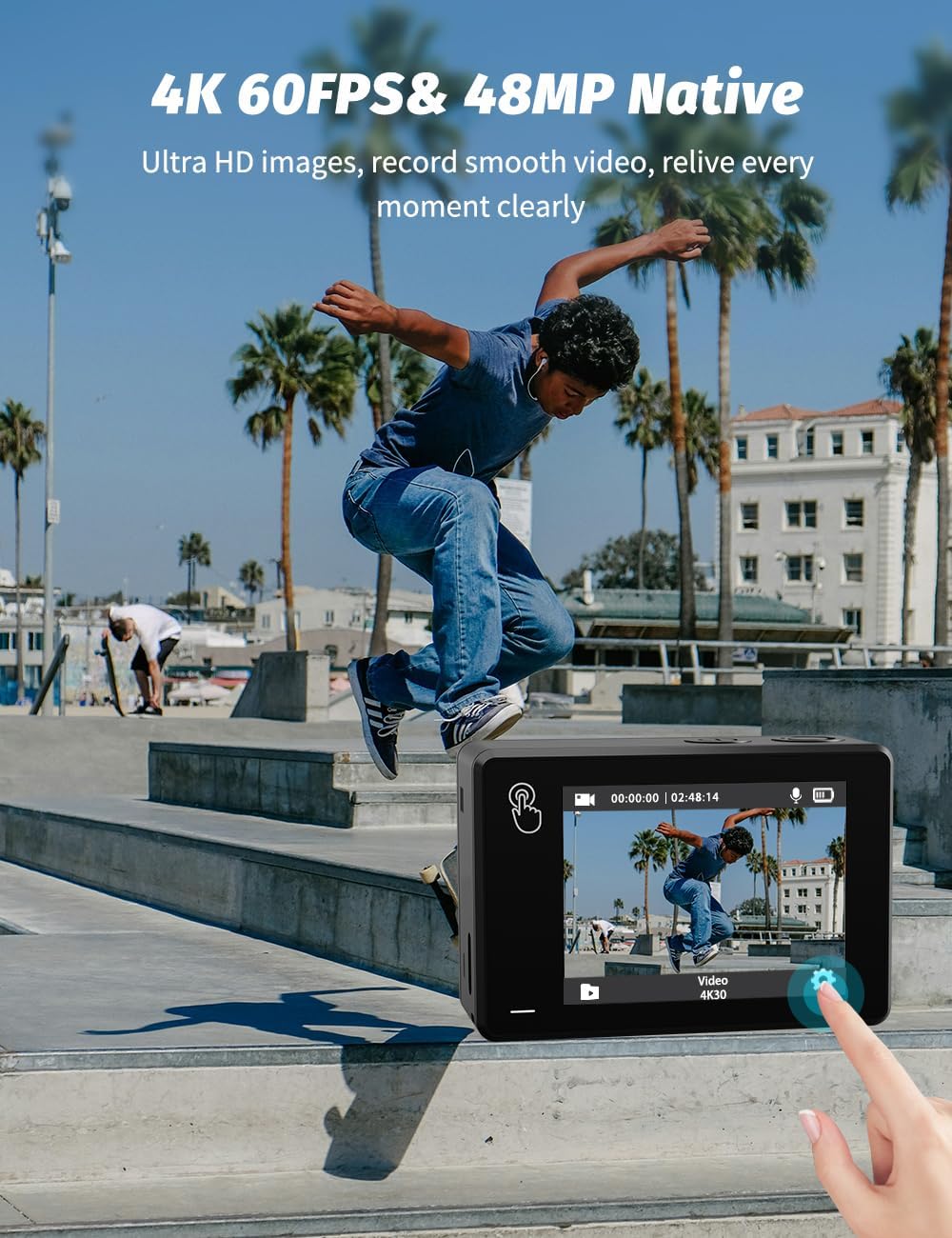
Image: The Apexcam X80pro action camera displaying a 4K video recording interface on its rear screen, with a skateboarder in action. This highlights the camera's capability for Ultra HD video capture.

Image: A visual representation emphasizing the camera's 4K 60FPS video and 48MP native photo capabilities, with a skier in action, demonstrating clear video recording.
4.3 Photo Capture
In Photo mode, press the Shutter/OK button to take a picture. The camera supports up to 48MP photo resolution.
4.4 Dual Screen Functionality
The X80pro features a 1.4-inch front screen for selfies and a 2.0-inch rear touch screen for general operation and viewing.
- To switch between the front and rear screens in video/photo mode, press and hold the Down button for a few seconds.
- Note: The front screen is not touch-sensitive and is primarily for framing selfies or vlogs. For settings and full control, use the rear touch screen. Dual screens cannot be used simultaneously for active display.

Image: The Apexcam X80pro action camera showcasing its front and rear screens, with the front screen displaying a selfie view of a person skiing, emphasizing its dual-screen capability.

Image: A demonstration of switching between the 1.4-inch front screen (for selfies) and the 2.0-inch rear touch screen (for smooth operation) on the Apexcam X80pro.

Image: An illustration explaining how to use the front screen of the Apexcam X80pro, clarifying that dual screens cannot be used simultaneously and the front screen is not touch-sensitive, primarily for photo and video capture.
4.5 Electronic Image Stabilization (EIS)
The EIS function helps to stabilize video footage, reducing blur and shakiness, especially during dynamic activities like skiing or cycling. This feature is available for certain recording resolutions.
- Enable or disable EIS in the camera's settings menu.

Image: A side-by-side comparison showing the effect of Electronic Image Stabilization (EIS) on the Apexcam X80pro. The 'OFF' side shows blurry motion from a motocross rider, while the 'ON' side shows clear, stable footage.

Image: A comparison demonstrating the impact of EIS (Electronic Image Stabilization) on the Apexcam X80pro during watersports. The 'EIS Off' image shows motion blur, while 'EIS On' provides a clear and stable image of a person wakeboarding.
4.6 Pre-Recording Function
The pre-recording mode captures 5 seconds of video before you press the shutter button. This is useful for ensuring you don't miss unexpected moments.
- Activate this feature in the camera's video settings.
4.7 Waterproof Usage
The included waterproof case allows the camera to be used up to 40 meters underwater, making it ideal for diving, surfing, and other water sports.
- Ensure the camera is securely placed inside the waterproof case.
- Verify that the case is properly sealed before submerging.

Image: Two individuals in the ocean, one holding the Apexcam X80pro in its waterproof case partially submerged, demonstrating its capability for underwater photography and videography.
4.8 Wireless Remote Control
The 2.4G wireless remote control allows you to operate the camera from a distance, useful for capturing shots when the camera is mounted out of reach.
- Ensure the remote control is paired with the camera according to the instructions in the remote control's separate manual.
- Use the remote to start/stop recording or take photos.

Image: A hand wearing the wireless remote control wristband, interacting with the Apexcam X80pro action camera, demonstrating the convenience of remote operation for capturing action shots.
4.9 Wi-Fi Connectivity
The built-in Wi-Fi allows you to connect the camera to your smartphone via the 'Apex DV' app. This enables real-time preview, downloading, and sharing of your footage.
- Download the 'Apex DV' app from your smartphone's app store.
- Enable Wi-Fi on the camera via the settings menu.
- Connect your smartphone to the camera's Wi-Fi network.
- Open the app to control the camera and manage files.

Image: The Apexcam X80pro action camera connected via Wi-Fi to a smartphone running the 'Apex DV' app, demonstrating real-time download and sharing capabilities. A dog on a beach is shown with the camera attached.
4.10 Advanced Features
- Loop Recording: Records continuously, overwriting the oldest files when the memory card is full.
- Slow Motion: Captures video at a higher frame rate for slow-motion playback.
- Time-Lapse: Captures a series of photos at set intervals to create a time-lapse video.
- LDC Distortion Correction: Corrects fisheye distortion, providing a more natural perspective. Enable this in settings if you prefer to avoid the wide-angle lens effect.
- 8X Zoom: Allows for digital zoom in photo and video modes, offering more flexibility in framing shots.

Image: A comparison showing the effect of LDC (Lens Distortion Correction) on the Apexcam X80pro. The left image shows a motocross rider with noticeable fisheye distortion, while the right image shows the corrected, flatter perspective.

Image: A demonstration of the Apexcam X80pro's 8X zoom feature, showing a rock climber at 2X, 4X, and 8X magnification, illustrating the camera's flexibility in capturing varied images.
5. Maintenance
5.1 General Care
- Keep the camera and accessories away from extreme temperatures, strong magnetic fields, and direct sunlight.
- Avoid dropping the camera or subjecting it to strong impacts.
- Store the camera in a dry, dust-free environment when not in use.
5.2 Cleaning
- Use a soft, lint-free cloth to clean the camera body.
- For the lens, use a specialized lens cleaning cloth and solution. Avoid touching the lens with your fingers.
- After using the waterproof case in saltwater, rinse it with fresh water and let it air dry to prevent corrosion.
6. Troubleshooting
If you encounter issues, refer to the following common problems and solutions:
| Problem | Possible Cause | Solution |
|---|---|---|
| Camera does not power on | Low battery; Battery not inserted correctly; Firmware issue | Charge the battery; Reinsert battery; Reset camera (if applicable) |
| Cannot record video/take photos | No MicroSD card; MicroSD card full; MicroSD card error; Incorrect mode | Insert MicroSD card; Delete files or replace card; Format card; Switch to correct mode |
| Poor video/photo quality | Lens dirty; Low light conditions; Incorrect settings; EIS off | Clean the lens; Use in adequate lighting; Adjust resolution/settings; Enable EIS |
| Wi-Fi connection issues | Wi-Fi not enabled; Incorrect password; App issue | Enable Wi-Fi on camera; Re-enter password; Restart app/phone |
| Remote control not working | Remote battery low; Not paired; Out of range | Replace remote battery; Re-pair remote; Move closer to camera |
7. Specifications
| Feature | Detail |
|---|---|
| Model Number | X80 PRO |
| Video Capture Resolution | 4K (60fps) |
| Photo Resolution | 48MP |
| Image Sensor Technology | CMOS |
| Connectivity Technology | Wi-Fi |
| Screen Size | 2 Inches (Rear Touch Screen), 1.4 Inches (Front Screen) |
| Waterproof Depth | Up to 40 meters (with waterproof case) |
| Electronic Image Stabilization (EIS) | Yes |
| Battery Type | 2 x 1350mAh LR44 (included) |
| Dimensions | 6.33 x 4.2 x 3.08 cm |
| Weight | 48.5 g |
| Video Capture Format | MP4 |
| Supported Audio Format | AAC, MP3, PCM |
| Maximum Focal Length | 30.0 |
| Maximum Aperture | 2.8 f |
| Flash Memory Type | Internal Flash Memory |
8. Warranty and Support
Apexcam is committed to providing high-quality products and excellent customer service.
- 30-Day Return Policy: Products can be returned within 30 days of purchase.
- 24-Hour Customer Service: Dedicated support is available to assist with any inquiries or issues.
- Two Years After-Sales Service: Enjoy comprehensive after-sales support for two years from the date of purchase.
- Lifetime Support: Apexcam provides lifetime technical support for its products.
For further assistance, please visit the official Apexcam website or contact customer support directly.

Image: A graphic illustrating Apexcam's commitment to customer satisfaction, including a 30-day return policy, 24-hour customer service, two years of after-sales service, and lifetime support.


