
1. Introduction
This manual provides essential instructions for the safe operation and maintenance of your karuisrc K600GPS-7 GPS Drone. Please read this manual thoroughly before operating the drone to ensure proper usage and to prevent damage or injury. Retain this manual for future reference.
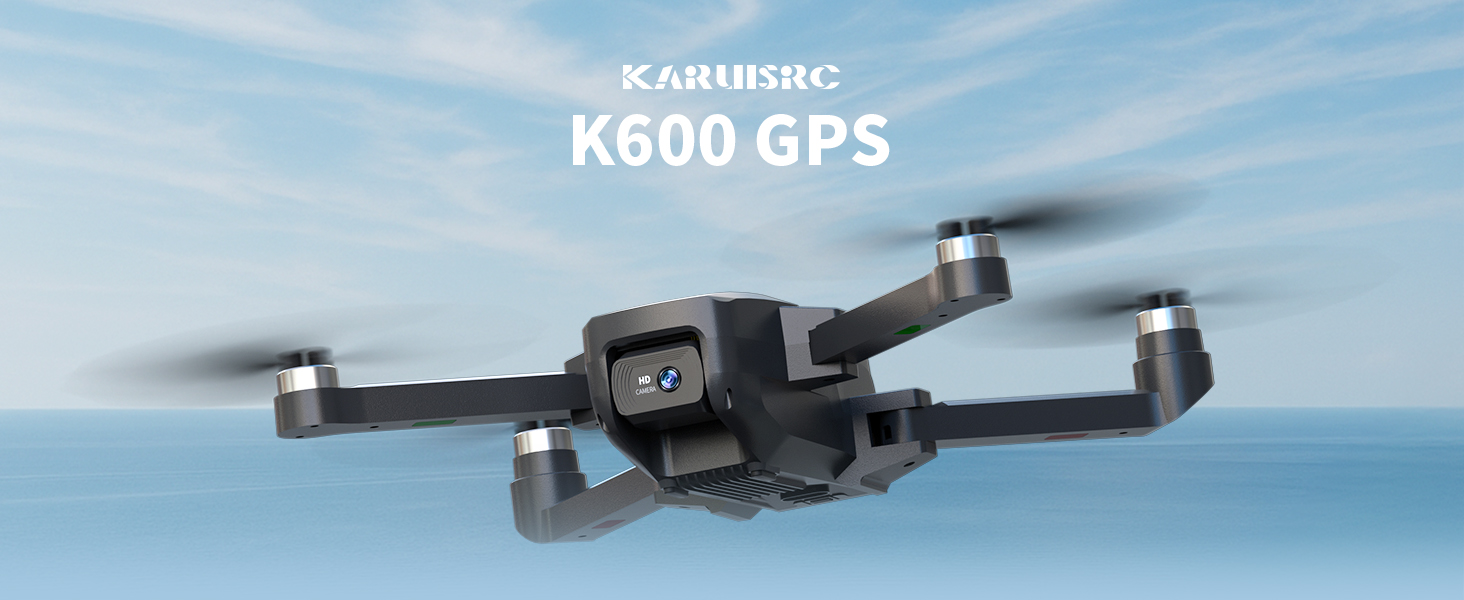
The karuisrc K600GPS-7 drone features a 110° FOV, 90° adjustable 1080P HD camera, 5G Wi-Fi connectivity, a 4.5-inch HD LCD screen on the remote, and a 1312 ft transmission range.
2. Safety Guidelines
Adhering to these safety guidelines is crucial for safe drone operation and to prevent accidents or damage.
- Pre-Flight Check: Always inspect the drone, remote control, and propellers for any damage before each flight. Ensure batteries are fully charged.
- Environmental Conditions: Do not fly in strong winds, rain, snow, or fog. Maintain clear line of sight with the drone.
- Flight Area: Operate in open areas, away from people, animals, buildings, and power lines. Avoid flying over crowds or private property.
- Battery Safety: Use only the provided charger and batteries. Do not overcharge or puncture batteries. Discontinue use if batteries show signs of swelling or damage.
- Respect Privacy: Be mindful of privacy laws when using the camera function.
- Age Recommendation: This drone is intended for adults.
3. Package Contents
Verify that all items are present in your package:
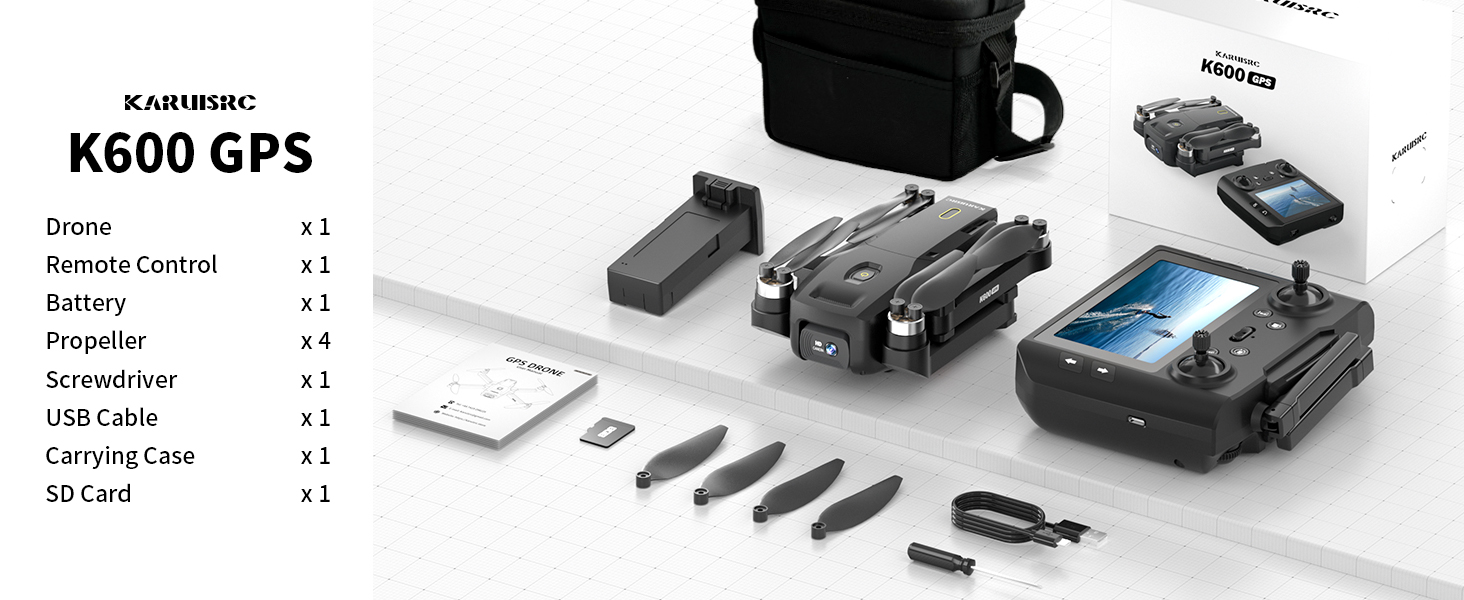
The karuisrc K600GPS-7 package includes the drone, remote control, battery, propellers, screwdriver, USB cable, carrying case, and an SD card.
- karuisrc K600GPS-7 Drone x 1
- Remote Control with 4.5-inch LCD Screen x 1
- Drone Battery (Lithium Ion) x 1
- Spare Propellers x 4
- Screwdriver x 1
- USB Charging Cable x 1
- Carrying Case x 1
- 32GB SD Card x 1
- User Manual x 1
4. Product Overview
4.1 Drone Components

The karuisrc K600GPS-7 drone features a foldable design for portability, equipped with a 1080p HD camera and GPS module.
- Foldable Arms: For compact storage and transport.
- Propellers: Four main propellers for flight.
- HD Camera: Front-facing 1080p camera with 90-degree adjustable angle.
- Bottom Camera: For optical flow positioning and landing assistance.
- GPS Module: Enables precise positioning and intelligent flight functions.
- Battery Compartment: Houses the removable Lithium Ion flight battery.
4.2 Remote Control

The remote control for the karuisrc K600GPS-7 features an integrated 4.5-inch HD LCD screen for real-time video feed and flight data.
- 4.5-inch HD LCD Screen: Displays real-time video feed and flight parameters.
- Control Sticks: Left stick for throttle/yaw, right stick for pitch/roll.
- Function Buttons: Dedicated buttons for one-key takeoff/landing, auto-return, photo/video capture, and speed modes.
- Antennas: For stable signal transmission.
- Battery Compartment: For remote control batteries (not included, typically AA).
5. Setup Guide
5.1 Charging Batteries
- Drone Battery: Connect the drone battery to the USB charging cable and plug it into a 5V/2A USB adapter (not included). The indicator light will show charging status and turn off when fully charged. Charging time is approximately 120-150 minutes.
- Remote Control Battery: Insert 3 AA batteries (not included) into the remote control's battery compartment, ensuring correct polarity.
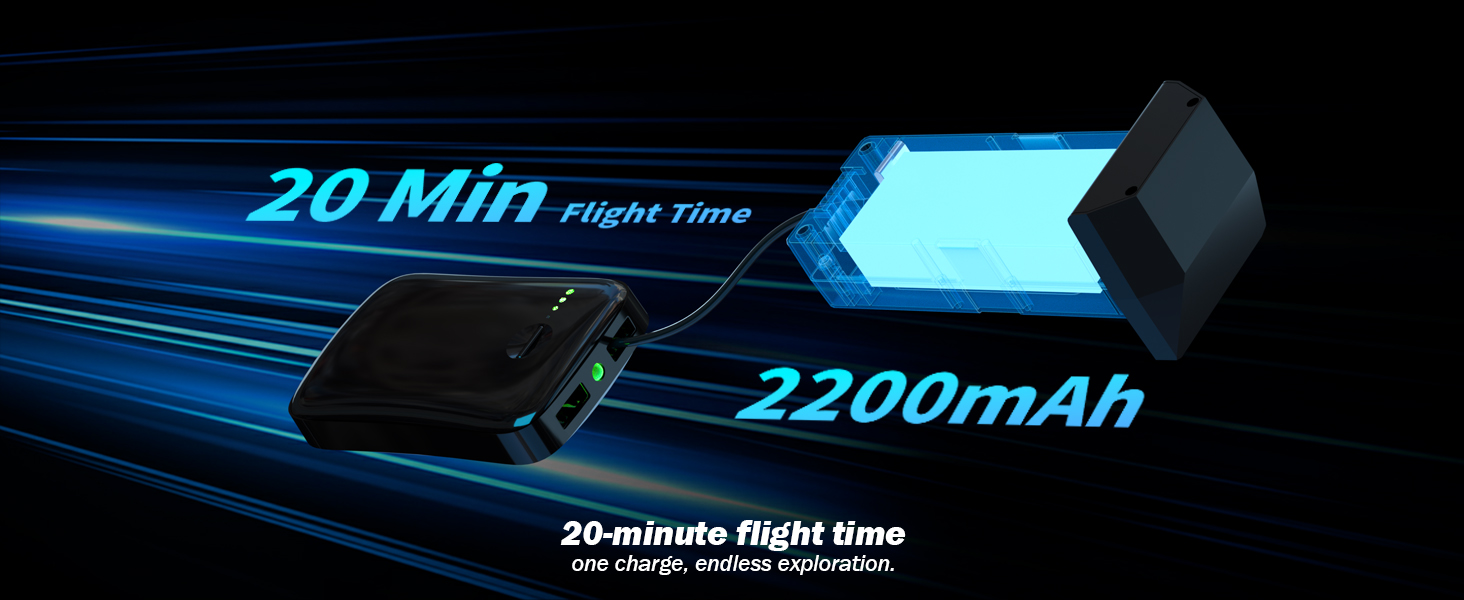
The karuisrc K600GPS-7 drone battery provides approximately 20 minutes of flight time with a 2200mAh capacity.
5.2 Propeller Installation
Attach the propellers to the motor shafts according to the markings (A and B) on both the propellers and the drone arms. Use the provided screwdriver to secure them firmly.
5.3 SD Card Insertion
Insert the provided 32GB SD card into the drone's SD card slot. Ensure it is inserted correctly until it clicks into place. This card is used for storing photos and videos.

The karuisrc K600GPS-7 drone supports an SD card for media storage, with a 32GB card included.
5.4 Pairing and Calibration
- Place the drone on a flat, level surface.
- Turn on the drone, then turn on the remote control. The remote will automatically search for the drone.
- Once paired, perform gyroscope calibration by moving both control sticks to the bottom-left or bottom-right corners simultaneously until the drone's indicator lights flash rapidly and then become solid.
- Perform GPS calibration by rotating the drone horizontally and then vertically as instructed by the remote control's screen or indicator lights. Wait for sufficient GPS satellites to be acquired (usually indicated by solid green lights).
6. Operating Instructions
6.1 Basic Flight Controls

Operating the karuisrc K600GPS-7 drone in an open environment allows for optimal flight experience.
- Takeoff/Landing: Press the one-key takeoff/landing button or push both control sticks to the bottom-outward corners to start/stop motors, then push the left stick up to ascend.
- Ascend/Descend: Push the left control stick up/down.
- Forward/Backward: Push the right control stick up/down.
- Left/Right Sideward Flight: Push the right control stick left/right.
- Turn Left/Right (Yaw): Push the left control stick left/right.
6.2 GPS Intelligent Flight Functions
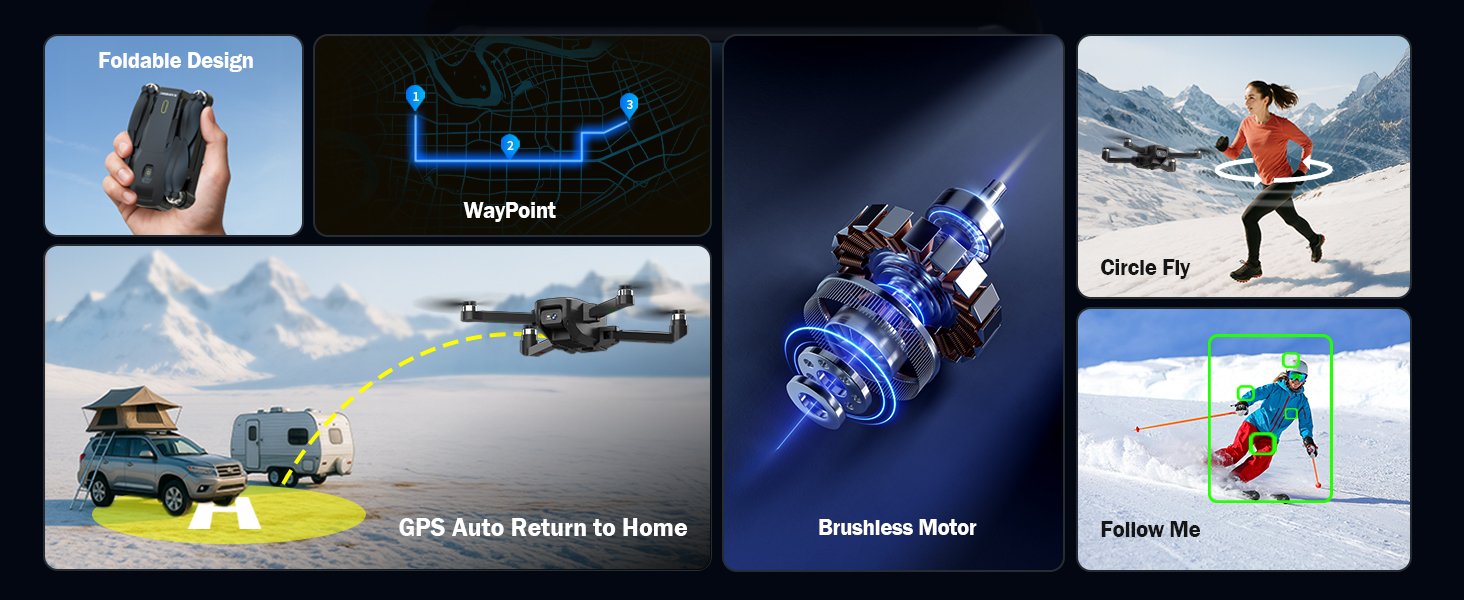
The karuisrc K600GPS-7 drone offers advanced features including WayPoint flight, Circle Fly, GPS Auto Return to Home, and Follow Me mode.
- GPS Auto Return to Home (RTH): The drone will automatically return to its takeoff point if the signal is lost, battery is low, or RTH is manually activated. Ensure sufficient GPS signal before flight.
- Follow Me Mode: The drone will automatically follow the remote control (or connected smartphone) at a set distance (3-50 meters) and altitude, keeping the subject centered.
- Waypoint Flight: Plan a custom flight path by tapping points on the map within the companion app. The drone will fly along the designated route.
- Circle Fly: The drone will orbit around a designated point or the remote control, capturing footage from various angles.

The GPS auto-return function ensures the karuisrc K600GPS-7 drone safely returns to its starting point.
6.3 Camera Operation

The karuisrc K600GPS-7 features a 1080p HD camera with 90-degree electric adjustment for versatile aerial photography and videography.
- Photo Capture: Press the dedicated photo button on the remote control to take a picture.
- Video Recording: Press the dedicated video button to start recording. Press again to stop.
- Camera Angle Adjustment: Use the designated button or dial on the remote to adjust the camera's vertical angle (90-degree electric adjustment).
- Dual Cameras: Switch between the front and bottom cameras via the remote or companion app for different perspectives.
6.4 LCD Screen Usage
The 4.5-inch HD LCD screen on the remote control provides a clear, real-time view from the drone's camera. It also displays important flight data such as altitude, distance, speed, and battery level. Monitor this information to ensure safe and controlled flight.
7. Maintenance
Regular maintenance ensures the longevity and optimal performance of your drone.
- Cleaning: Use a soft, dry cloth to clean the drone and remote control. Avoid using solvents or harsh chemicals.
- Propeller Inspection: Regularly check propellers for cracks, bends, or damage. Replace any damaged propellers immediately using the provided spare parts.
- Battery Care: Store batteries in a cool, dry place. Do not store fully charged or completely depleted batteries for extended periods. Charge them to about 50-60% for long-term storage.
- Motor Maintenance: Keep motors free from dust and debris. Do not attempt to lubricate motors.
- Storage: When not in use, store the drone and its accessories in the provided carrying case to protect them from dust and physical damage.
8. Troubleshooting
Refer to this section for common issues and their solutions.
| Problem | Possible Cause | Solution |
|---|---|---|
| Drone does not power on | Battery not charged or incorrectly inserted. | Ensure drone battery is fully charged and correctly inserted. |
| Remote control does not power on | AA batteries not inserted or depleted. | Insert fresh AA batteries with correct polarity. |
| Drone cannot pair with remote | Incorrect pairing sequence or interference. | Ensure drone and remote are turned on in sequence. Move to an area with less interference. Repeat pairing steps. |
| Drone drifts during flight | Gyroscope not calibrated or strong wind. | Perform gyroscope calibration on a flat surface. Avoid flying in strong winds. |
| GPS functions not working | Insufficient GPS signal or calibration not performed. | Fly in an open outdoor area. Perform GPS calibration. Wait for sufficient satellite acquisition. |
| Poor camera image quality | Lens is dirty or lighting conditions are poor. | Clean the camera lens. Ensure adequate lighting for recording. |
| SD card error | SD card not inserted correctly or corrupted. | Reinsert the SD card. Try formatting the card (backup data first) or use a different compatible SD card. |
9. Specifications
| Feature | Detail |
|---|---|
| Brand | karuisrc |
| Model Name | K600GPS-7 |
| Special Features | Auto Follow, Auto-Landing, GPS Auto Return |
| Color | Black |
| Video Capture Resolution | 1080p |
| Connectivity Technology | Wi-Fi, Bluetooth |
| Skill Level | All |
| Item Weight | 150 Grams (5.3 ounces) |
| Video Capture Format | MP4 |
| Control Type | Remote Control |
| Material | Plastic |
| Battery Cell Composition | Lithium Ion |
| Batteries Included | Yes (1 Nonstandard Battery for drone) |
| Remote Control Included | Yes |
| Optical Sensor Technology | CMOS, CCD |
| Product Dimensions | 7.09"L x 1.97"W x 8.66"H |
| Manufacturer | karuisrc |
| Date First Available | June 11, 2025 |
10. Warranty and Support
karuisrc is committed to providing quality products and customer satisfaction. For any questions, technical assistance, or warranty claims, please contact our support team.

karuisrc customer support is available Monday to Sunday, 24 hours a day.
- Email: Karuisrc@gmail.com
- Phone: +44 7419 298225
Please have your model number (K600GPS-7) and purchase information ready when contacting support.