
1. Introduction
This manual provides detailed instructions for setting up, operating, and maintaining your LEFFOT RK3518 Android 14.0 4K Ultra HD Streaming Device. Please read this manual thoroughly before use to ensure proper functionality and to maximize your entertainment experience.
Package Contents
Upon unpacking, please verify that all items listed below are present:
- LEFFOT RK3518 Android 14.0 4K Ultra HD Streaming Device
- Voice Remote Control
- HDMI Cable
- Power Adapter (5V/2A)
- User Manual (this document)

Image 1.1: Contents of the LEFFOT RK3518 package, including the streaming device, remote, cables, and manual.
2. Product Overview
The LEFFOT RK3518 is a high-performance Android 14.0 TV Box designed to deliver a cinematic 4K streaming experience. It features a powerful Rockchip RK3518 Quad-Core A53 processor, 2GB RAM, and 16GB ROM, ensuring smooth operation and ample storage for applications. Advanced connectivity options include dual-band WiFi 6 (2.4G & 5G), Bluetooth 5.4, and USB 3.0.
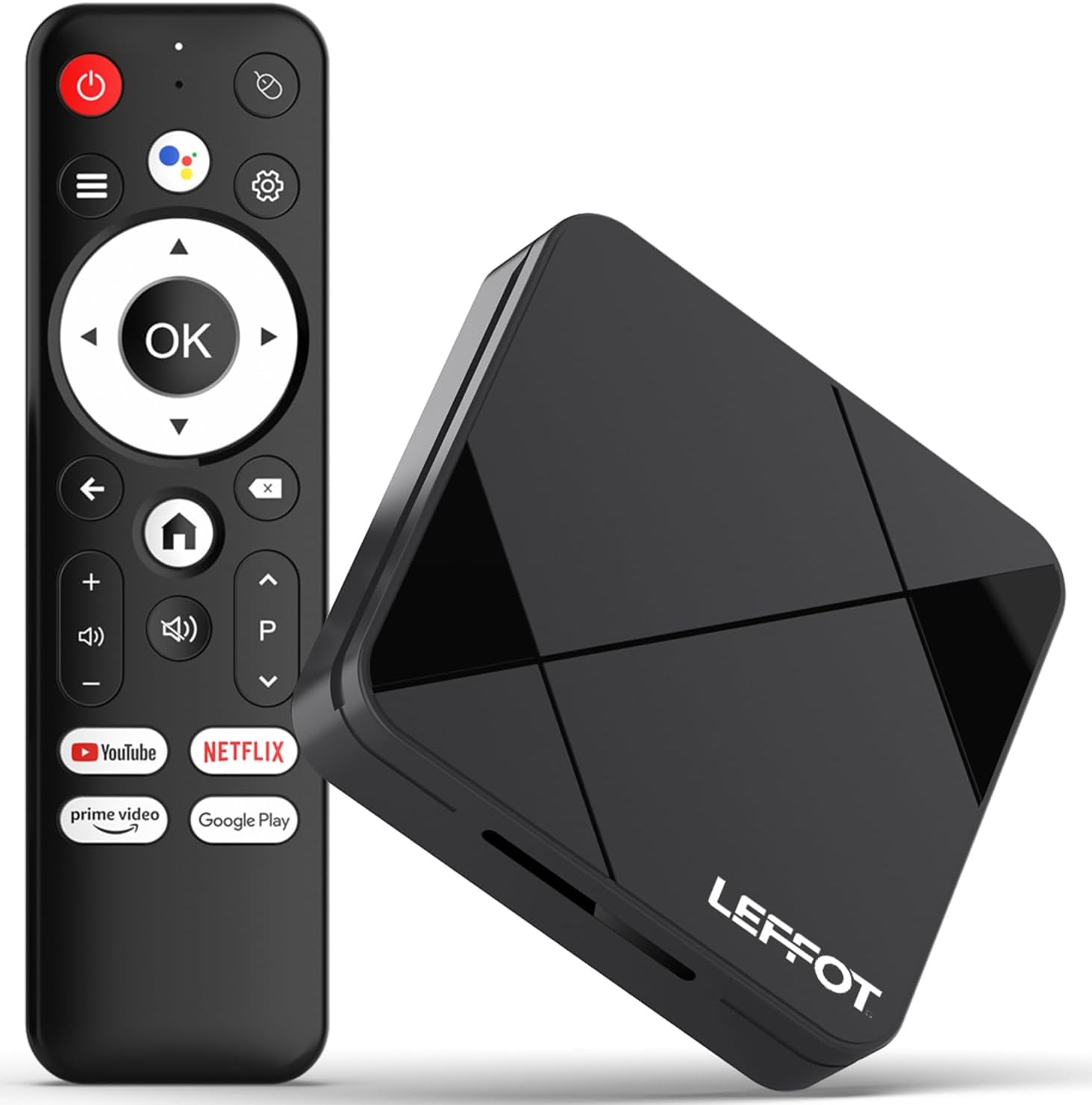
Image 2.1: The LEFFOT RK3518 streaming device and its accompanying voice remote control.
Key Features:
- 4K Ultra HD Resolution: Supports 4K@60fps and HDR10 for vibrant colors and sharp details.
- Powerful Processor: Rockchip RK3518 Quad-Core A53 with Mali-450 GPU for smooth performance.
- Advanced Connectivity: Dual-band WiFi 6 (2.4G & 5G), Bluetooth 5.4, USB 3.0, and Ethernet.
- Voice Remote Control: Intuitive navigation and hands-free control with built-in voice assistant.
- Android 14.0 Ecosystem: Access to thousands of apps via Google Play.
- Screen Mirroring: Supports AirPlay, DLNA, and WiFi Display for sharing content from mobile devices.
3. Setup
3.1 Connecting the Device
- Connect to TV: Insert one end of the provided HDMI cable into the HDMI port on the LEFFOT RK3518 device and the other end into an available HDMI input on your television.
- Connect to Power: Plug the power adapter into the DC 5V/2A port on the device, then plug the adapter into a wall outlet.
- Connect to Internet (Optional):
- Wired Connection: For a stable connection, connect an Ethernet cable from your router to the Ethernet port on the device.
- Wireless Connection: The device supports 2.4G and 5G WiFi 6. You will configure this after initial power-on.

Image 3.1: Diagram showing the various ports on the LEFFOT RK3518 device, including TF card slot, USB, USB 3.0, AV, HDMI, Ethernet, and DC 5V/2A power input.
3.2 Initial Power On and Setup Wizard
- Turn on your television and select the correct HDMI input source.
- The LEFFOT RK3518 device will automatically power on and display the boot-up screen.
- Follow the on-screen instructions of the Android setup wizard to:
- Select your language.
- Connect to a Wi-Fi network (if not using Ethernet).
- Sign in with your Google account to access Google Play Store and other services.
- Accept terms and conditions.
3.3 Remote Control Pairing
The included voice remote control is typically pre-paired. If the remote does not respond, ensure batteries are correctly inserted. If issues persist, follow these steps to re-pair:
- Ensure the device is powered on.
- Press and hold the OK button and the Volume Down button simultaneously for a few seconds until a pairing indicator appears on the screen or the remote's LED flashes.
- Release the buttons. The remote should now be paired.
4. Operating Instructions
4.1 Navigating the Interface
Use the directional pad (up, down, left, right) on the remote control to navigate through menus and select items. The OK button confirms selections, and the Back button returns to the previous screen. The Home button takes you directly to the main home screen.
4.2 Using Voice Control
The LEFFOT RK3518 features a voice-enabled remote control for convenient hands-free operation.
- Press the Google Assistant button (usually a microphone icon) on your remote.
- Speak clearly into the remote's microphone. You can ask to search for content, open applications, check weather, or control smart home devices.
- The device will process your command and display results or perform the requested action.

Image 4.1: Illustration of using the voice remote control to interact with the LEFFOT RK3518 streaming device.
4.3 Installing and Managing Applications
Your device comes with the Google Play Store pre-installed, allowing access to a vast library of applications.
- From the home screen, navigate to the Google Play Store icon and select it.
- Browse or search for desired applications.
- Select an app and choose Install.
- To manage installed apps, go to Settings > Apps.
4.4 Screen Mirroring (AirPlay, DLNA, WiFi Display)
The device supports various screen mirroring protocols to cast content from your smartphone or tablet to your TV.
- Ensure your mobile device and the LEFFOT RK3518 are connected to the same Wi-Fi network.
- On your mobile device, open the screen mirroring feature (e.g., AirPlay for iOS, Smart View/Screen Cast for Android).
- Select the LEFFOT RK3518 device from the list of available devices.
- Your mobile device's screen will now be mirrored on your TV.
5. Maintenance
5.1 Cleaning the Device
To clean the exterior of the device, use a soft, dry, lint-free cloth. Do not use liquid cleaners, aerosols, or abrasive materials, as these can damage the finish or internal components.
5.2 Software Updates
The LEFFOT RK3518 may receive periodic software updates to improve performance, add features, or enhance security. It is recommended to keep your device's software up to date.
- Navigate to Settings > Device Preferences > About > System update.
- If an update is available, follow the on-screen prompts to download and install it. Ensure the device remains powered on during the update process.
5.3 Storage Management
Periodically check the device's storage to ensure optimal performance. You can uninstall unused apps or clear cache data to free up space.
- Go to Settings > Apps to manage individual applications.
- Go to Settings > Device Preferences > Storage to view storage usage and manage external storage (TF card).
6. Troubleshooting
If you encounter issues with your LEFFOT RK3518 device, refer to the following common problems and solutions:
| Problem | Possible Cause / Solution |
|---|---|
| No power / Device does not turn on. | Ensure the power adapter is securely connected to the device and a working power outlet. Try a different outlet. |
| No signal on TV. | Verify the HDMI cable is securely connected to both the device and the TV. Ensure your TV is set to the correct HDMI input source. Try a different HDMI port or cable. |
| Remote control not responding. | Check the batteries in the remote control and replace if necessary. Re-pair the remote control as described in Section 3.3. |
| Wi-Fi connection issues. | Ensure your Wi-Fi router is on and functioning. Check Wi-Fi settings on the device (Settings > Network & Internet). Try restarting your router and the streaming device. Ensure you are within range of your Wi-Fi network. |
| Applications are slow or crashing. | Close unused applications. Clear the cache of problematic apps (Settings > Apps > [App Name] > Clear cache). Ensure sufficient storage space is available. Restart the device. |
| Poor video quality (not 4K). | Ensure your TV supports 4K resolution. Verify the content being streamed is 4K. Check your internet speed; 4K streaming requires a stable, high-speed connection. Ensure HDMI cable is 4K compatible. |
7. Specifications
Below are the technical specifications for the LEFFOT RK3518 Android 14.0 4K Ultra HD Streaming Device:
| Feature | Specification |
|---|---|
| Model Name | RK3518 |
| Operating System | Android 14.0 |
| Processor | Rockchip RK3518 Quad-Core A53 |
| GPU | Mali-450 MP2 |
| RAM | 2GB |
| Internal Storage (ROM) | 16GB (expandable via TF card) |
| Video Output | HDMI 2.0 (4K@60fps, HDR10) |
| Connectivity | 2.4G & 5G WiFi 6 (802.11 a/b/g/n/ac/ax), Bluetooth 5.4, 100M Ethernet |
| Ports | HDMI, USB 3.0, USB 2.0, LAN, TF Card Slot, AV, DC 5V/2A |
| Supported Internet Services | Netflix, Prime Video, YouTube, and more via Google Play |
| Dimensions | 3.2 x 3.2 x 0.67 inches (approx. 90 x 90 x 18.8 mm) |
| Weight | 3.25 ounces |
8. Warranty and Support
8.1 Warranty Information
Your LEFFOT RK3518 Android 14.0 4K Ultra HD Streaming Device is covered by a manufacturer's warranty against defects in materials and workmanship. The specific terms and duration of the warranty may vary by region and retailer. Please retain your proof of purchase for warranty claims.
8.2 Customer Support
For technical assistance, troubleshooting beyond this manual, or warranty inquiries, please contact LEFFOT customer support through the retailer where the product was purchased or refer to the official LEFFOT website for contact information.


