
1. Product Overview
The Surakey Android 13 Car Radio is a 9-inch IPS HD touchscreen stereo designed for Ford F150 models from 2009 to 2014. It features 4GB RAM and 64GB ROM, offering an upgraded in-car entertainment and navigation experience. Key functionalities include wireless CarPlay, wireless Android Auto, backup camera support, WiFi connectivity, GPS navigation, Bluetooth, and FM radio.

Image 1.1: Surakey Android 13 Car Radio highlighting key features like Wireless CarPlay, Android Auto, HD display, Hi-Fi audio, and Android 13 OS.
Key Features:
- Android 13 Operating System: Provides a modern and responsive user interface.
- 9-inch IPS HD Touchscreen: Offers clear visuals and intuitive control.
- Wireless CarPlay & Android Auto: Seamless integration with iOS and Android smartphones for navigation, music, calls, and more.
- GPS Navigation: Supports both offline and online navigation with a dedicated GPS module.
- Bluetooth Connectivity: For hands-free calls and audio streaming.
- WiFi & 4G Support: Enables online features, app downloads, and real-time updates.
- Steering Wheel Control (SWC): Allows control of essential functions directly from your steering wheel.
- Backup Camera Support: Enhances parking safety with automatic display when reversing.
- Split Screen Function: Run two applications simultaneously for multitasking.
- DSP Function: Digital Sound Processor for enhanced audio quality and personalized sound settings.
2. Installation Guide
Before beginning installation, ensure your vehicle is compatible with this unit. This car radio is designed for Ford F150 models manufactured between 2009 and 2014. If you have any doubts about compatibility or require additional wiring harnesses, please contact customer support with a complete image of your center console's rear plugs and the on-board main unit.

Image 2.1: Visual guide for compatible Ford F150 dashboards (2009-2014). Ensure your vehicle's dashboard matches the compatible examples.
2.1 Wiring Diagram
Refer to the following diagram for proper wiring connections. Incorrect wiring can damage the unit or your vehicle's electrical system.

Image 2.2: Detailed product wiring diagram showing connections for power, speakers, USB, camera input, and other accessories.
2.2 Reversing Camera Installation
For backup camera functionality, follow these wiring instructions. The reversing input must be connected even if the camera is not immediately used.
- Connect the camera's positive power supply to the positive pole of your car's reversing light.
- Connect the camera's negative power supply to the negative pole of your car's reversing light.
- The reversing trigger is controlled by the stereo, so no separate connection is required for this.

Image 2.3: Diagram illustrating the wiring for the reversing camera, including power connections and the main unit input.
Note: The white plug from the camera must be connected to the main device to ensure proper Bluetooth and WiFi signal reception.
3. Initial Setup
3.1 Powering On
After successful installation, turn on your vehicle's ignition. The car radio should power on automatically. If it does not, check all power connections.
3.2 Language and Time Settings
Upon first boot, you may be prompted to select your preferred language. Navigate to Settings > System > Languages & input to adjust. For time and date, go to Settings > System > Date & time. You can set it automatically via network or manually.
4. Operating Instructions
4.1 Bluetooth Connection
To connect your mobile phone via Bluetooth for calls and audio streaming:
- On the car radio, tap the BT icon or navigate to Settings > Bluetooth.
- Ensure Bluetooth is enabled on your mobile phone and set to discoverable.
- On your phone, search for available devices and select "CarBT" (or the device name displayed on the car radio).
- Enter the default PIN "0000" if prompted.
- Once connected, "phone audio" and "music audio" should appear under paired devices on the car radio.
Video 4.1: Demonstrates the process of connecting a mobile phone to the car radio via Bluetooth for audio and calls.
4.2 Wireless CarPlay and Android Auto (ZLINK)
The unit supports wireless CarPlay for iOS devices and wireless Android Auto for Android devices via the ZLINK application. This allows you to access phone features like navigation, music, and messaging directly on the car radio's screen.
- Ensure your phone's Bluetooth is connected to the car radio (refer to Section 4.1).
- Open the ZLINK application on the car radio.
- For iOS devices, confirm the CarPlay connection prompt on your phone. For Android devices, ensure Android Auto is installed and configured.
- If the connection is not successful, manually connect the car radio to your phone's WiFi hotspot. Go to Settings > Android Settings > Network & Internet > Hotspot & tethering > Wi-Fi hotspot on the car radio to enable and configure. Then connect your phone to this hotspot. After connecting via WiFi, delete any previous history records in ZLINK and try connecting again.
- Once connected, the CarPlay or Android Auto interface will display on the car radio screen. Subsequent connections should be automatic via Bluetooth.

Image 4.1: Illustrates the voice control functionality for Wireless CarPlay and Android Auto, showing examples of commands like "Hey Siri, Open Music" or "Hey Siri, Call Bob."
4.3 Mirror Link
Mirror Link allows you to mirror your smartphone's screen onto the car radio display via WiFi. This is supported for both iOS and Android devices.
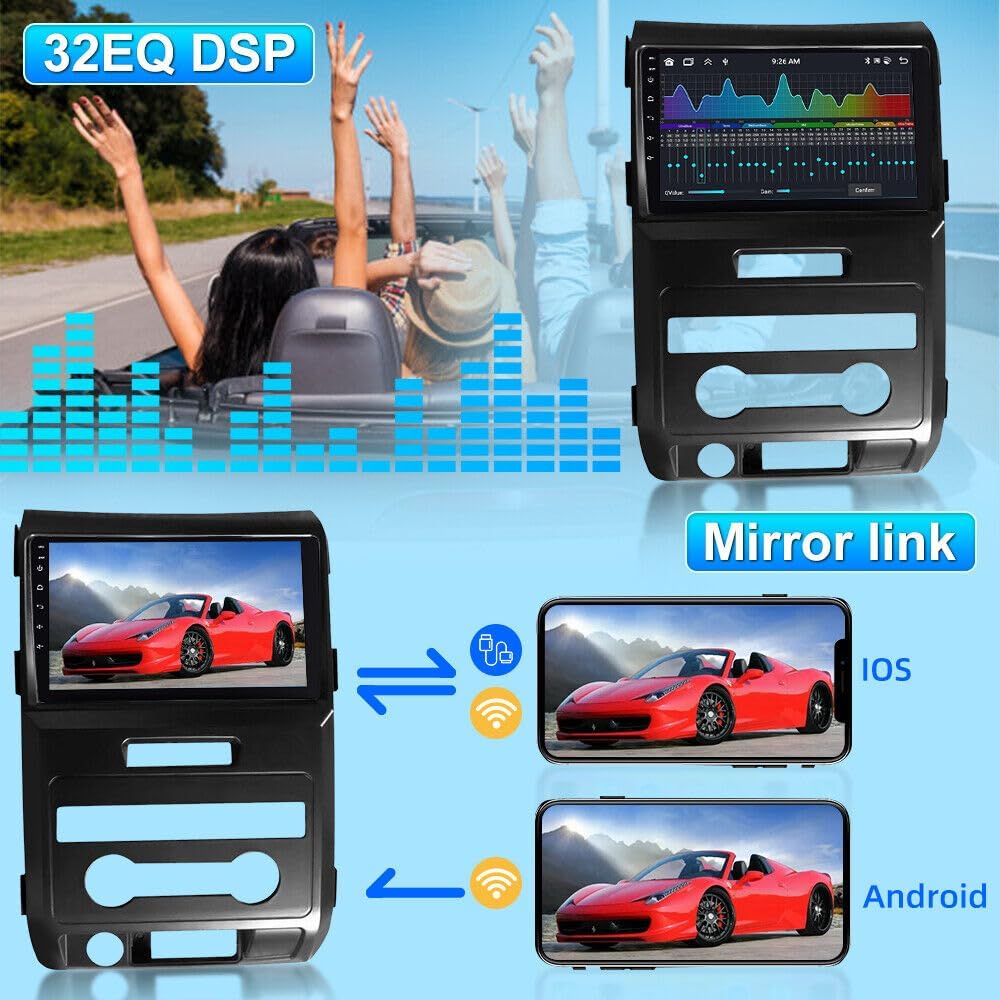
Image 4.2: Depicts the Mirror Link feature, showing how content from an iOS or Android phone can be displayed on the car radio screen.
4.4 GPS Navigation
The car radio supports both offline and online navigation. The included GPS module enables offline navigation. For online navigation, connect to WiFi/4G and download your preferred navigation apps from the Play Store.
4.5 FM Radio
Access FM radio by tapping the "Radio" icon. You can scan for stations, save presets, and enjoy real-time traffic updates and music.
4.6 Steering Wheel Control (SWC)
The steering wheel control function allows you to manage calls, change music tracks, and adjust volume using your vehicle's steering wheel buttons for convenience and safety.

Image 4.3: Shows the car radio interface for configuring and utilizing steering wheel controls to manage various functions.
4.7 Split Screen Function
Activate the split-screen feature to display two applications simultaneously, such as navigation and music playback, enhancing multitasking capabilities.

Image 4.4: Demonstrates the split-screen functionality, allowing users to view and interact with two different applications concurrently on the display.
4.8 DSP Function
The Digital Sound Processor (DSP) provides high-quality audio and personalized sound settings, automatically optimizing the soundstage for an enhanced in-car audio experience.
5. Maintenance and Care
5.1 Cleaning the Screen
Use a soft, lint-free cloth to gently wipe the touchscreen. For stubborn smudges, slightly dampen the cloth with water or a screen-safe cleaner. Avoid abrasive materials or harsh chemicals.
5.2 Software Updates
Periodically check for software updates via the system settings. Updates can improve performance, add new features, and enhance security. Ensure a stable internet connection during updates.
6. Troubleshooting
6.1 No Power
- Check all power connections to ensure they are securely fastened.
- Verify the vehicle's fuse related to the car radio is not blown.
- Ensure the ignition is on.
6.2 Bluetooth/CarPlay/Android Auto Connection Issues
- Ensure Bluetooth is enabled on both the car radio and your phone.
- Restart both the car radio and your phone.
- Forget the device on your phone's Bluetooth settings and re-pair.
- For ZLINK, ensure the car radio is connected to your phone's WiFi hotspot if Bluetooth connection fails.
6.3 No Sound
- Check volume levels on both the car radio and your connected device.
- Verify speaker wiring connections.
- Ensure the correct audio source is selected.
6.4 GPS Signal Loss
- Ensure the GPS antenna is properly installed and has a clear view of the sky.
- Check for any obstructions that might block the signal.
7. Specifications
| Feature | Detail |
|---|---|
| Operating System | Android 13 |
| RAM | 4GB |
| ROM | 64GB |
| Screen Size | 9 inch |
| Display Type | IPS HD Touchscreen |
| Compatibility | Ford F150 (2009-2014) |
| Connectivity | Wireless CarPlay, Wireless Android Auto, WiFi, GPS, Bluetooth, FM |
| Item Weight | 1.6 ounces |
| Package Dimensions | 3.94 x 1.18 x 1.18 inches |
| ASIN | B0FCRW39V4 |
| Date First Available | June 10, 2025 |
8. Warranty and Support
This product comes with a standard manufacturer's warranty. For specific warranty details, please refer to the documentation included with your purchase or contact the seller directly. If you encounter any issues or have questions not covered in this manual, please reach out to Surakey customer support for assistance.
Contact Information: Please refer to your purchase receipt or the product packaging for the most up-to-date customer support contact details.