
Introduction
This manual provides detailed instructions for the setup, operation, and maintenance of your LEOBOG AMG65 Mechanical Gaming Keyboard. Please read this manual thoroughly before using the product to ensure proper functionality and longevity.
Package Contents
Verify that all items are present in the package:
- AMG65 Gaming Keyboard (1 unit)
- LEOBOG Linear Switches (2 units, for replacement)
- USB Cable (1 unit)
- Keycap Puller (1 unit)
- User Manual (1 unit)
- Dust Cover (1 unit)
Product Overview
The LEOBOG AMG65 is a 65% layout mechanical gaming keyboard featuring a dual-screen design, tri-mode connectivity, hot-swappable switches, and dynamic RGB backlighting. It is designed for versatility and customization across various platforms.
Key Features:
- Dual Screen Display: Includes a 10-inch pixel display for custom animations and a smart status screen for real-time information like battery level and connection status.
- Tri-Mode Connectivity: Supports Bluetooth 5.0, 2.4GHz wireless, and USB Type-C wired connections, allowing connection to up to 5 devices.
- Hot-Swappable Switches: Equipped with pre-lubricated LEOBOG linear switches and a PCB that supports 3-pin or 5-pin switches for easy customization.
- 65% Compact Layout: A 67-key design that saves desk space while retaining essential functionality.
- Dynamic RGB Backlighting: Features 16.8 million RGB colors and 20 lighting effects, customizable via FN key combinations or software.
- Double-Shot PBT Keycaps: Durable Cherry-profile keycaps with music-themed designs for wear resistance and aesthetic appeal.
- Gasket Structure: Incorporates 5 sound and shock-absorbing layers for a softer typing feel and reduced cavity noise.
- 8000mAh Battery: Provides extended wireless usage.
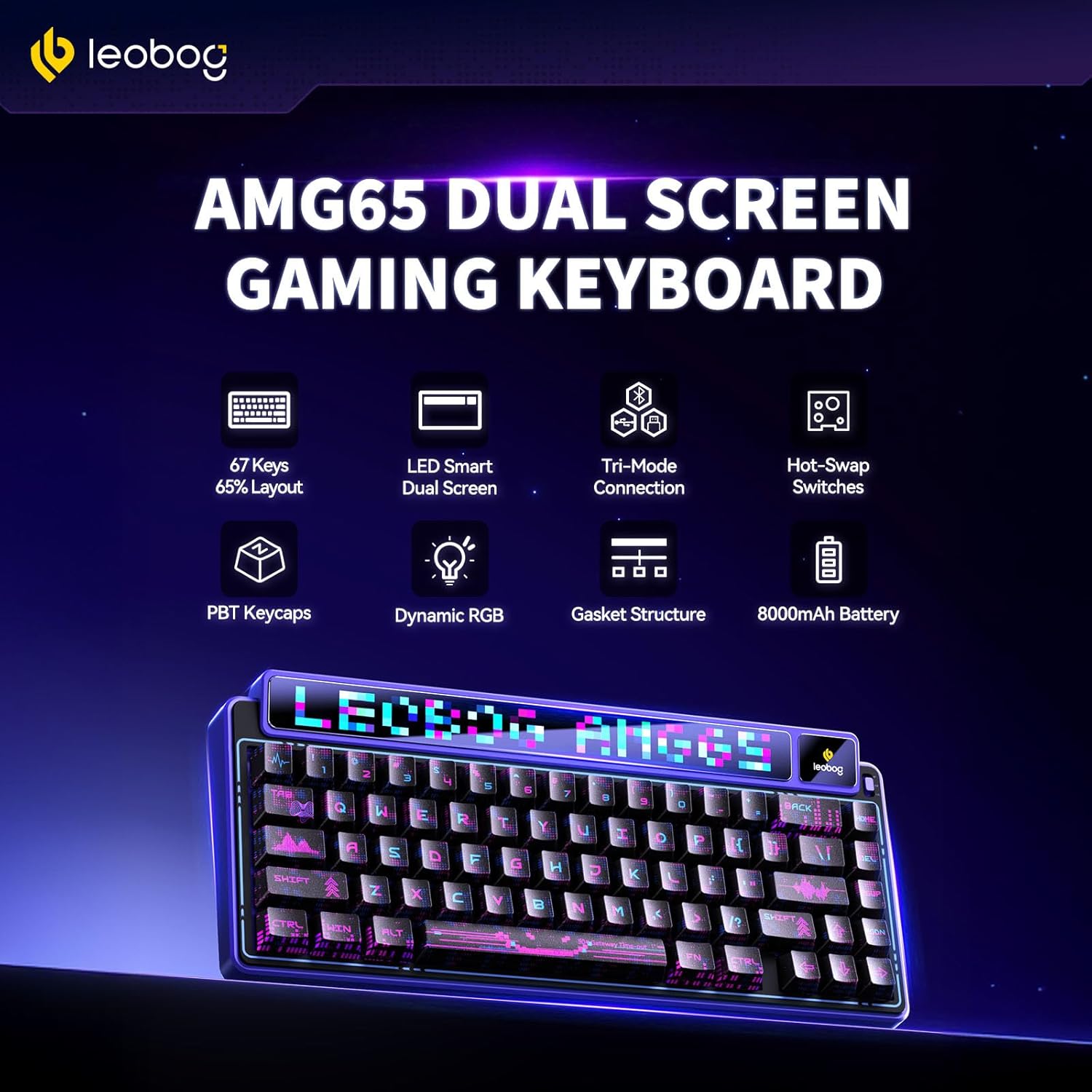
Image: LEOBOG AMG65 Keyboard highlighting its key features including 67 keys, LED smart dual screen, tri-mode connection, hot-swap switches, PBT keycaps, dynamic RGB, gasket structure, and 8000mAh battery.
Setup Guide
1. Initial Charging
Before first use, connect the keyboard to a USB power source using the provided USB Type-C cable. The keyboard will charge automatically. The smart status screen will indicate the battery level.
2. Connecting the Keyboard
The AMG65 supports three connection modes: Wired (USB Type-C), 2.4GHz Wireless, and Bluetooth 5.0.
Wired Connection:
- Connect the USB Type-C end of the cable to the keyboard's port.
- Connect the USB-A end of the cable to an available USB port on your computer.
- The keyboard will be automatically recognized and ready for use.
2.4GHz Wireless Connection:
- Locate the 2.4GHz USB receiver (dongle) usually stored in a compartment on the keyboard.
- Plug the 2.4GHz receiver into an available USB port on your computer.
- Switch the keyboard's mode selector to 2.4GHz mode (refer to keyboard layout for switch location).
- The keyboard should connect automatically. The smart screen will display the connection status.
Bluetooth Connection:
- Switch the keyboard's mode selector to Bluetooth mode.
- On your device (PC, laptop, tablet, smartphone), navigate to Bluetooth settings.
- Enable Bluetooth and search for new devices.
- Select "LEOBOG AMG65" from the list of available devices to pair.
- The keyboard can store up to 5 Bluetooth profiles. Use FN + Q/W/E/R/T to switch between paired devices.
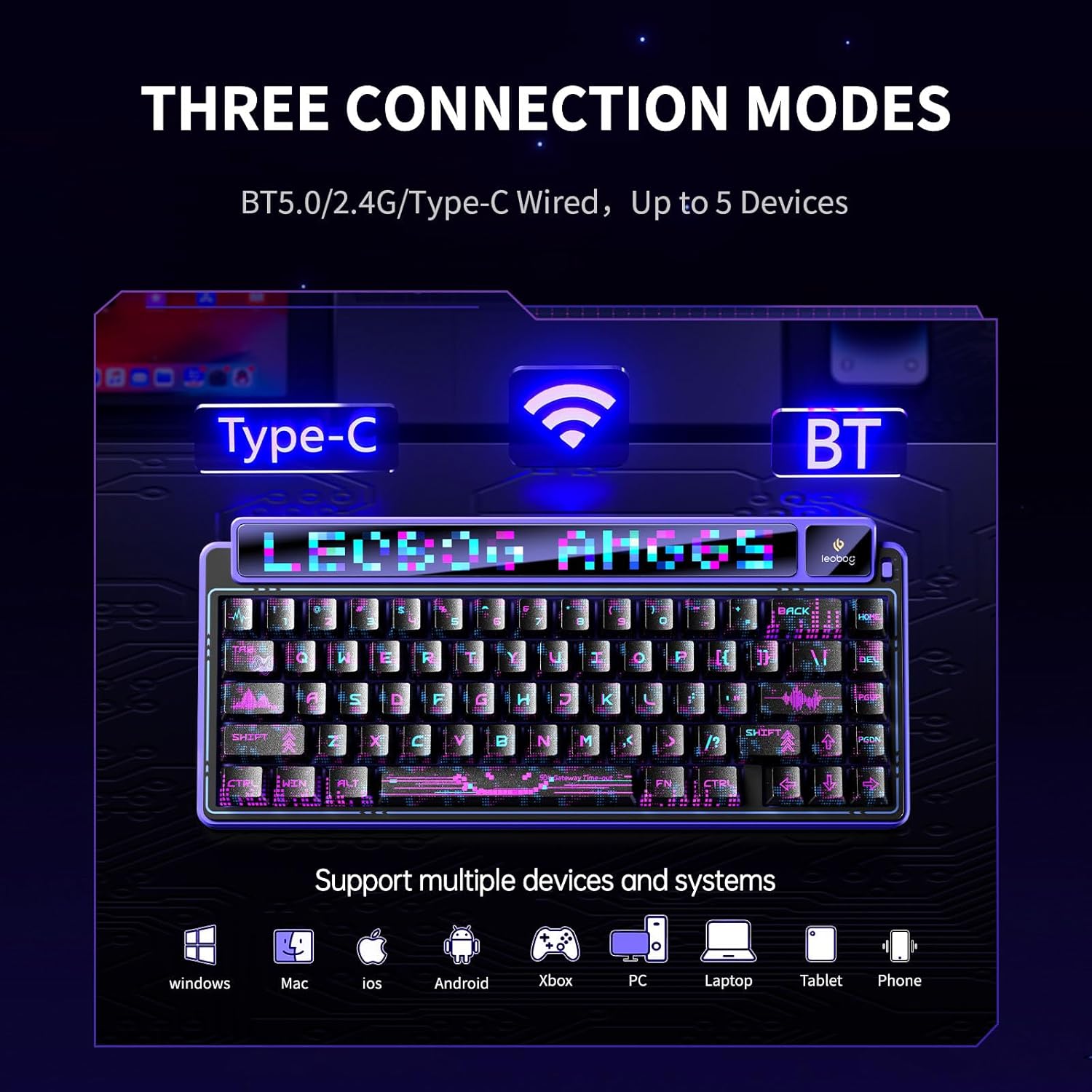
Image: Diagram illustrating the three connection modes (Type-C, 2.4GHz, Bluetooth) supported by the LEOBOG AMG65 keyboard, compatible with Windows, Mac, iOS, Android, Xbox, PC, Laptop, Tablet, and Phone.
3. Software Installation (Optional)
To unlock full customization for lighting, macros, and performance, download the official driver software. This software is compatible with Windows operating systems only and functions when the keyboard is in wired mode.
- Visit the official LEOBOG website (e.g., aulastar.com) and navigate to the support or downloads section.
- Locate the driver for the AMG65 model (e.g., "Driver-AULA International-AMG65 Driver-1.0.3.1.exe").
- Download and install the software. Note: Some users have reported security warnings during download/installation. Exercise caution and ensure you download from the official source.
- Connect the keyboard via USB Type-C cable to your computer before launching the software.
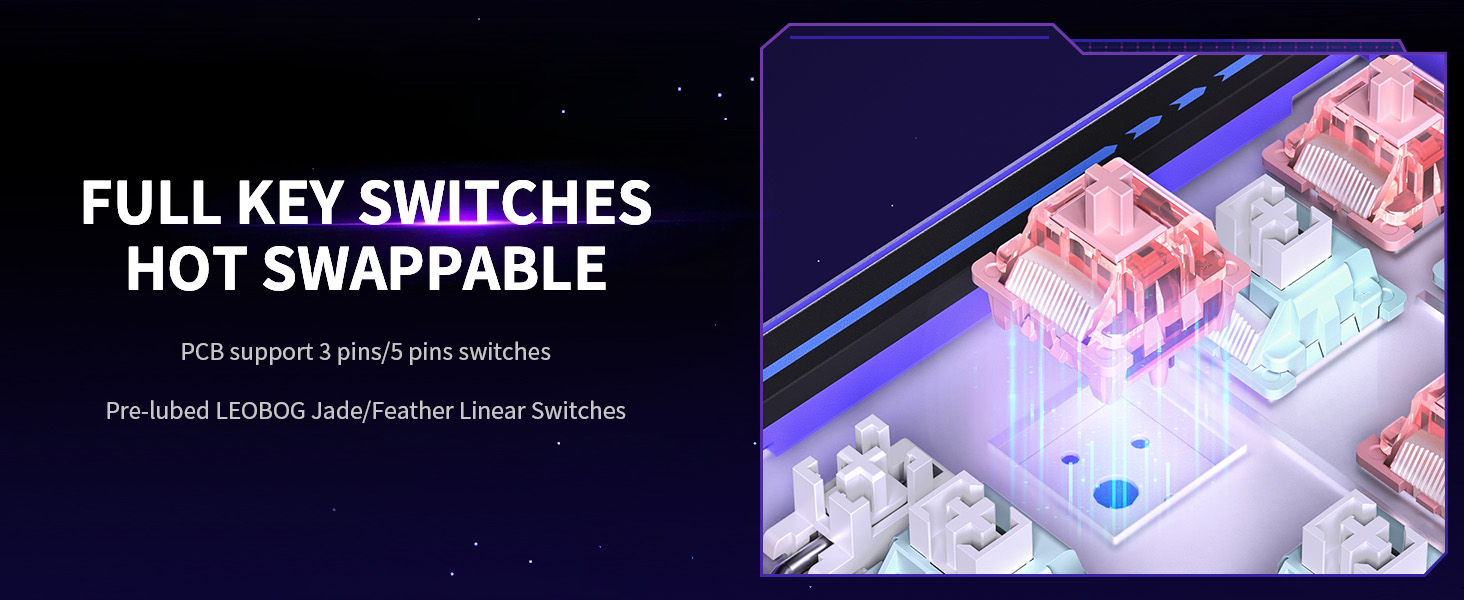
Image: Screenshot of the LEOBOG AMG65 driver software interface, showing options for customizing animations, lighting effects, and importing/exporting settings.
Operating Instructions
1. Basic Keyboard Functions
The AMG65 operates as a standard 65% mechanical keyboard. All keys perform their labeled functions. Use the FN key in combination with other keys for secondary functions, as indicated on the keycaps.
2. Dual Screen Operation
The keyboard features two distinct display screens:
10-inch LED Strip Display:
This display shows animated pixel graphics. It comes with 8 preset animations.
- Toggle Animations: Press FN + Right Shift to cycle through preset animated pixel graphics.
- Brighten Display: Press FN + >
- Lower Brightness: Press FN + <
- Speed Up Animation: Press FN + [
- Slow Down Animation: Press FN + ]
Custom animations and real-time music visualizations can be configured via the software.

Image: The LEOBOG AMG65 keyboard's 10-inch LED strip display showcasing various animated pixel graphics and music visualization capabilities.
Smart Digital Screen:
This smaller screen provides real-time status updates and allows for on-the-fly adjustments.
- Real-time Status: Displays connection mode, battery level, date, and time.
- On-the-Fly Adjustments: Toggle settings like backlight or volume without software.
- Navigate Settings: Use FN + - and FN + = to select settings (e.g., lighting, volume).
- Confirm Choice: Press FN + Enter to confirm a selection.
Custom GIFs can be uploaded to this screen via the software.
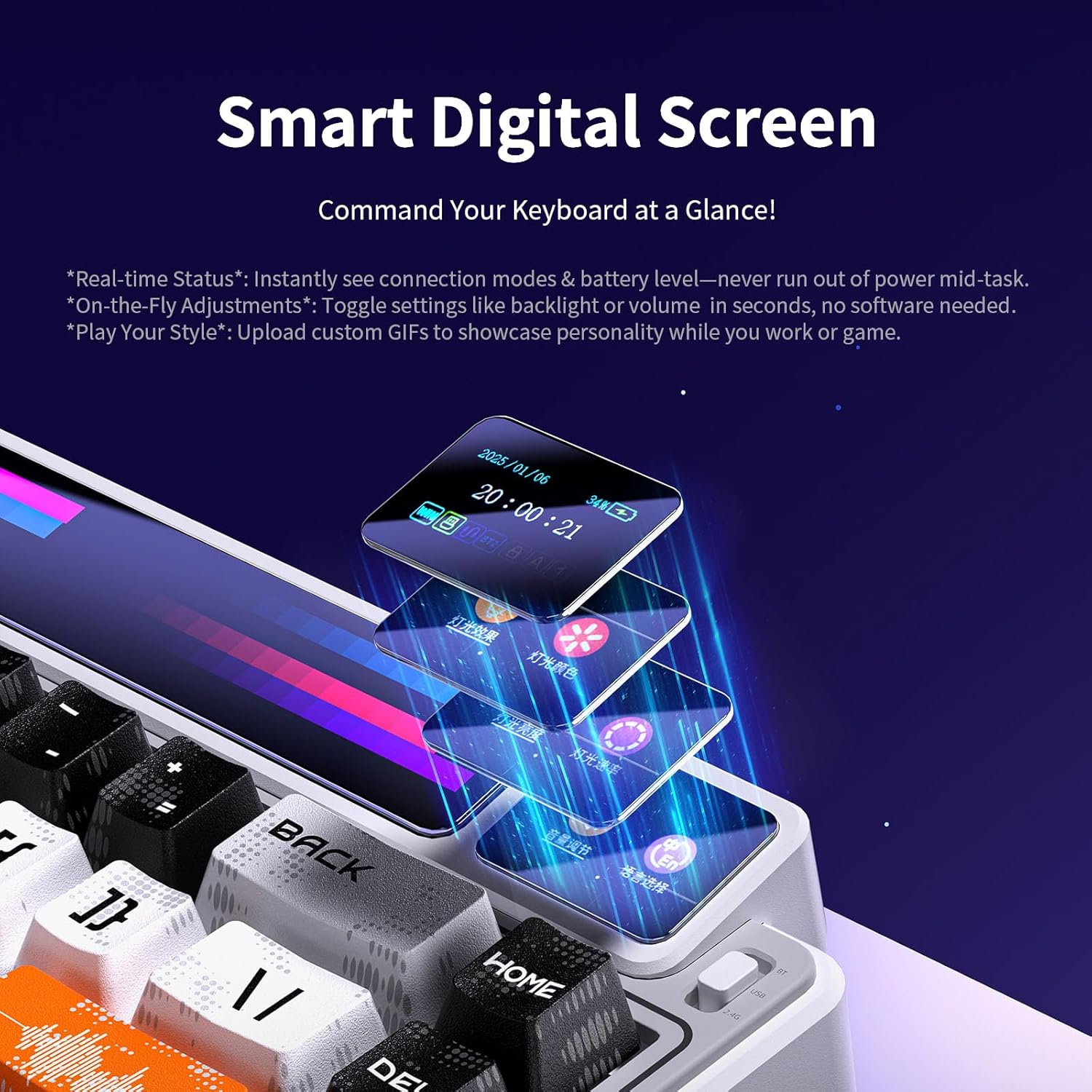
Image: Close-up of the LEOBOG AMG65's smart digital screen showing options for real-time status, on-the-fly adjustments, and custom GIF uploads.
3. RGB Lighting Control
The keyboard features 16.8 million RGB lighting colors and 20 lighting effects.
- Change Lighting Effects: Use FN + [Key] combinations (refer to the keyboard's secondary key legends for specific functions).
- Adjust Brightness/Speed: Use dedicated FN key combinations as indicated on the keycaps or through the smart digital screen.
Further customization of RGB lighting is available through the official driver software.

Image: The LEOBOG AMG65 keyboard illuminated with dynamic RGB backlighting, showcasing various color effects.
4. Customization via Software
The dedicated driver software allows for advanced customization:
- Key Remapping: Customize the function of individual keys or key combinations.
- Macro Creation: Record and assign macros to enhance workflow or gaming.
- Display Customization: Design pixel animations, upload GIFs to the 10-inch LED strip and smart digital screen, and set sleep timers.
- Lighting Effects: Fine-tune RGB lighting colors, patterns, and speeds.
Important: Do not unplug the USB cable or force quit the driver during animation uploads to prevent data corruption.
Maintenance
1. Cleaning
- Keycaps: Use the provided keycap puller to carefully remove keycaps. Clean them with a mild soap solution and a soft cloth, then dry thoroughly before reattaching.
- Keyboard Body: Use a soft, dry cloth to wipe down the keyboard. For stubborn dirt, a slightly damp cloth can be used, ensuring no moisture enters the internal components.
- Dust: Use compressed air to remove dust and debris from between keycaps and switches.
2. Hot-Swapping Switches
The AMG65 supports hot-swappable 3-pin or 5-pin mechanical switches, allowing you to change switches without soldering.
- Using a switch puller (not included, but often comes with replacement switches), carefully grip the switch and pull it straight up.
- Align the pins of the new switch with the holes on the PCB. Ensure the pins are straight.
- Gently press the new switch into place until it clicks. Do not force it.
- Test the new switch to ensure it functions correctly.
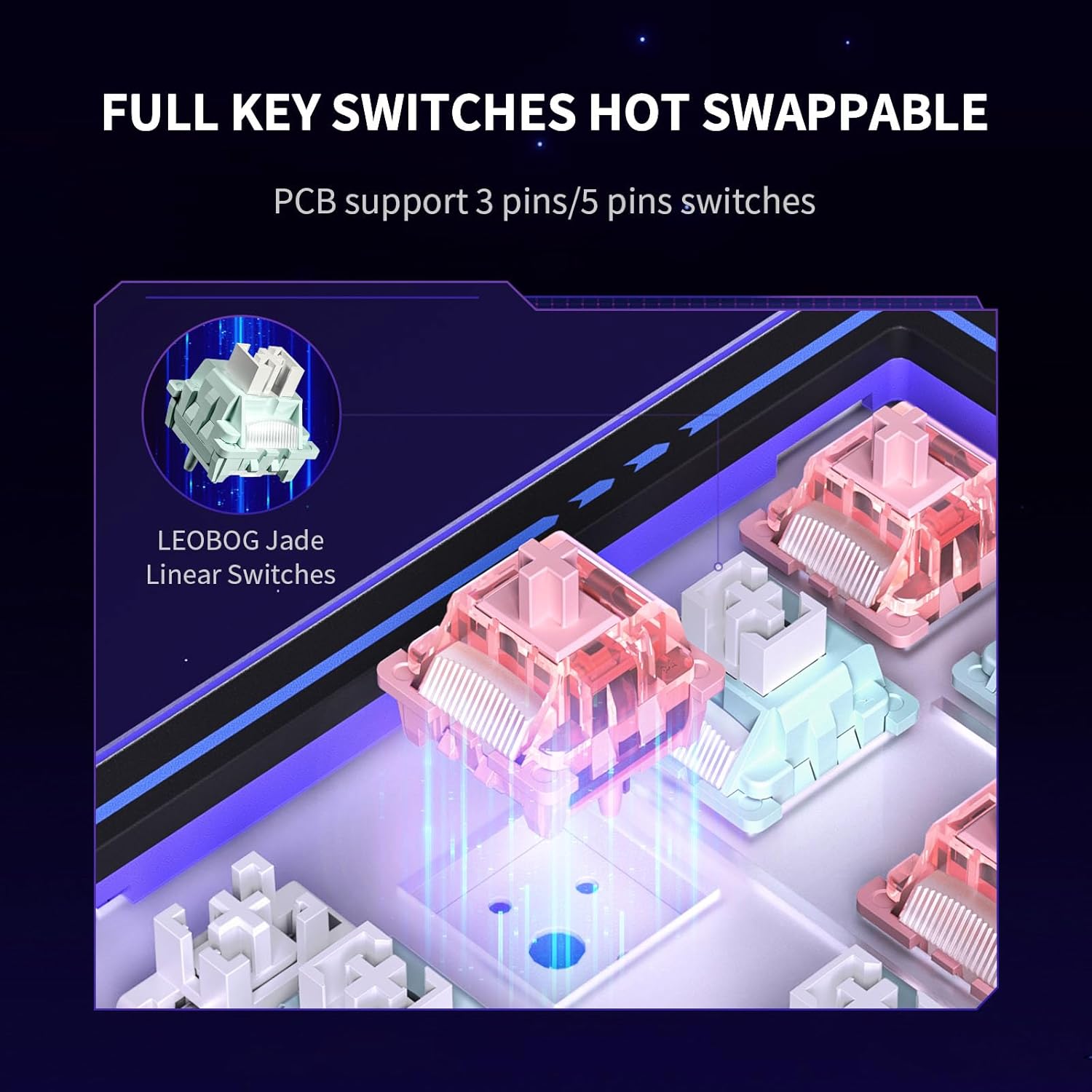
Image: Diagram illustrating the hot-swappable switch mechanism of the LEOBOG AMG65 keyboard, showing PCB support for 3-pin and 5-pin switches and LEOBOG Jade Linear Switches.
Troubleshooting
Keyboard Not Responding:
- Ensure the keyboard is charged or connected via USB cable.
- Check the connection mode (Wired, 2.4GHz, Bluetooth) matches your setup.
- For 2.4GHz, ensure the USB receiver is securely plugged in.
- For Bluetooth, ensure the keyboard is paired and selected on your device. Try re-pairing if issues persist.
- Restart your computer and the keyboard.
Display Screens Not Working/Dim:
- Ensure the keyboard is sufficiently charged.
- Adjust brightness using FN + > or FN + <.
- If using custom GIFs/animations, ensure they were uploaded correctly via the software and are compatible. Some users report custom content appearing dim.
- The 10-inch LED strip is removable; ensure it is securely seated to avoid partial disconnections.
Software Issues/Security Warnings:
- Download software only from the official LEOBOG website.
- If your antivirus flags the software, it may be a false positive, but proceed with caution. You can use online tools like VirusTotal to scan the file.
- The software only works in wired mode on Windows. Ensure these conditions are met.
- If security concerns persist, customize settings once and then uninstall the software, as the keyboard has on-board memory.
Keycaps Falling Off/Loose:
- Carefully re-seat the keycaps onto the switches.
- If switches are loose, ensure they are fully pressed into the PCB.
Specifications
| Feature | Detail |
|---|---|
| Model | AMG65 |
| Layout | 65% (67 keys) |
| Connectivity | Bluetooth 5.0, 2.4GHz Wireless, USB Type-C Wired |
| Switches | LEOBOG Linear (Hot-swappable, supports 3-pin/5-pin) |
| Keycaps | Double-Shot PBT, Cherry Profile, Music-Themed |
| Backlighting | 16.8 Million RGB, 20 Effects |
| Battery Capacity | 8000mAh |
| Product Dimensions | 12.8 x 5.64 x 1.74 inches |
| Item Weight | 2.24 pounds |
| Compatible Devices | Gaming Console, Laptop, PC, Smartphone, Tablet |
| Manufacturer | LEOBOG |
Support and Warranty
For technical support, warranty information, or further assistance, please visit the official LEOBOG website or contact their customer service department. Details can typically be found on the manufacturer's website or the product packaging.
Note: Specific warranty terms and conditions may vary by region and retailer. Please retain your proof of purchase for warranty claims.


