1. Introduction
This manual provides comprehensive instructions for the installation, operation, and maintenance of your Eonon GMX7 Android 14 Car Stereo. Please read this manual thoroughly before using the product to ensure proper function and to maximize your user experience. Keep this manual for future reference.

Image 1.1: Eonon GMX7 Car Stereo displaying the Apple CarPlay interface.
2. Product Compatibility
The Eonon GMX7 car stereo is designed for specific Chevrolet, GMC, and Buick models. Ensure your vehicle is listed below for proper fitment and functionality.
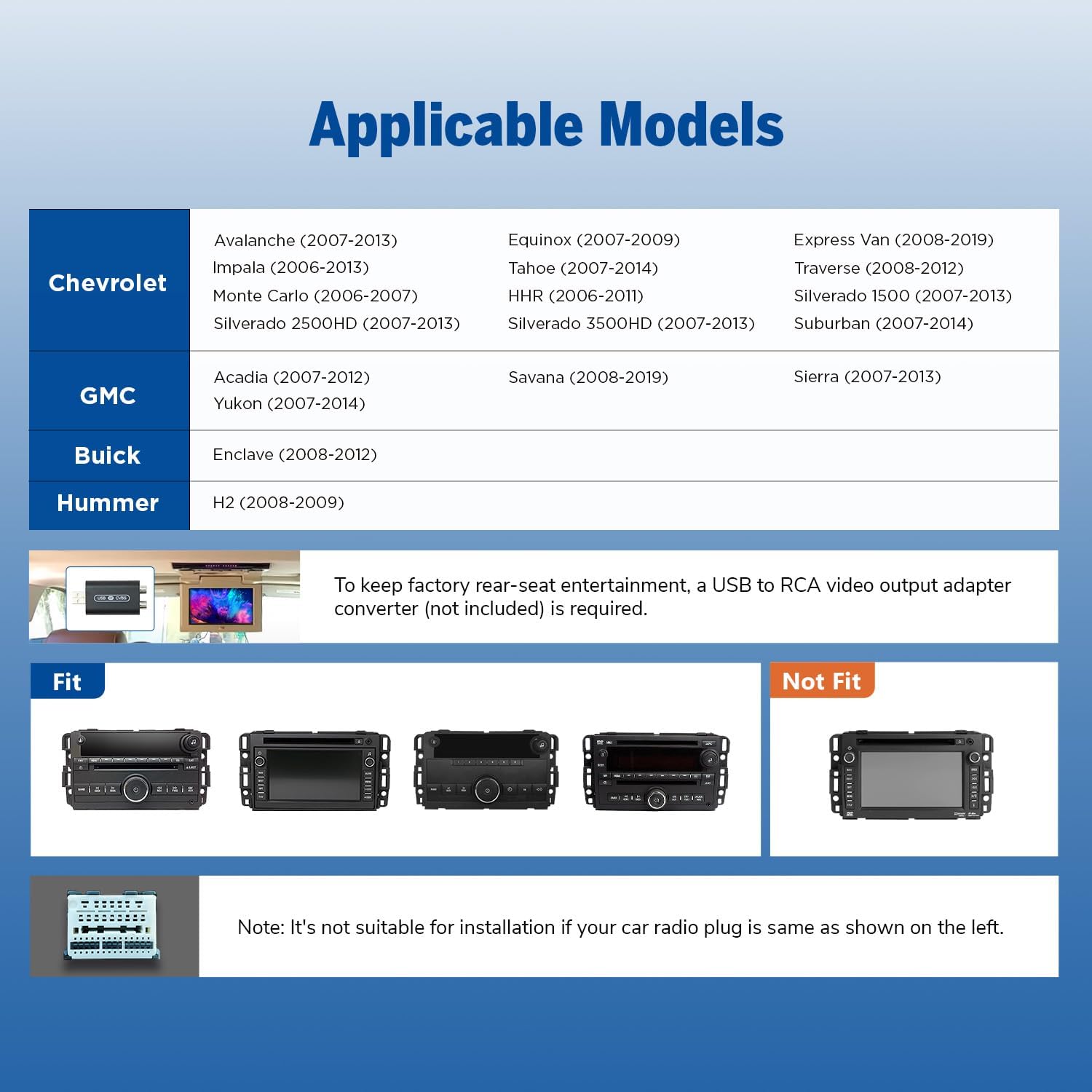
Image 2.1: Applicable vehicle models and years for the Eonon GMX7.
2.1 Compatible Models
- Chevrolet: Silverado/Avalanche (2007-2013), Tahoe (2007-2014), Impala (2006-2013), Traverse (2008-2012), Suburban (2007-2012), Express Van (2008-2019), Equinox (2007-2009), Monte Carlo (2006-2007), HHR (2006-2011), Silverado 1500 (2007-2013), Silverado 2500HD (2007-2013), Silverado 3500HD (2007-2013).
- GMC: Sierra (2007-2013), Yukon (2007-2014), Acadia (2007-2012), Savana (2008-2019).
- Buick: Enclave (2008-2012).
- Hummer: H2 (2008-2009).
Note: To retain the factory rear-seat entertainment system, a USB to RCA video output adapter converter (not included) may be required. Please verify your vehicle's original radio plug type. If your car radio plug matches the 'Not Fit' example shown in Image 2.2, this unit is not suitable for installation.

Image 2.2: Examples of compatible and incompatible car radio plug types.
3. What's in the Box
Verify that all components listed below are included in your package before beginning installation.

Image 3.1: Contents of the Eonon GMX7 package.
- Eonon GMX7 Head Unit
- A0125 Reversing Camera
- Power Cord
- GPS Antenna
- USB Adapter Cable (x2)
- Audio/Video Adapter Cable (x2)
- Reverse Video Input Cable
- 15A Fuse
- External Microphone
- CANBUS Decoder
- User Manual
- Double-sided Adhesive Sticker
- Radio Antenna Adapter
- Speaker
4. Setup and Installation
The Eonon GMX7 is designed for plug-and-play installation, retaining many original vehicle features. Professional installation is recommended if you are unfamiliar with car audio systems.
4.1 Wiring Diagram
Refer to the wiring diagram below for correct connections. Ensure all cables are properly connected to avoid issues with steering wheel controls or the backup camera.

Image 4.1: Eonon GMX7 Wiring Diagram with numbered connections.
4.2 Retained OEM Features
The CANBUS system ensures compatibility with your vehicle's original functions:
- Steering Wheel Controls (SWC)
- Bose Audio System
- OnStar
- Door Information Display
- Factory Reverse Camera Support

Image 4.2: Visual representation of retained factory features.
4.3 Dimensions
Ensure the dimensions of the head unit are suitable for your vehicle's dashboard opening.

Image 4.3: Eonon GMX7 unit dimensions.
5. Operating Instructions
5.1 User Interface and Display
The GMX7 features an 8-inch IPS display with 1280x720 resolution, offering a 178° viewing angle and precise capacitive touch response.

Image 5.1: Display features of the Eonon GMX7.
5.2 Android 14 System
The unit operates on the Android 14 system, providing access to various applications and features. Firmware updates are available online without requiring a USB stick.

Image 5.2: Android 14 interface and system performance details.
5.3 Wireless CarPlay & Android Auto
Connect your smartphone wirelessly for Apple CarPlay or Android Auto functionality. Use voice commands for navigation, calls, messages, and music.

Image 5.3: Wireless CarPlay and Android Auto in operation.
5.3.1 Wireless Apple CarPlay Connection
- Click the Zlink5 app on the car stereo.
- Turn on Wi-Fi and Bluetooth on your iPhone.
- Find 'EONON' in your phone's Bluetooth device list and enter '0000' to pair.
- Once connected, tap 'Use CarPlay'.
- Wait a few seconds for the connection to complete.

Image 5.4: Wireless Apple CarPlay connection steps.
5.3.2 Wireless Android Auto Connection
- Click the Zlink5 app on the car stereo.
- Turn on Wi-Fi and Bluetooth on your Android phone.
- Find 'EONON' in your phone's Bluetooth device list, enter '0000' to pair, and click 'OK'.
- Wait a few seconds for the connection to complete.

Image 5.5: Wireless Android Auto connection steps.
5.4 Bluetooth Connectivity
The built-in Bluetooth 5.4 system supports hands-free calls, contact synchronization, and music playback. An external microphone is included for clear call quality.
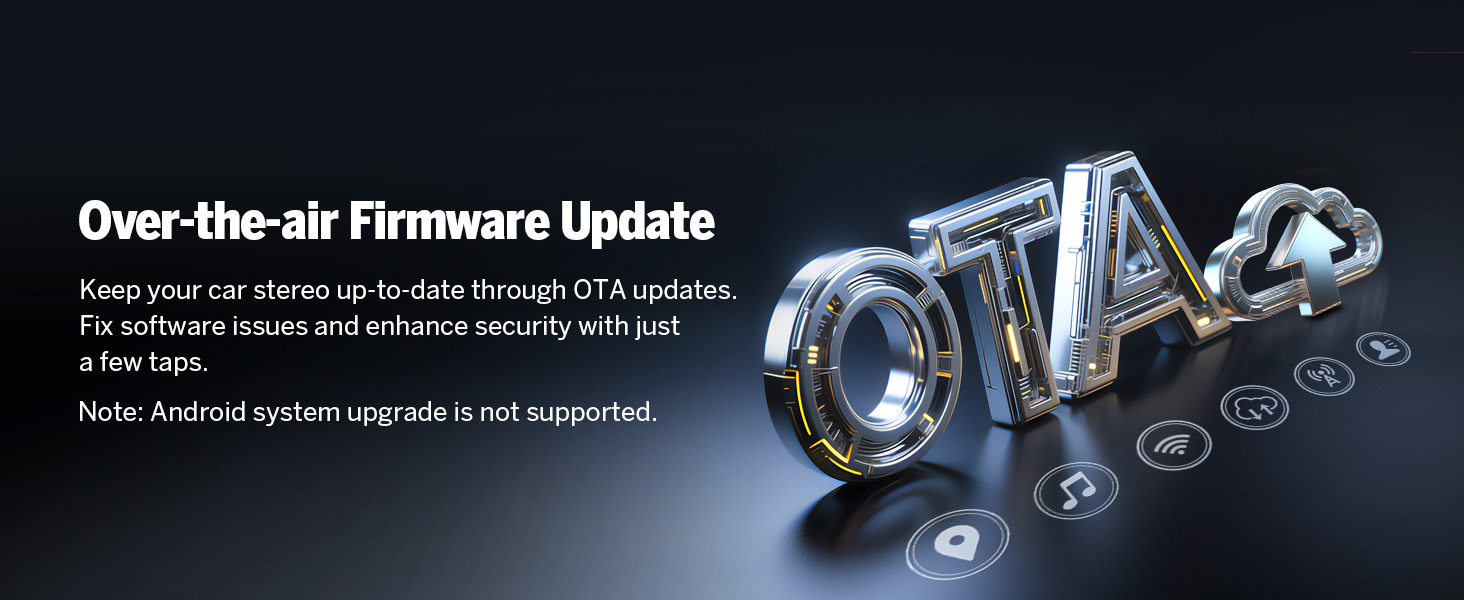
Image 5.6: Bluetooth features and benefits.
5.5 Radio Operation
The unit includes a high-quality FM/AM radio with RDS support, powered by a Silicon Labs SI4755 radio module.

Image 5.7: FM Radio interface.
5.6 Screen Mirroring
Mirror your smartphone's screen onto the car stereo display.
5.6.1 Screen Mirroring for iOS
- Click the Zlink5 app on the car stereo. Set the car stereo to iPhone wireless screen mirroring mode.
- Turn on the iPhone hotspot and connect to the car stereo.
- Turn on the iPhone screen mirroring function and select "zj-airplay".

Image 5.8: iOS Screen Mirroring connection steps.
5.6.2 Screen Mirroring for Android
- Click the Zlink5 app on the car stereo. Set the car stereo to Android wireless screen mirroring mode.
- Turn on your phone's Bluetooth. Find 'EONON' in your phone's Bluetooth device list, enter '0000' to pair.
- Turn on your phone's hotspot and connect to the car stereo.
- Install the Zplus app on your phone. Turn on the app and select "wireless connection".

Image 5.9: Android Screen Mirroring connection steps.
5.7 Digital Sound Processor (DSP)
The built-in DSP allows for precise audio adjustments, including a 36-band equalizer and 4x45W output, to optimize sound quality within your vehicle.

Image 5.10: Built-in DSP features.
5.8 Navigation
The unit supports online and offline maps, offering a full-view navigation mode. Compatible with popular navigation apps like Google Maps, Apple Maps, Waze, and Sygic.

Image 5.11: Navigation interface with various map options.
5.9 Customization
Personalize your stereo's appearance by changing the boot logo, button colors, and wallpaper.

Image 5.12: Customization options for the user interface.
5.10 Other Features
- Fast Boot: 1-second quick boot-up.
- USB Ports: Three USB ports for flash drive use.
- Wi-Fi: 5GHz Wi-Fi connectivity.
- RCA Output: For external audio/video connections.
- Backup Camera Input: Supports HD 720P/1080P backup cameras. The A0125 reversing camera is included.
- Front Camera Input: For optional front camera connectivity (camera not included).
- OBD Scanner Connectivity: Supports OBD2 scanners for vehicle fault diagnosis and real-time status (scanner not included).

Image 5.13: Included A0125 Backup Camera features.
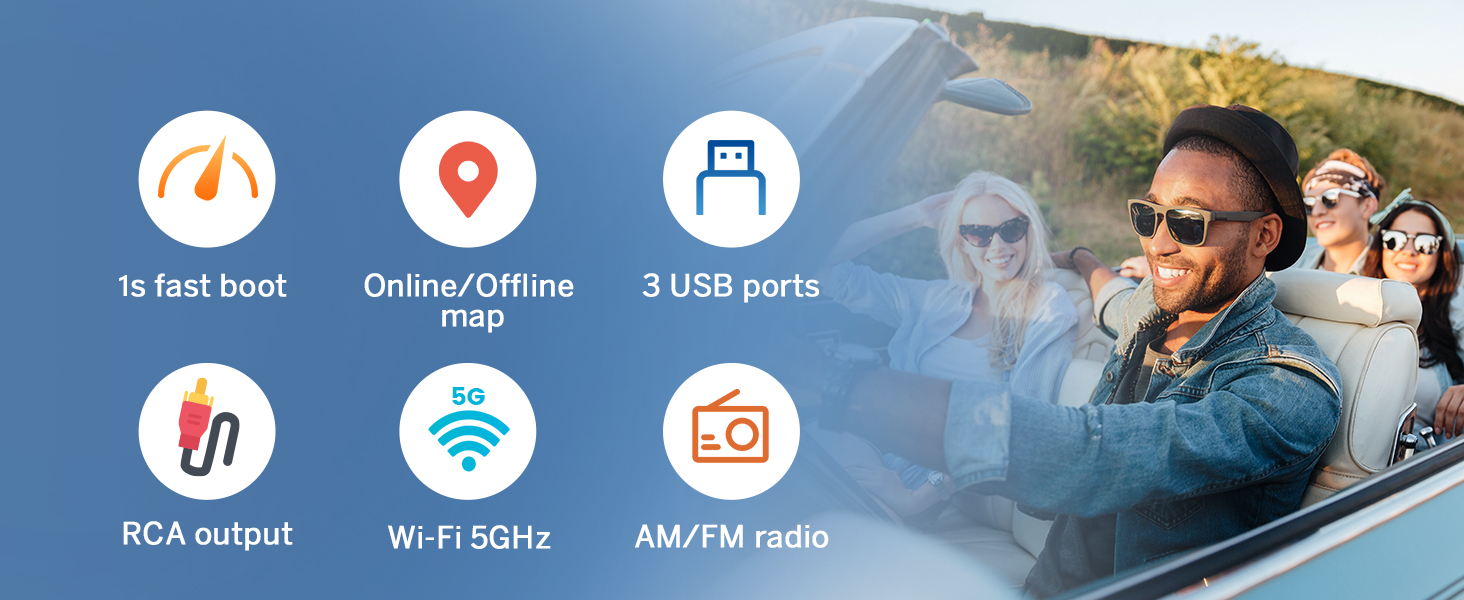
Image 5.14: OBD2 Scanner connectivity for vehicle diagnostics.
6. Maintenance
To ensure the longevity and optimal performance of your Eonon GMX7 car stereo, follow these maintenance guidelines:
- Cleaning: Use a soft, dry cloth to clean the screen and exterior. Avoid abrasive cleaners or solvents.
- Software Updates: Regularly check for and install online firmware updates provided by Eonon to ensure the system is running the latest software and security patches. Note that Android system upgrades are not supported via OTA.
- Environmental Conditions: Avoid exposing the unit to extreme temperatures, direct sunlight for prolonged periods, or excessive moisture.
- Cable Connections: Periodically check all cable connections to ensure they are secure and free from damage.

Image 6.1: Over-the-air firmware update process.
7. Troubleshooting
If you encounter issues with your Eonon GMX7, refer to the following common troubleshooting steps:
- No Power: Check all power connections and the 15A fuse. Ensure the vehicle's ignition is on.
- No Sound: Verify speaker connections, volume levels, and audio output settings. Check if the mute function is active.
- Touchscreen Unresponsive: Perform a soft reset by pressing the RST button (if available) or power cycle the unit.
- CarPlay/Android Auto Not Connecting: Ensure Wi-Fi and Bluetooth are enabled on your phone and the stereo. Re-pair the devices. Check the Zlink5 app settings.
- Steering Wheel Controls Not Working: Confirm the CANBUS decoder is correctly installed and connected.
- Backup Camera Not Displaying: Check the reverse video input cable connection. Ensure the camera is powered and functioning.
- GPS Signal Issues: Ensure the GPS antenna is properly installed and has a clear view of the sky.
If problems persist after attempting these steps, contact Eonon customer support for further assistance.
8. Specifications
| Feature | Specification |
|---|---|
| Model Name | GMX7 |
| Operating System | Android 14 |
| Display Size | 8 Inches |
| Screen Resolution | 1280x720 IPS |
| Processor | Rockchip (8-core) |
| RAM | 3GB |
| Internal Storage | 32GB |
| CarPlay/Android Auto | Wireless/Wired |
| Bluetooth Version | 5.4 |
| Wi-Fi | 5GHz |
| Audio Output Power | 4x45W |
| Equalizer | 36-band (DSP) |
| USB Ports | 3 |
| Backup Camera Input | HD 720P/1080P |
| Item Weight | 4.4 pounds |
| Package Dimensions | 11.34 x 6.93 x 6.46 inches |
9. Warranty Information
The Eonon GMX7 car stereo comes with a 2-year warranty. For warranty claims or service, please retain your proof of purchase and contact Eonon customer support.
10. Support
For additional support, technical assistance, or inquiries, please visit the official Eonon website or contact their customer service department. Refer to the contact information provided with your product packaging or on the Eonon brand store page.


