
1. Introduction
This manual provides detailed instructions for the Redragon K729 PRO 80% Wireless Gasket RGB Gaming Keyboard. It covers setup, operation, maintenance, and troubleshooting to ensure optimal performance and user experience. The K729 PRO features a gasket-mounted design, 5-layer noise dampening, tri-mode connectivity, custom silent switches, and a multi-function control knob.
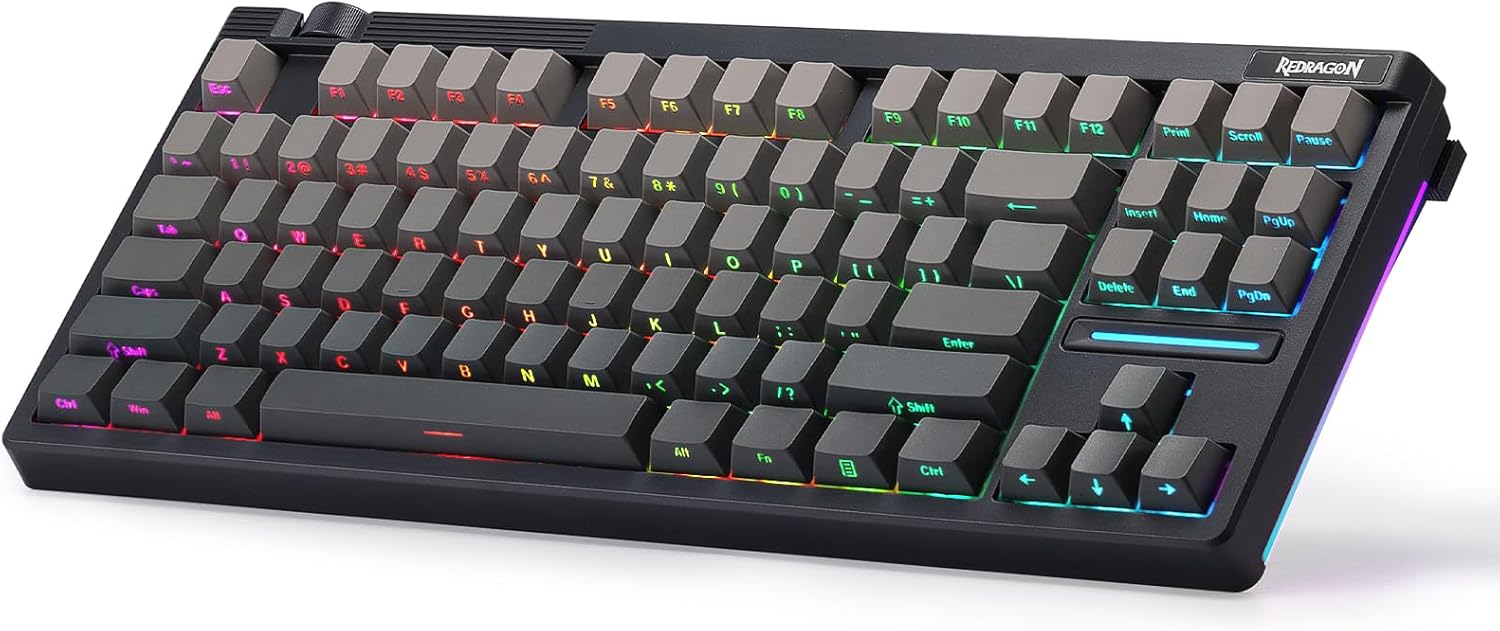
Image 1.1: The Redragon K729 PRO 80% Wireless Gasket RGB Gaming Keyboard, showcasing its compact TKL layout and RGB lighting.
2. Product Features
- Gasket-Mounted Design: Precision-locked covers with gaskets reduce noise and enhance typing flexibility, providing a softer feel.
- 5-Layer Noise Dampening: Equipped with 3.5mm PO foam, IXPE switch foam, PET sound pad, bottom socket foam, and silicone bottom pad for ultra-clean typing acoustics.
- Tri-Mode Connection: Supports USB-C wired, Bluetooth (BT 3.0/5.0), and 2.4GHz wireless modes for versatile connectivity.
- Custom Silent Peach Switches: Designed for a cushioned, creamy, and silent typing experience, featuring an LED lens for enhanced south-facing RGB illumination.
- One-Knob Control: A dedicated knob for adjusting backlight brightness and media functions (volume, play/pause, track switching).
- 80% TKL Layout: Compact Tenkeyless design saves desk space, ideal for gaming setups.
- Hot-Swap Sockets: Allows for easy replacement of switches without soldering.
- Gradient PBT Keycaps: Durable keycaps with a gradient aesthetic.
- 4000mAh Battery: High-capacity battery for extended wireless usage.
- Pro Software Support: Customizable lighting effects, keybindings, and macros via dedicated software.

Image 2.1: Overview of key features including 80% TKL Gasket Design, 5-Layer Noise Damping, Hot-Swap Custom Switch, 4000mAh Battery, Dedicated Top Knob, South-Facing LED, Gradient Keycaps, and Tri-Mode Connection.
3. Setup Instructions
3.1 Package Contents
- Redragon K729 PRO Keyboard
- USB-C to USB-A Cable
- Keycap/Switch Puller Tool
- Spare Switches (4x)
- User Manual
3.2 Connecting the Keyboard
The K729 PRO supports three connection modes: wired, 2.4GHz wireless, and Bluetooth.
3.2.1 Wired Connection
- Locate the USB-C port on the keyboard.
- Connect the provided USB-C cable to the keyboard and the USB-A end to your computer.
- The keyboard will automatically be detected and ready for use.
3.2.2 2.4GHz Wireless Connection
- Locate the 2.4GHz USB dongle, typically stored in a compartment on the keyboard.
- Plug the USB dongle into an available USB port on your computer.
- Switch the keyboard's mode selector to 2.4GHz wireless mode. The keyboard should connect automatically.
3.2.3 Bluetooth Connection
- Switch the keyboard's mode selector to Bluetooth mode.
- On your computer or device, navigate to Bluetooth settings and enable Bluetooth.
- The keyboard should appear as "Redragon K729 PRO" or similar in the list of discoverable devices. Select it to pair.
- If prompted, enter the pairing code displayed on your screen using the keyboard.
3.3 Initial Charging
Before first use, it is recommended to fully charge the keyboard. Connect the keyboard via USB-C cable to a powered USB port. The charging indicator (if present) will show charging status. A full charge ensures maximum wireless operation time.

Image 3.1: Close-up view of the USB-C port for wired connection and charging, highlighting the 4000mAh battery capacity.
4. Operating Instructions
4.1 Basic Keyboard Functions
The K729 PRO functions as a standard 80% TKL keyboard. All alphanumeric keys, modifiers (Shift, Ctrl, Alt, Win), and function keys (F1-F12) operate as expected.
4.2 Control Knob Functions
The dedicated knob located on the top left of the keyboard provides quick access to backlight and media controls.
- Rotate Clockwise: Increases backlight brightness or system volume.
- Rotate Counter-clockwise: Decreases backlight brightness or system volume.
- Press Knob: Switches between backlight brightness control and media volume control.
- Press and Hold Knob: Toggles RGB lighting modes or mutes/unmutes audio.
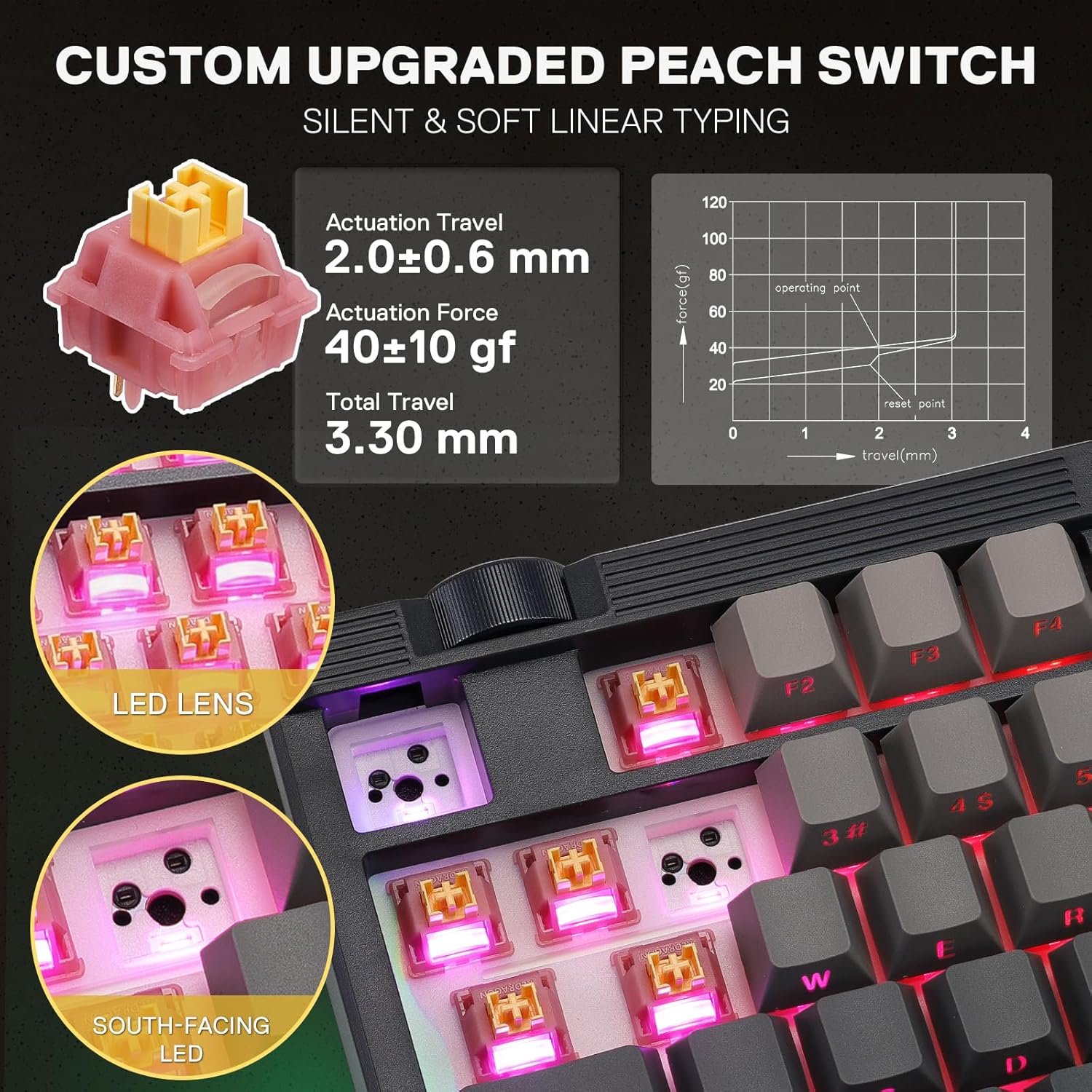
Image 4.1: Illustration of the multi-function control knob, detailing its use for adjusting backlight brightness, system volume, and switching RGB modes or muting audio.
4.3 RGB Lighting Control
The keyboard features customizable RGB backlighting. You can cycle through various lighting effects using the keyboard's function keys or the dedicated software.
- FN + INS: Cycles through pre-set RGB lighting modes.
- FN + Arrow Keys: Adjusts lighting direction or speed for certain effects.
- FN + Home/End: Adjusts lighting color or intensity.
4.4 Software Customization
For advanced customization of RGB lighting, key remapping, and macro creation, download the Redragon K729 PRO software from the official Redragon website. The software allows for granular control over keyboard settings.

Image 4.2: Screenshot of the Redragon software interface, demonstrating options for light effects and key remapping.
5. Maintenance
5.1 Cleaning the Keyboard
To maintain optimal performance and appearance, regularly clean your keyboard.
- Disconnect the keyboard from your computer before cleaning.
- Use a soft, lint-free cloth slightly dampened with water or a mild cleaning solution to wipe down the keycaps and chassis.
- For dust and debris between keycaps, use compressed air.
- Avoid using harsh chemicals or abrasive materials.
5.2 Keycap and Switch Replacement
The K729 PRO features hot-swappable switches, allowing for easy replacement without soldering.
- Using the provided keycap puller, gently remove the desired keycap by hooking it onto the keycap and pulling upwards.
- Once the keycap is removed, use the switch puller tool to grasp the switch firmly and pull it straight up to remove it from the socket.
- Align the pins of the new switch with the holes in the PCB socket. Gently press the new switch into place until it clicks securely. Ensure the pins are not bent.
- Place the keycap back onto the new switch, pressing down until it is seated firmly.

Image 5.1: A close-up view of the keyboard's hot-swappable sockets, demonstrating the ease of switch replacement.
6. Troubleshooting
- Keyboard Not Responding:
- Ensure the keyboard is properly connected (wired, 2.4GHz dongle, or Bluetooth paired).
- Check the battery level if using wireless modes. Recharge if necessary.
- Try connecting to a different USB port or device.
- Wireless Connection Issues:
- For 2.4GHz, ensure the dongle is securely plugged in and the keyboard is in 2.4GHz mode.
- For Bluetooth, ensure Bluetooth is enabled on your device and the keyboard is in pairing mode. Re-pair if connection is lost.
- Avoid interference from other wireless devices.
- RGB Lighting Not Working/Incorrect:
- Ensure the keyboard is powered on.
- Cycle through lighting modes using FN + INS.
- Check settings in the Redragon software.
- Keys Sticking or Not Registering:
- Remove the keycap and switch to inspect for debris. Clean or replace the switch if necessary.
- Ensure switches are fully seated in their sockets.
- Software Not Detecting Keyboard:
- Ensure the keyboard is connected via wired mode when attempting software detection.
- Restart the software and your computer.
- Download the latest software version from the official Redragon website.
7. Specifications
| Feature | Specification |
|---|---|
| Model Number | K729 PRO |
| Connectivity Technology | USB-C (Wired), Bluetooth (BT 3.0/5.0), 2.4GHz Wireless |
| Keyboard Description | 80% TKL Wireless Gasket Gaming Keyboard |
| Switches | Custom Silent Switch (Peach) |
| Backlighting | RGB |
| Special Features | Custom Switch, Knob Control, Noise Dampening, TKL Gasket Design, Hot-Swap Socket |
| Battery | 4000mAh (Nonstandard Battery) |
| Material | Plastic |
| Item Weight | 2.83 pounds |
| Package Dimensions | 16.14 x 7.6 x 2.68 inches |
| Compatible Devices | Gaming Console, PC |
8. Warranty and Support
8.1 Warranty Information
Redragon products are covered by a limited warranty. Please refer to the warranty card included with your product or visit the official Redragon website for detailed warranty terms and conditions. Keep your proof of purchase for warranty claims.
8.2 Customer Support
For technical assistance, product inquiries, or support, please visit the official Redragon support page or contact their customer service. You can find contact information and FAQs on the Redragon website.


