
1. Safety Information
Please read all instructions carefully before using this monitor. Keep this manual for future reference.
- Do not expose the monitor to rain or moisture to prevent fire or electric shock.
- Do not open the monitor casing. There are no user-serviceable parts inside. Refer all servicing to qualified personnel.
- Place the monitor on a stable, flat surface to prevent it from falling.
- Ensure proper ventilation around the monitor. Do not block ventilation openings.
- Use only the power adapter supplied with the monitor.
- Unplug the monitor from the power outlet during lightning storms or when unused for long periods.
2. Package Contents
Verify that all items are present in your package:
- Amzfast AMZG25F6F 24.5 Inch Gaming Monitor
- Monitor Stand (Base and Neck)
- Power Adapter
- DisplayPort (DP) Cable
- HDMI Cable
- User Manual

Image: Amzfast Gaming Monitor with key features and included accessories.
3. Product Overview
3.1 Monitor Features
- Display: 24.5-inch Fast IPS Panel, Full HD (1920x1080) Resolution
- Refresh Rate: 320Hz for ultra-smooth visuals
- Response Time: 1ms MPRT (Moving Picture Response Time)
- Color Gamut: 120% sRGB coverage, 8-bit (16.7 Million Colors)
- High Dynamic Range: HDR support for enhanced contrast and color
- Adaptive Sync: Eliminates screen tearing and stuttering
- Eye-Care Technology: Anti-flicker, Anti-glare, Blue Light Filter to reduce eye strain
- Gaming Modes: Optimized presets for FPS, RTS, and RPG games
- Special Gaming Functions: AI Crosshair, Night Vision, Screen Size Adjustment (4:3/16:9)
- VESA Compatibility: 100x100mm for wall mounting or alternative stands
3.2 Ports and Controls

Image: Rear view of the monitor highlighting input ports and the 5-way joystick control.
The monitor features a 5-way joystick for easy navigation of the On-Screen Display (OSD) menu. The rear panel includes the following ports:
- DC Power Input: Connect the power adapter here.
- HDMI 2.0 Ports (x2): Supports up to 240Hz refresh rate.
- DisplayPort 1.4 Ports (x2): Supports up to 320Hz refresh rate.
- Audio Output: For connecting headphones or external speakers.
4. Setup
4.1 Assembling the Stand
- Carefully remove the monitor and stand components from the packaging.
- Attach the stand neck to the monitor panel. Ensure it clicks securely into place or is fastened with screws if provided.
- Attach the stand base to the stand neck. Tighten the thumb screw or screws at the bottom of the base.
- Place the assembled monitor on a stable, flat surface.
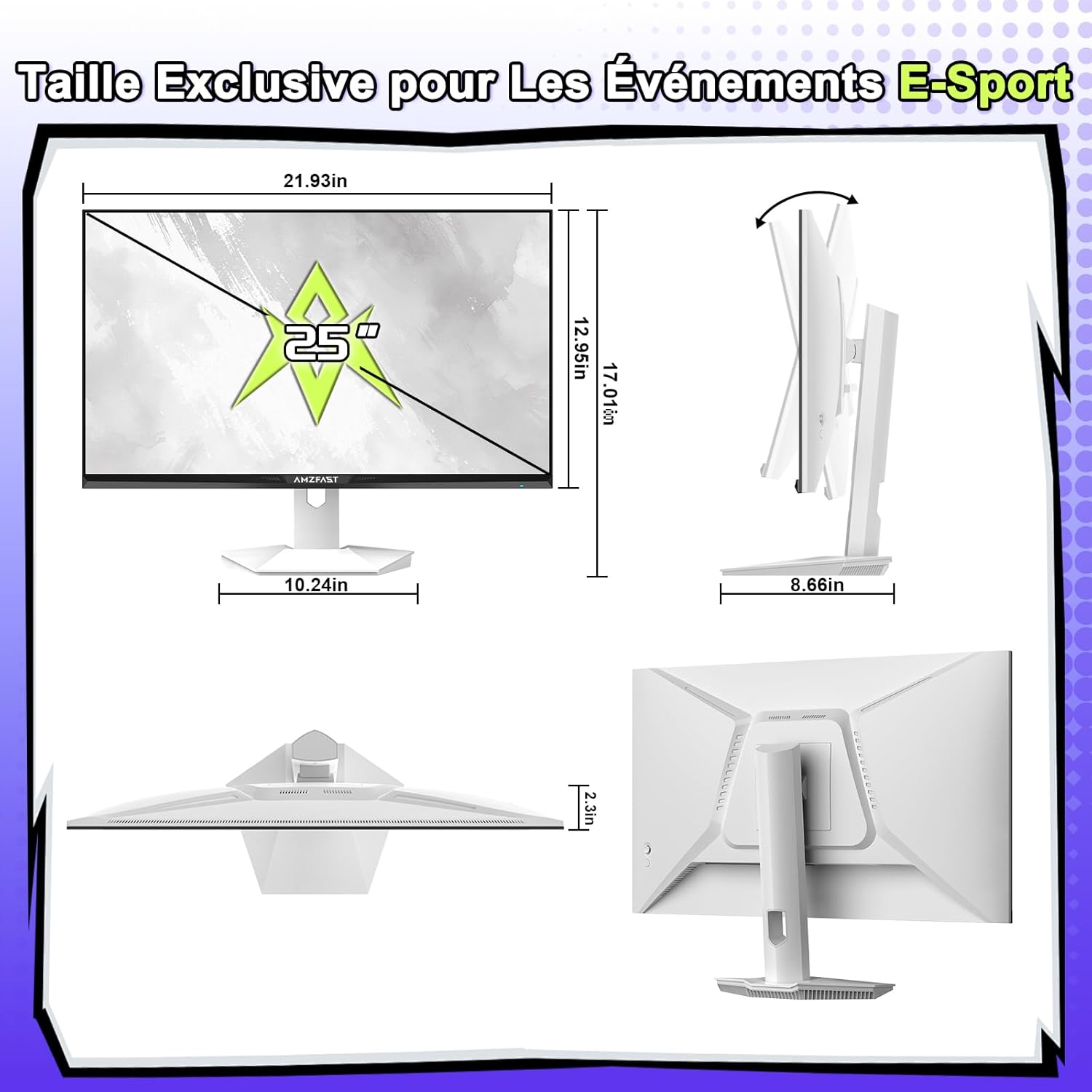
Image: Monitor dimensions and stand assembly diagram.
4.2 Connecting to a Device
- Connect one end of the provided DisplayPort or HDMI cable to the corresponding port on your computer, console, or laptop.
- Connect the other end of the cable to an available DisplayPort 1.4 or HDMI 2.0 port on the monitor. For optimal performance (320Hz), use a DisplayPort 1.4 cable.
- Connect the power adapter to the DC power input on the monitor, then plug the adapter into a power outlet.
4.3 Initial Power On
Press the power button (often integrated into the joystick) to turn on the monitor. The monitor will automatically detect the input signal. If no signal is detected, ensure your device is powered on and the cables are securely connected.
5. Operating Instructions
5.1 OSD Menu Navigation
Use the 5-way joystick located on the back of the monitor to navigate the On-Screen Display (OSD) menu:
- Press the joystick: Enters the OSD menu or confirms a selection.
- Move joystick Up/Down: Navigates through menu options.
- Move joystick Left/Right: Adjusts values or moves to sub-menus.
- Move joystick Left (from main screen): Quick access to input selection.
- Move joystick Right (from main screen): Quick access to exit.
- Move joystick Up (from main screen): Quick access to Game Mode.
- Move joystick Down (from main screen): Quick access to AI Crosshair.
5.2 Display Settings
Within the OSD menu, you can adjust various display settings:
- Brightness/Contrast: Adjust image luminance and distinction.
- Color Settings: Fine-tune color temperature, gamma, and saturation.
- Picture Mode: Select from various presets (Standard, Movie, Office, Gaming) or customize your own.
- HDR: Enable or disable High Dynamic Range for compatible content.
- Eye-Care: Activate Blue Light Filter and Flicker-Free modes to reduce eye strain during prolonged use.
5.3 Gaming Features
Enhance your gaming experience with these dedicated features:
- Game Modes (FPS/RTS/RPG): Select pre-calibrated settings for specific game genres to optimize visuals and response.
- AI Crosshair: An on-screen crosshair that changes color based on the scene, aiding target acquisition.
- Night Vision: Enhances visibility in dark in-game areas, allowing you to spot enemies more clearly.
- Screen Size Adjustment: Switch between 4:3 and 16:9 aspect ratios to suit different games or preferences.
- Adaptive Sync: Ensure this feature is enabled in both the monitor OSD and your graphics card settings to synchronize the monitor's refresh rate with your GPU's frame rate, eliminating screen tearing and stuttering.

Image: Different game modes (FPS, RTS, RPG) for optimized gameplay.

Image: Demonstrating screen size adjustment (4:3 vs 16:9) and Adaptive Sync functionality.
6. Maintenance
Proper maintenance ensures the longevity and optimal performance of your monitor.
- Cleaning the Screen: Gently wipe the screen with a soft, lint-free cloth. For stubborn marks, lightly dampen the cloth with water or a specialized screen cleaner. Never spray liquid directly onto the screen.
- Cleaning the Casing: Use a soft, dry cloth to wipe the monitor casing. Avoid abrasive cleaners or solvents.
- Ventilation: Ensure the ventilation holes on the back of the monitor are clear of dust and obstructions.
- Storage: When storing the monitor for an extended period, unplug it and cover it to protect it from dust.
7. Troubleshooting
If you encounter issues with your monitor, refer to the following common problems and solutions:
- No Power:
- Ensure the power adapter is securely connected to both the monitor and a working power outlet.
- Check if the power button is pressed.
- No Signal:
- Verify that the video cable (DP or HDMI) is securely connected to both the monitor and your source device (PC, console).
- Ensure your source device is powered on.
- Use the OSD menu to manually select the correct input source.
- Flickering or Distorted Image:
- Check the video cable for damage or loose connections. Try a different cable if possible.
- Ensure your graphics card drivers are up to date.
- Disable Adaptive Sync in the OSD and graphics card settings to see if the issue persists.
- Adjust the refresh rate in your operating system display settings.
- Dead Pixels:
- A small number of bright or dark pixels are common in LCD/LED technology and do not typically indicate a defect. Refer to the warranty policy for specific pixel defect criteria.
8. Specifications
| Feature | Specification |
|---|---|
| Brand | Amzfast |
| Model Number | AMZG25F6F |
| Screen Size | 24.5 Inches |
| Resolution | FHD 1080p (1920 x 1080 Pixels) |
| Aspect Ratio | 16:9 |
| Panel Type | Fast IPS |
| Screen Surface | Matte, Anti-glare |
| Refresh Rate | 320 Hz |
| Response Time | 1ms MPRT |
| Contrast Ratio | 1000:1 |
| Brightness | 320 cd/m² |
| Color Gamut | 120% sRGB |
| Color Depth | 8-bit (16.7 Million Colors) |
| Viewing Angle | 178 Degrees |
| Connectivity | 2x HDMI 2.0, 2x DisplayPort 1.4, Audio Out |
| Adaptive Sync | Yes (G-Sync Compatible) |
| Special Features | Blue Light Filter, Tilt Adjustment, Flicker-Free, HDR, AI Crosshair, Night Vision |
| VESA Mount | 100x100mm |
| Dimensions (D x W x H) | 22D x 55.7W x 43.2H cm |
| Item Weight | 3.7 Kilograms |
| Power Input | 240 Volts |
9. Warranty and Support
This Amzfast monitor comes with a 3-year manufacturer's warranty from the date of purchase. This warranty covers manufacturing defects and workmanship under normal use.
The warranty does not cover:
- Damage caused by accident, abuse, misuse, flood, fire, earthquake, or other external causes.
- Damage caused by operating the product outside the permitted or intended uses described by Amzfast.
- Damage caused by service performed by anyone who is not an authorized representative of Amzfast.
- Products or parts that have been modified to alter functionality or capability without the written permission of Amzfast.
For warranty claims or technical support, please contact Amzfast customer service through the retailer where the product was purchased or visit the official Amzfast website for contact information.


